Trade Xpert
This software component for MetaTrader 5 is built to enhance the capabilities of your trading environment. This Expert Advisor serves as automated trading software. It is utilized to monitor financial markets and execute trades based on predefined algorithmic rules, enabling precise position management without the need for constant manual oversight.
How to Setup and Use Trade Xpert
1. Installation: Open the "File" menu, select "Open Data Folder," navigate to MQL/Experts, paste your file, and restart the terminal.
2. Activation: Drag the EA from the Navigator onto a chart, ensure "Allow live trading" is checked in the Common tab, and verify the AutoTrading button is green.
3. Optimization: Right-click your chart, choose "Expert List," click "Properties" to adjust inputs, and save your preferred setup as a set file for future use.
4. Maintenance: Regularly check the "Experts" tab in the terminal window to monitor trade logs and potential execution errors.
Frequently Asked Questions
Q: Why is my EA not opening trades? A: Check the "AutoTrading" button, ensure "Allow live trading" is enabled, and verify your broker allows automated trading on your account type.
Q: Can I run multiple EAs on one chart? A: No, each chart can only host one active EA; however, you can open multiple charts for different currency pairs to run several EAs.
Q: What does the "smiley face" icon mean? A: A smiley face in the top-right corner of the chart indicates the EA is successfully running; a frowny face means it is disabled.
Description & Settings
The project has been created for the Contest.
Project purpose is to extend the functions of client terminal with economical use of chart place.
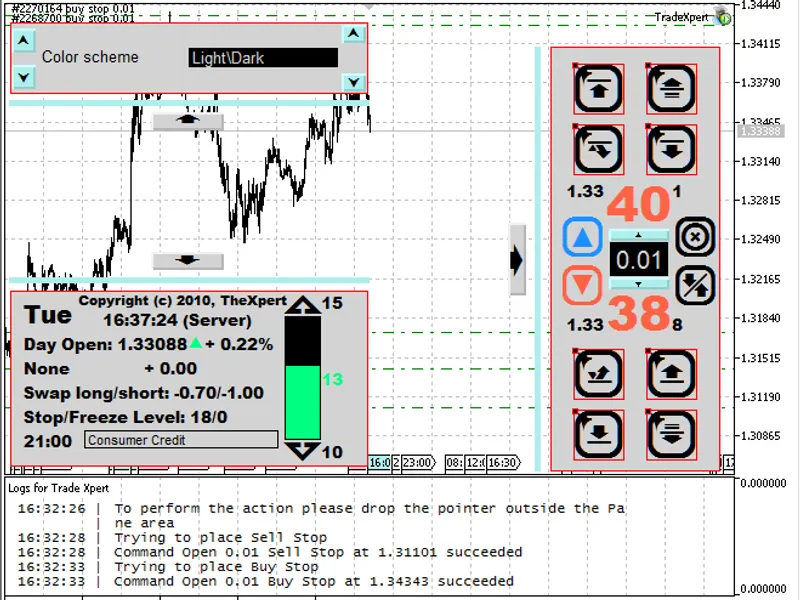
The Expert Advisor has 4 independent panels with different functions. Any panel can be hiden/restored or deleted from the chart (Log Panel)
The minimum resolution for the demonstation: 600x500.
Note
:
The Expert Advisor uses the following fonts:
Lucida Console
Wingdings
Wingdings 3
Arial Black
Of course, the program will work if there isn't these fonts installed, but the design will different and some messages will shown incorrectly.If you haven't these fonts in your operation system, please install them.
The list of available fonts is shown in the Graphic object properties of MetaTrader 5 client terminal.
Panels
The Expert Advisor has has 4 panels, 3 of them are located in the main window:
Settings panel
Control panel
Information panel
The last panel (Log Panel) is located in the separate subwindow, it can be hidden.
1. Log panel
To show logs panel, it's necessary to run the TradeXpertLog indicator, the comments of Expert Advisor are shown there.
For the optimal use of workspace, it can be added to subwindow of some other indicator. All logs of the Expert Advisor are printed in client terminal logs (Print). It is recommended to use the Logs when trading, it will allow you to see the order processing.
This panel can be used for the debug and for the comments of the other panels. The benefit of a such comments is the following: you will have the separate logging window to focus on the necessary information.
The time is shown correctly, it will work in holydays.
The available settings are:
Font size;
Color;
Line length;
Maximum number of lines.
2. Trade panel (control panel)
The purpose of the panel is trading.
The list of available operations:
Buy specified volume;
Sell specified volume;
Buy specified volume with setting of Take Profit level. If the value of volume is 0, it sets the Take Profit level only;
Sell specified volume with setting of Take Profit level. If the value of volume is 0, it sets Take Profit level only;
buy specified volume with setting of Stop Loss level. If the value of volume is 0, it sets Stop Loss level only;
Sell specified volume with setting of Stop Loss level. If the value of volume is 0, it sets Stop Loss level only;
BuyStop, BuyLimit, SellStop, SellLimit orders placing;
Close opened position on the current symbol;
Reverse of the opened position on the current symbol. The old Stop Loss and Take Profit levels is set to 0.
There is some feature in setting of Stop levels.
For example, if we have a buy position (0.5 lots) and sell 0.1 lots with setting of Take Profit or Stop Loss, the Expert Advisor will not set them. But the specified trade volume exceeds 0.5 (for example 0.7), it will set new values of Take Profit and Stop Loss levels. As I remember, the behaviour of client terminal is the same.
If the volume is 0, the Expert Advisor will set the Take Profit and Stop Loss levels (if correct).
The trade volume can be specified here. I haven't implemented the automatic calculation of trade volume.
The first, there are many method for its calculation.Secondly, this function doesn't used in manual trading.If you don't like it, you can add your own implementation.The Expert Advisor doesn't check the margin.
After the setting of trade volume its value is modified according the current symbol settings, so if please recheck the value of trade volume before trading.
Available settings:
Order filling type
Color scheme
Panel animation delay
Some details about the . Three order filling types are supported (see ):
ORDER_FILLING_FOK -- "Fill or Kill"
ORDER_FILLING_IOC -- "Available"
ORDER_FILLING_RETURN -- "Available+"
3. Information panel
It shows the symbol information and state of the opened position.
Availiable settings:
Color scheme
Animation delay
Number of bars for calculation of minimal and maximal values of spread
Time. It can show the local time, server time, CET, EST, MSK, GMT.
4. Settings Panel
It contains the setting of the Expert Advisor. You can easily add your own settings by adding few lines of code.
The settings with inrease/decrease options can be changed using the "Up" and "Down" keys on the keyboard.Available settings:
Color schemeThe demonstation (it's better to use 480p resolution):
Attachments:
pack.zip, all .mqh files are combined in a large file.
Happy trading!