Exp5-Virtual Trade Pad for mt5 v 4 (Contest version)
This software component for MetaTrader 5 is built to enhance the capabilities of your trading environment. This Expert Advisor serves as automated trading software. It is utilized to monitor financial markets and execute trades based on predefined algorithmic rules, enabling precise position management without the need for constant manual oversight.
How to Setup and Use Exp5-Virtual Trade Pad for mt5 v 4 (Contest version)
1. Installation: Open the "File" menu, select "Open Data Folder," navigate to MQL/Experts, paste your file, and restart the terminal.
2. Activation: Drag the EA from the Navigator onto a chart, ensure "Allow live trading" is checked in the Common tab, and verify the AutoTrading button is green.
3. Optimization: Right-click your chart, choose "Expert List," click "Properties" to adjust inputs, and save your preferred setup as a set file for future use.
4. Maintenance: Regularly check the "Experts" tab in the terminal window to monitor trade logs and potential execution errors.
Frequently Asked Questions
Q: Why is my EA not opening trades? A: Check the "AutoTrading" button, ensure "Allow live trading" is enabled, and verify your broker allows automated trading on your account type.
Q: Can I run multiple EAs on one chart? A: No, each chart can only host one active EA; however, you can open multiple charts for different currency pairs to run several EAs.
Q: What does the "smiley face" icon mean? A: A smiley face in the top-right corner of the chart indicates the EA is successfully running; a frowny face means it is disabled.
Description & Settings
Exp5-VirtualTradePad for mt5
This Expert Advisor is designed for The Best Control Panel in MQL5 Contest
The Control Panel has the following features:
buy, sell, buystop, buylimit, sellstop, selllimit, close, delete, modify, tralling stop
Install:
To start, copy the archive file to the client terminal folder and extract all files.
Launch:
Find the
Exp5-
VirtualTradePad
Expert Advisor in "Navigator" window:
Client terminal settings:
Input parameters:
The list of trading symbols (up to 6 symbols) can be specified in input parameters of the Expert Advisor.
The Panel:
Control tabs:
POSITIONS
Tab
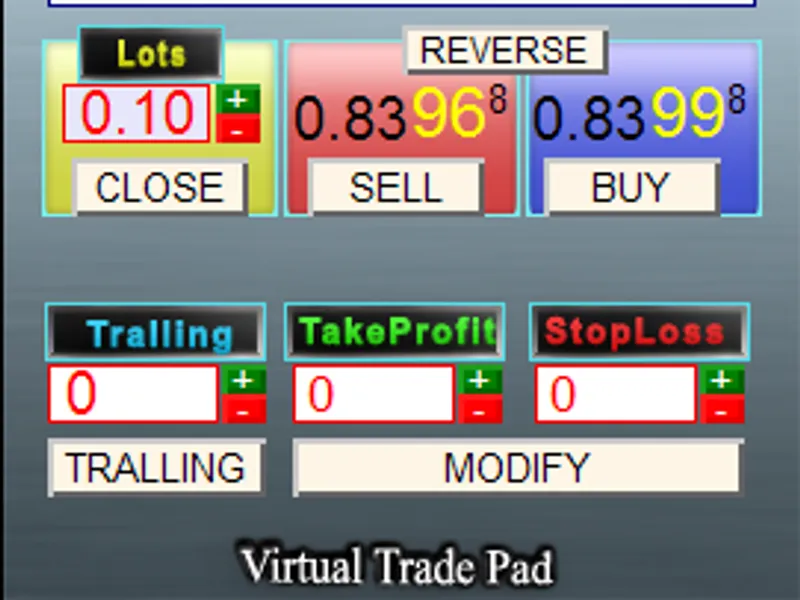
The Positions tab allows to manage the positions
Lots
- Sets trading volume (in lots). The trade volume can be increased/decreased using the +- button, the minimal allowed the step size is used. It will not allow you to set the value, less than minimal allowed trade volume.
BUY
- Place Buy order (at the Ask price)
SELL
- Place Sell order (at the Bid price)
REVERSE - Reverses the position, it doesn't set Stop levels
CLOSE
- Close all position
TakeProfit / StopLoss
- Set Take Profit and Stop Loss levels for the position.
The value of Take Profit/Stop Loss can be increased using the button. It will not allow you to specify the values, lower than minimal allowed stops level at the trade server.
If + is pressed the Take Profit level is set as the minimal allowed Take Profit. If TakeProfit/StopLoss=0, the value is shown with red color
If TakeProfit/StopLoss is not zero, its color is green.
MODIFY
- Quick modify the position parameters (it sets SL/TP). Also it allows to reset stops or change them.
Tralling
- Trailing Stop of the position.
Tralling button
enables Trailing Stop for the current symbol, click again if you want to disable it.
If Trailing Stop level isn't zero, the value is shown with green color
The value of Trailing Stop level can be increased using the buttons. The values are limited with minimal stop, allowed at trade server. If you set 0 and press +, the value of Trailing Stop level will be the minimal allowed stop. If Trailing Stop level = 0, the value is shown with red color
- Symbol selection Panel
- Information about the position
For example, position Direction, Volume, Opening price/Profit.
Orders
Tab
This tab allows to operate pending orders
Order LS - Lowest allowed stop of pending orders (in points).
TakeProfit - Take Profit of pending order (in points)
StopLoss - Stop Loss of pending order
Lots - Trade volume of pending orderOrder types:
BUYSTOP - SELLSTOP - BUYLIMIT - SELLIMIT
DELETE - Deletes all pending orders of the current symbol.
GRID
- Used for grid strategy. If the specified value is greater than 1, it places the grid with specified number of orders (with the same distance), this option is useful in MetaTrader 5, it allows to open additional lots at each level and set Stop Loss at the new level, in other words, it looks like trailing stop with position addition.
Info
Tab
This tab shows the chart and full information on symbol
Spread, Minimal Stop level, Point size, Minimal trade voluime, Maximal allowed trade volume, Lot step, Swap for long positions, Swap for short positions,
It also shows the candle type for the all standard timeframes:
The color is green if the current price is higher than opening price
The color is red if the current price is lower than opening price.
Click the timeframe button to show the chart on the right side (the symbol can be selected).
Ind Tab
This tab shows the state of the indicators
The blue arrow indicates to buy
The red arrow indicates to sell
By click on the timeframe button you will see the chart of the symbol on the specified timeframe. The symbol and timeframe can be set on the Panel
Func Tab
This tab show the useful functions
This tab allows to close or delete all the positions/orders, dependent on the specified deposit level (Percents/USD/Points).
Example
: You need to close all positions, but you don't want to lose the profit. You just set the
From
and
To
levels, specify the position closing/order deleting rule, and click the
USE
button. It will close all positions when the specified parameter out the range.
>0
- If higher than (0 - not used!!!)
<0
- If lower than (the parameter value can be negative) (0 - not used!!!)
$
- Calculate in USD
%
- Calculate in % of Balance
P
- Calculate in Points
USE
- Enable this option
Other features:
If position has been opened successfully,it will play the sound, similar to the sound of the client terminal when position is open.
In the case of error, it will play the error sound
You cannot set the stop level to 0 or lower than minimal allowed stops level at trade server.
There is a button to minimize the panel.
References:
I have used the following references when preparing the "
VirtualTradePad
" Control Panel:
ChartinChart Expert Advisor (Standard Expert Advisor of MetaTrader5 client terminal)
(the trading tactics of IND Tab)
A set of functions from "Expert Advisor template", developed for internal use.