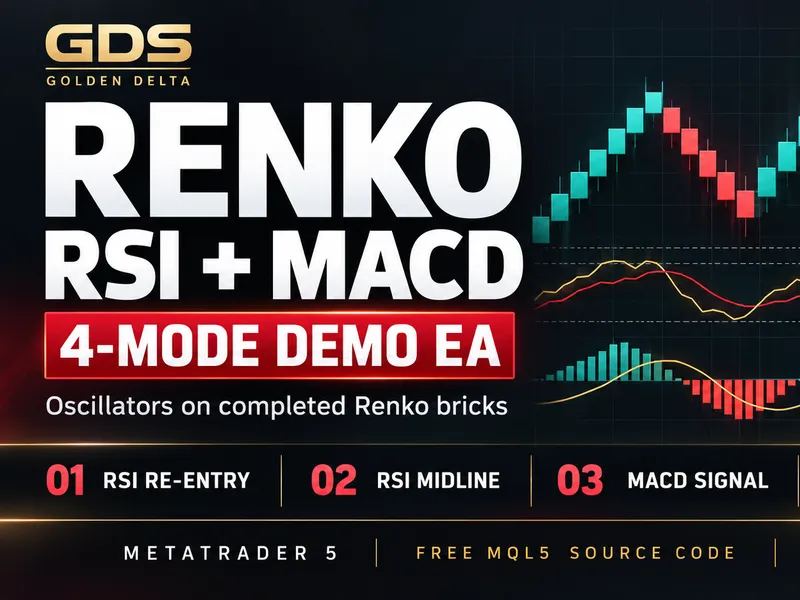


GDS Renko RSI + MACD 4-Mode EA
Info
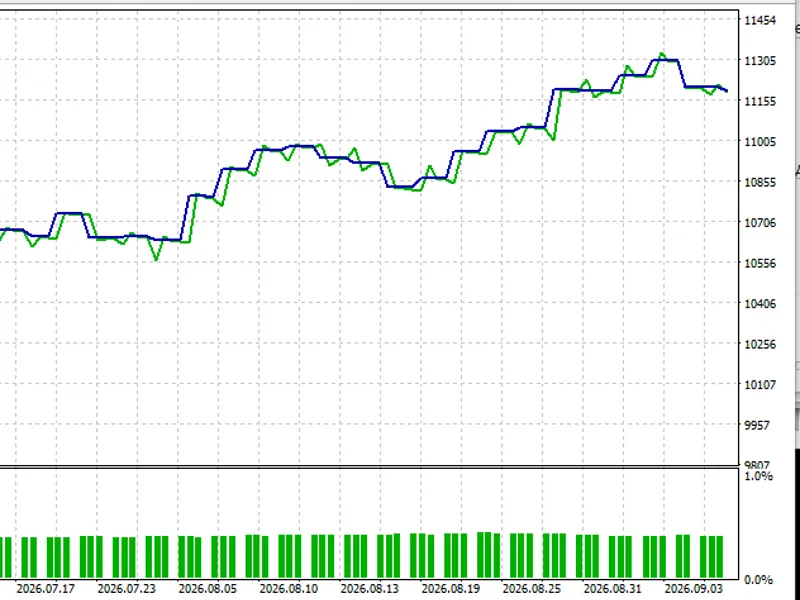
The GDS Renko RSI + MACD 4-Mode EA is a Expert Advisor for MetaTrader 5 that signal logicthe ea utilizes a standard two-brick reversal for generating signals. Oscillator values are updated only after a brick is completed, not based on the chart's candlestick timeframes.
Usage
This tool is typically used for automated trading on major forex pairs and gold.
Platform
This Expert Advisor works exclusively on MetaTrader 5 (both build 600+ and newer versions).
Setup
Place the downloaded file in MQL5/Experts folder via File ? Open Data Folder in MetaTrader 5.
How to Install and Use GDS Renko RSI + MACD 4-Mode EA
1. Installation: Open the "File" menu, select "Open Data Folder," navigate to MQL/Experts, paste your file, and restart the terminal.
2. Activation: Drag the EA from the Navigator onto a chart, ensure "Allow live trading" is checked in the Common tab, and verify the AutoTrading button is green.
3. Optimization: Right-click your chart, choose "Expert List," click "Properties" to adjust inputs, and save your preferred setup as a set file for future use.
4. Maintenance: Regularly check the "Experts" tab in the terminal window to monitor trade logs and potential execution errors.
Frequently Asked Questions
Q: Why is my EA not opening trades? A: Check the "AutoTrading" button, ensure "Allow live trading" is enabled, and verify your broker allows automated trading on your account type.
Q: Can I run multiple EAs on one chart? A: No, each chart can only host one active EA; however, you can open multiple charts for different currency pairs to run several EAs.
Q: What does the "smiley face" icon mean? A: A smiley face in the top-right corner of the chart indicates the EA is successfully running; a frowny face means it is disabled.
What this tool does
Signal LogicThe EA utilizes a standard two-brick reversal for generating signals.
Typical Use Case
This Expert Advisor excels in automated trading and technical analysis on MetaTrader 5.
Compatible Platform & Setup
This Expert Advisor works on MetaTrader 5. Place the file in the MQL5/Experts folder and restart the terminal.
Description & Settings
Related: GDS Renko Trade Manager for MetaTrader 5 - another powerful expert for MetaTrader 5 traders.
Signal LogicThe EA utilizes a standard two-brick reversal for generating signals. Oscillator values are updated only after a brick is completed, not based on the chart's candlestick timeframes.
Also recommended: GDS Renko Dual MA EA - similar expert with strong performance on MetaTrader 5.
There are four distinct operating modes, with only one active at any given time:- RSI Re-entry: Enters BUY orders when the Relative Strength Index (RSI) returns above the lower threshold. Enters SELL orders when the RSI returns below the upper threshold. The upper threshold is calculated as 100 minus the lower threshold.
- RSI Midline: Enters BUY orders when the RSI crosses above the 50 level. Enters SELL orders when the RSI crosses below the 50 level.
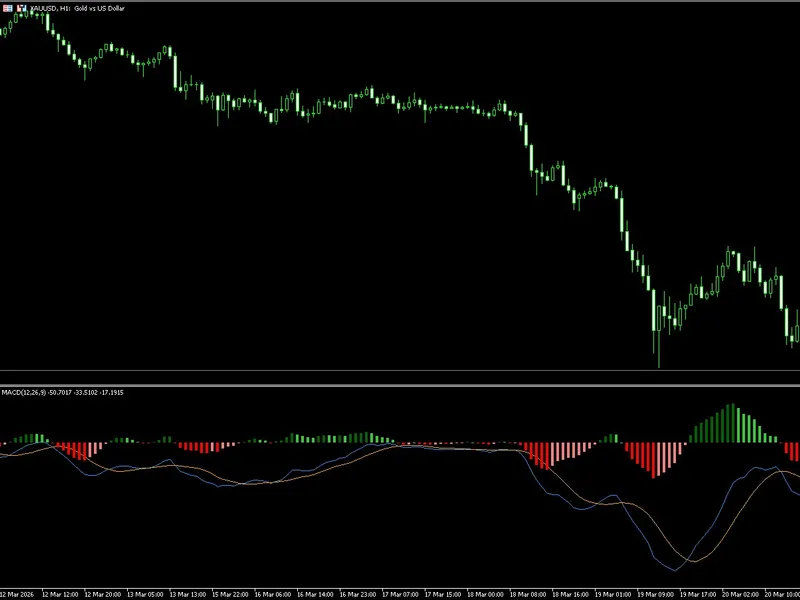
- MACD Signal: Enters BUY orders when the Moving Average Convergence Divergence (MACD) crosses above its signal line. Enters SELL orders when the MACD crosses below its signal line.
- MACD Zero: Enters BUY orders when the MACD crosses above the zero line. Enters SELL orders when the MACD crosses below the zero line.
The RSI indicator employs Wilder's smoothing method. The MACD is computed as the difference between two Exponential Moving Averages (EMAs), and its signal line is a Simple Moving Average (SMA) of the MACD values. All period calculations are based on completed bricks.
The initial calculation of an indicator provides a starting state without initiating a trade.
If multiple bricks are completed by a single tick, each completed brick will update the oscillator values. However, only the signal generated by the most recent completed brick is eligible for trade entry.
Trade orders are executed using the current available market price, not a hypothetical price at the closing of a brick.
Signals that are prevented from executing due to an active entry filter are not held for future execution.
Position Management
A new trade entry on a specific symbol is blocked if an existing position or an active order for that symbol is already present. The Expert Advisor (EA) manages its own positions independently for each symbol and Magic Number.
Exits are managed using virtual Stop Loss (SL) and Take Profit (TP) levels, or a maximum holding time limit. An opposite trading signal does not trigger a position closure.
Following a trade exit, a brief cooldown period measured in completed bricks is implemented.
The spread-to-brick filter is applied to trade entries, but not to trade exits.
The term 'Demo' in the product name signifies that it is an educational example and not a simulation of orders. When algorithmic trading is enabled, the EA will send actual trade requests to the connected trading account.
It is recommended to use the Strategy Tester or a demo account for exploring and testing this EA.
Installation
1. Copy the source code from the provided 'Source' folder into your MetaTrader 5 (MT5) MQL5/Experts directory. Compile the code using MetaEditor.
2. In the Strategy Tester, select the EA and the desired symbol. For the included example, use XAUUSD with the M1 timeframe and choose 'Every tick based on real ticks' as the modeling mode.
3. Load the SET file, located in the 'Presets' folder, via the 'Inputs' tab in the EA's settings. For a single, straightforward test, disable optimization.
4. Independently set the desired testing dates, tick model, initial deposit, leverage, and execution delay. Note that these Strategy Tester settings are separate from the EA's internal parameters and are not set by the provided SET file.
The brick size can be defined either in symbol points or in absolute price units. In the provided preset file, a value of 12 indicates a 12.00 price movement for XAUUSD, not 12 points. The effective brick size is rounded to match the symbol's tick size.
The requested trade volume is normalized to comply with broker limits. The actual trade volume executed may be larger than requested if the symbol's minimum trade size is greater than the normalized volume.
Included Test Example
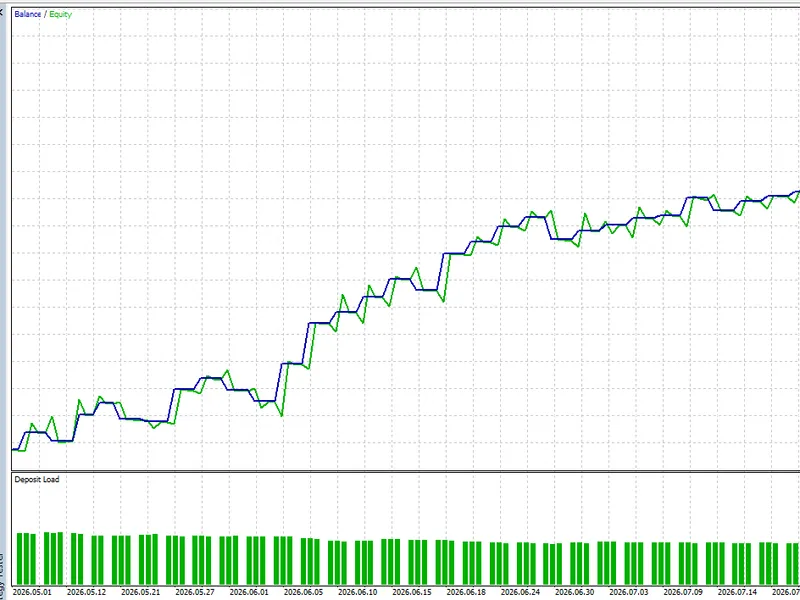
The file Test_Report/ReportTester-7800379.html provides details of a v0.11 test conducted on RoboForex-ECN. The test used XAUUSD on the M1 timeframe, covering the period from January 1 to October 19, 2026. The initial deposit was USD 10,000 with leverage set at 1:500. The report indicates 100% real ticks and a total of 104,598,866 ticks processed. The test resulted in 178 trades, a net profit of USD 2,348.57, a Profit Factor of 1.49, and a maximum equity drawdown of USD 622.27 (5.99%). Both commission and swap fees were included in the results.
The preset configuration utilizes the MACD Signal mode, a brick size of 12.00, MACD parameters (5, 30, 5), Take Profit set at 14 bricks, Stop Loss set at 13 bricks, a maximum holding time of 1380 minutes, a cooldown period of 1 brick, and a lot size of 0.01. Please note that the default source code parameters may differ from those used in the supplied XAUUSD preset.
The parameters used in this test were determined using the same historical data period. This represents an in-sample optimization and not an independent profitability test. A significant portion of the generated profit occurred during March. Performance results may vary depending on different time periods, brokers, and parameter settings.
Limitations
The Stop Loss (SL) and Take Profit (TP) levels are virtual and are not sent to the broker's server. Their execution relies on the EA and the trading terminal remaining active, maintaining a stable internet connection, and the ability to send executable trade requests.
Market events such as price gaps, closed trading sessions, or execution delays can result in trades being closed at levels different from the calculated SL/TP targets. Similarly, the maximum holding time limit might be exceeded if trade execution is temporarily unavailable.
The state of the Renko bricks and oscillators commences from the first available tick after initialization. Features for preloading historical bricks or maintaining state across EA restarts are not implemented.
The selected test start date can influence the anchoring of bricks and the initial warm-up period of the indicators.
Avoid manual trading or using other EAs on the same symbol, especially on netting accounts, as this can interfere with the EA's logic. Always use a unique Magic Number for each EA instance running on the same account.
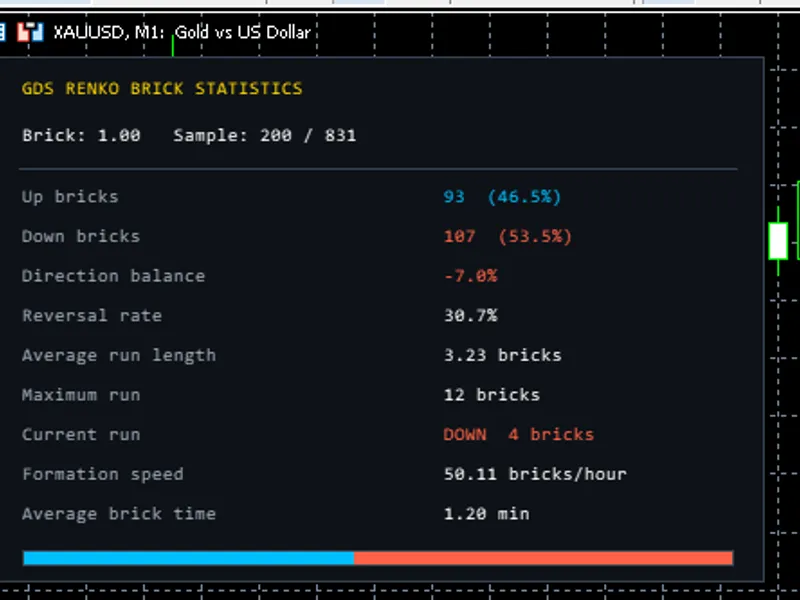
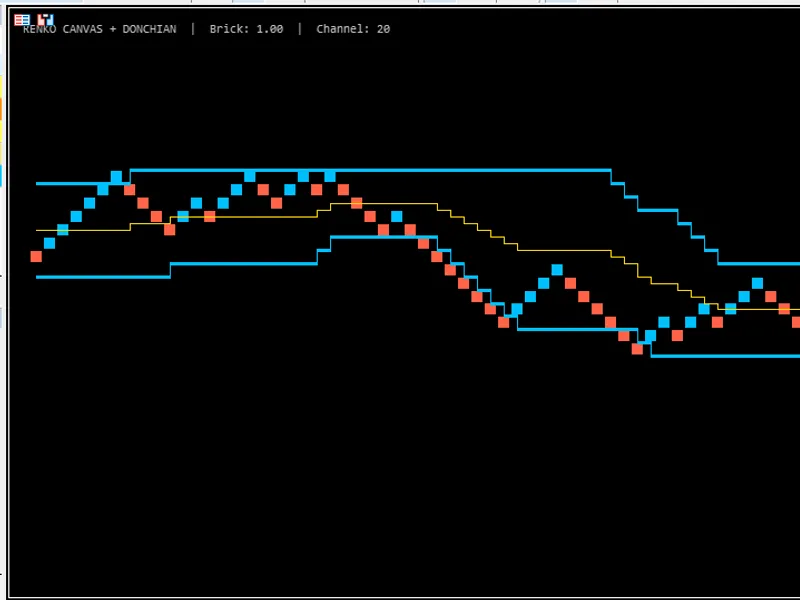
This EA does not generate a separate Renko chart display or a dashboard interface. It is provided as a source-code example intended for learning, testing, and further development purposes. It does not employ grid trading or martingale strategies.
You may also like: GDS Renko ADX Demo Expert Advisor - excellent alternative for expert users on MetaTrader 5.
Source Code
#property copyright "RobotFX"
#property link "https://robotfx.org"
#property version   "0.11"
#property strict
#property description "This code is educational. Feel free to use, modify and upgrade as you wish. Visit ROBOTFX.ORG for professional trading tools"
enum ENUM_GDS_MODE
  {
   RSI_REENTRY=0,
   RSI_MIDLINE=1,
   MACD_SIGNAL=2,
.......
⚠ Limitations & Risk Warning
- This tool is provided for educational and testing purposes only.
- Past performance does not guarantee future results.
- Trading involves substantial risk of loss. Use on a demo account first.
- Results may vary depending on market conditions, broker, and settings.
- We recommend thorough backtesting and forward testing before using with real funds.