







ea high and low last 24 hours
Info
The ea high and low last 24 hours is a Expert Advisor for MetaTrader 5 that an example of receiving the high and low prices of bars over the past 24 hours. hot keys:the "h" key (case insensitive) — find the high pricethe "l" key (case insensitive) — find the low priceto get the high and low prices, the third form of call and is used:requesting based on the first and last date of the required time interval:int copyhigh( string symbol_name, // symbol name enum_timeframes timeframe, // period datetime start_time, // start date datetime stop_time, // end date double high_array[] // array to copy high prices );requesting based on the first and last date of the required time interval:int copylow( string symbol_name, // symbol name enum_timeframes timeframe, // period datetime start_time, // start date datetime stop_time, // end date double low_array[] // array to copy low prices );the time interval is represented as follows:datetime stop_time = timecurrent(); // stop date and time datetime start_time = stop_time-24*60*60; // start date and time start_time <-> stop_timevisualization:for convenience, text information is displayed on the chart (the example with low prices):also a vertical line is displayed in the chart (it shows the left border of the time interval), and a horizontal line is shown (means the searched price) — (the example with low prices):the video with a sample search:.
Usage
This tool is typically used for automated trading on major forex pairs and gold.
Platform
This Expert Advisor works exclusively on MetaTrader 5 (both build 600+ and newer versions).
Setup
Place the downloaded file in MQL5/Experts folder via File ? Open Data Folder in MetaTrader 5.
How to Install and Use ea high and low last 24 hours
1. Installation: Open the "File" menu, select "Open Data Folder," navigate to MQL/Experts, paste your file, and restart the terminal.
2. Activation: Drag the EA from the Navigator onto a chart, ensure "Allow live trading" is checked in the Common tab, and verify the AutoTrading button is green.
3. Optimization: Right-click your chart, choose "Expert List," click "Properties" to adjust inputs, and save your preferred setup as a set file for future use.
4. Maintenance: Regularly check the "Experts" tab in the terminal window to monitor trade logs and potential execution errors.
Frequently Asked Questions
Q: Why is my EA not opening trades? A: Check the "AutoTrading" button, ensure "Allow live trading" is enabled, and verify your broker allows automated trading on your account type.
Q: Can I run multiple EAs on one chart? A: No, each chart can only host one active EA; however, you can open multiple charts for different currency pairs to run several EAs.
Q: What does the "smiley face" icon mean? A: A smiley face in the top-right corner of the chart indicates the EA is successfully running; a frowny face means it is disabled.
What this tool does
an example of receiving the high and low prices of bars over the past 24 hours.
Typical Use Case
This Expert Advisor excels in automated trading and technical analysis on MetaTrader 5.
Compatible Platform & Setup
This Expert Advisor works on MetaTrader 5. Place the file in the MQL5/Experts folder and restart the terminal.
Description & Settings
Related: KCI Embedded Sniper: High-Precision Algorithmic Trading - another powerful expert for MetaTrader 5 traders.
an example of receiving the high and low prices of bars over the past 24 hours.
Also recommended: liquidity sweep h4 - m15 (swing highs and lows) / mq l5 - similar expert with strong performance on MetaTrader 5.
hot keys:the "h" key (case insensitive) — find the high price
the "l" key (case insensitive) — find the low price
to get the high and low prices, the third form of call and is used:
requesting based on the first and last date of the required time interval:
int copyhigh( string symbol_name, // symbol name enum_timeframes timeframe, // period datetime start_time, // start date datetime stop_time, // end date double high_array[] // array to copy high prices );
requesting based on the first and last date of the required time interval:
int copylow( string symbol_name, // symbol name enum_timeframes timeframe, // period datetime start_time, // start date datetime stop_time, // end date double low_array[] // array to copy low prices );
the time interval is represented as follows:
datetime stop_time = timecurrent(); // stop date and time datetime start_time = stop_time-24*60*60; // start date and time
start_time <-> stop_time
visualization:
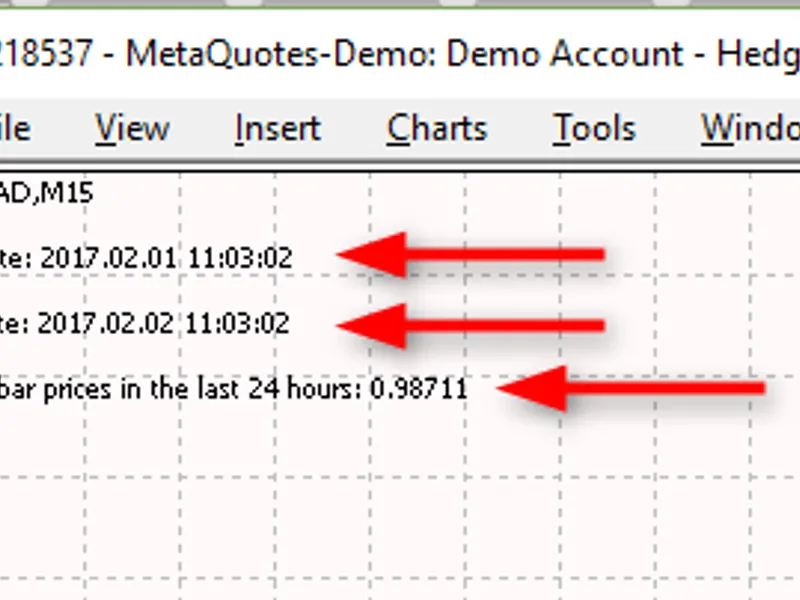
for convenience, text information is displayed on the chart (the example with low prices):
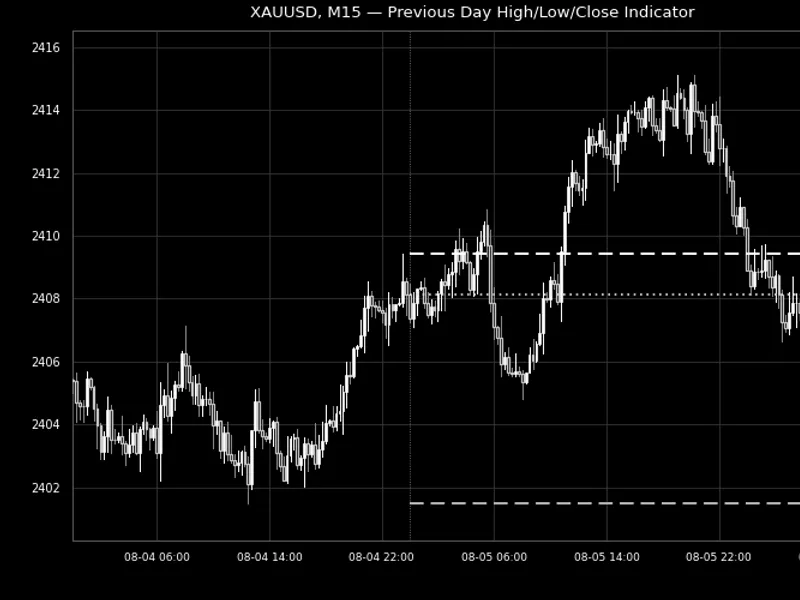
also a vertical line is displayed in the chart (it shows the left border of the time interval), and a horizontal line is shown (means the searched price) — (the example with low prices):
the video with a sample search:
You may also like: Exp Highs Lows Signal - excellent alternative for expert users on MetaTrader 5.
Source Code
/.......
⚠ Limitations & Risk Warning
- This tool is provided for educational and testing purposes only.
- Past performance does not guarantee future results.
- Trading involves substantial risk of loss. Use on a demo account first.
- Results may vary depending on market conditions, broker, and settings.
- We recommend thorough backtesting and forward testing before using with real funds.