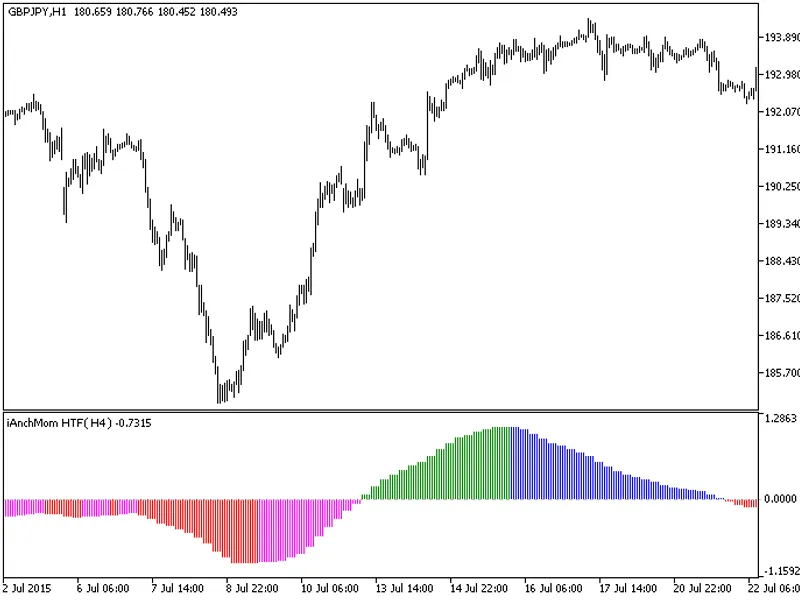
The indicator with the timeframe selection option available in the input parameters:This indicator requires the Ianchmom.mq5 indicator file. Place it in \mql5\indicators.Fig.1. The...
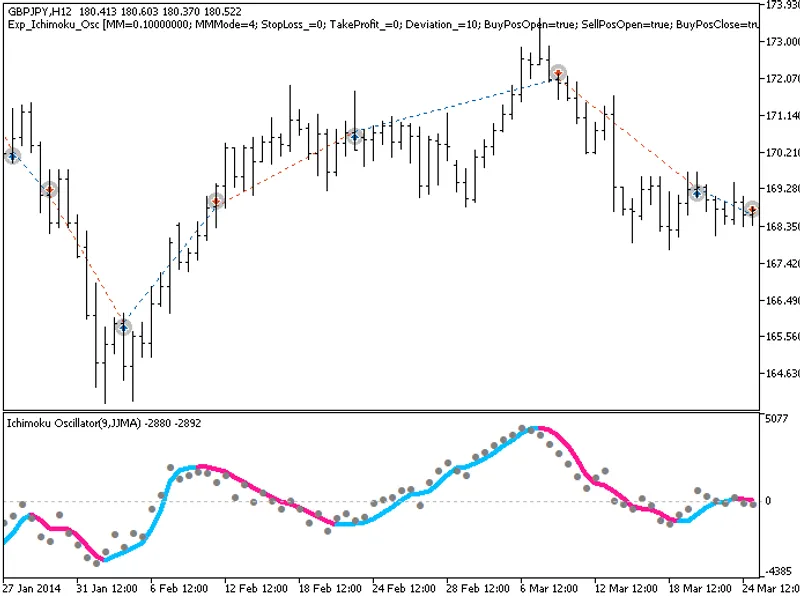
The EXP Ichimoku Oscillator Expert Advisor is designed to identify trading signals based on the reversal of the indicator's signal line. It triggers a signal when a bar closes and ...
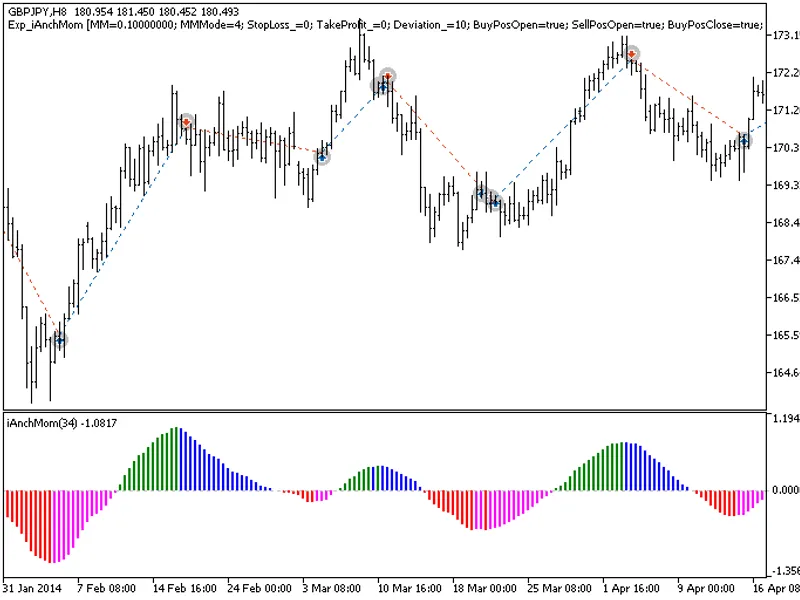
The exp_ianchmom expert advisor is based on the reversal of the histogram direction. The signal is formed when a bar is closing if there is a change in the indicator direction.This...
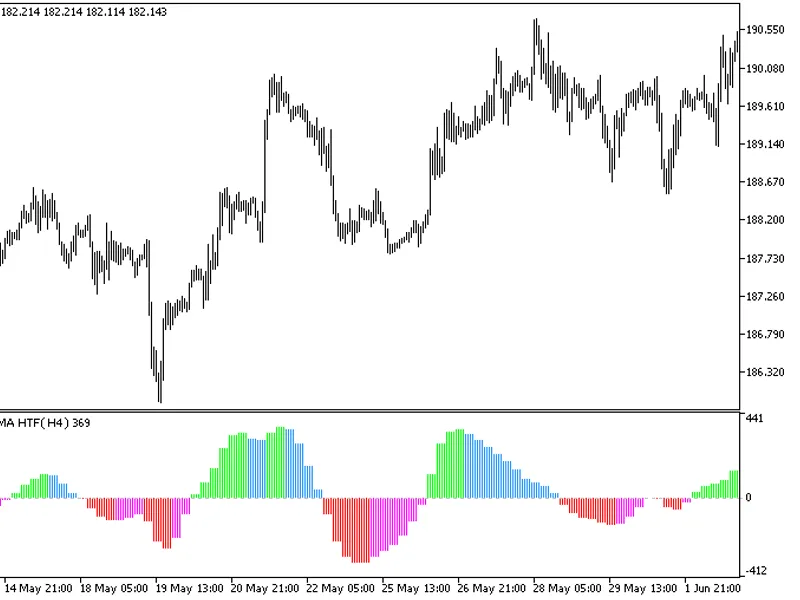
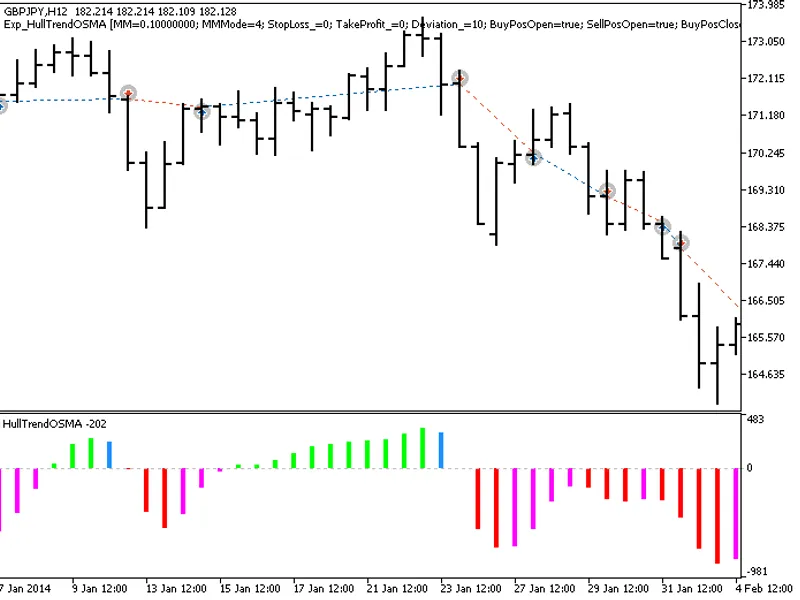
This indicator offers the flexibility to choose the timeframe for analysis.It requires the hulltrendosma.mq5 indicator file, which should be placed in the <terminal_data_folder&...
The exp_hulltrendosma expert advisor is based on the reversal of the histogram direction. The signal is formed when a bar is closing if there is a change in the indicator direction...
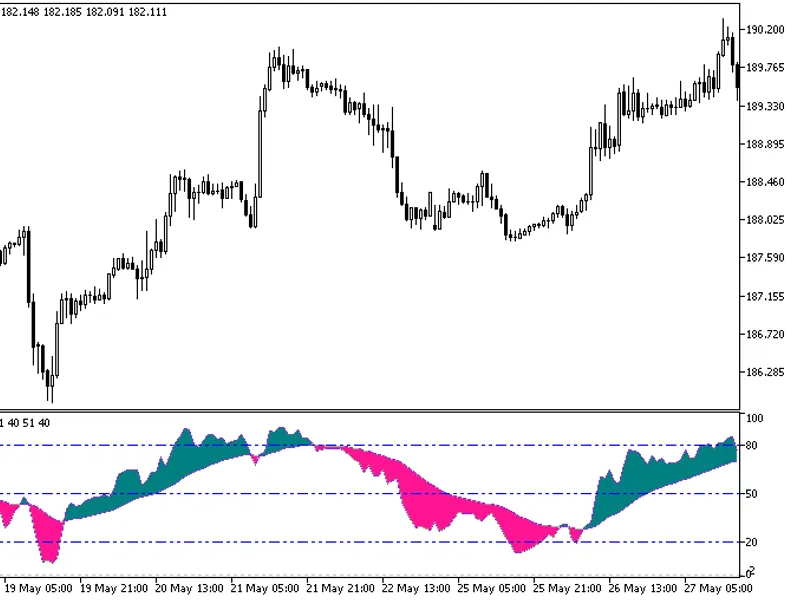
This variant of the normalized oscillator is calculated based on five HighestLowestRange (HLR) indicators.All editable variables are implemented as indicator input parameters. Howe...
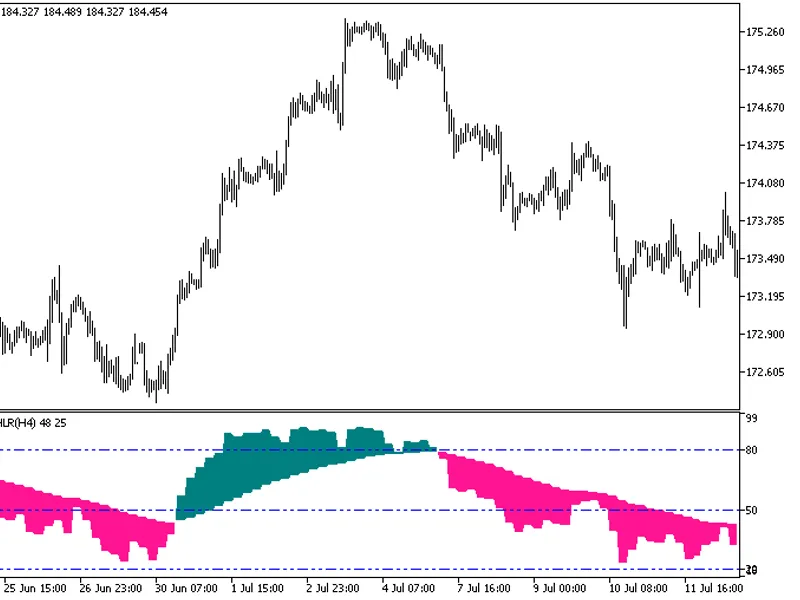
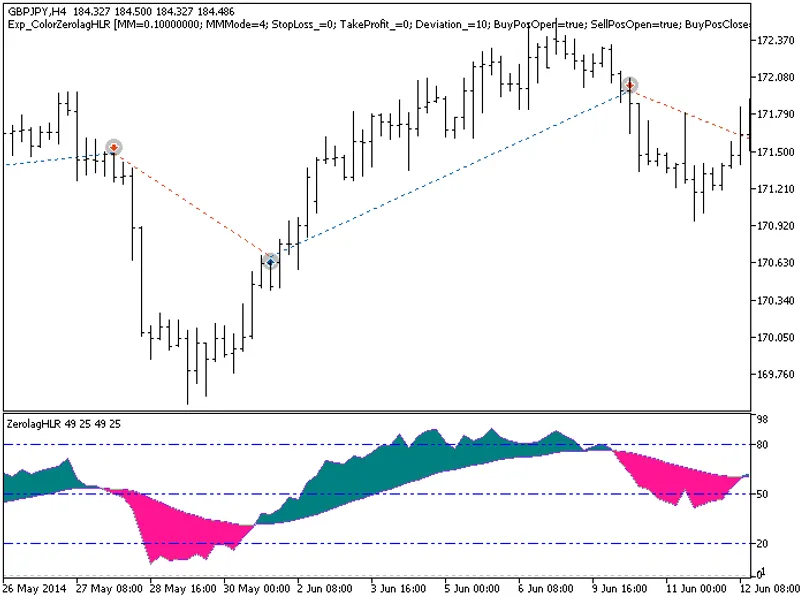
This indicator offers a unique feature: the ability to select the timeframe directly from the input parameters.To use this indicator, you'll need the colorzerolaghlr.mq5 file. Plac...
The EXP_ColorZeroLagHLR Expert Advisor enters the market when the indicator cloud changes its color. The signal is formed when a bar is closing if the oscillator has crossed its si...
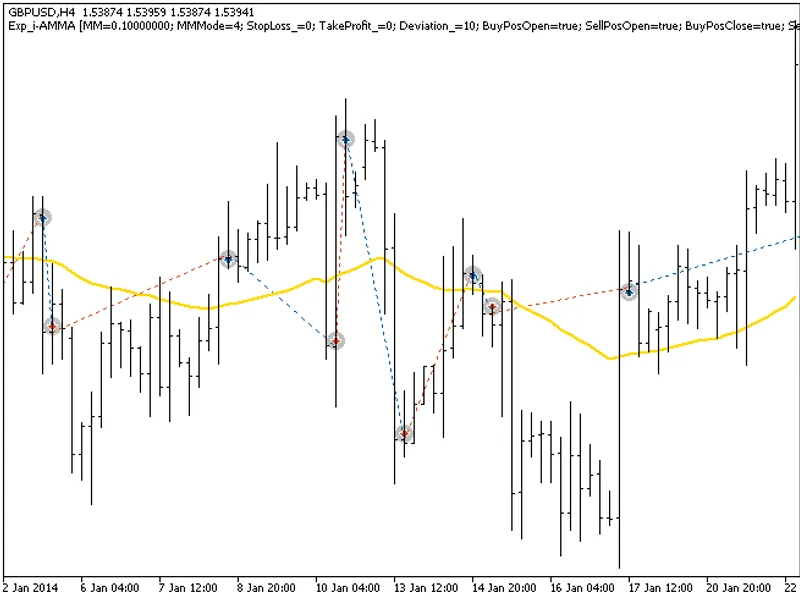
The Exp_I-Amma Expert Advisor is based on the reversal of the I-Amma moving average direction. The signal is formed when a bar is closing if there is a change in the indicator dire...
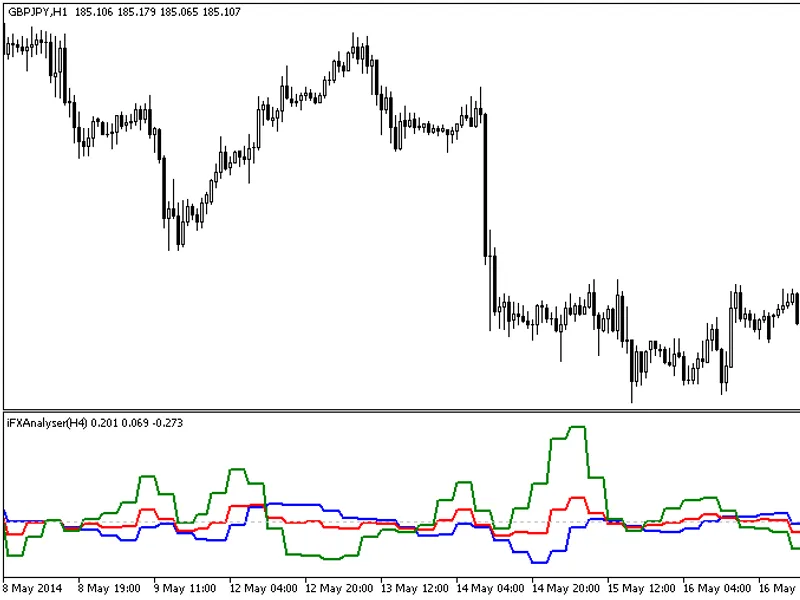
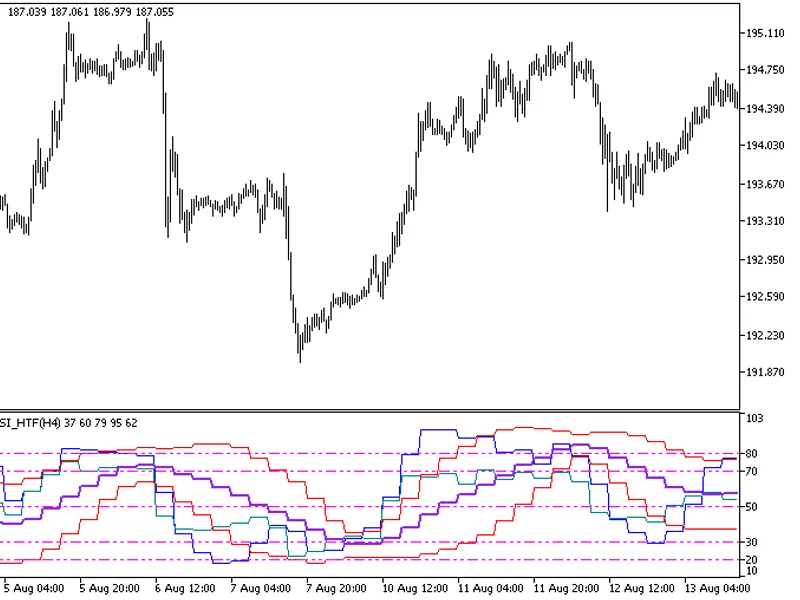
The IFX Analyser HTF indicator offers a unique feature: the ability to select the timeframe directly from the input parameters.To use this indicator, you'll need the IFXAnalyser.mq...
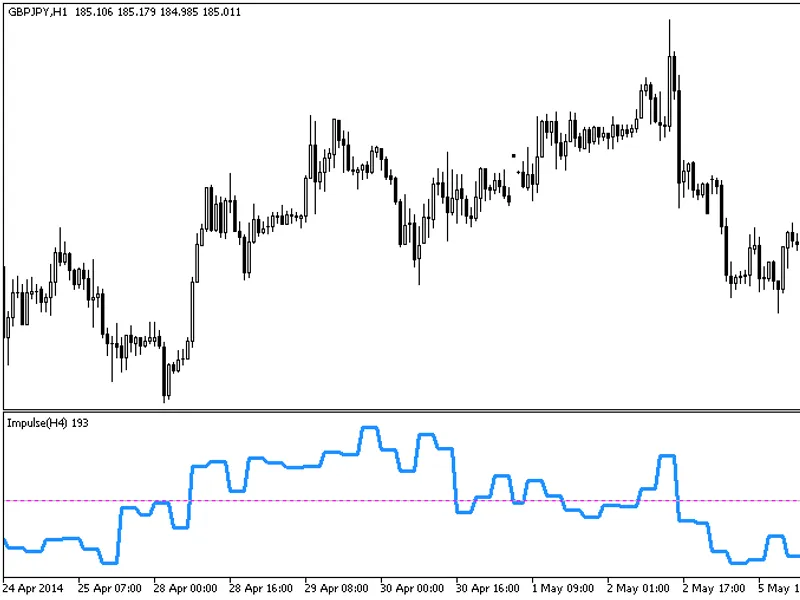
The Impulse HTF indicator offers a unique feature: the ability to select the timeframe in the input parameters.To utilize this indicator, ensure you have the impulse.mq5 indicator ...
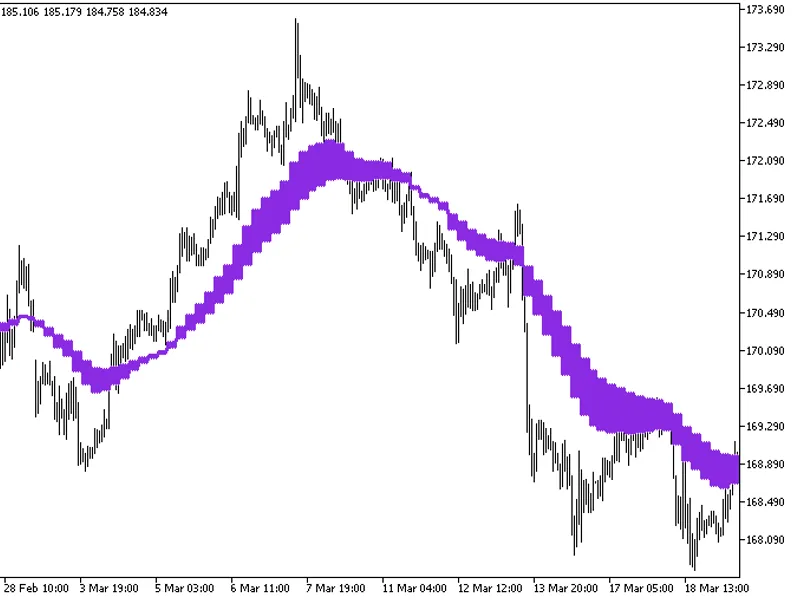
This indicator offers a unique feature: the ability to select a timeframe in the input parameters.To utilize this indicator, you'll need the ind_amu.mq5 indicator file. Ensure it's...
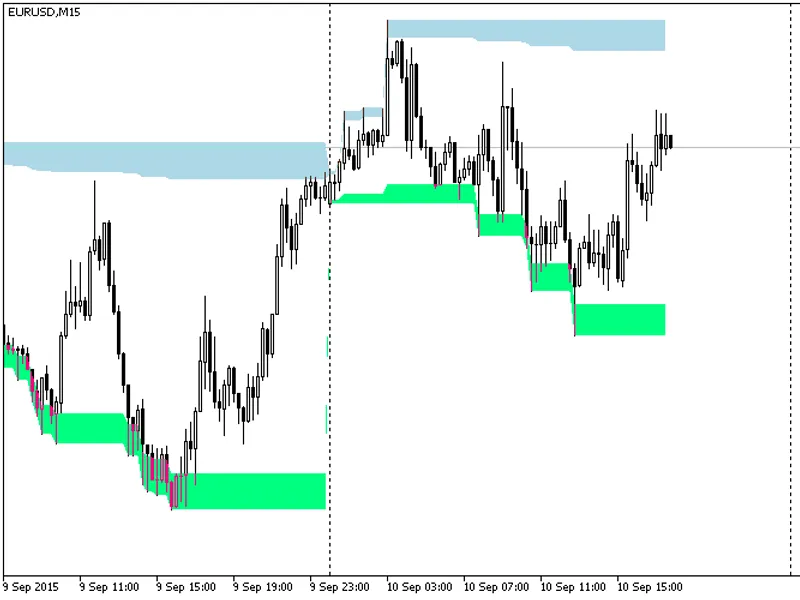
The indicator displays daily extremum zones, highlighting key areas of interest for traders.Maximum Zone: This zone is calculated by taking the day's maximum and extending it by Х%...
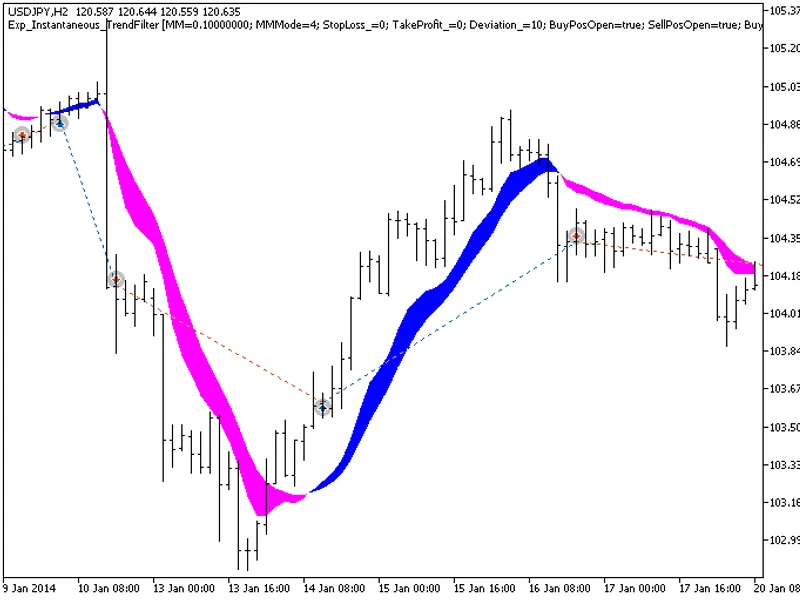
The indicator with the timeframe selection option available in the input parameters.This indicator requires the instantaneous_trendfilter.mq5 indicator file. Place it in <termin...
The EXP_Instantaneous_Trendfilter Expert Advisor enters the market when the indicator cloud changes its color. The signal is formed when a bar is closing if the oscillator has cros...
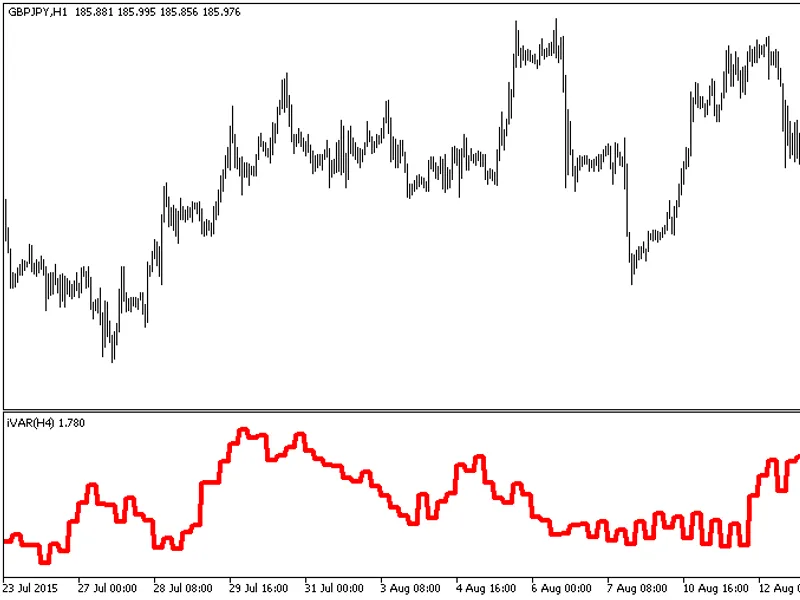
the indicator with the timeframe selection option available in the input parameters:This indicator requires ivar.ex5 indicator file. Place it in \mql5\indicators.Fig.1. The ivar_ht...
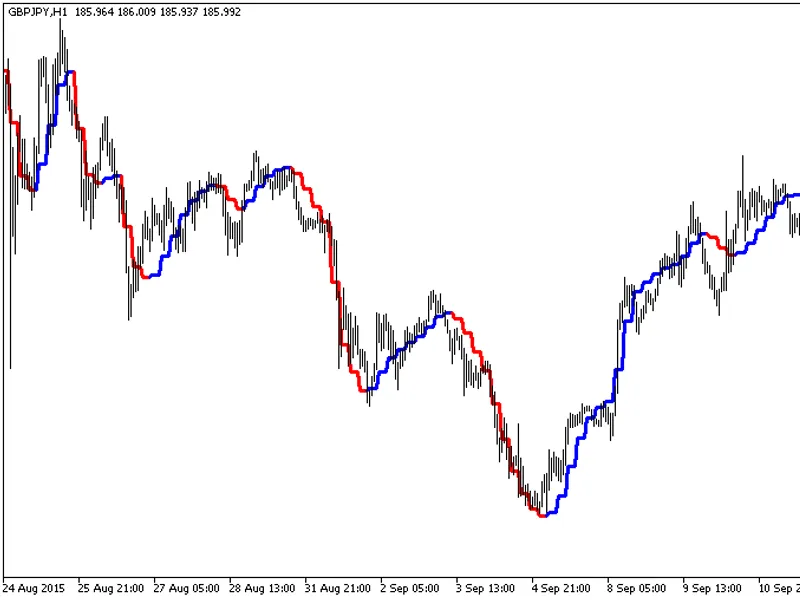
This indicator offers timeframe selection in the input parameters.Note: This indicator requires the ColorJ2JMA.mq5 indicator file. Place it in <terminal_data_folder>\mql5\ind...
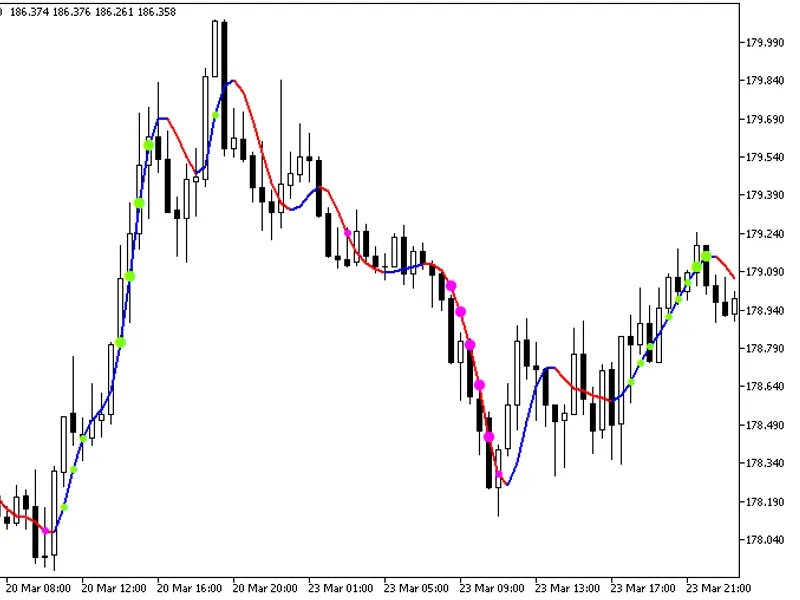
The ColorJ2JMA with Standard Deviation indicator provides additional trend strength indication using colored dots based on the standard deviation algorithm.When the standard deviat...
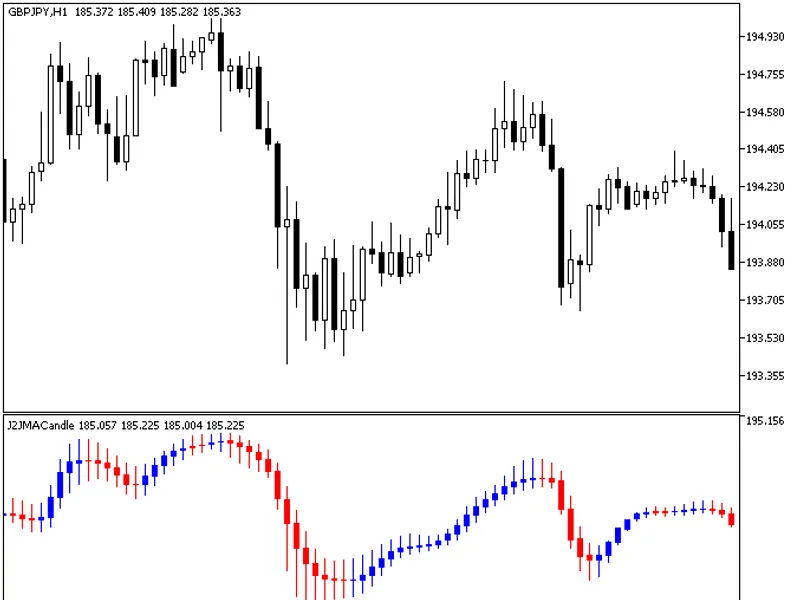
The J2 JMACandle indicator is a powerful tool for technical analysis, offering a unique perspective on price action.It presents price data as a sequence of candlesticks, each repre...
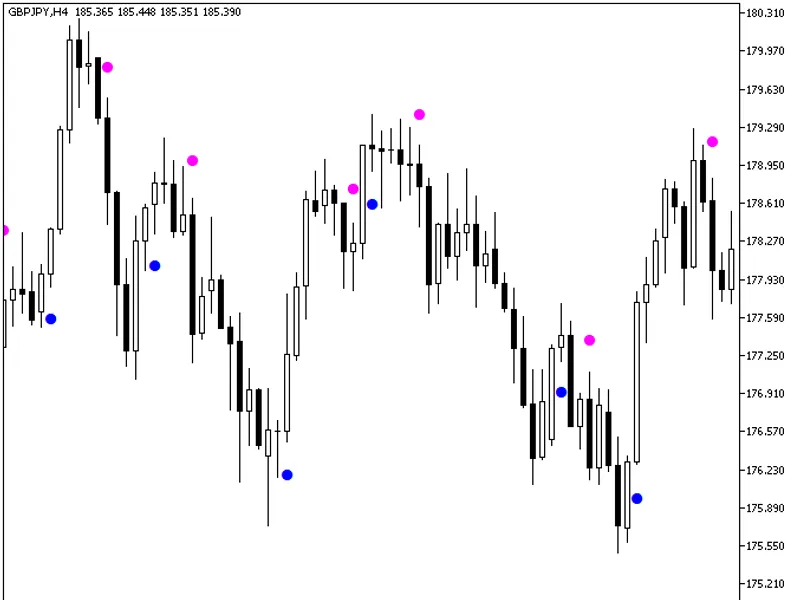
Semaphore signal indicator triggering when the moving average changes direction.The indicator uses the Cjjma class from the SmoothAlgorithms.mqh library (copy it to /mql5/include)....
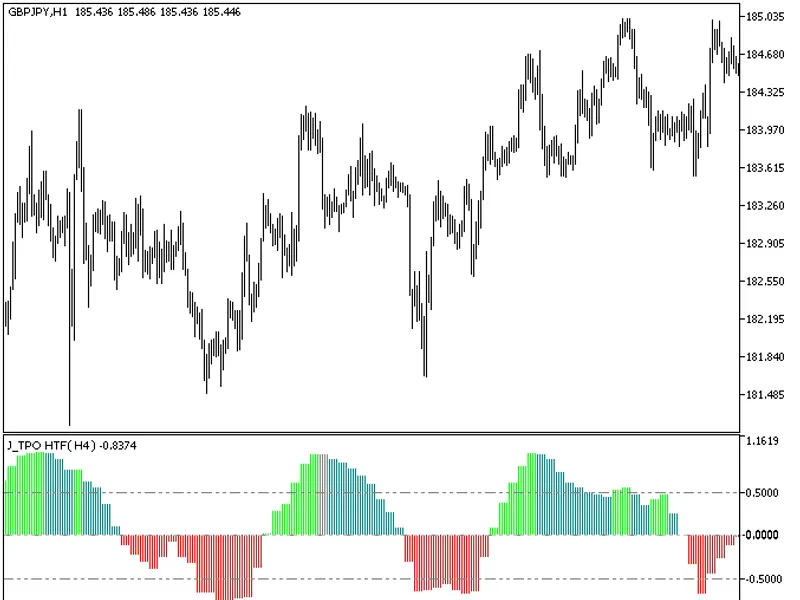
The indicator with the timeframe selection option available in the input parameters:This indicator requires j_tpo.mq5 indicator file. Place it in \mql5\indicators.Fig.1. The j_tpo_...
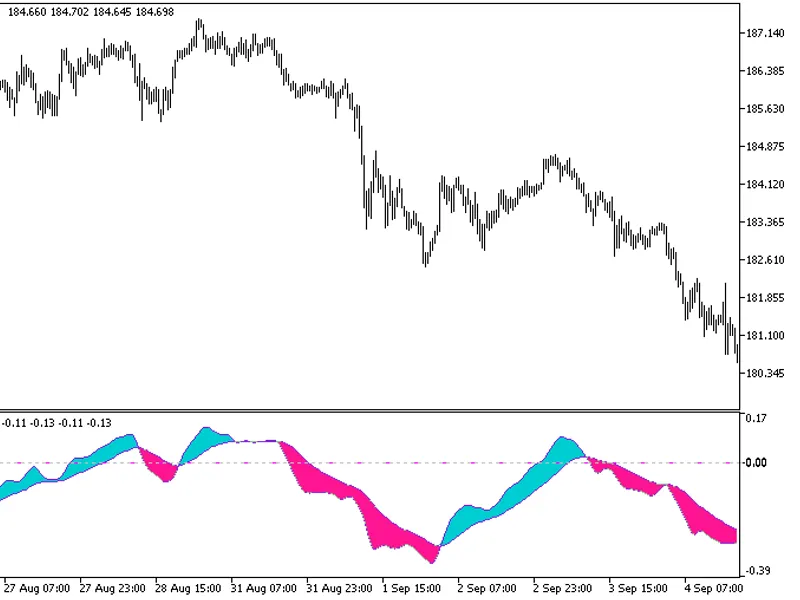
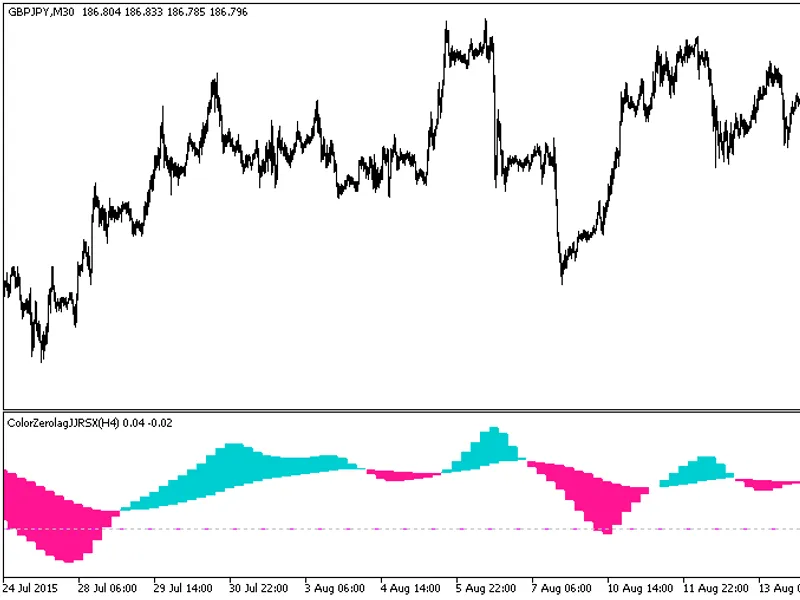
This indicator calculates an oscillator based on five JJRSX indicators.All editable variables are implemented as indicator input parameters. These variables are interdependent, so ...
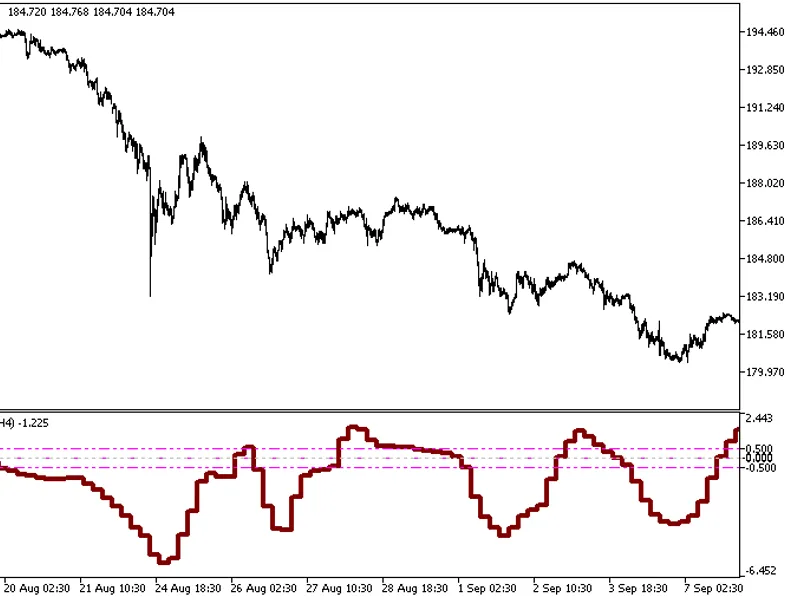
This indicator offers a unique feature: the ability to select the timeframe in the input parameters.To use this indicator, you'll need the JMomentum.mq5 indicator file. Place it in...
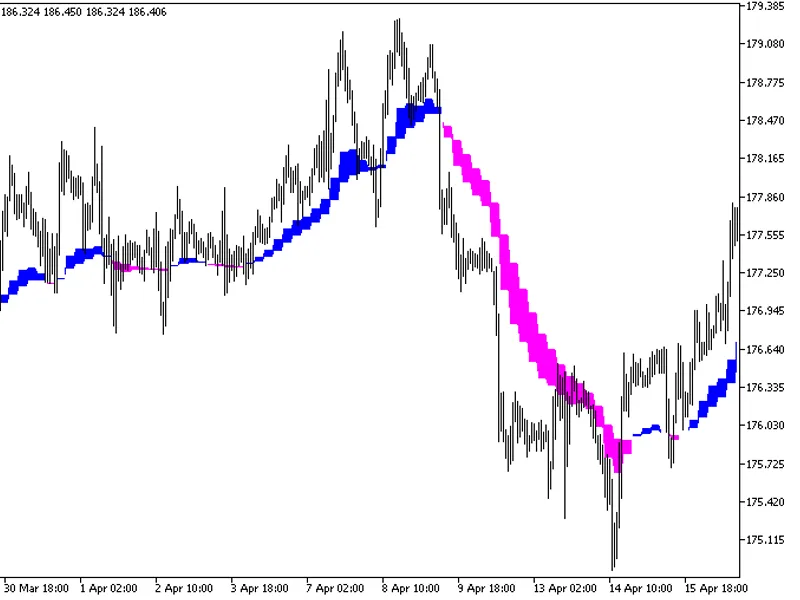
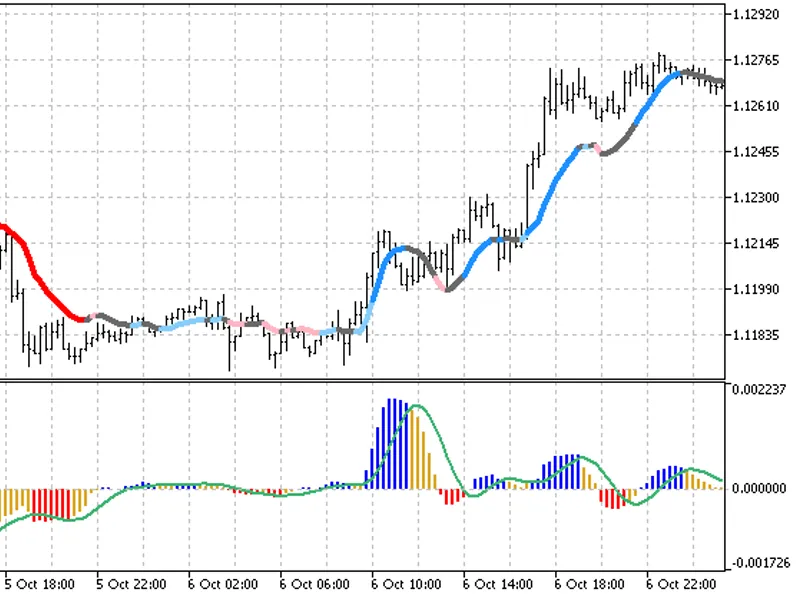
This indicator visualizes trend conditions using the BSI (Balance of Strength Indicator) and LWMA (Linear Weighted Moving Average).The indicator is displayed as:- Blue: Upward tren...
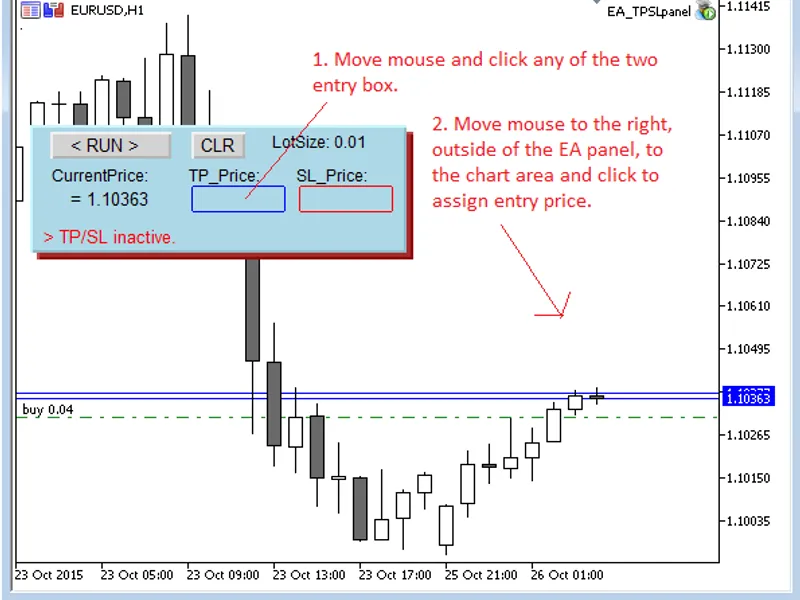
This Expert Advisor (EA) is a straightforward standalone tool for managing take profit and stop loss orders. Its key feature is simplicity, allowing users to set and execute orders...
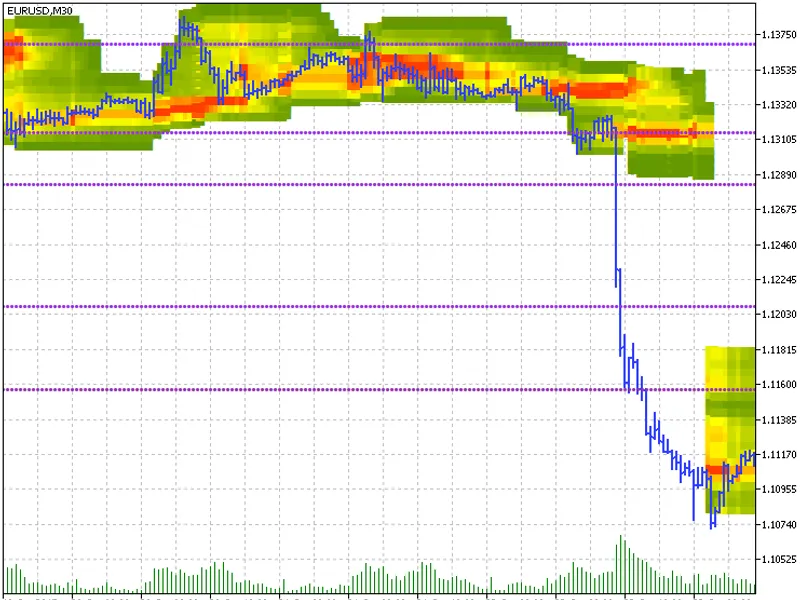
This indicator provides a visual representation of price action through a heatmap and price histogram.Features:- Heatmap: A continuous display of price histogram data, offering a c...
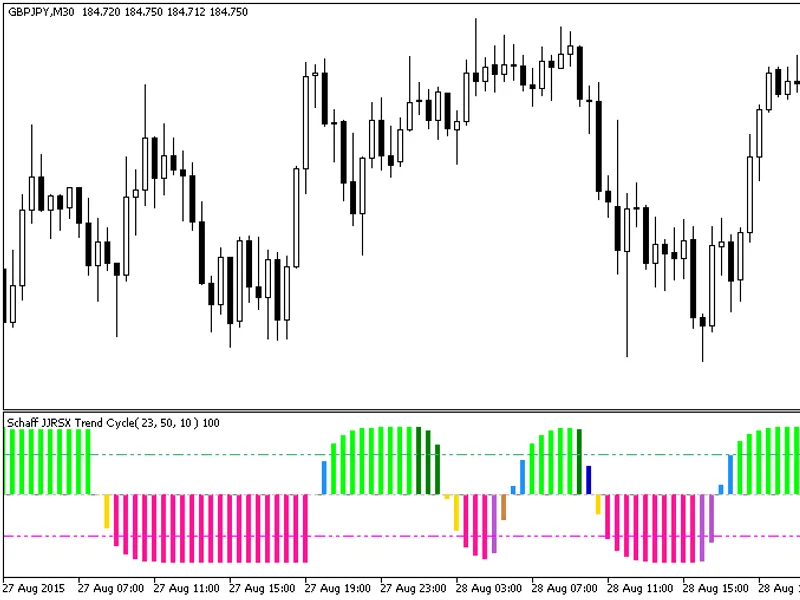
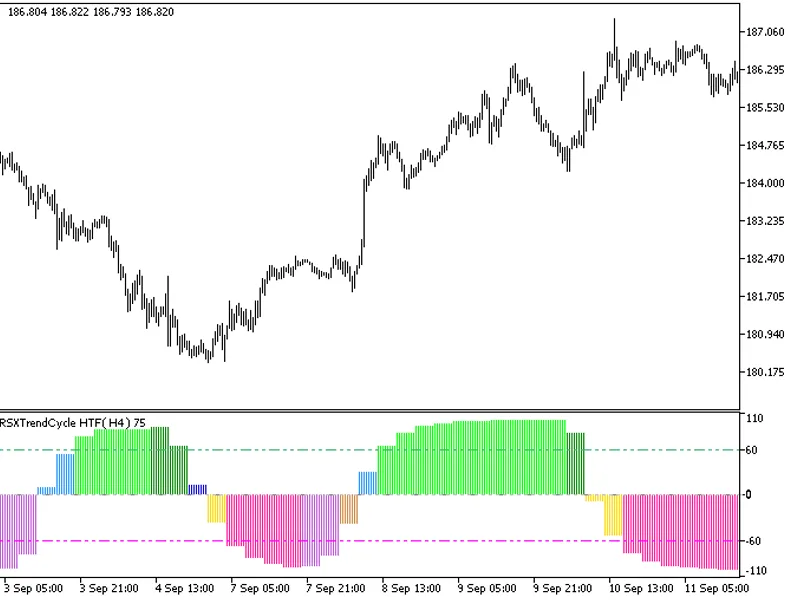
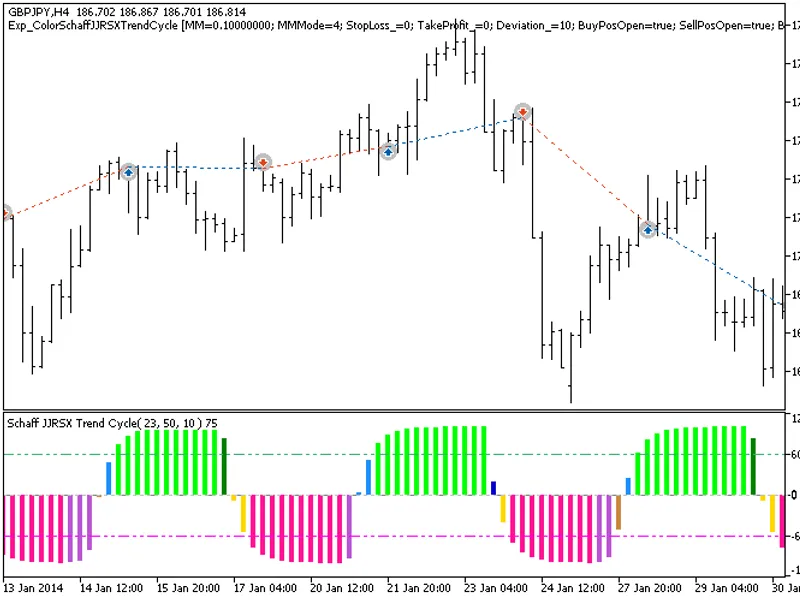
This indicator offers a unique feature: the ability to select the timeframe in the input parameters.To use this indicator, you'll need the following files: jjrsx.mq5 and ColorSchaf...
This indicator offers a unique feature: the ability to select the timeframe directly from the input parameters.To use this indicator, you'll need the following files: jjrsx.mq5 and...
The Exp_ColorSchaffJJRSXTrendCycle expert advisor is based on the oscillator's change of position relative to overbought and oversold levels. The signal is formed when a bar is clo...
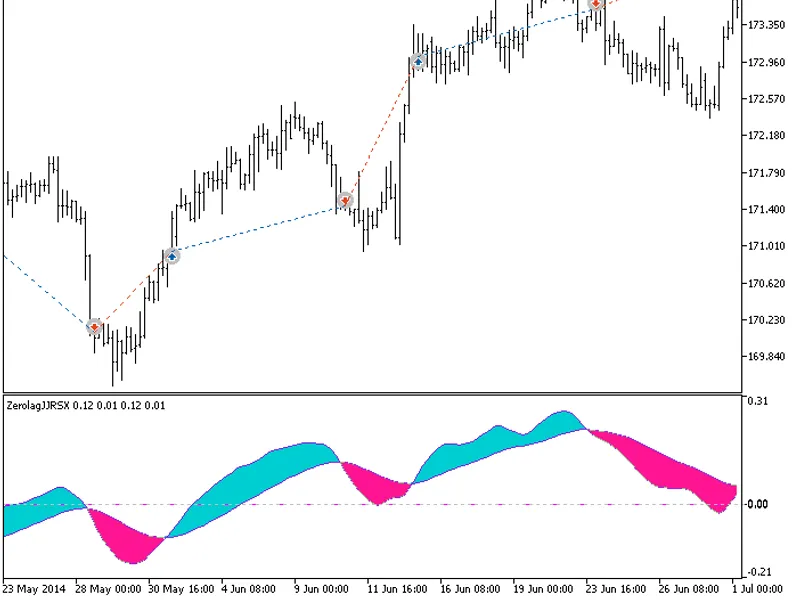
The exp_colorzerolagjjrsx expert advisor enters the market when the indicator cloud changes color. The signal is formed when a bar is closing if the oscillator has crossed its sign...
The indicator offers a timeframe selection feature in its input parameters.It requires the JS-Stoh-BB-RSI.mq5 indicator file, which should be placed in the <terminal_data_folder...
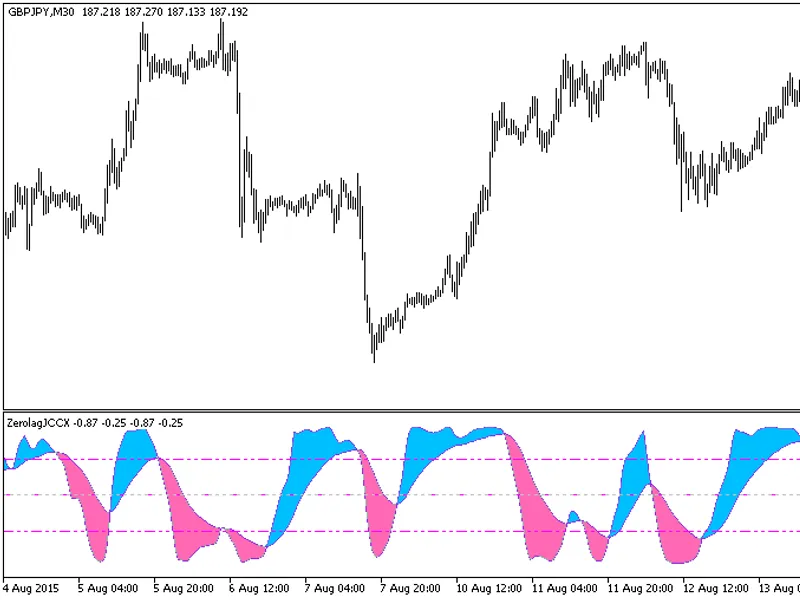
This oscillator variant is calculated based on five JCCX indicators.All editable variables are implemented as indicator input parameters. However, these variables are interdependen...
This advisor showcases the practical application of global variables. Its primary objective is to store calculation results in a global variable and retrieve its value during initi...
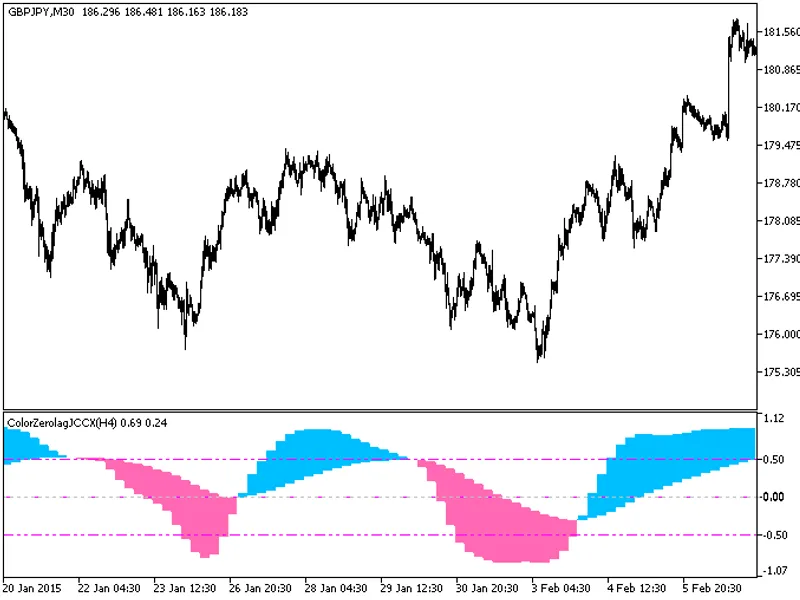
The indicator with the timeframe selection option in the input parameters.Indicator files required: jccx.mq5 and colorzerolagjccx.mq5. Place these in terminal_data_folder\mql5\indi...
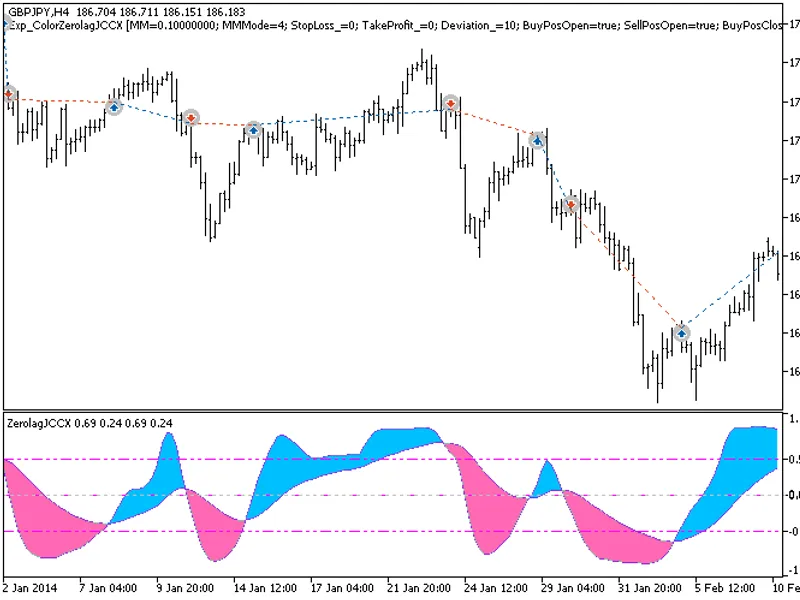
The Exp_ColorZeroLagJCCX expert advisor enters the market when the indicator cloud changes its color. The signal is formed when a bar is closing if the oscillator has crossed its s...
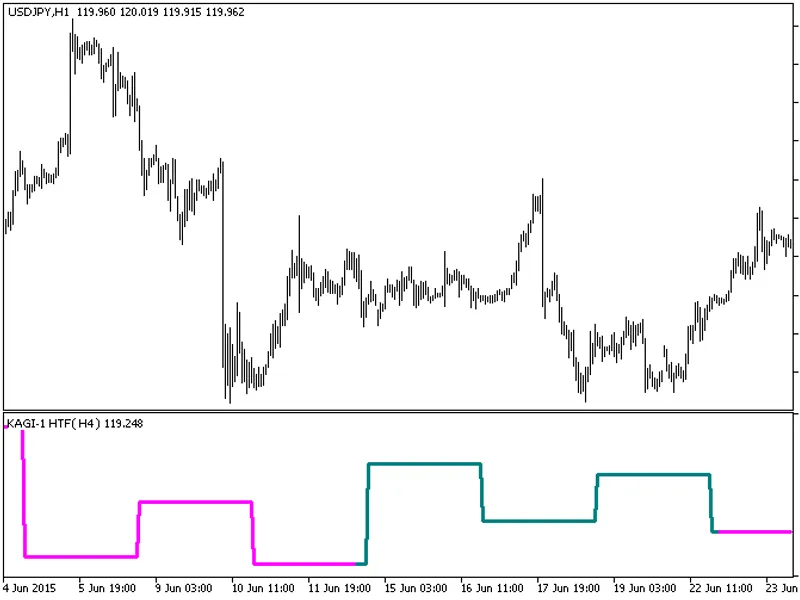
The indicator with the timeframe selection option available in input parameters.The indicator requires Kagi-1.mq5 indicator file. Place it in <terminal_data_folder>\mql5\indi...
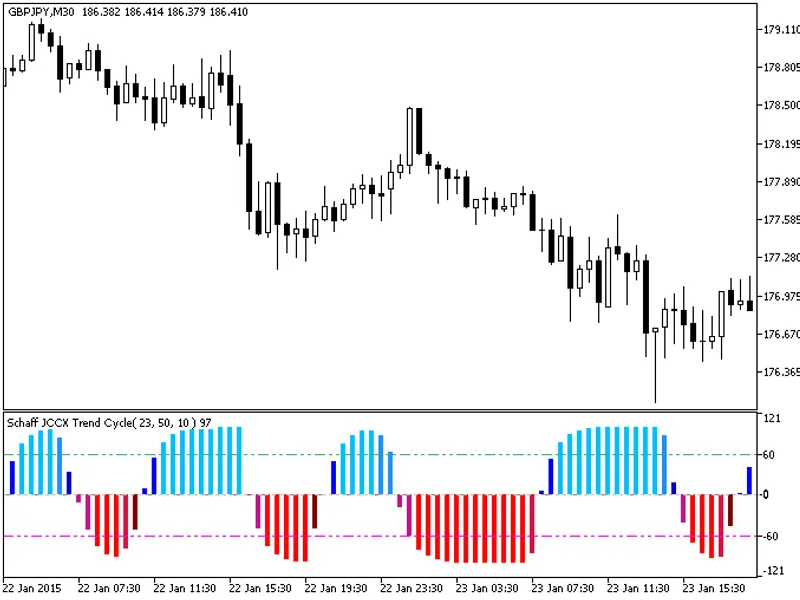
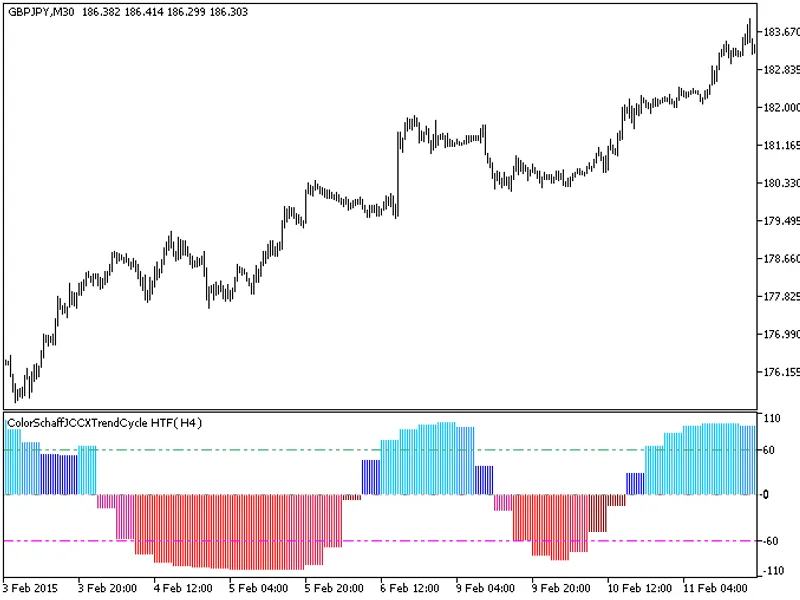
This indicator offers a timeframe selection feature in its input parameters.To use this indicator, you'll need the following files: jccx.mq5 and ColorSchaffJCCXTrendCycle.mq5. Plac...
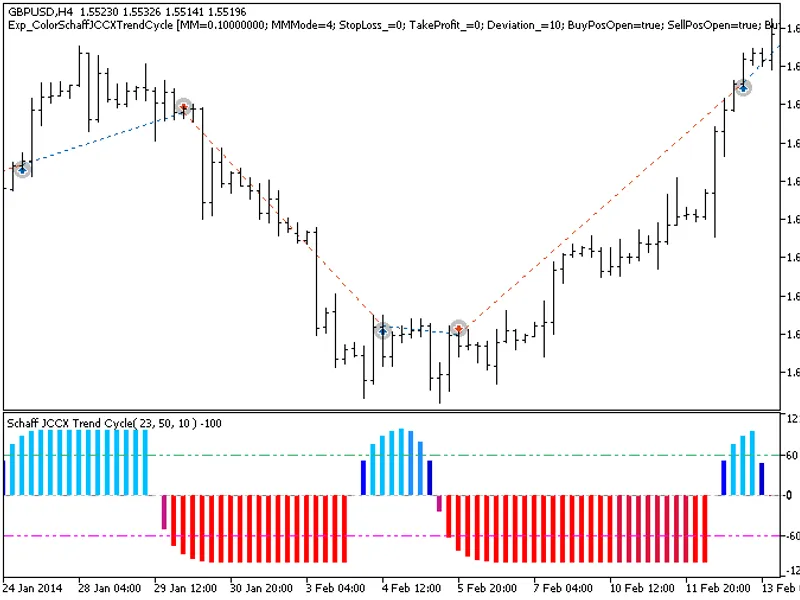
The exp_colorschaffjccxtrendcycle expert advisor is based on the oscillator's change of position relative to overbought and oversold levels. A signal is formed when a bar is closin...
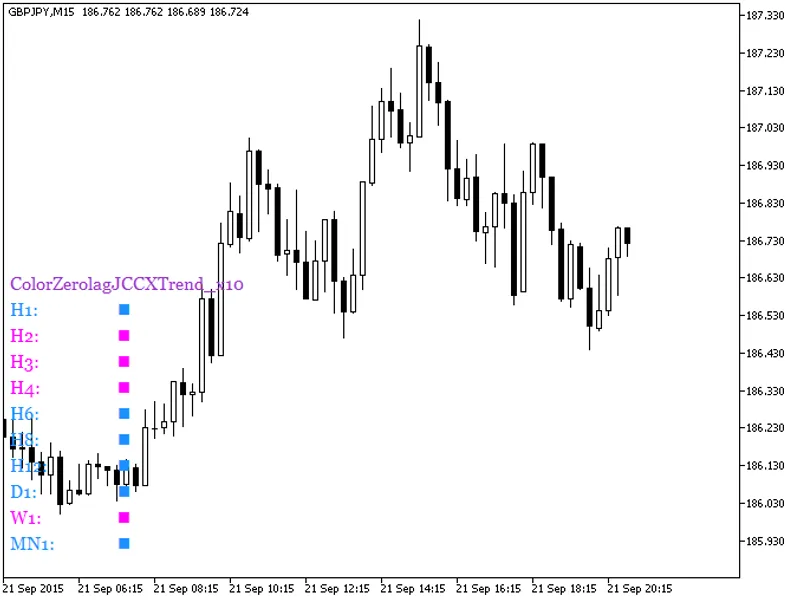
The ColorZerolagJCCXTrend_X10 indicator displays the oscillator's direction across ten distinct timeframes.The indicator employs a color-coding system: falling oscillator movement ...
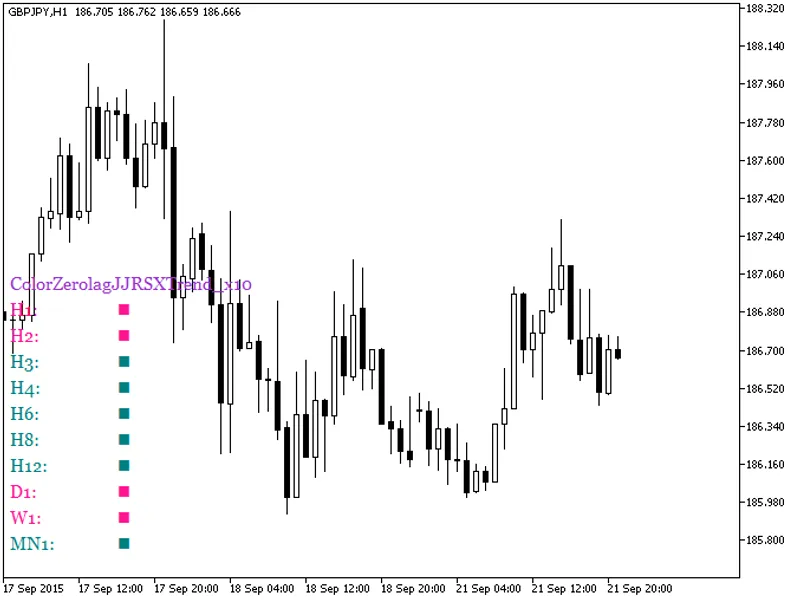
The ColorZeroLagJJRSXTrend_X10 indicator displays the oscillator direction from ten distinct timeframes.Oscillator movement is depicted as follows:- Falling: Pink squares- Rising: ...
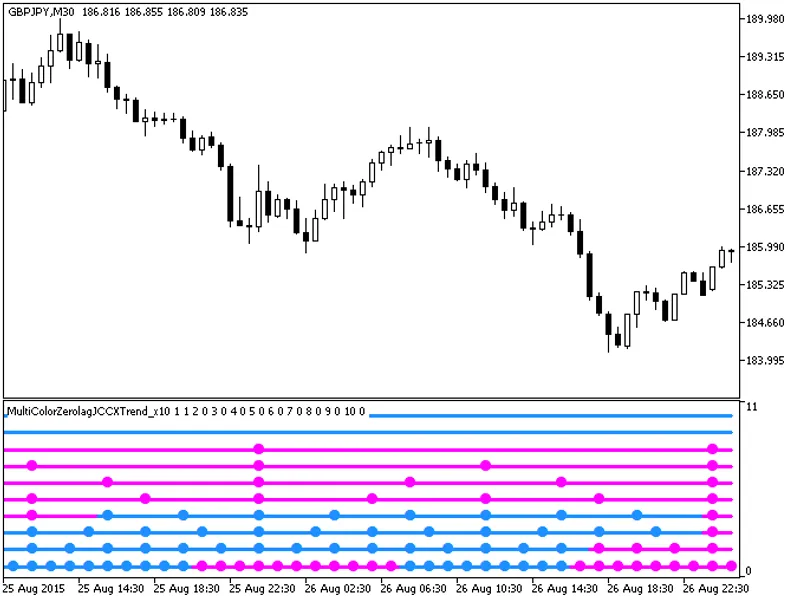
The MultiColorZeroLagJCCXTrend_X10 indicator provides insights into current trends by displaying indicator directions from ten distinct timeframes.Each of the ten indicator lines r...
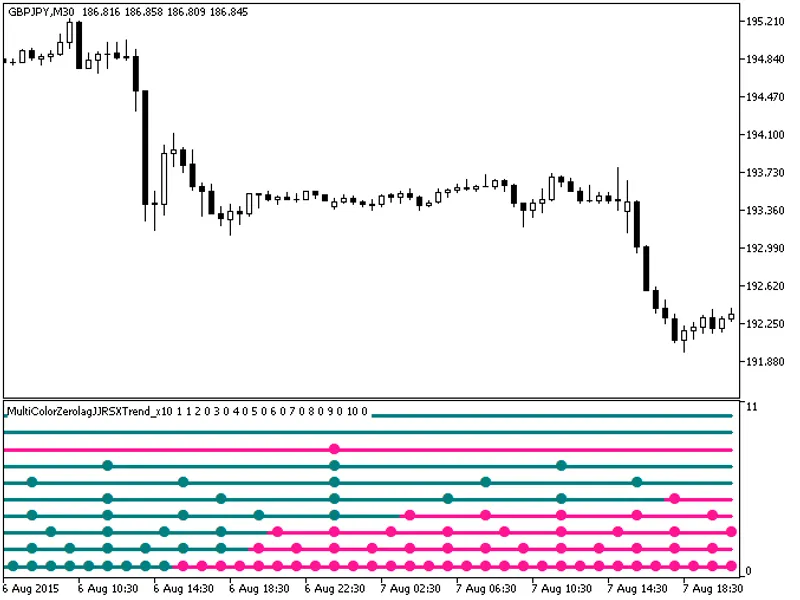
The MultiColorZeroLagJJRSXTrend_X10 indicator provides insights into current trends by displaying the indicator direction from ten distinct timeframes.Each of the ten indicator lin...
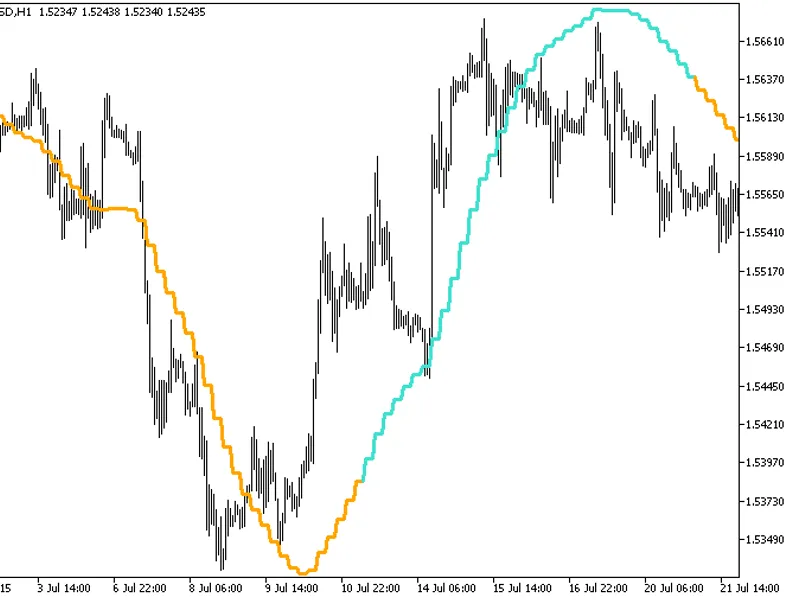
The Kalman Filter HTF indicator offers a unique feature: the ability to select the timeframe in the input parameters.To use this indicator, you'll need the KalmanFilter.mq5 file. P...
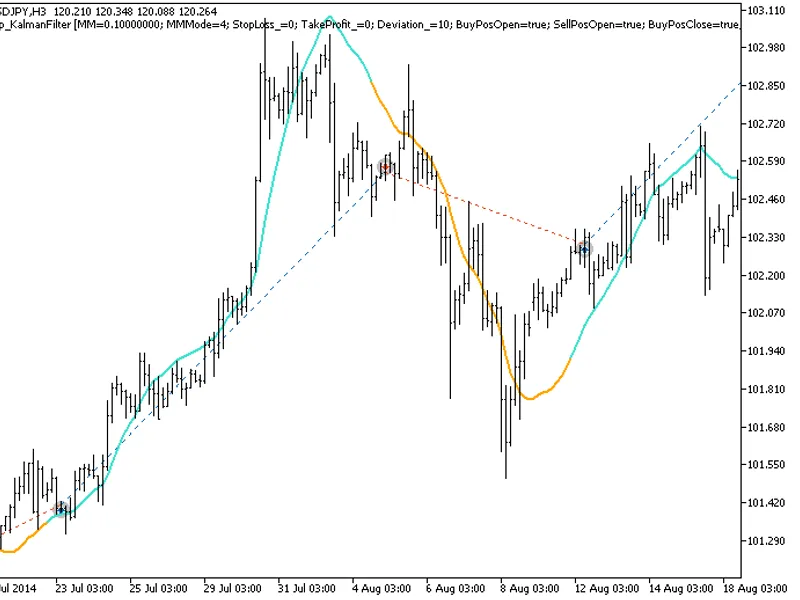
The Kalman Filter Expert Advisor is designed to react to color changes in the indicator. It generates a signal when a bar closes, triggering a trade if the indicator line color cha...
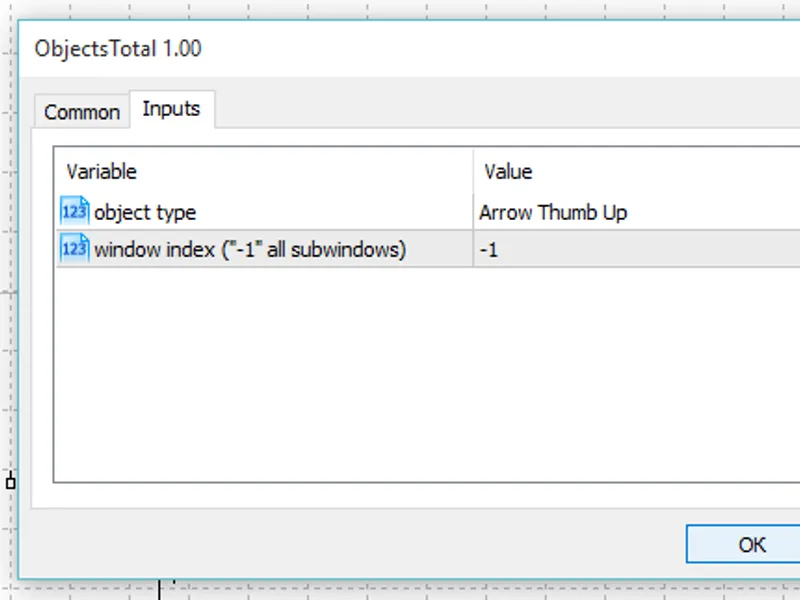
An example of counting different objects on a chart, demonstrating the implementation in all subwindows or a specific subwindow.Settings:- Object Type: Choose from a list of object...