Analyze History
This tool for MetaTrader 4 is specifically engineered to streamline your trading operations. This Expert Advisor serves as automated trading software. It is utilized to monitor financial markets and execute trades based on predefined algorithmic rules, enabling precise position management without the need for constant manual oversight.
How to Setup and Use Analyze History
1. Installation: Open the "File" menu, select "Open Data Folder," navigate to MQL/Experts, paste your file, and restart the terminal.
2. Activation: Drag the EA from the Navigator onto a chart, ensure "Allow live trading" is checked in the Common tab, and verify the AutoTrading button is green.
3. Optimization: Right-click your chart, choose "Expert List," click "Properties" to adjust inputs, and save your preferred setup as a set file for future use.
4. Maintenance: Regularly check the "Experts" tab in the terminal window to monitor trade logs and potential execution errors.
Frequently Asked Questions
Q: Why is my EA not opening trades? A: Check the "AutoTrading" button, ensure "Allow live trading" is enabled, and verify your broker allows automated trading on your account type.
Q: Can I run multiple EAs on one chart? A: No, each chart can only host one active EA; however, you can open multiple charts for different currency pairs to run several EAs.
Q: What does the "smiley face" icon mean? A: A smiley face in the top-right corner of the chart indicates the EA is successfully running; a frowny face means it is disabled.
Description & Settings
Have you ever wondered if your history files are complete or have gaps (i.e. data missing for some periods of time) ?
This EA reports all the gaps in your history file for the symbol and timeframe selected.
Instructions:
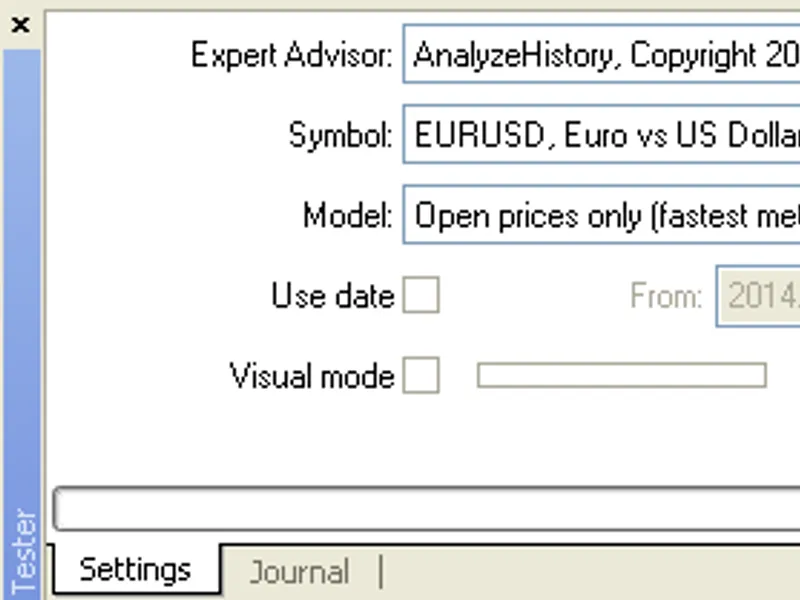
Launch the EA in the strategy tester with 'Use date' checkbox unticked and 'Open prices only' modeling for the symbol and timeframe you want to check.
The EA will print out all the history gaps in the log.
Gaps over the weekend are ignored (provided that broker closes on Friday and reopens on Sunday), but possible gaps over festivities (e.g. Xmas) are reported.
The only input parameter MinGapInBars can be used to filter out gaps shorter than a certain amount of bars, for instance to ignore tiny gaps due to lack of trades on the broker during periods with low liquidity.