Harmonik Manual new version
This software component for MetaTrader 4 is built to enhance the capabilities of your trading environment. This technical indicator acts as a specialized analysis tool designed to visualize market data. It helps traders identify emerging trends, momentum shifts, and key support or resistance levels by plotting statistical calculations directly onto price charts.
How to Setup and Use Harmonik Manual new version
1. Installation: Place your file in the MQL/Indicators folder via "Open Data Folder" and restart your terminal.
2. Loading: Find the indicator in the Navigator, drag it onto your chart, and configure the input parameters in the popup window.
3. Customization: Press Ctrl+I to open the indicator list, select your tool, and click "Properties" to change colors, levels, or visual styles.
4. Updating: Replace the old file in the Indicators folder with the new version and restart the platform to apply changes.
Frequently Asked Questions
Q: Why is my indicator not showing? A: Verify the file is in the MQL/Indicators folder, or try right-clicking the "Indicators" tree in the Navigator and clicking "Refresh."
Q: Do custom indicators slow down the platform? A: Too many complex indicators can impact performance; remove unused ones via the "Indicator List" (Ctrl+I).
Q: Can I use MT4 indicators on MT5? A: No, MQL4 and MQL5 are distinct languages; ensure the indicator is compiled specifically for your platform version.
Description & Settings
I have modified and combined the following materials:
Harmonik_Ratios by "all traders";
Support and Resistance Barry Stander;
My own program.
This indicator is made with the aim to:
Detect the name of the pattern of the points that we place;
Finding the possibility of emerging pattern;
Automatically finding the possibility of reversal pattern.
How to use:
By clicking the button feature is located on the right top of the chart, we can set the utility as follows:
"SEARCH" will find all the possible patterns that will happen next.
"NEXT" will move the point "D" on the pattern obtained, to know the name.
"ON / OFF" to turn the indicator on or off.
"COLOUR / NONE" to change the color of the harmonic pattern, which is colored or not.
"XABC" to put the point XABC to the nearest highest or lowest point.
"RESET" when an error occurs that is not yet defined, press this button.
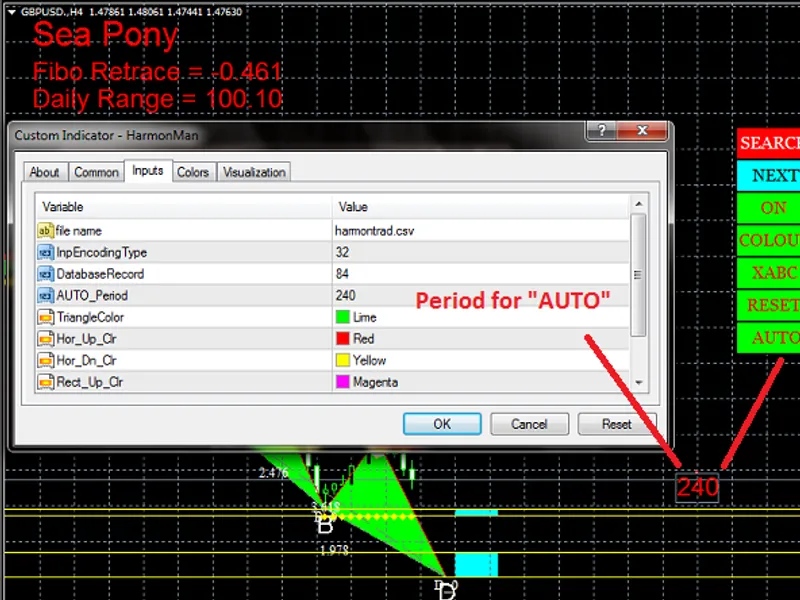
"AUTO" search the possibility next pattern automatically.
To move the location of the menu, press the key "M" for a while. After the key "M" is released, click the mouse button on the desired area.
"AUTO", the feature "AUTO" will automatically create object property "TEXT" name "PERIOD" that show the PERIOD that will use to search the possibility of the next reversal pattern.
We can change the PERIOD to search, by changing the object property "TEXT" name "PERIOD" above.
Click the button "AUTO" again, and the result will shown as figure below.
You also be able to change the database of "Harmonics Pattern" with your own database. By changing the input "file name" and "DatabaseRecord".
You do not have to worry that the number defined in "DatabaseRecord" is not appropriate, because the indicator will adjust if a given number is too large. And will only read the database records, according to the input number, if the number entered is too small.
Save your database file at <terminal_data_folder>\MQL4\Files.