







Harmonik Manual Indicator
Info
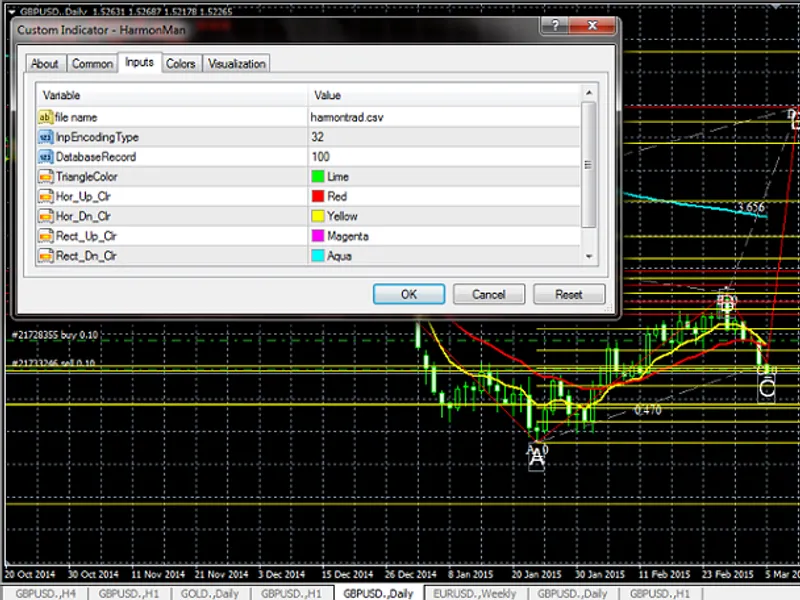
The Harmonik Manual Indicator is a Indicator for MetaTrader 4 that this indicator displays the name of the pattern by manually placing points xabcd and automatically searches for the next potential reversal zone (prz). The concept was originally introduced by Snorm as the Davinciskiss indicator.
Usage
This tool is typically used for enhancing chart analysis and decision making.
Platform
This Indicator works exclusively on MetaTrader 4 (both build 600+ and newer versions).
Setup
Place the downloaded file in MQL4/Indicators folder via File ? Open Data Folder in MetaTrader 4.
How to Install and Use Harmonik Manual Indicator
1. Installation: Place your file in the MQL/Indicators folder via "Open Data Folder" and restart your terminal.
2. Loading: Find the indicator in the Navigator, drag it onto your chart, and configure the input parameters in the popup window.
3. Customization: Press Ctrl+I to open the indicator list, select your tool, and click "Properties" to change colors, levels, or visual styles.
4. Updating: Replace the old file in the Indicators folder with the new version and restart the platform to apply changes.
Frequently Asked Questions
Q: Why is my indicator not showing? A: Verify the file is in the MQL/Indicators folder, or try right-clicking the "Indicators" tree in the Navigator and clicking "Refresh."
Q: Do custom indicators slow down the platform? A: Too many complex indicators can impact performance; remove unused ones via the "Indicator List" (Ctrl+I).
Q: Can I use MT4 indicators on MT5? A: No, MQL4 and MQL5 are distinct languages; ensure the indicator is compiled specifically for your platform version.
What this tool does
This indicator displays the name of the pattern by manually placing points XABCD and automatically searches for the next Potential Reversal Zone (PRZ).
Typical Use Case
This Indicator excels in automated trading and technical analysis on MetaTrader 4.
Compatible Platform & Setup
This Indicator works on MetaTrader 4. Place the file in the MQL4/Indicators folder and restart the terminal.
Description & Settings
Related: Harmonik Manual - another powerful indicator for MetaTrader 4 traders.
This indicator displays the name of the pattern by manually placing points XABCD and automatically searches for the next Potential Reversal Zone (PRZ).Also recommended: volatility oscillator - similar indicator with strong performance on MetaTrader 4.
The concept was originally introduced by Snorm as the Davinciskiss indicator. This version includes modifications to the harmonic ratios.mq4 by Alltraders, with additional commands and enhancements.
Improvements include:
- A feature panel on the right side of the chart.
The feature panel offers the following options:
- Search: Finds all potential upcoming patterns.
- Next: Moves point D on the obtained pattern to identify the name.
- On/Off: Toggles the indicator.
- Colour/None: Changes the colour of the harmonic pattern or removes colour.
- XABC: Places point XABC at the nearest high or low point.
- Reset: Corrects undefined errors.
- Auto: A future feature yet to be implemented.
To relocate the menu, press and hold the 'm' key, then release and click the mouse on the desired area.
Users can utilize their own harmonic pattern database by modifying the 'file name' and 'databaseRecord' inputs in the Inputs tab. The indicator adjusts if the 'databaseRecord' number is too large and only reads the specified number of records if it's too small. Save the database file as <mql4>files.
The harmonic pattern database should be saved as harmontrad.csv and placed in the terminal_data_folder iles.
Once the indicator is loaded, placing XABCD on any point will display the pattern name on the left panel, or the comparison of AB to CD if the pattern is not found.
To search for the next PRZ, place text D to the right of the last candle (time[0]). If text D is above text C, the indicator will search for the PRZ in the upper direction, and vice versa.
To specify the number of PRZs to search, add text and name it 'on', then input the desired amount.
Additional patterns can be added to harmontrad.csv, but remember to adjust the 'databaseRecord' number accordingly.
If point D disappears, press Ctrl+B and delete the text named 'd' and 'on' to recreate it.
You may also like: RVM Gann SV8 Indicator - excellent alternative for indicator users on MetaTrader 4.
Source Code
#property copyright "robotfx"
#property link "https://robotfx.org"
#property version   "1.00"
#property strict
#property indicator_chart_window
input string inpfilename="harmontrad.csv";    // file name
input int    inpencodingtype=file_ansi;
input int    databaserecord=84;
input color  trianglecolor=clrlime;
input color  hor_up_clr=clrred;
.......
⚠ Limitations & Risk Warning
- This tool is provided for educational and testing purposes only.
- Past performance does not guarantee future results.
- Trading involves substantial risk of loss. Use on a demo account first.
- Results may vary depending on market conditions, broker, and settings.
- We recommend thorough backtesting and forward testing before using with real funds.