









Condition Scanner for MT4/MT5
Info
The Condition Scanner for MT4/MT5 is a Indicator for MetaTrader 4 that condition scanner (cs) - a tool for automated trading strategy testingthe condition scanner is a powerful utility designed to help traders automate the process of identifying trading opportunities based on custom conditions. It consists of several indicators and utility files that allow you to define, test, and visualize your trading strategies across multiple instruments and timeframes.
Usage
This tool is typically used for enhancing chart analysis and decision making.
Platform
This Indicator works exclusively on MetaTrader 4 (both build 600+ and newer versions).
Setup
Place the downloaded file in MQL4/Indicators folder via File ? Open Data Folder in MetaTrader 4.
How to Install and Use Condition Scanner for MT4/MT5
1. Installation: Place your file in the MQL/Indicators folder via "Open Data Folder" and restart your terminal.
2. Loading: Find the indicator in the Navigator, drag it onto your chart, and configure the input parameters in the popup window.
3. Customization: Press Ctrl+I to open the indicator list, select your tool, and click "Properties" to change colors, levels, or visual styles.
4. Updating: Replace the old file in the Indicators folder with the new version and restart the platform to apply changes.
Frequently Asked Questions
Q: Why is my indicator not showing? A: Verify the file is in the MQL/Indicators folder, or try right-clicking the "Indicators" tree in the Navigator and clicking "Refresh."
Q: Do custom indicators slow down the platform? A: Too many complex indicators can impact performance; remove unused ones via the "Indicator List" (Ctrl+I).
Q: Can I use MT4 indicators on MT5? A: No, MQL4 and MQL5 are distinct languages; ensure the indicator is compiled specifically for your platform version.
What this tool does
Condition Scanner (CS) - A Tool for Automated Trading Strategy TestingThe Condition Scanner is a powerful utility designed to help traders automate the process of identifying trading opportunities based on custom conditions.
Typical Use Case
This Indicator excels in automated trading and technical analysis on MetaTrader 4.
Compatible Platform & Setup
This Indicator works on MetaTrader 4. Place the file in the MQL4/Indicators folder and restart the terminal.
Description & Settings
Related: Market Conditions Indicator - another powerful indicator for MetaTrader 4 traders.
Condition Scanner (CS) - A Tool for Automated Trading Strategy TestingThe Condition Scanner is a powerful utility designed to help traders automate the process of identifying trading opportunities based on custom conditions. It consists of several indicators and utility files that allow you to define, test, and visualize your trading strategies across multiple instruments and timeframes.
Also recommended: multi pair pivot point scanner alerts 2. 8 - similar indicator with strong performance on MetaTrader 4.
Installation Instructions:
1. Copy the contents of the provided folders (indicators, include, templates, profiles) into the corresponding folders in your MetaTrader installation directory.
2. Close and reopen the MetaTrader program.
Demonstration Example: Power Pro (PP) Strategy
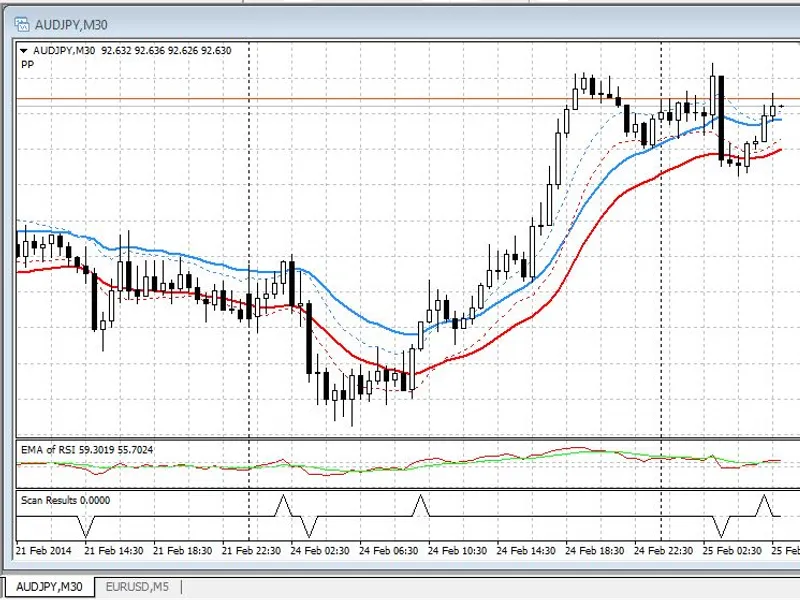
This example utilizes the Power Pro strategy, a band breakout system where the upper band is an EMA of highs and the lower band is an EMA of lows. To use this example:
1. Navigate to the 'cspp' profile in MetaTrader.
2. The initial display may take a few seconds but subsequently uses minimal computer resources.
The PP example includes:
- An on-chart indicator with 4 plots.
- A separate-window indicator displaying the EMA of RSI.
- A separate-window indicator highlighting historical occurrences of long or short trade conditions.
- A panel indicator showing current conditions across various pairs and timeframes.
Core Code Structure:
- utils.mqh: Contains general utility functions usable in any indicator or Expert Advisor.
- cs_chart.mqh: Contains most of the code for the on-chart indicator.
- cs_panel.mqh: Contains most of the code for the panel display indicator.
Strategy-Specific Code (PP Example):
- cspp_0.mq4: Displays relevant chart-window indicators.
- cspp_1.mq4: Displays relevant separate-window indicators.
- cspp_chart.mq4: The indicator that shows historical strategy results on the current chart.
- cspp_panel.mq4: The indicator that displays the current situation across selected pairs and timeframes.
- cspp_getbarflag.mqh: Code included in both chart and panel indicators to determine if a specific bar meets the defined conditions.
Additional Example: Moving Average Crossover (MAX) Strategy
- csmax_0.mq4: A self-contained custom indicator displaying two moving averages.
- csmax_chart.mq4, csmax_panel.mq4, csmax_getbarflag.mqh: Functionality similar to the PP strategy but tailored for the MAX strategy.
Development Templates (csxxxx):
Templates beginning with 'csxxxx' are provided to assist in developing additional custom scans.
How to Code a New Condition:
1. Define a strategy identifier (e.g., 'pb' for Pinbars).
2. Set up your MetaTrader window similar to the demonstration example, removing any existing indicators.
Developing On-Chart and Separate-Window Indicators:
- If your strategy requires on-chart indicators, use 'csxxxx_0.mq4' as a template. Save it with your strategy identifier (e.g., 'cspb_0.mq4') and apply it to your chart.
- For separate-window indicators, use 'csxxxx_1.mq4' as a template. Save and apply it similarly.
- Using custom indicators allows for easier parameter management via the `iCustom` function, enabling single-point updates for strategy parameters.
Developing the Chart Indicator (`cspb_chart.mq4`):
- Load 'csxxxx_chart.mq4', replace 'xxxx' with your strategy identifier ('pb'), and save as 'cspb_chart.mq4'.
Developing the Include File (`cspb_getbarflag.mqh`):
- For simple conditions, use the generic 'csxxxx_getbarflag.mqh', code your logic, and save as 'cspb_getbarflag.mqh'.
- For complex logic, you can embed the code directly within 'cspb_chart.mq4', then move it to 'cspb_getbarflag.mqh' once clean. Ensure the `#include` statement in 'cspb_chart.mq4' is uncommented.
- Compile and apply 'cspb_chart.mq4' to your chart.
- Save the chart template (e.g., 'cspb-chart.tpl').
Developing the Panel Indicator (`cspb_panel.mq4`):
- Load 'csxxxx_panel.mq4', replace 'xxxx' with 'pb', and save as 'cspb_panel.mq4'.
- Compile and apply this indicator to a separate chart.
- Save the panel template (e.g., 'cspb_panel.tpl').
- Optionally, save a profile that includes both templates.
Important Notes:
- Ensure accuracy when using the `iCustom` function, as it does not provide warnings for non-existent indicators.
- A potential issue may arise with the panel indicator's initial calculation. Changing the timeframe in the panel window usually resolves this.
- In custom `getbarflag.mqh` files, returning an integer determines the display color: zero for neutral (gray), negative for sell (red), and positive for buy (green).
Software Design Aspects:
- Indicators are used to facilitate easy instrument and timeframe switching by dragging and dropping from the Market Watch window.
- To optimize performance, the code primarily analyzes the last 200 bars.
- The panel indicator employs a timer mechanism to avoid testing conditions at every tick. It tests bar[0] when 90% formed, otherwise bar[1]. This prevents excessive calculations.
- The top line of the panel displays the time of the last condition testing event. Neutral indicators show '0' if bar[0] is in focus and '1' if bar[1] is in focus.
You may also like: multi forex scanner - excellent alternative for indicator users on MetaTrader 4.
⚠ Limitations & Risk Warning
- This tool is provided for educational and testing purposes only.
- Past performance does not guarantee future results.
- Trading involves substantial risk of loss. Use on a demo account first.
- Results may vary depending on market conditions, broker, and settings.
- We recommend thorough backtesting and forward testing before using with real funds.