AS Q Command Desk
This professional-grade solution for MetaTrader 5 helps traders achieve greater efficiency in their daily workflow. This Expert Advisor serves as automated trading software. It is utilized to monitor financial markets and execute trades based on predefined algorithmic rules, enabling precise position management without the need for constant manual oversight.
How to Setup and Use AS Q Command Desk
1. Installation: Open the "File" menu, select "Open Data Folder," navigate to MQL/Experts, paste your file, and restart the terminal.
2. Activation: Drag the EA from the Navigator onto a chart, ensure "Allow live trading" is checked in the Common tab, and verify the AutoTrading button is green.
3. Optimization: Right-click your chart, choose "Expert List," click "Properties" to adjust inputs, and save your preferred setup as a set file for future use.
4. Maintenance: Regularly check the "Experts" tab in the terminal window to monitor trade logs and potential execution errors.
Frequently Asked Questions
Q: Why is my EA not opening trades? A: Check the "AutoTrading" button, ensure "Allow live trading" is enabled, and verify your broker allows automated trading on your account type.
Q: Can I run multiple EAs on one chart? A: No, each chart can only host one active EA; however, you can open multiple charts for different currency pairs to run several EAs.
Q: What does the "smiley face" icon mean? A: A smiley face in the top-right corner of the chart indicates the EA is successfully running; a frowny face means it is disabled.
Description & Settings
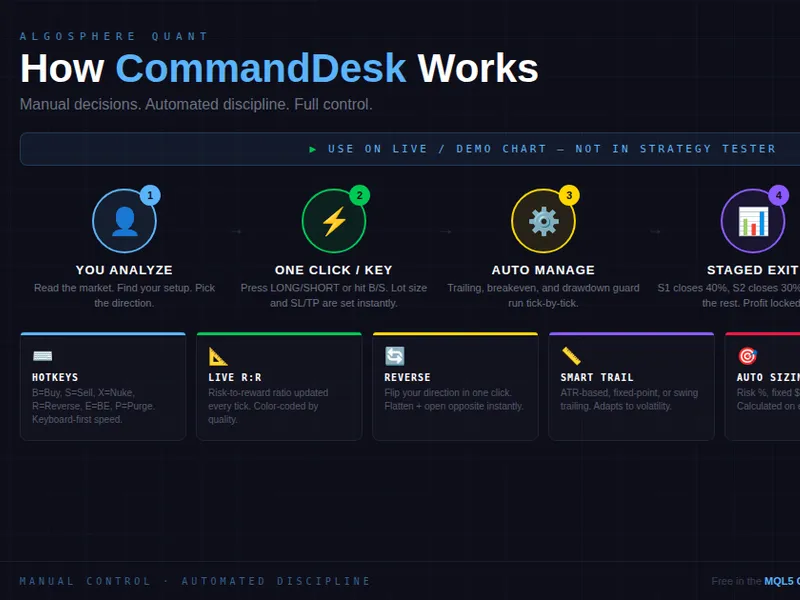
Attach the EA to any live or demo chart, enable Algo Trading, and use the panel buttons or keyboard hotkeys to trade. CommandDesk is not an automated strategy — it will show zero trades in Strategy Tester.
═══ FEATURES ═══ ▸ One-Click Execution Press LONG or SHORT on the panel. Lot size is calculated instantly from your risk settings, SL and TP levels are placed automatically, and the position is registered for staged exit tracking. ▸ Keyboard Hotkeys Trade without touching the mouse. B = Buy, S = Sell, X = Flatten all positions, R = Reverse direction, E = Lock breakeven, P = Purge pending orders. Hotkeys can be disabled in settings. ▸ Staged Multi-TP Exits Set up to three exit stages with custom close percentages (default: 40% at Stage 1, 30% at Stage 2, remainder at Stage 3). Stage state is encoded in the order comment and survives EA restarts. ▸ Adaptive Trailing Stop Three trailing algorithms: fixed-point distance, ATR-scaled distance (configurable period and multiplier), or previous-bar swing high/low. Broker stops level and freeze level are respected automatically. ▸ Auto Breakeven When profit reaches your configured threshold (in points), the SL is moved to entry price plus a safety offset. The "Lock B/E" button applies breakeven instantly to all in-profit positions. ▸ Drawdown Guard Set a maximum drawdown percentage from your session equity peak. CommandDesk monitors equity on every tick. When the limit is breached, all positions and pending orders are auto-flattened. New orders are blocked until equity recovers. Disabled by default — enable it in inputs. ▸ Reverse Position One click or press R to close your current net direction and immediately open the opposite side. Net direction is calculated from all open positions. ▸ Live R:R Display
Risk-to-reward ratio is calculated from your SL distance and furthest TP stage, updated every tick. Color-coded: green for 2:1 or better, yellow for 1:1+, red below 1:1.
▸ Daily Trade Counter Tracks how many market orders you have fired today. Resets automatically at midnight server time. ▸ Intelligent Position Sizing Three modes: fixed lot, percentage of balance at risk, or flat dollar amount at risk. Volume is recalculated on every tick based on the current SL distance and account balance. ▸ Full Pending Order Suite Buy Limit, Sell Limit, Buy Stop, and Sell Stop with automatic SL/TP placement. All distances are validated against the broker's minimum stops level. ▸ Live Dashboard
Real-time spread (color-coded by width), position count by direction, directional lot exposure, floating P&L with swap and commission, staged exit tracker, trailing configuration, drawdown guard status, and daily trade counter — all rendered on a dark-themed overlay panel.
═══ IMPORTANT ═══
⚠ This is a manual trading panel. It requires you to click buttons or press hotkeys to open trades. It does NOT generate signals or auto-trade. Strategy Tester will show 0 trades — this is expected.
⚠ Hotkeys are active when the chart window has focus. If you type in other MT5 windows, hotkeys will not fire. Disable hotkeys in the input settings if you prefer mouse-only operation.
═══USAGE ═══
1. Download and place ASQ_CommandDesk_v1.00.mq5 in your MQL5/Experts folder 2. Compile in MetaEditor (no external dependencies) 3. Attach to any chart on a live or demo account 4. Enable Algo Trading in the MT5 toolbar 5. Configure risk settings, trailing mode, and drawdown guard in the Inputs tab 6. Click LONG/SHORT or press B/S to execute ═══ FILES ═══ ASQ_CommandDesk_v1.00.mq5 — Main EA source (1,200 lines) ═══ COMPATIBILITY ═══ MetaTrader 5 Build 4000+ Any symbol, any timeframe Hedging and Netting account types