






Understanding MQL5 Timestamps: Server Time, UTC, and Data Export
Info
The Understanding MQL5 Timestamps: Server Time, UTC, and Data Export is a Script for MetaTrader 5 that a datetime value in mql5 is stored as the number of seconds elapsed since january 1, 1970. This representation includes server time (broker's clock), time of bar completion, and execution times.
Usage
This tool is typically used for enhancing chart analysis and decision making.
Platform
This Script works exclusively on MetaTrader 5 (both build 600+ and newer versions).
Setup
Place the downloaded file in MQL5/Scripts folder via File ? Open Data Folder in MetaTrader 5.
How to Install and Use Understanding MQL5 Timestamps: Server Time, UTC, and Data Export
1. Installation: Move your script file into the MQL/Scripts directory and restart the platform.
2. Execution: Drag the script onto a chart; it will perform a one-time action, such as closing all open orders or clearing chart objects.
3. Editing: Use MetaEditor (F4) to modify code, click "Compile," and verify no errors appear in the terminal before running.
4. Removing: Scripts stop automatically, but you can remove them manually by right-clicking the chart and choosing "Remove Script."
Frequently Asked Questions
Q: How are scripts different from EAs? A: Scripts execute a single action and then stop; EAs monitor the market and trade continuously.
Q: Can I assign a hotkey to a script? A: Yes, right-click the script in the Navigator, select "Set Hotkey," and define your preferred keyboard shortcut.
Q: Why did my script stop? A: Scripts are designed to stop immediately after finishing their programmed command; this is normal behavior.
What this tool does
A datetime value in MQL5 is stored as the number of seconds elapsed since January 1, 1970.
Typical Use Case
This Script excels in automated trading and technical analysis on MetaTrader 5.
Compatible Platform & Setup
This Script works on MetaTrader 5. Place the file in the MQL5/Scripts folder and restart the terminal.
Description & Settings
Related: Strategy Tester Report Statistics with MQL5 Code - another powerful script for MetaTrader 5 traders.
A datetime value in MQL5 is stored as the number of seconds elapsed since January 1, 1970. This representation includes server time (broker's clock), time of bar completion, and execution times. Crucially, MQL5 stores these times as if they were Coordinated Universal Time (UTC).Also recommended: Broker Execution Diagnostics: Understanding Symbol Specifications - similar script with strong performance on MetaTrader 5.
When you export these timestamps to a CSV file and then import them into applications like Python or spreadsheets, which might interpret them as seconds since 1970 UTC, every timestamp will be shifted by the server's UTC offset. For instance, on a broker operating on UTC-3, a daily bar timestamped at 00:00 would appear as 21:00 of the previous day. This can lead to misinterpretations, such as a partial trading session being incorrectly attributed to the current day.
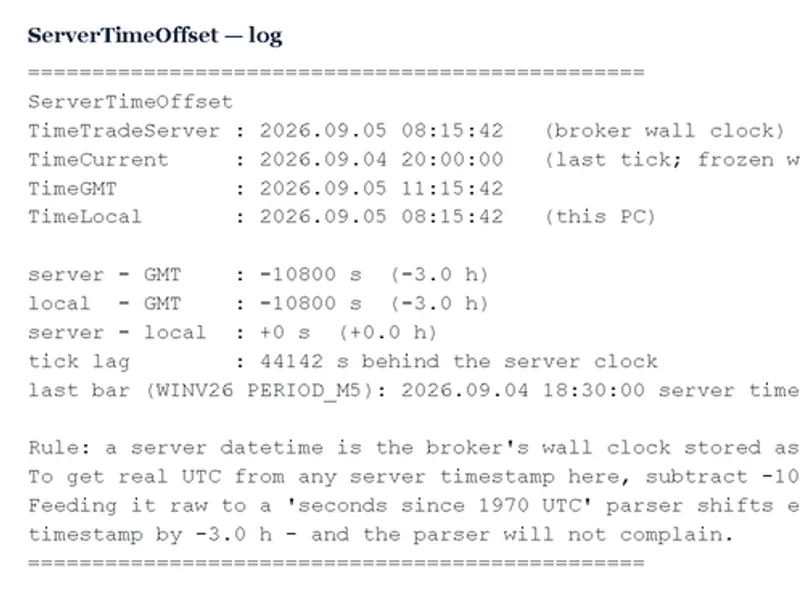
This script provides a diagnostic tool to examine the three primary time sources available in an MQL5 program and report the offsets between them:
TimeTradeServer(): This reflects the broker's actual clock and is accessible even when the market is closed or there are no incoming ticks.
TimeCurrent(): This is the timestamp of the most recent tick received. It will remain static if no new ticks arrive.
TimeGMT(): This represents the real UTC time, synchronized with the local PC's clock.
TimeLocal(): This is the clock time of the local PC.
The script then calculates and displays the following differences: server time minus GMT, local time minus GMT, server time minus local time, the tick lag (the difference between TimeCurrent and the server clock), and the last bar time of the current chart, shown in both server time and real UTC.
Running the script when the market is closed can reveal the tick lag. For example, a lag of 44,142 seconds on a Saturday indicates that the last received tick was from Friday evening.
Input Parameters:
InpShowLastBar: A boolean input (default is true). If set to true, the script will also output the last bar time of the current chart in both server time and UTC.
Exporting Timestamps Safely:
The fundamental rule for handling server datetimes is to remember that they are stored internally as UTC. When exporting server timestamps, it is recommended to either format them as human-readable text (e.g., yyyy-mm-dd hh:mm:ss) or to export the raw epoch value along with the calculated offset provided by this script. Avoid letting the consumer of the data apply their own timezone conversions to raw server epochs, as this will inevitably lead to incorrect timestamp shifts without any warning.
This script serves as a diagnostic utility. It does not predict market movements or execute trades; its sole purpose is to measure and report the time discrepancies within your MetaTrader terminal, ensuring that the numerical data exported is accurate and reflects your intended meaning.
Last updated: 2026
You may also like: Type-Safe Error Handling for MQL5 Without Exceptions - excellent alternative for script users on MetaTrader 5.
Source Code
#property copyright "RobotFX"
#property link "https://robotfx.org"
#property version   "1.00"
#property script_show_inputs
input bool InpShowLastBar = true;
string Fmt(datetime t) { return TimeToString(t, TIME_DATE | TIME_SECONDS); }
void OnStart()
  {
   datetime server = TimeTradeServer();
   datetime tick   = TimeCurrent();
.......
⚠ Limitations & Risk Warning
- This tool is provided for educational and testing purposes only.
- Past performance does not guarantee future results.
- Trading involves substantial risk of loss. Use on a demo account first.
- Results may vary depending on market conditions, broker, and settings.
- We recommend thorough backtesting and forward testing before using with real funds.