

williams thrust
Info
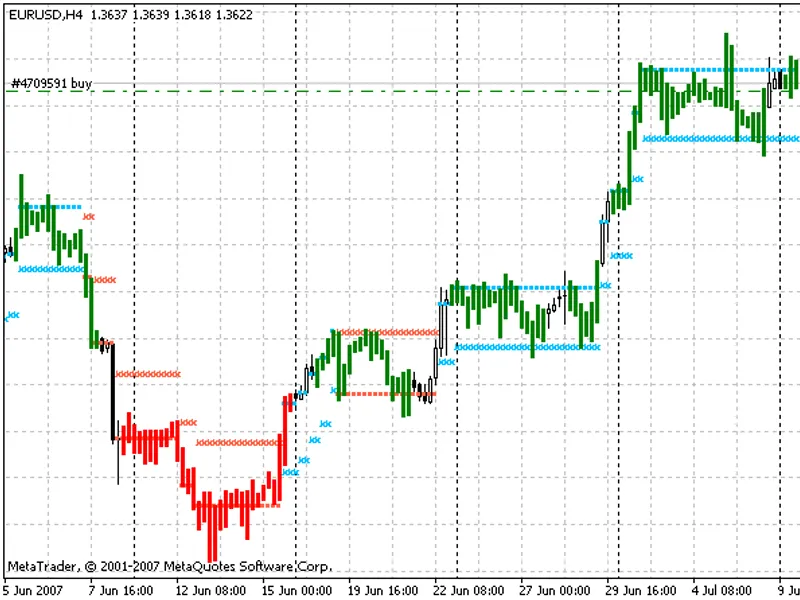
The williams thrust is a Indicator for MetaTrader 5 that the signal and information indicator williams thrust is based on two williams' percent range indicators with different periods and their average values. there are five inputs:first wpr period- first wpr calculation period;first ma period- first wpr averaging period;second wpr period- second wpr calculation period;second ma period- second wpr averaging period;ma method- averaging calculation method.
Usage
This tool is typically used for enhancing chart analysis and decision making.
Platform
This Indicator works exclusively on MetaTrader 5 (both build 600+ and newer versions).
Setup
Place the downloaded file in MQL5/Indicators folder via File ? Open Data Folder in MetaTrader 5.
How to Install and Use williams thrust
1. Installation: Place your file in the MQL/Indicators folder via "Open Data Folder" and restart your terminal.
2. Loading: Find the indicator in the Navigator, drag it onto your chart, and configure the input parameters in the popup window.
3. Customization: Press Ctrl+I to open the indicator list, select your tool, and click "Properties" to change colors, levels, or visual styles.
4. Updating: Replace the old file in the Indicators folder with the new version and restart the platform to apply changes.
Frequently Asked Questions
Q: Why is my indicator not showing? A: Verify the file is in the MQL/Indicators folder, or try right-clicking the "Indicators" tree in the Navigator and clicking "Refresh."
Q: Do custom indicators slow down the platform? A: Too many complex indicators can impact performance; remove unused ones via the "Indicator List" (Ctrl+I).
Q: Can I use MT4 indicators on MT5? A: No, MQL4 and MQL5 are distinct languages; ensure the indicator is compiled specifically for your platform version.
What this tool does
the signal and information indicator williams thrust is based on two williams' percent range indicators with different periods and their average values.
Typical Use Case
This Indicator excels in automated trading and technical analysis on MetaTrader 5.
Compatible Platform & Setup
This Indicator works on MetaTrader 5. Place the file in the MQL5/Indicators folder and restart the terminal.
Description & Settings
Related: williams percent range (%r) - another powerful indicator for MetaTrader 5 traders.
the signal and information indicator williams thrust is based on two williams' percent range indicators with different periods and their average values.
Also recommended: williams' accumulation/distribution (w a/d) indicator - similar indicator with strong performance on MetaTrader 5.
there are five inputs:first wpr period
- first wpr calculation period;
first ma period
- first wpr averaging period;
second wpr period
- second wpr calculation period;
second ma period
- second wpr averaging period;
ma method
- averaging calculation method.
calculations:
if
firstwpr > firstma
and
secondwpr > secondma
-
a buy signal
.
if
firstwpr < firstma
and
secondwpr < secondma
-
a sell signal
.
otherwise -
neutral value
.
where:
You may also like: HL Cross Signal Indicator for Williams Percent Range - excellent alternative for indicator users on MetaTrader 5.
Source Code
/.......
⚠ Limitations & Risk Warning
- This tool is provided for educational and testing purposes only.
- Past performance does not guarantee future results.
- Trading involves substantial risk of loss. Use on a demo account first.
- Results may vary depending on market conditions, broker, and settings.
- We recommend thorough backtesting and forward testing before using with real funds.