Ultra WP R HT F Signal BG
This professional-grade solution for MetaTrader 5 helps traders achieve greater efficiency in their daily workflow. This technical indicator acts as a specialized analysis tool designed to visualize market data. It helps traders identify emerging trends, momentum shifts, and key support or resistance levels by plotting statistical calculations directly onto price charts.
How to Setup and Use Ultra WP R HT F Signal BG
1. Installation: Place your file in the MQL/Indicators folder via "Open Data Folder" and restart your terminal.
2. Loading: Find the indicator in the Navigator, drag it onto your chart, and configure the input parameters in the popup window.
3. Customization: Press Ctrl+I to open the indicator list, select your tool, and click "Properties" to change colors, levels, or visual styles.
4. Updating: Replace the old file in the Indicators folder with the new version and restart the platform to apply changes.
Frequently Asked Questions
Q: Why is my indicator not showing? A: Verify the file is in the MQL/Indicators folder, or try right-clicking the "Indicators" tree in the Navigator and clicking "Refresh."
Q: Do custom indicators slow down the platform? A: Too many complex indicators can impact performance; remove unused ones via the "Indicator List" (Ctrl+I).
Q: Can I use MT4 indicators on MT5? A: No, MQL4 and MQL5 are distinct languages; ensure the indicator is compiled specifically for your platform version.
Description & Settings
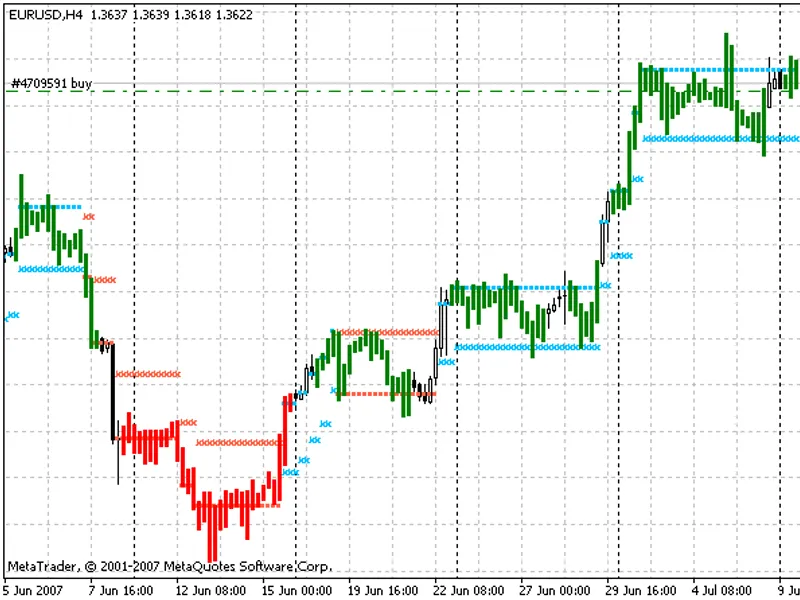
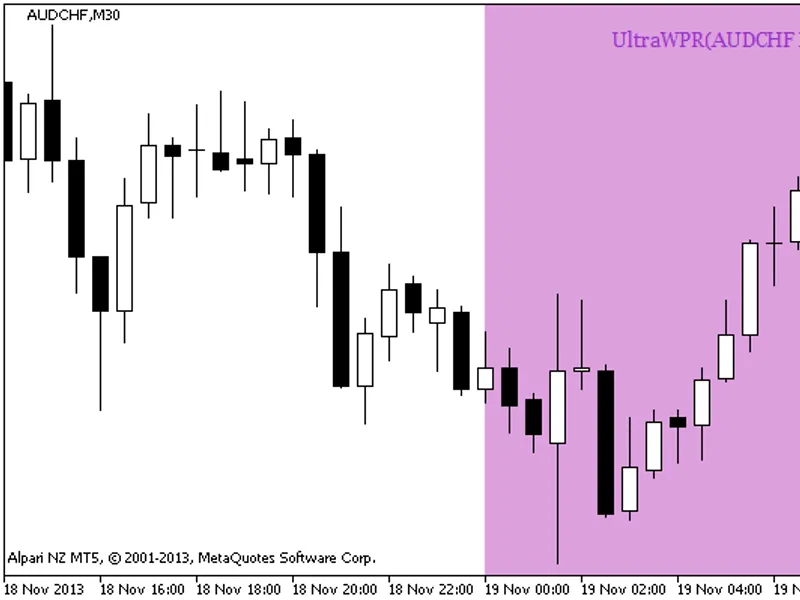
UltraWPR_HTF_Signal_BG shows information about trend direction based on the data of the indicator on a selected bar as a graphic object with a colored indication of trend or deal direction and gives alerts or audio signals and sends push notifications on the smartphone if signal to conduct a deal appears.
A graphic object is represented as a colored background. The background has four colors. Pale colors indicate trend continuation and bright colors indicate a signal to trade.
The indicator sends alerts and push notifications only if the value of the input parameter:
is greater than one. For the zero bar sound signals and Push-notifications are useless because the signal of the indicator on the zero bar can change and disappear!
All input parameters can be divided into three large groups:
Input parameters for drawing a session:
Input parameters of UltraWPR:
The input parameters of the UltraWPR_HTF_Signal_BG indicator required for the indicator visualization:
Input parameters of the UltraWPR_HTF_Signal indicator that are necessary for producing alerts and audio signals:
In case several UltraWPR_HTF_Signal_BG indicators are to be used on one chart, each of them should have its own Symbols_Sirname (indicator labels names) string variable value.
Place the indicator compiled file UltraWPR.mq5 to the terminal_data_folder\MQL5\Indicators\ of the client terminal.
Fig. 1. A signal of trend continuation based on the data of the UltraWPR_HTF_Signal_BG indicator
Fig. 2. A signal to open a position based on the data of UltraWPR_HTF_Signal_BG