





TradingView Style Chart Drag and Zoom for MT5
Info
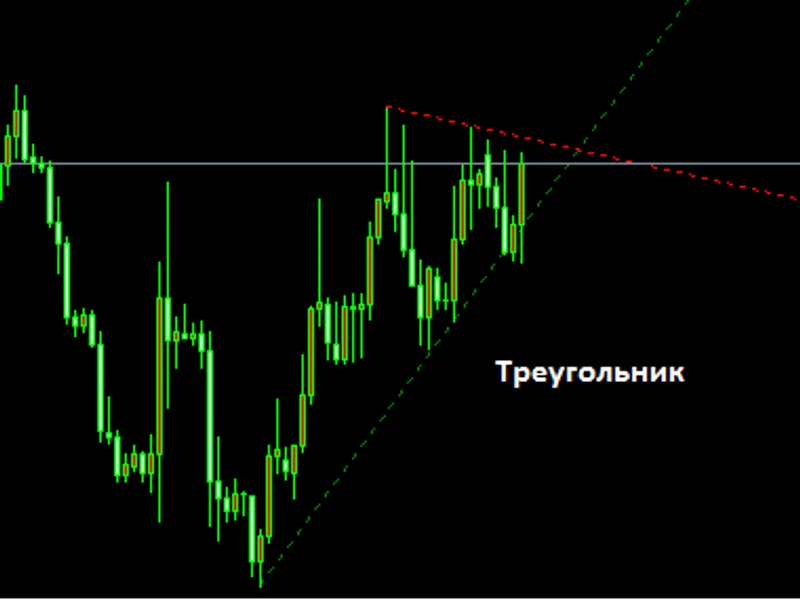
The TradingView Style Chart Drag and Zoom for MT5 is a Indicator for MetaTrader 5 that tradingview-style chart navigation for metatrader 5if you move between tradingview and metatrader 5, you know the feeling: in tradingview you grab the chart and move it anywhere, up, down, left or right. In MetaTrader 5 the chart only scrolls sideways, and the price scale keeps fitting itself to the candles, so you cannot simply pull the candles to where you want to look.
Usage
This tool is typically used for enhancing chart analysis and decision making.
Platform
This Indicator works exclusively on MetaTrader 5 (both build 600+ and newer versions).
Setup
Place the downloaded file in MQL5/Indicators folder via File ? Open Data Folder in MetaTrader 5.
How to Install and Use TradingView Style Chart Drag and Zoom for MT5
1. Installation: Place your file in the MQL/Indicators folder via "Open Data Folder" and restart your terminal.
2. Loading: Find the indicator in the Navigator, drag it onto your chart, and configure the input parameters in the popup window.
3. Customization: Press Ctrl+I to open the indicator list, select your tool, and click "Properties" to change colors, levels, or visual styles.
4. Updating: Replace the old file in the Indicators folder with the new version and restart the platform to apply changes.
Frequently Asked Questions
Q: Why is my indicator not showing? A: Verify the file is in the MQL/Indicators folder, or try right-clicking the "Indicators" tree in the Navigator and clicking "Refresh."
Q: Do custom indicators slow down the platform? A: Too many complex indicators can impact performance; remove unused ones via the "Indicator List" (Ctrl+I).
Q: Can I use MT4 indicators on MT5? A: No, MQL4 and MQL5 are distinct languages; ensure the indicator is compiled specifically for your platform version.
What this tool does
TradingView-style chart navigation for MetaTrader 5If you move between TradingView and MetaTrader 5, you know the feeling: in TradingView you grab the chart and move it anywhere, up, down, left or right.
Typical Use Case
This Indicator excels in automated trading and technical analysis on MetaTrader 5.
Compatible Platform & Setup
This Indicator works on MetaTrader 5. Place the file in the MQL5/Indicators folder and restart the terminal.
Description & Settings
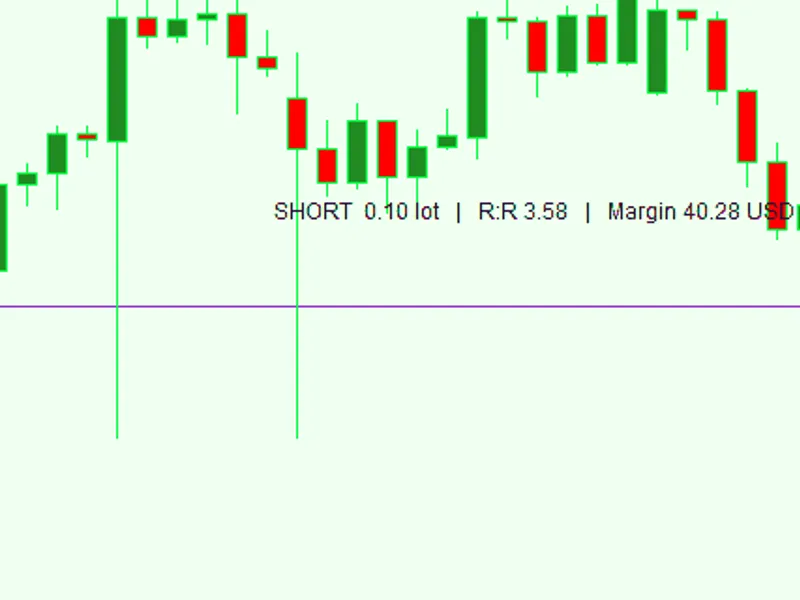
Related: Position Tool: TradingView-Style Trade Planning for MT5 - another powerful indicator for MetaTrader 5 traders.
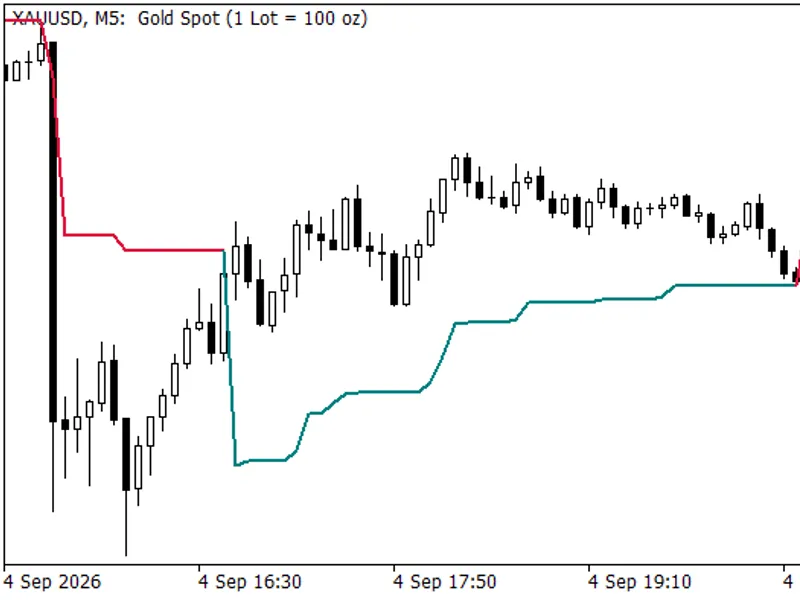
TradingView-style chart navigation for MetaTrader 5Also recommended: Super Trend TV: MQL5 Implementation Matching TradingView Precision - similar indicator with strong performance on MetaTrader 5.
If you move between TradingView and MetaTrader 5, you know the feeling: in TradingView you grab the chart and move it anywhere, up, down, left or right. In MetaTrader 5 the chart only scrolls sideways, and the price scale keeps fitting itself to the candles, so you cannot simply pull the candles to where you want to look.
This indicator brings that free movement to MetaTrader 5. Attach it to a chart and the left mouse button behaves the way TradingView users expect.
What it does
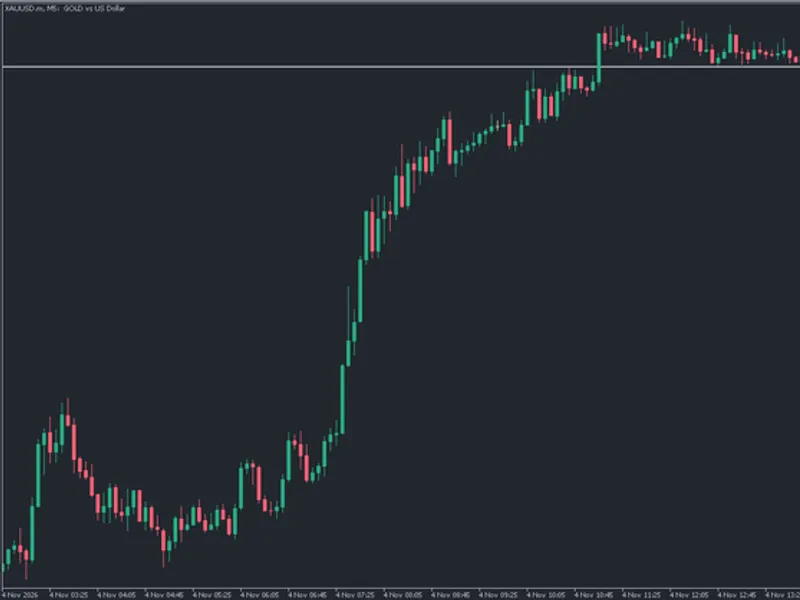
Drag the candles in any direction. Left and right scrolls through bars, up and down moves the price range.
Drag the price scale up or down to stretch or compress the prices.
Drag the time axis left or right to zoom the bars out or in.
Shift + mouse wheel over the chart zooms the price around the cursor.
Mouse wheel over the price scale zooms the price around the middle of the chart.
Optional: the plain mouse wheel zooms bars instead of scrolling them.
AUTO button in the bottom-right corner, or a double-click on the price scale, returns to the normal auto-fit scale.
ON/OFF button next to AUTO. OFF gives you the normal MetaTrader chart back right away, with every setting as it was. ON switches the TradingView-style navigation on again.
The AUTO button is blue while auto-fit is on and grey after you have moved or stretched the prices.
Safe with your trades and drawings
It is an indicator, not an Expert Advisor, so it can run on the same chart as your EA.
It never opens, changes or closes trades.
When you grab an entry, Stop Loss or Take Profit line, the chart does not move, so you can still drag those levels as usual.
When a drawing object is selected, the chart does not move, so you can still move your trend lines and other objects.
Indicator subwindows scroll left and right only.
When you remove the indicator, every chart setting it changed is put back exactly as it was.
Inputs
Dragging
Drag candles up/down: turn vertical movement on or off.
Drag price scale to stretch/compress: on or off.
Drag time axis to zoom bars: on or off.
Don't pan when grabbing an order/SL/TP line: keeps trade levels draggable.
Trade-level grab tolerance (px): how close to a line counts as grabbing it.
Zoom
Plain mouse wheel: Native MT5 (scroll bars) or Zoom bars (TradingView style).
Shift+wheel / wheel on price scale zooms price: on or off.
Price-scale drag sensitivity (per px): higher value = faster stretching.
Price zoom per wheel notch: 0.10 means 10 percent per notch.
Time-axis drag px per zoom step: how far to drag for one zoom step.
Behaviour
Don't snap to latest bar on new ticks: switches off chart auto-scroll so the chart stays where you put it.
Show AUTO scale button: on or off.
Double-click time (ms): maximum time between the two clicks of a double-click.
How to use
Copy the file to the MQL5\Indicators folder and compile it in MetaEditor (or restart MetaTrader).
Drag TradingView_Chart_Navigation from the Navigator onto a chart.
Use the mouse as described above. Remove the indicator to get the normal MetaTrader behaviour back.
How it works
MetaTrader's own left-button scrolling is switched off and the indicator reads the mouse itself through chart events. Horizontal movement is turned into whole-bar steps with ChartNavigate. For vertical movement and price zoom, the chart is switched to a fixed scale starting from exactly what is visible, so nothing jumps, and the fixed maximum and minimum are then moved or scaled. Time zoom uses the normal MetaTrader zoom levels.
The code is a single file with no includes, commented throughout, so it is also a useful example of working with mouse events, chart coordinates and chart properties in MQL5.
Notes
MetaTrader has six zoom levels for bars, so time zoom moves in steps rather than smoothly.
MQL5 cannot block MetaTrader's own mouse wheel action. If you choose "Zoom bars" for the plain wheel, MetaTrader may still scroll a little at the same time.
Use one copy of the indicator per chart.
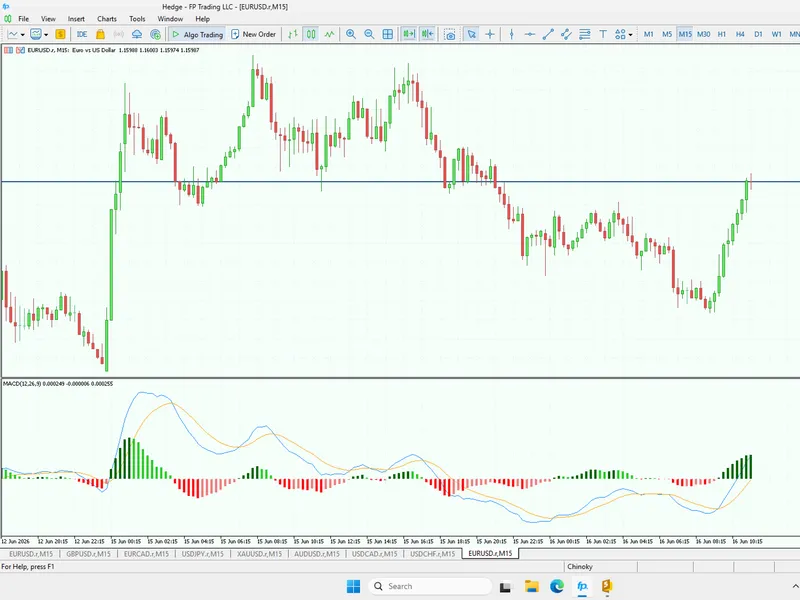
You may also like: MACD Trading View Style for MT5 - excellent alternative for indicator users on MetaTrader 5.
Source Code
#property copyright "RobotFX"
#property link "https://robotfx.org"
#property version     "1.00"
#property description "This code is educational. Feel free to use, modify and upgrade as you wish. Visit ROBOTFX.ORG for professional trading tools"
#property indicator_chart_window
#property indicator_buffers 0
#property indicator_plots   0
enum ENUM_WHEEL_MODE
  {
   WHEEL_NATIVE    = 0,
.......
⚠ Limitations & Risk Warning
- This tool is provided for educational and testing purposes only.
- Past performance does not guarantee future results.
- Trading involves substantial risk of loss. Use on a demo account first.
- Results may vary depending on market conditions, broker, and settings.
- We recommend thorough backtesting and forward testing before using with real funds.