

Quantora Symbol Information Dashboard MT5 - Professional Symbol and Trading Specifications Panel
Info
The Quantora Symbol Information Dashboard MT5 - Professional Symbol and Trading Specifications Panel is a Indicator for MetaTrader 5 that quantora symbol information dashboard mt5this is a professional real-time symbol and trading specifications indicator designed for metatrader 5. The indicator collects important information directly from the broker and displays it in a clean Quantora dashboard.
Usage
This tool is typically used for enhancing chart analysis and decision making.
Platform
This Indicator works exclusively on MetaTrader 5 (both build 600+ and newer versions).
Setup
Place the downloaded file in MQL5/Indicators folder via File ? Open Data Folder in MetaTrader 5.
How to Install and Use Quantora Symbol Information Dashboard MT5 - Professional Symbol and Trading Specifications Panel
1. Installation: Place your file in the MQL/Indicators folder via "Open Data Folder" and restart your terminal.
2. Loading: Find the indicator in the Navigator, drag it onto your chart, and configure the input parameters in the popup window.
3. Customization: Press Ctrl+I to open the indicator list, select your tool, and click "Properties" to change colors, levels, or visual styles.
4. Updating: Replace the old file in the Indicators folder with the new version and restart the platform to apply changes.
Frequently Asked Questions
Q: Why is my indicator not showing? A: Verify the file is in the MQL/Indicators folder, or try right-clicking the "Indicators" tree in the Navigator and clicking "Refresh."
Q: Do custom indicators slow down the platform? A: Too many complex indicators can impact performance; remove unused ones via the "Indicator List" (Ctrl+I).
Q: Can I use MT4 indicators on MT5? A: No, MQL4 and MQL5 are distinct languages; ensure the indicator is compiled specifically for your platform version.
What this tool does
Quantora Symbol Information Dashboard MT5This is a professional real-time symbol and trading specifications indicator designed for MetaTrader 5.
Typical Use Case
This Indicator excels in automated trading and technical analysis on MetaTrader 5.
Compatible Platform & Setup
This Indicator works on MetaTrader 5. Place the file in the MQL5/Indicators folder and restart the terminal.
Description & Settings
Related: Trend BOSS: Classifying Market Regimes with Symbolic Fourier Approximation - another powerful indicator for MetaTrader 5 traders.
Quantora Symbol Information Dashboard MT5Also recommended: Symbol Specification Auditor: Uncover Hidden Trading Costs and Risks - similar indicator with strong performance on MetaTrader 5.
This is a professional real-time symbol and trading specifications indicator designed for MetaTrader 5.
The indicator collects important information directly from the broker and displays it in a clean Quantora dashboard.
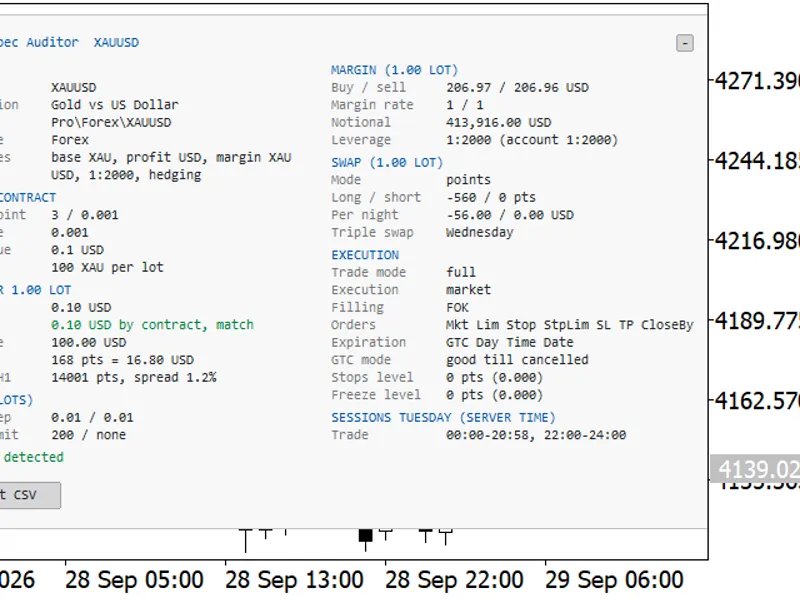
Instead of repeatedly opening the MetaTrader 5 symbol specification window, traders can monitor essential information such as Bid, Ask, Spread, Point Size, Tick Size, Tick Value, Contract Size, Lot Limits, Swap Rates, Stops Level, Trading Mode, Daily Range and ATR directly from the chart.
The dashboard can monitor the current chart symbol or a custom symbol selected by the user.
Main Features
- Real-time Bid price
- Real-time Ask price
- Current Spread in points
- Market Open / Closed status
- Symbol Digits
- Point Size
- Tick Size
- Tick Value
- Contract Size
- Estimated 1 Lot Point Value
- Estimated 1 Lot Pip Value
- Minimum Lot
- Maximum Lot
- Lot Step
- Swap Long
- Swap Short
- Stops Level
- Freeze Level
- Trading Mode
- Filling Mode
- Daily High
- Daily Low
- Daily Range
- Current ATR
- Account Currency
- Account Leverage
- Current Symbol mode
- Custom Symbol mode
- Automatic real-time updates
- Professional Quantora dashboard
- Low CPU usage
- Works on all chart timeframes
- Free and open-source MQ5 code
Live Market Information
The dashboard continuously monitors the selected trading instrument.
Example:
SYMBOL XAUUSD
MARKET OPEN
BID 3368.42
ASK 3368.58
SPREAD 16.0 points
Bid and Ask values are retrieved directly from the selected symbol's current tick data.
Spread is calculated in broker points.
Contract Specifications
The indicator displays important contract information provided by the broker.
DIGITS 2
POINT 0.01
TICK SIZE 0.01
TICK VALUE 1.00 USD
CONTRACT SIZE 100.00
These values can differ significantly between Forex, metals, indices, cryptocurrencies, CFDs and brokers.
For this reason, the dashboard reads the specifications directly from MetaTrader 5.
Point and Pip Value
The dashboard also estimates the monetary value of a price movement for 1.00 lot.
Displayed values include:
- 1 LOT POINT VALUE
- 1 LOT PIP VALUE
The calculation uses the broker-reported: Tick Size, Tick Value, Point Size, Symbol Digits.
For 3-digit and 5-digit symbols, the dashboard uses the conventional 10-point pip interpretation.
For other digit configurations, the symbol point size is used as the reference.
These values should be treated as informational estimates because symbol calculation models and broker specifications may vary.
Volume Information
Important trading-volume limits are displayed directly on the dashboard.
MIN LOT 0.01
MAX LOT 100.00
LOT STEP 0.01
This allows traders to quickly identify the minimum and maximum permitted order volume and the valid lot increment for the selected instrument.
Swap Information
The dashboard displays the broker-reported swap values for both trade directions.
SWAP LONG -32.50
SWAP SHORT 18.20
Swap values are displayed exactly according to the symbol information supplied by MetaTrader 5.
Their monetary interpretation depends on the broker's swap calculation mode and symbol specifications.
Stops and Freeze Levels
The indicator retrieves: STOPS LEVEL, FREEZE LEVEL.
These values are useful when developing or testing Expert Advisors because brokers may impose minimum distances or modification restrictions for trading operations.
Example:
STOPS LEVEL 0
FREEZE LEVEL 0
Values are displayed in broker points.
Trading Mode
The current symbol trading mode is automatically detected.
Possible conditions include:
- FULL
- LONG ONLY
- SHORT ONLY
- CLOSE ONLY
- DISABLED
This provides a quick indication of the operations currently permitted for the selected instrument.
Filling Mode
The dashboard also reads the broker-supported order filling configuration.
Depending on the symbol, the panel may display modes such as: FOK, IOC, BOC or supported combinations where applicable.
Daily Market Information
The current daily candle is analyzed to display: DAILY HIGH, DAILY LOW, DAILY RANGE, CURRENT ATR.
For example:
HIGH 3382.60
LOW 3344.15
RANGE 38.45
ATR 4.82
Daily Range is calculated as: Daily High - Daily Low.
This provides a quick overview of the current day's price movement.
ATR
The indicator includes an ATR calculation with a default period of: ATR Period = 14.
ATR is calculated using the current chart timeframe.
The ATR period can be changed from the indicator inputs.
Current or Custom Symbol
By default, the dashboard monitors the symbol of the chart where the indicator is attached.
Users can also disable: Use Current Symbol and specify a custom instrument.
For example:
Use Current Symbol = false
Custom Symbol = XAUUSD
The exact broker symbol name should be used, including suffixes or prefixes where applicable.
Market Status
The dashboard provides an informational: MARKET: OPEN or MARKET: CLOSED status.
The status is determined using the symbol's trading mode and the recency of received tick data.
Because broker trading schedules and tick availability can vary, this should be considered a practical monitoring indication rather than an official exchange-session calendar.
Automatic Updates
The dashboard automatically refreshes its information using a timer.
Default:
Update Interval = 1 second
The update interval can be adjusted from the indicator inputs.
Installation
Place: Quantora_Symbol_Information_Dashboard_MT5.mq5 inside: MQL5 -> Indicators.
Compile the source file using MetaEditor.
Then attach Quantora Symbol Information Dashboard MT5 to any MetaTrader 5 chart.
The dashboard will automatically retrieve available broker and symbol information.
Important Note
Symbol specifications can vary between brokers and account types.
Values such as: Tick Value, Contract Size, Swap, Minimum Lot, Maximum Lot, Stops Level, Filling Mode are obtained from the information supplied by the connected MetaTrader 5 broker/server.
Point and pip monetary values are informational calculations based on the reported Tick Size and Tick Value.
ATR depends on the current chart timeframe and available price history.
The indicator does not open, modify or close positions and does not generate BUY or SELL signals.
It is designed for market information and trading analysis purposes only.
Product Information
You may also like: MT5 Symbol Changer Profit Display - excellent alternative for indicator users on MetaTrader 5.
Source Code
#property copyright "RobotFX"
#property link "https://robotfx.org"
#property version   "1.00"
#property strict
#property indicator_chart_window
#property indicator_plots 0
#property description "This code is educational. Feel free to use, modify and upgrade as you wish. Visit ROBOTFX.ORG for professional trading tools"
input group "========== SYMBOL SETTINGS =========="
input bool   InpUseCurrentSymbol   = true;
input string InpCustomSymbol       = "";
.......
⚠ Limitations & Risk Warning
- This tool is provided for educational and testing purposes only.
- Past performance does not guarantee future results.
- Trading involves substantial risk of loss. Use on a demo account first.
- Results may vary depending on market conditions, broker, and settings.
- We recommend thorough backtesting and forward testing before using with real funds.