Save OH L C V Data from Chart to CS V File
This professional-grade solution for MetaTrader 5 helps traders achieve greater efficiency in their daily workflow. This script functions as a utility program designed for specific, one-time execution tasks. It is utilized to perform targeted actions, such as closing all open orders, managing chart objects, or executing custom administrative commands on demand.
How to Setup and Use Save OH L C V Data from Chart to CS V File
1. Installation: Move your script file into the MQL/Scripts directory and restart the platform.
2. Execution: Drag the script onto a chart; it will perform a one-time action, such as closing all open orders or clearing chart objects.
3. Editing: Use MetaEditor (F4) to modify code, click "Compile," and verify no errors appear in the terminal before running.
4. Removing: Scripts stop automatically, but you can remove them manually by right-clicking the chart and choosing "Remove Script."
Frequently Asked Questions
Q: How are scripts different from EAs? A: Scripts execute a single action and then stop; EAs monitor the market and trade continuously.
Q: Can I assign a hotkey to a script? A: Yes, right-click the script in the Navigator, select "Set Hotkey," and define your preferred keyboard shortcut.
Q: Why did my script stop? A: Scripts are designed to stop immediately after finishing their programmed command; this is normal behavior.
Description & Settings
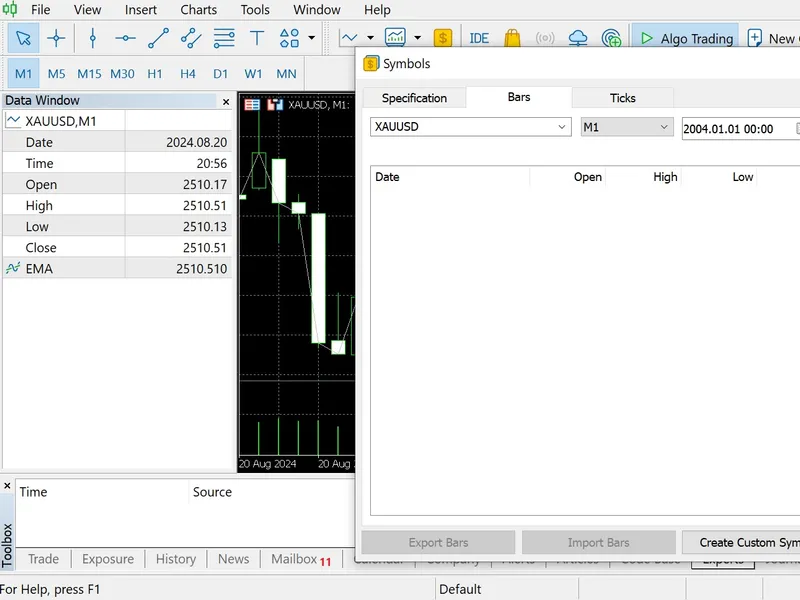
The standard method of getting historical data in metatrader5 is to use "View>Symbols>Request" tool as shown in the picture below:
However, this sometimes doesn't return all the data available on the chart.
This script saves all the available historical data to a CSV file located in "Files" folder inside the "Common Data Path" directory.
Note: Make sure "Max bars in chart" is set to "Unlimited" in 'Tools>Options>Charts' (see the picture below).