Equi Peak Drawdown Tracker
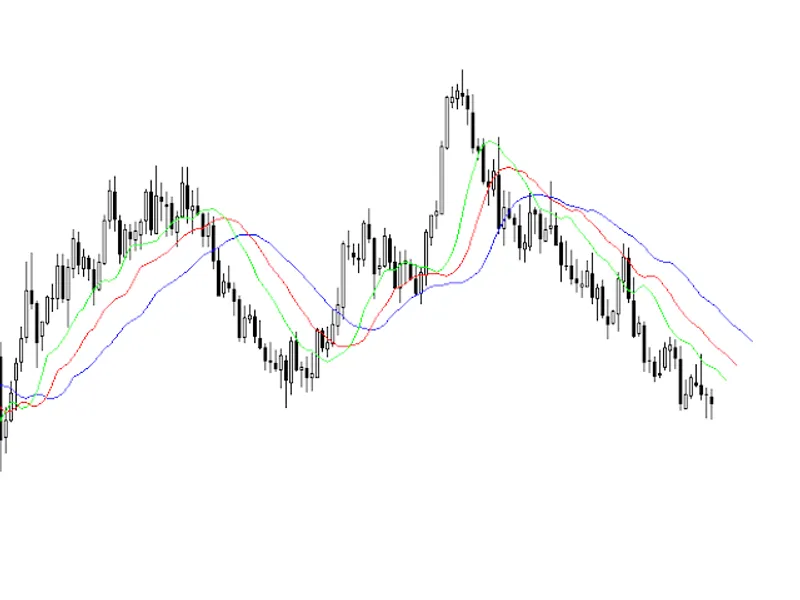
This tool for MetaTrader 5 is specifically engineered to streamline your trading operations. This technical indicator acts as a specialized analysis tool designed to visualize market data. It helps traders identify emerging trends, momentum shifts, and key support or resistance levels by plotting statistical calculations directly onto price charts.
How to Setup and Use Equi Peak Drawdown Tracker
1. Installation: Place your file in the MQL/Indicators folder via "Open Data Folder" and restart your terminal.
2. Loading: Find the indicator in the Navigator, drag it onto your chart, and configure the input parameters in the popup window.
3. Customization: Press Ctrl+I to open the indicator list, select your tool, and click "Properties" to change colors, levels, or visual styles.
4. Updating: Replace the old file in the Indicators folder with the new version and restart the platform to apply changes.
Frequently Asked Questions
Q: Why is my indicator not showing? A: Verify the file is in the MQL/Indicators folder, or try right-clicking the "Indicators" tree in the Navigator and clicking "Refresh."
Q: Do custom indicators slow down the platform? A: Too many complex indicators can impact performance; remove unused ones via the "Indicator List" (Ctrl+I).
Q: Can I use MT4 indicators on MT5? A: No, MQL4 and MQL5 are distinct languages; ensure the indicator is compiled specifically for your platform version.
Description & Settings
Visual reference of the performance of your EAs: Enter manually the known or expected Historical Maximum Drawdown of your strategy (for example, the one obtained in backtesting or previous results). This way, you will always have a clear reference to know if your EA is within normal parameters or is going through an unexpected situation.
Continuous monitoring of the current risk: You can also use it to monitor the current drawdown in real time and check if you are exceeding critical levels that require your immediate attention.
Intelligent and detailed notifications: The indicator sends push notifications (to your mobile phone via the MetaTrader app) every time a new drawdown record is set, or periodically (depending on your settings), to keep you in the loop without cluttering you with unnecessary messages.
Automatic logging: Allows you to continuously record drawdown in an external file (CSV or TXT) for later analysis. Who is it for?
Traders who operate with automatic or semi-automatic systems and want to know quickly if their EA is behaving within the maximum expected drawdown.
Users who need to visually check the performance of their strategies in real conditions against expectations based on previous tests.
Any trader who wants to effectively manage their risk, knowing immediately when their trading is outside acceptable limits. Detailed configuration guide (Inputs)
These are all the customisable parameters of the indicator:
Magics to monitor (-1 tracks all) Specifies the Magic Numbers of the positions to track. Use -1 to monitor all.
Initial Max DD (%) This is where you enter the known Historical Maximum Drawdown of your EA (i.e. the maximum result obtained in a long backtest). This will serve as a visual reference.
Refresh Interval (seconds) How often the calculations are refreshed.
MaxDDD update mode Defines how the historical maximum is updated:
UPDATE_MAX_DD_IF_BIGGER: Automatically updates if the current exceeds the entered historical.
NO_UPDATE_MAX_DD: Never updates the manually entered historical value, but sends notifications every 60 minutes about the current status.
Send push notifications? Enables or disables push notifications to the mobile phone.
Fixed or peak reference? Choose how to define the balance reference:
REF_FIXED_BALANCE: Fixed balance, entered manually.
REF_PEAK_BALANCE: Always use the maximum balance reached (automatically saved).
Fixed balance (0 => current) Fixed initial balance. If you use 0 , the current balance is taken when loading the indicator.
Colour for current DD text Colour of the current drawdown text.
Colour for max DD text Color of the historical drawdown text.
Font size (current DD) Font size of the current drawdown.
Font size (max DD) Font size of historical drawdown.
Labels behind chart? Places text behind the chart.
Label X (pixels) Horizontal distance from the left edge.
Label Y (pixels) Vertical distance from the top edge.
Vertical spacing Vertical spacing between texts.
Print logs in Journal? Enables detailed messages in the Journal.
Enable File Log Automatically logs current drawdown to external file.
File extension (CSV or TXT) Choose format of the generated file. Automatic logging to file
Drawdown values are automatically logged along with date and time in CSV or TXT format, located in the common MT5 folder(MetaTrader 5 Terminal/Common/Files/). Ideal for later analysis of your results.
Important recommendations to get the most out of it
Always enter the expected Historical Maximum Drawdown ( backtesting result, previous performance, etc.) in the input"Initial Max DD (%)". This will allow you to quickly assess whether your EA is going through a normal period or needs adjustments.
Place the indicator on a dedicated chart, monitoring all the magic numbers, or on each specific chart if you prefer separate data.
Carefully adjust the refresh rate, colours, position and text size for optimal display according to your preferences. To receive push notifications on your mobile
Open MetaTrader on mobile and copy yourMetaQuotes ID(Settings > Messages).
In MetaTrader 5 desktop, go toTools > Options > Notifications.
Check Enable Push Notifications and paste your MetaQuotes ID.