Ex Machina Supply Demand Indicator
This is a powerful addition to your MetaTrader 5 toolkit designed to optimize market analysis and performance. This technical indicator acts as a specialized analysis tool designed to visualize market data. It helps traders identify emerging trends, momentum shifts, and key support or resistance levels by plotting statistical calculations directly onto price charts.
How to Setup and Use Ex Machina Supply Demand Indicator
1. Installation: Place your file in the MQL/Indicators folder via "Open Data Folder" and restart your terminal.
2. Loading: Find the indicator in the Navigator, drag it onto your chart, and configure the input parameters in the popup window.
3. Customization: Press Ctrl+I to open the indicator list, select your tool, and click "Properties" to change colors, levels, or visual styles.
4. Updating: Replace the old file in the Indicators folder with the new version and restart the platform to apply changes.
Frequently Asked Questions
Q: Why is my indicator not showing? A: Verify the file is in the MQL/Indicators folder, or try right-clicking the "Indicators" tree in the Navigator and clicking "Refresh."
Q: Do custom indicators slow down the platform? A: Too many complex indicators can impact performance; remove unused ones via the "Indicator List" (Ctrl+I).
Q: Can I use MT4 indicators on MT5? A: No, MQL4 and MQL5 are distinct languages; ensure the indicator is compiled specifically for your platform version.
Description & Settings
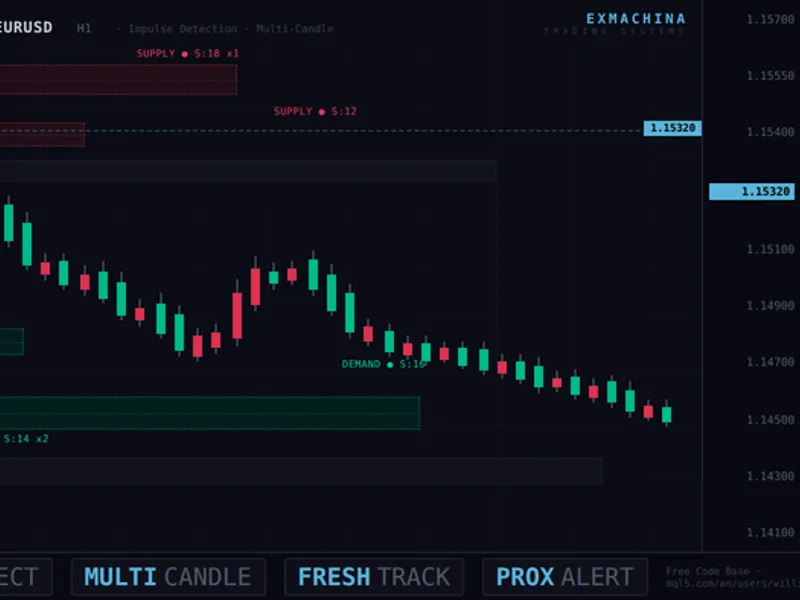
The indicator scans the last 1000 bars for significant price impulses — sharp directional moves that leave behind institutional order blocks. When an impulse is detected, the indicator marks the base candle before the move as a supply or demand zone. Each zone is rated by strength, tracked for freshness, and monitored for price touches and proximity.
How Detection Works
The core algorithm measures impulse moves over a configurable multi-candle window (default 3 bars). Instead of requiring a single massive candle, the indicator sums the total range (high-low) or net move (close-open) across 2-3 consecutive bars and compares it to the ATR. A combined move of 1.0x ATR or more across three bars qualifies as an impulse — this catches the gradual institutional pushes that single-candle detection misses entirely.
When two or more zones of the same type form at similar price levels, they are automatically merged into a single stronger zone. This eliminates the visual clutter of stacked rectangles at key levels and presents one clean, high-confidence zone instead.
Zone Information
Each zone displays a label with four data points: type (DEMAND or SUPPLY), freshness status (● for fresh, [T] for tested), strength score (impulse size relative to ATR), and touch count showing how many times price has tested the zone without breaking it. A fresh zone with a high strength score and multiple touches is the highest-probability setup.
The dashboard panel in the top-left corner shows total zone count, demand and supply breakdown, number of fresh zones, average strength across all zones, and the nearest fresh zone with its distance in points. When price approaches a zone, the distance value turns yellow as a visual warning.
Alert System
The indicator provides two types of alerts. Zone touch alerts fire when the current candle enters a fresh zone. Proximity alerts fire when price approaches within a configurable distance (default 50 points) of a fresh zone, giving you advance warning before price reaches the level. Both alert types support popup, sound, and push notifications.
Chart Theme
When enabled (default), the indicator applies the ExMachina dark theme to the entire chart: ultra-dark background, teal bullish candles, red bearish candles, minimal grid, and a professional color palette that makes the supply and demand zones visually distinct without overwhelming the price action.
Parameters Installation
Download the .mq5 file and place it in MQL5/Indicators/ folder.
Compile in MetaEditor (F7).
Attach to any chart from the Navigator panel.
The ExMachina dark theme is applied automatically. To disable it, set "Apply ExMachina Theme" to false in the inputs.
Adjust the Min Impulse parameter if you see too few or too many zones: lower values (0.8) detect more zones, higher values (1.5) detect only the strongest. Tips
For Forex (EURUSD, GBPUSD): The default settings work well. If you see fewer than 5 zones on H1, lower Min Impulse to 0.8.
For Gold (XAUUSD): Gold has larger candles relative to ATR. You may want to increase Min Impulse to 1.2-1.5 to filter out noise.
For Indices (NAS100, US30): Keep the multi-candle window at 3 and use range mode. Index impulses are often spread across multiple bars.
Compatibility
MetaTrader 5, all brokers
All instruments: Forex, Gold, Indices, Crypto
All timeframes (H1 and H4 recommended)
Hedging and Netting accounts Changelog
v2.00
— Multi-candle impulse detection (1-3 bar window). Full range measurement mode. Zone proximity merge. Touch count tracking. Proximity alerts. Nearest zone in dashboard. Average strength. ExMachina dark chart theme. Dotted zone borders with separate fill colors. Optional zone midline. ATR handle performance fix. Incremental freshness updates. Default impulse lowered to 1.0x ATR, lookback increased to 1000 bars.
v1.00
— Initial release.
ExMachina Trading Systems — Precision before profit.