Trade Report Exporter
This is a powerful addition to your MetaTrader 5 toolkit designed to optimize market analysis and performance. This script functions as a utility program designed for specific, one-time execution tasks. It is utilized to perform targeted actions, such as closing all open orders, managing chart objects, or executing custom administrative commands on demand.
How to Setup and Use Trade Report Exporter
1. Installation: Move your script file into the MQL/Scripts directory and restart the platform.
2. Execution: Drag the script onto a chart; it will perform a one-time action, such as closing all open orders or clearing chart objects.
3. Editing: Use MetaEditor (F4) to modify code, click "Compile," and verify no errors appear in the terminal before running.
4. Removing: Scripts stop automatically, but you can remove them manually by right-clicking the chart and choosing "Remove Script."
Frequently Asked Questions
Q: How are scripts different from EAs? A: Scripts execute a single action and then stop; EAs monitor the market and trade continuously.
Q: Can I assign a hotkey to a script? A: Yes, right-click the script in the Navigator, select "Set Hotkey," and define your preferred keyboard shortcut.
Q: Why did my script stop? A: Scripts are designed to stop immediately after finishing their programmed command; this is normal behavior.
Description & Settings
Essential Functions:
Transaction history export:
The script collects data on all transactions for the last year for the
current instrument
.
Support for cryptocurrencies and currencies:
Automatically calculates the commission depending on the type of instrument (cryptocurrency or currency).
Data formatting:
All numbers are formatted for easy reading (replacing a full stop with a comma if necessary).
Totals
:
Totals for commission, profit/loss and number of trades are added at the end of the file.
How to use:
Make sure the history of trades is loaded in the terminal.
Install the script on the chart of the required instrument.
Run the script.
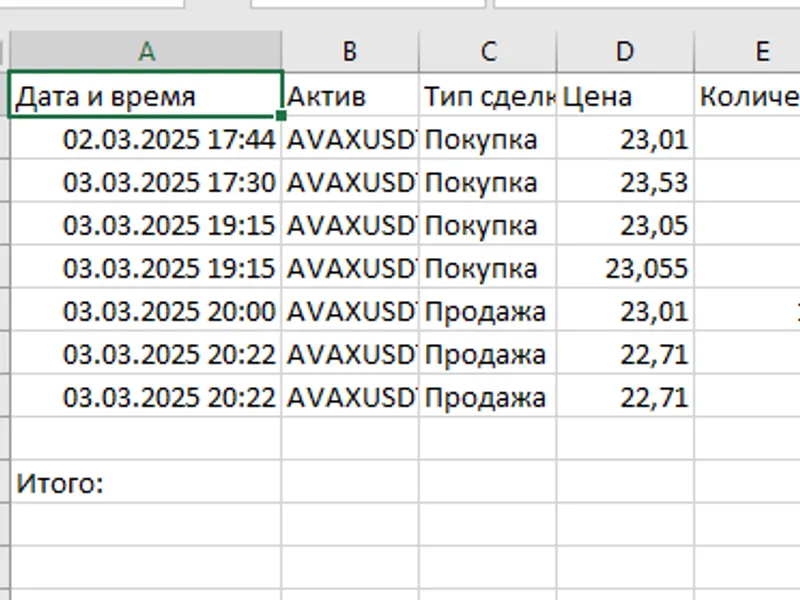
The script will create a CSV file in the MQL5/Files folder with the name in the format trades_symbol_date_time.csv .
Open the file in Excel or other editor to analyse it.
Example file:
Benefits:
Ease of use:
Run the script and it will do everything for you.
Flexibility:
Suitable for any instrument (cryptocurrencies, currencies, stocks, etc.).
Transparency:
All transaction data is available in one file.
Focus on the current instrument:
The script uploads data only for the instrument it is installed on.
Tips:
Make sure that the history of trades is loaded in the terminal before running the script.
Use Excel or Google Sheets to analyse the data.
Good luck in using it, I hope this tool will be useful for you!