Tandem
This software component for MetaTrader 5 is built to enhance the capabilities of your trading environment. This Expert Advisor serves as automated trading software. It is utilized to monitor financial markets and execute trades based on predefined algorithmic rules, enabling precise position management without the need for constant manual oversight.
How to Setup and Use Tandem
1. Installation: Open the "File" menu, select "Open Data Folder," navigate to MQL/Experts, paste your file, and restart the terminal.
2. Activation: Drag the EA from the Navigator onto a chart, ensure "Allow live trading" is checked in the Common tab, and verify the AutoTrading button is green.
3. Optimization: Right-click your chart, choose "Expert List," click "Properties" to adjust inputs, and save your preferred setup as a set file for future use.
4. Maintenance: Regularly check the "Experts" tab in the terminal window to monitor trade logs and potential execution errors.
Frequently Asked Questions
Q: Why is my EA not opening trades? A: Check the "AutoTrading" button, ensure "Allow live trading" is enabled, and verify your broker allows automated trading on your account type.
Q: Can I run multiple EAs on one chart? A: No, each chart can only host one active EA; however, you can open multiple charts for different currency pairs to run several EAs.
Q: What does the "smiley face" icon mean? A: A smiley face in the top-right corner of the chart indicates the EA is successfully running; a frowny face means it is disabled.
Description & Settings
If you are not familiar with pair trading, you can find information in the Literature section. The idea can be briefly described as follows:
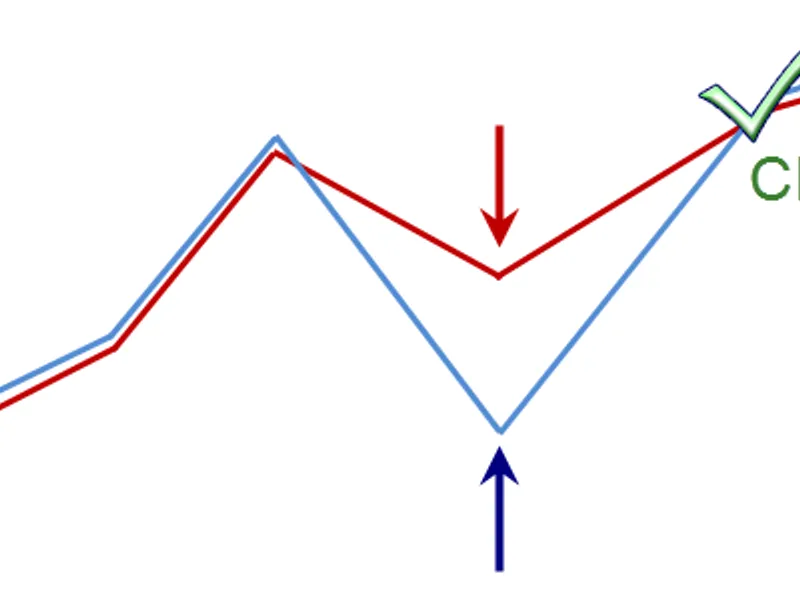
If we compare the charts of two similar assets by putting them on one another, we will see that they diverge at a certain distance and then converge again. This happens again and again. Why shouldn't we use that to make money?
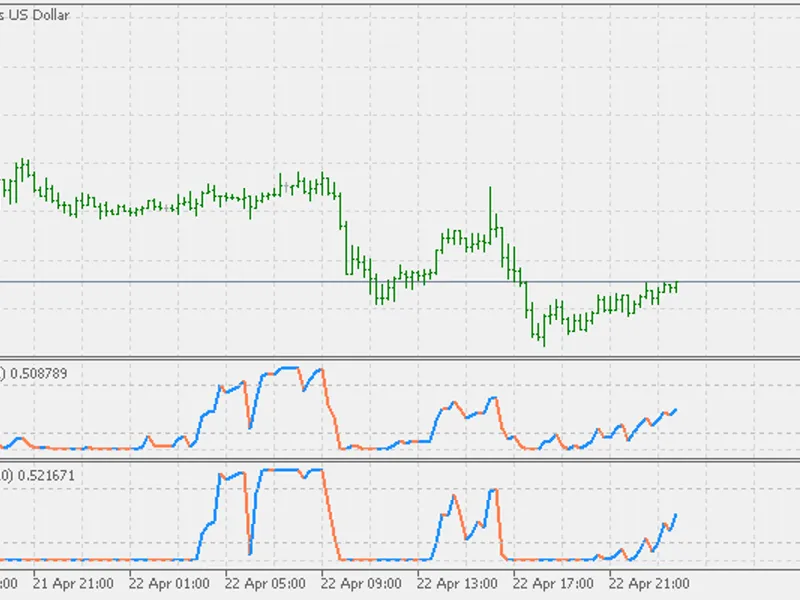
The Expert Advisor is set on EURUSD H1. GBPUSD is selected as the default correlating pair (Symbol2 variable or "Indirect symbol"). The Expert Advisor tracks the market following that plan but do not confuse it with synthetics! is based on constant averaging and dragging both assets in. In this case, the charts are simply overlayed. But before overlaying, my Expert Advisor defines unrestricted starting point. Starting from there, it is assumed that two pairs have crossed for the first time. Then we scale Symbol2 so that its price fluctuations range was roughly similar to the range of the symbol, at which the Expert Advisor is installed. Some statistics is gathered for Range ("Field of training") candles. Maximum symbol divergences for this period are found. Further on, if the divergence by CorrectLimit ("Correction of signal border") from the maximum one occurs, a new position is opened. Or, if more precisely, pair of positions is opened (one position for each symbol). If symbols continue diverging, the second pair of deals is opened after the same number of points. The maximum number of such deals is limited by MaxDeals variable ("Maximum number of transactions").
CorrectDist variable ("Coefficient length of the search of separation") changes the value of the training period for deeper analysis.
The Expert Advisor trades on two currency pairs with both direct and reverse correlation. Correlation switch ("The correlation coefficient") is used for that. However, you can also trade on one pair analyzing divergences of two pairs. For example, you can trade on EURGBP instead of trading on two pairs EURUSD and GBPUSD. To do this, enter "EURGBP" without the quotes into Cross variable ("Which pair to trade instead of two (cross)"). If you are going to trade on GBPEUR, specify false value to the Expert Advisor in CrossType ("Direct cross-rate") variable.
After the expiration date of the knowledge obtained during the last training, retraining is performed via Optimum ("Interval of retraining") candles.
The Expert Advisor has 2 signals for closing all deals. If the symbols are moving back by CloseCorr ("Close on reducing of discrepancies") from the maximum divergence and when reaching Profit % in open positions.
mqh include files contain auxiliary functions for the Expert Advisor correct operation. MyMQL_v2.1.mqh - functions for adaptation of the Expert Advisor from MQL4 programming language to MQL5; PrintLog.mqh - necessary for creating equity.csv table in Files folder when testing the Expert Advisor. The table contains the history of account equity changes. This information can be used for a detailed analysis of drawdowns during the tests. Also, equity changes' graphs of various trading systems can be overlayed.
Test with default parameters for 11 years by open prices on EURUSD H1:
Literature:
The magazine attached in strategii_parnogo_treydinga.zip archive (in Russian)
History of Changes:
September 8, 2012 - improved the Expert Advisor code considering comments on possible "holes" in an indirect symbol's history.