Prime Quantum AI — TR A D E WI T H AI (Anthropic Claude, Open AI GP T, Google Gemini, Deep Seek, x AI Grok)
This professional-grade solution for MetaTrader 5 helps traders achieve greater efficiency in their daily workflow. This Expert Advisor serves as automated trading software. It is utilized to monitor financial markets and execute trades based on predefined algorithmic rules, enabling precise position management without the need for constant manual oversight.
How to Setup and Use Prime Quantum AI — TR A D E WI T H AI (Anthropic Claude, Open AI GP T, Google Gemini, Deep Seek, x AI Grok)
1. Installation: Open the "File" menu, select "Open Data Folder," navigate to MQL/Experts, paste your file, and restart the terminal.
2. Activation: Drag the EA from the Navigator onto a chart, ensure "Allow live trading" is checked in the Common tab, and verify the AutoTrading button is green.
3. Optimization: Right-click your chart, choose "Expert List," click "Properties" to adjust inputs, and save your preferred setup as a set file for future use.
4. Maintenance: Regularly check the "Experts" tab in the terminal window to monitor trade logs and potential execution errors.
Frequently Asked Questions
Q: Why is my EA not opening trades? A: Check the "AutoTrading" button, ensure "Allow live trading" is enabled, and verify your broker allows automated trading on your account type.
Q: Can I run multiple EAs on one chart? A: No, each chart can only host one active EA; however, you can open multiple charts for different currency pairs to run several EAs.
Q: What does the "smiley face" icon mean? A: A smiley face in the top-right corner of the chart indicates the EA is successfully running; a frowny face means it is disabled.
Description & Settings
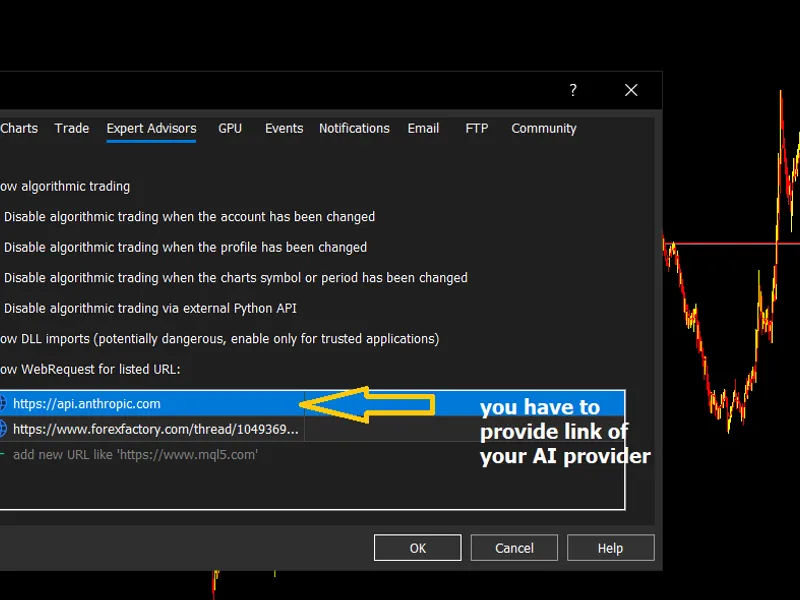
Prime Quantum AI is an Expert Advisor for MetaTrader 5 that combines a classical technical pre-filter (ADX + Alligator) with AI vision-based chart analysis from major AI providers. HOW IT WORKS The EA runs a two-stage decision process. First, on each tick, it checks the user's selected timeframe for a trend setup using ADX (above the configurable minimum level) combined with Alligator alignment and DI+/DI- direction. When this pre-filter signals BULLISH or BEARISH, the EA captures three chart screenshots at adaptive timeframes (entry, mid, context — automatically chosen from the user's TF input) and sends them to the configured AI provider. The AI returns a JSON response with direction, confidence (0-100), stop-loss price, take-profit price, and reasoning. A trade is opened only if the AI direction matches the pre-filter signal AND confidence meets the user's minimum threshold. RECOMMENDED SYMBOL AND TIMEFRAME - Symbol: any major forex pair, gold (XAUUSD), or major indices - Timeframe input (TF): M15 default. M1-M5 for scalping, H1-H4 for day trading, D1 for swing trading. The screenshot stack is selected automatically from this input. KEY EXTERNAL VARIABLES - TF: trading timeframe (controls pre-filter and screenshot stack) - InpAPIKey: your AI provider API key - InpProviderOverride: auto / anthropic / openai / google / deepseek / xai - InpMinConfidence: minimum AI confidence to take a trade (default 70) - InpScanIntervalSec: cooldown between AI calls (default 120s) - InpAccountType: Standard Broker / Prop Firm / Funded - InpRiskMode: fixed lot, % balance, % equity, fixed $, % free margin - InpSLTPMode: AI decides / fixed pips / fixed points / AI SL with R:R - InpADXPeriod, InpADXMinLevel: ADX pre-filter parameters - InpJawPeriod/Shift, InpTeethPeriod/Shift, InpLipsPeriod/Shift: Alligator - InpATRTrailPeriod: ATR period for ATR-based trailing stop - News, time, day, and spread filters with full configuration REQUIREMENTS 1. MetaTrader 5 2. WebRequest must be enabled in Tools > Options > Expert Advisors > Allow WebRequest, with the URL of your chosen provider added: 3. A valid API key from one of the supported providers (paste into InpAPIKey input). Provider is auto-detected from key format. WHERE TO GET API KEYS NOTES - The EA charges no internal fee, but the AI provider charges per API call (typically $0.01-$0.03 per analysis). Set InpScanIntervalSec to control your daily cost.
- Always test on a demo account before using on live funds.
You May Also Like