MQ L5 Wizard - Trade Signals Based on Bullish/Bearish Meeting Lines + Stochastic
This software component for MetaTrader 5 is built to enhance the capabilities of your trading environment. This Expert Advisor serves as automated trading software. It is utilized to monitor financial markets and execute trades based on predefined algorithmic rules, enabling precise position management without the need for constant manual oversight.
How to Setup and Use MQ L5 Wizard - Trade Signals Based on Bullish/Bearish Meeting Lines + Stochastic
1. Installation: Open the "File" menu, select "Open Data Folder," navigate to MQL/Experts, paste your file, and restart the terminal.
2. Activation: Drag the EA from the Navigator onto a chart, ensure "Allow live trading" is checked in the Common tab, and verify the AutoTrading button is green.
3. Optimization: Right-click your chart, choose "Expert List," click "Properties" to adjust inputs, and save your preferred setup as a set file for future use.
4. Maintenance: Regularly check the "Experts" tab in the terminal window to monitor trade logs and potential execution errors.
Frequently Asked Questions
Q: Why is my EA not opening trades? A: Check the "AutoTrading" button, ensure "Allow live trading" is enabled, and verify your broker allows automated trading on your account type.
Q: Can I run multiple EAs on one chart? A: No, each chart can only host one active EA; however, you can open multiple charts for different currency pairs to run several EAs.
Q: What does the "smiley face" icon mean? A: A smiley face in the top-right corner of the chart indicates the EA is successfully running; a frowny face means it is disabled.
Description & Settings
The allows creating ready-made Expert Advisors based on the classes delivered together with the client terminal (see for the details). It allows to check your trade ideas quickly, all you need is to create your own trading signals class. The structure of this class and example can be found in the article .
The generic idea is the following: the class of trading signals is derived from , the next, it's necessary to override the and virtual methods with your own methods.
There is a book " (in Russian), there are many trading strategies are considered there, we will focus on reversal candlestick patterns, confirmed by , , and oscillators.
The best way is to create the separate class, derived from for checking of formation of candlestick patterns. For confirmation of trade signals, generated by candlestick patterns, it's sufficient to write the class, derived from CCandlePattern and add the necessary features (for example, confirmation by oscillators) there.
Here we will consider the signals, based on "Bullish/Bearish Meeting Lines" reversal candlestick patterns, confirmed by indicator. The module of trade signals is based on the class, it's simple example of its use for creation of trade signals with candlestick patterns.
1. "Meeting Lines" reversal candlestick patterns
1.1. Bullish Meeting Lines
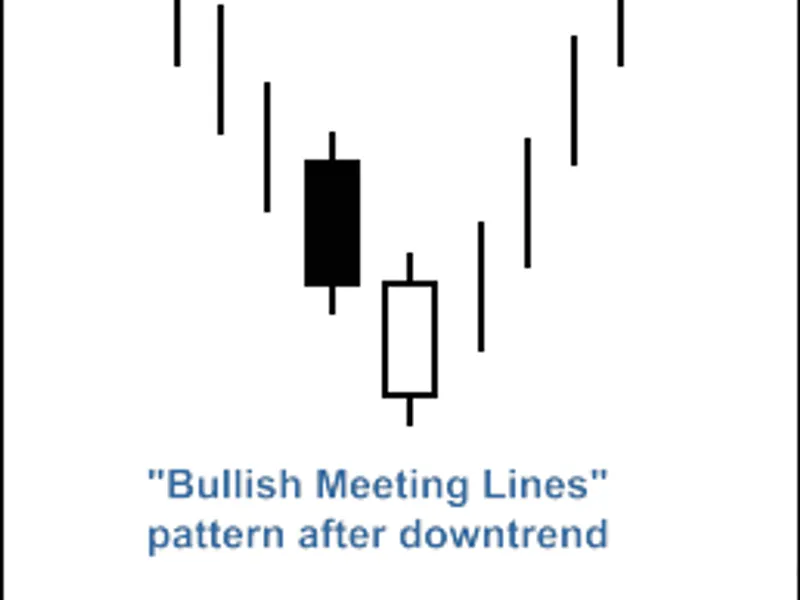
The pattern consist of two candlesticks (bearish and bullish) with equal (or very close) close prices. The body of two candlesticks must be greater than average body length.
The "Bullish Meeting Lines" pattern indicates the reversal of a downward trend.
Figure 1. "Bullish Meeting Lines" pattern
The recognition of "Bullish Meeting Lines" pattern is implemented in CheckPatternCheckPatternBullishMeetingLines() method of class:
The CheckCandlestickPattern(CANDLE_PATTERN_BULLISH_MEETING_LINES) method of class is used to check formation of "Bullish Meeting Lines" candlestick pattern.
1.1. Bearish Meeting Lines
The pattern consist of two candlesticks (bullish and bearish) with equal (or very close) close prices. The body of two candlesticks must be greater than average body length.
The "Bearish Meeting Lines" pattern indicates the reversal of a downward trend.
Figure 2. "Bearish Meeting Lines" pattern
The recognition of "Bearish Meeting Lines" pattern is implemented in CheckPatternBearishMeetingLines() method of class:
The CheckCandlestickPattern(CANDLE_PATTERN_BEARISH_MEETING_LINES) method of class is used to check formation of "Bearish Meeting Lines" candlestick pattern.
2. Trade signals, confirmed by Stochastic indicator
The trading signals to open long or short position must be confirmed by oscillator. The signal %D line must be greater/lower then corresponding critical level (30 or 70).
The closing of opened position depends on the values of %D indicator. It can be done in 2 cases:
if %D line has reached the opposite critical level (80 for long position and 20 for short position)
if the reverse signal isn't confirmed (when %D line reaches the following levels: 20 for long position and 80 for short position)
Fig. 3. "Bearish Meeting Lines pattern, confirmed by Stochastic indicator
int CML_Stoch::LongCondition() - checks conditions to open long position (returns 80) and close of the short position (returns 40);
int CML_Stoch::ShortCondition() - checks conditions to open short position (returns 80) and close of the long position (returns 40).
2.1. Open long position/Close short position
The formation of "Bullish Meeting Lines" pattern must be confirmed by indicator: StochSignal(1)<30 (the value of the signal line of Stochastic indicator of the last completed bar must be less than 30).
The short position must be closed if the signal line of indicator has crossed upward the 20 or 80 levels.
2.2. Open short position/Close long position
The formation of "Bearish Meeting Lines" pattern must be confirmed by indicator: StochSignal(1)>70 (the value of the signal line of Stochastic indicator of the last completed bar must be greater than 70).
The long position must be closed if the signal line of indicator has crossed downward the 80 or 20 levels.
2.3. Creating Expert Advisor using MQL5 Wizard
The CML_Stoch class isn't included in the Standard Library classes, to use it, it's necessary to download the acml_stoch.mqh file (see attachments) and save it to the client_terminal_data\folder\MQL5\Include\Expert\Signal\MySignals. The same should be done with the candlepatterns.mqh file. You can use it in MQL5 Wizard after restart of the MetaEditor.
To create an Expert Advisor launch :
Fig. 4. Creating Expert Advisor using MQL5 Wizard
Let's specify the name of the Expert Advisor:
Fig. 5. General properties of the Expert Advisor
After that we need to select the modules of trade signals used.
Fig. 6. Signal properties of the Expert Advisor
In our case we use only one module of trade signals.
Adding the "
Signals based on Bullish/Bearish Meeting Lines confirmed by Stochastic
" module of trading signals:
Fig. 7. Signal properties of the Expert Advisor
Module of trade signals added:
Fig. 8. Signal properties of the Expert Advisor
You can select any trailing properties, but we will use "Trailing Stop not used":
Fig. 9. Trailing properties of the Expert Advisor
Concerning the money management properties, we will use "Trading with fixed trade volume":
Fig. 10. Money management properties of the Expert Advisor
By pressing the "Finish" button, we will get the code of the generated Expert Advisor, located in Expert_AML_Stoch.mq5, it will be saved in terminal_data_folder\MQL5\Experts\.
The default input parameters of the generated Expert Advisor:
must be replaced to:
The Signal_ThresholdOpen/Signal_ThresholdClose input parameters allow to specify threshold levels for open and close of positions.
In code of the LongCondition() and ShortCondition() methods of the trade signals class we have specified the fixed values of the threshold:
Open position: 80;
Close position: 40.
The Expert Advisor, generated by MQL5 Wizard open and close position using the "votes" from the modules of trade signals. The vote of the main module (as container, it consist of all the modules added) is also used, but its LongCondition() and ShortCondition() methods always return 0.
The vote results of the main module is also used in "votes" averaging. In our case we have: main module + 1 module of trade signals, so we need to take this fact into account when setting of the threshold values. Because of this fact the ThresholdOpen and ThresholdClose must be set as 40=(0+80)/2 and 20=(0+40)/2.
The values of Signal_StopLevel and Signal_TakeLevel input parameters is set to 0, it means that closing of the positions will be done only when closing conditions will be true.
2.4. History backtesting results
Let's consider backtesting of the Expert Advisor on historical data (EURUSD H1, testing period: 2005.01.01-2010.03.16, PeriodK=6, PeriodD=3, PeriodSlow=36, MA_period=3).
In creation of Expert Advisor we used the fixed volume (, 0.1), Trailing Stop algorithm is not used ().
Fig. 11. Testing results of the Expert Advisor, based on Bullish/Bearish Meeting Lines + Stochastic"
The best set of input parameters can be found using the of MetaTrader 5 client terminal.
The code of the Expert Advisor, created by MQL5 Wizard is attached in expert_aml_stoch.mq5.