






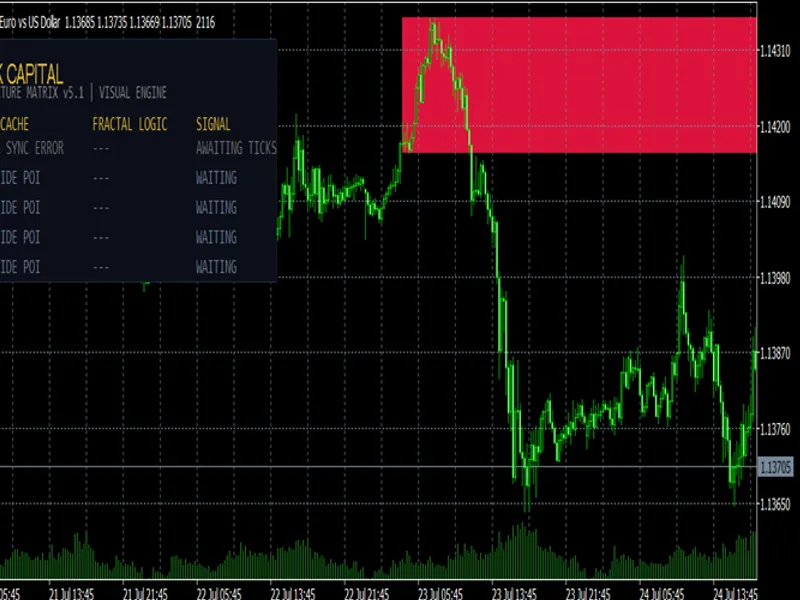


Hybrid Microstructure EA: Advanced Tick-Level Trading
Info
The Hybrid Microstructure EA: Advanced Tick-Level Trading is a Expert Advisor for MetaTrader 5 that the hybrid microstructure ea is an advanced, high-frequency scalping expert advisor designed specifically for xauusd (gold) on the m1 timeframe. This EA operates on Tick-Level Microstructure Dynamics, tracking tick velocity, volume-weighted average price (VWAP) deviations, and liquidity sweep rejections (stop hunts) executed by institutions.
Usage
This tool is typically used for automated trading on major forex pairs and gold.
Platform
This Expert Advisor works exclusively on MetaTrader 5 (both build 600+ and newer versions).
Setup
Place the downloaded file in MQL5/Experts folder via File ? Open Data Folder in MetaTrader 5.
How to Install and Use Hybrid Microstructure EA: Advanced Tick-Level Trading
1. Installation: Open the "File" menu, select "Open Data Folder," navigate to MQL/Experts, paste your file, and restart the terminal.
2. Activation: Drag the EA from the Navigator onto a chart, ensure "Allow live trading" is checked in the Common tab, and verify the AutoTrading button is green.
3. Optimization: Right-click your chart, choose "Expert List," click "Properties" to adjust inputs, and save your preferred setup as a set file for future use.
4. Maintenance: Regularly check the "Experts" tab in the terminal window to monitor trade logs and potential execution errors.
Frequently Asked Questions
Q: Why is my EA not opening trades? A: Check the "AutoTrading" button, ensure "Allow live trading" is enabled, and verify your broker allows automated trading on your account type.
Q: Can I run multiple EAs on one chart? A: No, each chart can only host one active EA; however, you can open multiple charts for different currency pairs to run several EAs.
Q: What does the "smiley face" icon mean? A: A smiley face in the top-right corner of the chart indicates the EA is successfully running; a frowny face means it is disabled.
What this tool does
The Hybrid Microstructure EA is an advanced, high-frequency scalping Expert Advisor designed specifically for XAUUSD (Gold) on the M1 timeframe.
Typical Use Case
This Expert Advisor excels in automated trading and technical analysis on MetaTrader 5.
Compatible Platform & Setup
This Expert Advisor works on MetaTrader 5. Place the file in the MQL5/Experts folder and restart the terminal.
Description & Settings
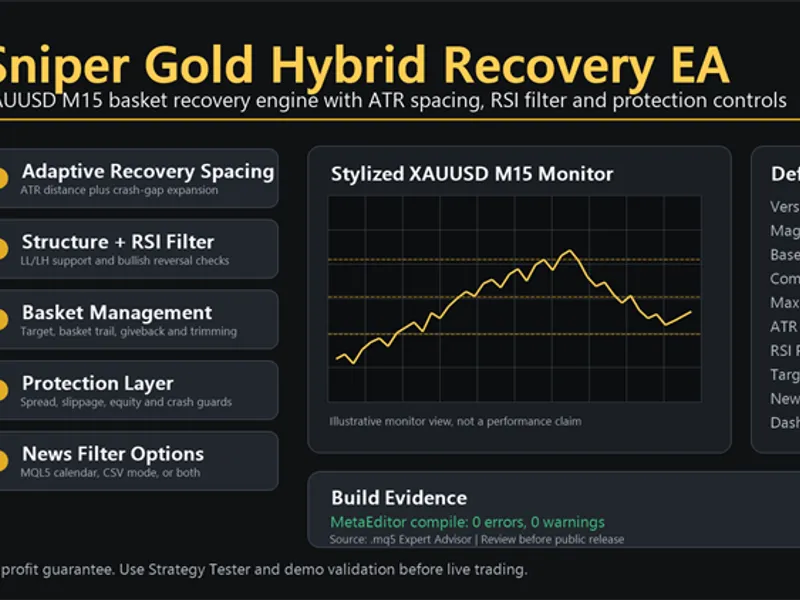
Related: Sniper Gold Hybrid Recovery EA - another powerful expert for MetaTrader 5 traders.
The Hybrid Microstructure EA is an advanced, high-frequency scalping Expert Advisor designed specifically for XAUUSD (Gold) on the M1 timeframe.Also recommended: Multi Arbitration 1.1xx - similar expert with strong performance on MetaTrader 5.
This EA operates on Tick-Level Microstructure Dynamics, tracking tick velocity, volume-weighted average price (VWAP) deviations, and liquidity sweep rejections (stop hunts) executed by institutions. It bypasses traditional lagging indicators.
To bridge the gap between deterministic local rules and adaptive intelligence, it features an AI Bridge Decision Layer that supports both an internal weighted scoring engine and an external OpenAI-compatible local AI API (via Python/FastAPI) to act as a final factual gatekeeper before order execution.
Key Features :
Tick Microstructure Engine:
Bypasses lagging indicators by calculating real-time tick velocity windows and ring-buffer VWAP deviations.
Liquidity Grab & Snapback Guard:
Waits for retail stop-losses to be swept beyond extreme VWAP bands and triggers entries only upon confirmed price snapback/rejection.
Dual-Engine AI Bridge:
Integrates a deterministic local scoring matrix and an optional local AI web endpoint ( /analyze ) for multi-factor decision validation.
Multi-Session & Volatility Filters:
Restricts execution to active trading sessions (Asia, London, Middle East) while bypassing dangerous rollover periods.
Advanced Risk & Money Management:
Supports Fixed Lot or Risk-Percent (% of Balance/Equity) sizing with dynamic ATR/Fixed Stop-Loss, Break-Even, and Trailing Stop protection.
Code Structure & Workflow :
OnTick()
: The core loop executing spread checks, real-time tick buffer updates, VWAP calculations, and liquidity grab state machines.
CalculateTickVWAP()
: Computes volume-weighted average price and standard deviation bands dynamically from a 500-tick ring buffer.
AIBridge_Confirm()
: The decision gateway acting as a final filter by evaluating multi-timeframe trends (H1, M15, M5), M1 structure, and velocity metrics.
AIBridge_LocalScore()
: Computes a deterministic weighted score (0.0 to 1.0) based on measured market facts.
AIBridge_WebCall()
: Packages live market facts into a strict JSON payload and communicates asynchronously with a local Python/FastAPI server.
SecureProfits()
: Manages automated Break-Even and Trailing Stop modifications safely using MT5 TRADE_ACTION_SLTP requests.
Execution Workflow :
Tick Ingestion & Filtering:
Validates incoming ticks against maximum allowed spread, active trading hours, and minimum M1 ATR volatility.
Microstructure Tracking: Continuously builds a ring buffer to evaluate tick velocity acceleration and VWAP band stretches (+/- StdDev).
Trigger & AI Validation:
When a liquidity sweep exceeds outer bands followed by a snapback rejection, the context is sent to the AI Bridge Layer.
Decision & Execution:
If local scoring or the external AI model approves the trade ( ALLOW=YES with high confidence), ExecuteTrade() calculates dynamic risk-based lot sizing and dispatches the order using optimal filling modes ( IOC / FOK ).
This EA is designed to send HTTP POST requests with a JSON payload in the OpenAI style (containing `messages`, `role: system`, and `role: user`) and expects a JSON response containing `decision`, `confidence`, and `reason`.
To create a Local AI API (local server) capable of responding to these MT5 requests within milliseconds, the ideal programming language is Python using the FastAPI framework. FastAPI is lightweight, lightning-fast, and perfectly suited for processing high-frequency data from MT5.
Python Environment Setup
Ensure Python is installed on your computer. Open the Terminal or Command Prompt and install these two essential libraries:
pip install fastapi uvicorn
Python API Code (local_ai_bridge.py)
Create a file named local_ai_bridge.py on your computer and copy the following code:
from fastapi import FastAPI, Request
from pydantic import BaseModel
from typing import List, Optional
import json
import uvicorn
app = FastAPI(title="MT5 AI Microstructure Bridge")
DATA MODELS (Compatible with the MQL5 data format)
class Message(BaseModel):
role: str
content: str
class AIRequest(BaseModel):
model: str
temperature: float
response_format: Optional[dict] = None
messages: List[Message]
MAIN ENDPOINT (/analyze)
@app.post("/analyze")
async def analyze_market(payload: AIRequest):
"""
This endpoint receives tick and microstructure data from MT5,
analyzes the data, and returns a BUY/SELL/WAIT decision.
"""
# 1. Extract JSON data from the "user" message sent by MT5
user_content = "{}"
for msg in payload.messages:
if msg.role == "user":
user_content = msg.content
break
try:
facts = json.loads(user_content)
except json.JSONDecodeError:
return {"decision": "WAIT", "confidence": 0.0, "reason": "Invalid JSON format"}
# 2. Extract market facts
order_type = facts.get("order_type", "WAIT")
high_velocity = facts.get("high_velocity", False)
snapback_pips = facts.get("snapback_pips", 0.0)
min_snapback = facts.get("min_snapback_pips", 2.0)
deviation_z = facts.get("deviation_z", 0.0)
mtf = facts.get("mtf", {}) m1_structure = facts.get("m1_structure", {}) # 3. AI / DECISION-MAKING ALGORITHM (Can be replaced with an ML model later)
# This is a simple example of decision logic
confidence = 0.0 decision = "WAIT" reason = "" # Evaluate the logic when the EA requests SELL confirmation
if order_type == "SELL": score = 0 # Validate snapback and velocity
if snapback_pips >= min_snapback and high_velocity: score += 0.4 # Validate extreme deviation (overbought condition)
if deviation_z > 2.0: score += 0.3 # Validate MTF alignment (at least H1 or M15 must be bearish)
if mtf.get("h1_down") or mtf.get("m15_down"): score += 0.2 # Validate M1 rejection (long upper wick)
if m1_structure.get("upper_wick_ratio", 0.0) >= 0.2: score += 0.1 confidence = score if confidence >= 0.70: decision = "SELL" reason = "High velocity drop, MTF align, Z-Score high" else: reason = f"Score only {confidence:.2f}, lacking momentum" # Evaluate the logic when the EA requests BUY confirmation
elif order_type == "BUY": score = 0 # Validate snapback and velocity
if snapback_pips >= min_snapback and high_velocity: score += 0.4 # Validate extreme deviation (deviation_z is already direction-adjusted in MQL5)
if deviation_z > 2.0: score += 0.3 # Validate MTF alignment (at least H1 or M15 must be bullish)
if mtf.get("h1_up") or mtf.get("m15_up"): score += 0.2 # Validate M1 rejection (long lower wick)
if m1_structure.get("lower_wick_ratio", 0.0) >= 0.2: score += 0.1 confidence = score if confidence >= 0.70: decision = "BUY" reason = "High velocity bounce, MTF align, Z-Score high" else: reason = f"Score only {confidence:.2f}, lacking momentum" # 4. Send the JSON response back to MT5
return { "decision": decision, "confidence": round(confidence, 2), "reason": reason[:60] # Limit the reason to a maximum of 60 characters for MT5 } if __name__ == "__main__": # Start the local server on port 8787, matching the InpAIEndpoint parameter in MQL5
print("AI Bridge Server is running on ") uvicorn.run(app, host="127.0.0.1", port=8787)
How to Run the Server & Connect to MT5
Open the Terminal and navigate to the folder where the Python file is stored.
Run the command:
python local_ai_bridge.py
The server will start and listen at http://127.0.0.1:8787.
On the MetaTrader 5 platform, ensure you have added the URL http://127.0.0.1:8787 to the list of allowed WebRequest URLs:
Go to Tools -> Options -> Expert Advisors.
Check "Allow WebRequest for listed URL".
Add the URL http://127.0.0.1:8787 to the list.
Run your EA. The EA will now send real-time data to the Python API; Python will analyze it based on parameters within the Python function and send BUY/SELL/WAIT commands back to MT5.
This Python architecture is highly scalable. If, in the future, you wish to store this price movement history in a database (for machine learning training data) or connect it to a prediction model (such as XGBoost or Random Forest), you simply need to modify the section marked with comment # 3—ARTIFICIAL INTELLIGENCE / DECISION ALGORITHM—in the code above.
Creating a Python file (.py) is actually very simple. Essentially, a Python file is just a standard text file (like a .txt file) with its extension changed to .py.
Using MetaTrader 5 (which generally runs on Windows), here are the 3 easiest ways to create the local_ai_bridge.py file:
Method 1: Using Notepad (Fastest & No Additional Apps to Install)
This is the quickest method on the Windows operating system:
Open the built-in Windows Notepad application.
Copy the entire FastAPI Python code provided earlier.
Paste the code into a blank Notepad document.
Click the File menu > Save As...
Select the folder where you want to save this file (for example, create a new folder named AI_MT5 in Documents or on the Desktop).
VERY IMPORTANT: In the "Save as type" section, change the setting from "Text Documents (*.txt)" to "All Files (*.*)".
In the File name field, type exactly: local_ai_bridge.py
Click Save. Done!
Execution Steps (If the terminal is already open in the correct folder)
Once the black or blue window opens in the correct folder, you simply need to issue a command to Python to launch the AI robot.
Type this command:
python local_ai_bridge.py
Press Enter.
If the installation of the libraries (fastapi and uvicorn) was successful, you will see text appear stating "AI Bridge Server is running on " or a message indicating "Uvicorn running on..."
As follows :
AI Bridge Server is running on http://127.0.0.1:8787
INFO: Uvicorn running on http://127.0.0.1:8787 (Press CTRL+C to quit)
The text indicates that:
Initialization Successful: The EA successfully detected the XAUUSD symbol with a Pip multiplier of 10.0 (correctly detecting a 3-digit/5-digit broker).
AI Bridge Active: The AIBridge v1.1 module successfully loaded in HYBRID mode, connected to the local endpoint http://127.0.0.1:8787 and detected that key authorization is not required (anonymous)—which is suitable for our local Python server.
Multi-Timeframe & Locked Structure: Supporting trend indicators (H1, M15, M5) and the M1 Closed Candle structure are ready to monitor the market.
What Does This Indication Mean?
This means the EA and our local Python server are now running side-by-side and are ready to interact. The EA is no longer "blind"—it possesses a "local brain" that filters every Liquidity Sweep and Velocity signal on the Gold M1 timeframe before deciding whether to execute an order or hold off (WAIT).
Next, simply monitor the chart movements or conduct forward testing on a demo or live account. When the sweep conditions and tick speed requirements are met, you will see decision logs—such as `[AI] SELL HYBRID ... ALLOW=YES` or `NO`—appear in the journal in real-time.
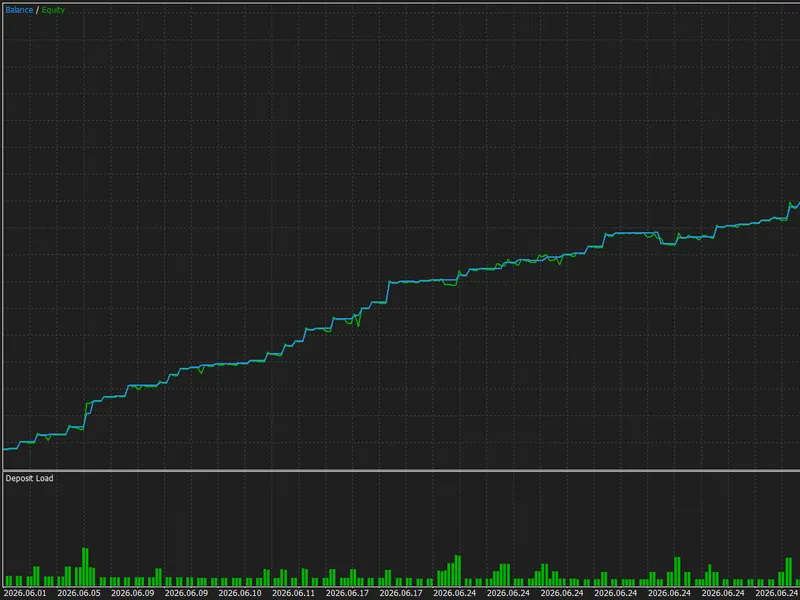
Strategy Tester Visualization :
You may also like: trailing activate - excellent alternative for expert users on MetaTrader 5.
Source Code
#property copyright "RobotFX"
#property link "https://robotfx.org"
#property version   "1.0"
#property description "This code is educational. Feel free to use, modify and upgrade as you wish. Visit ROBOTFX.ORG for professional trading tools"
#property strict
#include <HybridMicrostructure\ParamUX.mqh>
#include <HybridMicrostructure\AIBridge.mqh>
#include <HybridMicrostructure\AIBridgeUX.mqh>
struct TickData
{
.......
⚠ Limitations & Risk Warning
- This tool is provided for educational and testing purposes only.
- Past performance does not guarantee future results.
- Trading involves substantial risk of loss. Use on a demo account first.
- Results may vary depending on market conditions, broker, and settings.
- We recommend thorough backtesting and forward testing before using with real funds.