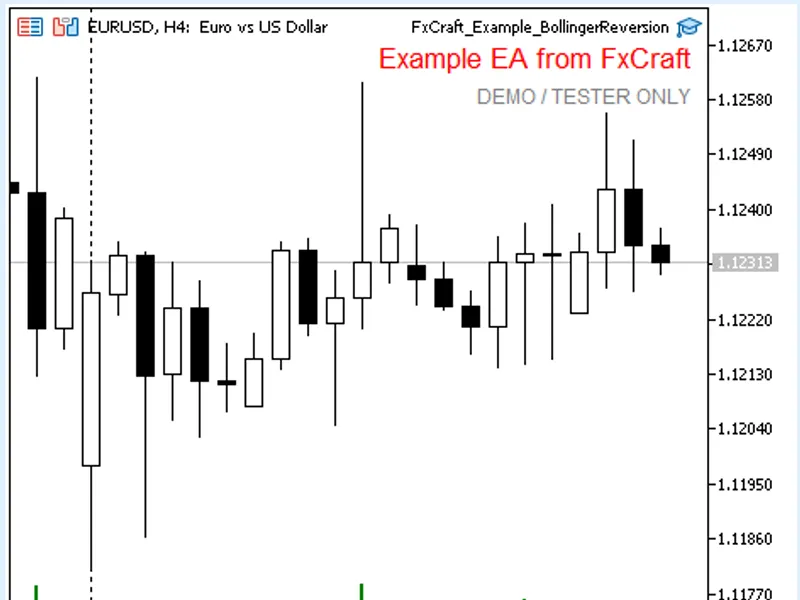










Fx Craft Example EA: Bollinger Bands Mean Reversion
Info
The Fx Craft Example EA: Bollinger Bands Mean Reversion is a Expert Advisor for MetaTrader 5 that an educational example of a mean-reversion expert advisor based on bollinger bands. It demonstrates how to combine two indicators, limit trading to selected hours, and manage exits based on current indicator values.
Usage
This tool is typically used for automated trading on major forex pairs and gold.
Platform
This Expert Advisor works exclusively on MetaTrader 5 (both build 600+ and newer versions).
Setup
Place the downloaded file in MQL5/Experts folder via File ? Open Data Folder in MetaTrader 5.
How to Install and Use Fx Craft Example EA: Bollinger Bands Mean Reversion
1. Installation: Open the "File" menu, select "Open Data Folder," navigate to MQL/Experts, paste your file, and restart the terminal.
2. Activation: Drag the EA from the Navigator onto a chart, ensure "Allow live trading" is checked in the Common tab, and verify the AutoTrading button is green.
3. Optimization: Right-click your chart, choose "Expert List," click "Properties" to adjust inputs, and save your preferred setup as a set file for future use.
4. Maintenance: Regularly check the "Experts" tab in the terminal window to monitor trade logs and potential execution errors.
Frequently Asked Questions
Q: Why is my EA not opening trades? A: Check the "AutoTrading" button, ensure "Allow live trading" is enabled, and verify your broker allows automated trading on your account type.
Q: Can I run multiple EAs on one chart? A: No, each chart can only host one active EA; however, you can open multiple charts for different currency pairs to run several EAs.
Q: What does the "smiley face" icon mean? A: A smiley face in the top-right corner of the chart indicates the EA is successfully running; a frowny face means it is disabled.
What this tool does
An educational example of a mean-reversion Expert Advisor based on Bollinger Bands.
Typical Use Case
This Expert Advisor excels in automated trading and technical analysis on MetaTrader 5.
Compatible Platform & Setup
This Expert Advisor works on MetaTrader 5. Place the file in the MQL5/Experts folder and restart the terminal.
Description & Settings
Related: Fx Craft Example EA: MA Cross Strategy Explained - another powerful expert for MetaTrader 5 traders.
An educational example of a mean-reversion Expert Advisor based on Bollinger Bands. It demonstrates how to combine two indicators, limit trading to selected hours, and manage exits based on current indicator values.Also recommended: Fx Craft Example EA: Range Breakout with Pending Orders - similar expert with strong performance on MetaTrader 5.
Strategy
BUY: Bar 2 closed below the lower band and bar 1 closed back inside the bands. Optionally, use an RSI filter where RSI on bar 2 is below the lower level. SELL: The reverse logic applies, using the upper band and an RSI above the upper level.
Exit: Positions are closed when the price touches the current middle band (for BUY orders, Bid >= middle band; for SELL orders, Ask <= middle band) or when the Stop Loss is hit.
Trading hours limit only the opening of new positions. Overnight ranges (e.g., 22:00–06:00) are permitted. Closing positions always functions, even outside trading hours. Optionally, positions can also be closed outside of these specified trading hours.
Maximum number of open positions at a time is configurable, with a default setting of 1.
Code Demonstration
The code illustrates:
- Reading two indicators using handles and CopyBuffer.
- Checking the number of copied values.
- Implementing an optional, switchable filter.
- Handling time windows in server time, including ranges that span midnight.
- Performing checks for free margin, lot size, and stop level.
- Incorporating a spread filter and order retries.
Inputs
- TimeFrame: The timeframe for signals (defaults to the current chart).
- Bollinger Bands: Period (default 20), deviation (default 2.0), applied price (default Close).
- Use RSI filter: Off by default. If enabled, RSI period is 14, lower level for BUY is 30, and upper level for SELL is 70.
- Trading start/end (HH:MM, server time): 00:00 / 00:00 (setting start = end means trading is open all day).
- Close position outside trading hours: Off by default.
- Lot (fixed): Default 0.10.
- Stop Loss: In points, 0 means no Stop Loss (default 300).
- Max open positions at once: Default 1.
- Magic number: Default 5020.
- Max slippage: Default 10 points.
- Max spread: Default 30 points (0 disables the filter).
Important Information
This is an educational example and not a fully developed trading system. It is intended for use only on demo accounts and in the Strategy Tester. On a live account, it will display a message and cease operation. The software is provided "as is", without any warranty. This is not investment advice. Trading Forex and CFDs carries a high risk of capital loss. License: FxCraft Example EA License (refer to the source code header for details).
You may also like: Indicator Parameters Usage Example - excellent alternative for expert users on MetaTrader 5.
Source Code
#property copyright "RobotFX"
#property link "https://robotfx.org"
#property version     "1.00"
#property description "This code is educational. Feel free to use, modify and upgrade as you wish. Visit ROBOTFX.ORG for professional trading tools"
#include <Trade\Trade.mqh>
input group "=== Signal ==="
input ENUM_TIMEFRAMES    InpTimeframe     = PERIOD_CURRENT;
input int                InpBandsPeriod   = 20;
input double             InpBandsDev      = 2.0;
input ENUM_APPLIED_PRICE InpBandsPrice    = PRICE_CLOSE;
.......
⚠ Limitations & Risk Warning
- This tool is provided for educational and testing purposes only.
- Past performance does not guarantee future results.
- Trading involves substantial risk of loss. Use on a demo account first.
- Results may vary depending on market conditions, broker, and settings.
- We recommend thorough backtesting and forward testing before using with real funds.