Exp QQ E Cloud
This professional-grade solution for MetaTrader 5 helps traders achieve greater efficiency in their daily workflow. This Expert Advisor serves as automated trading software. It is utilized to monitor financial markets and execute trades based on predefined algorithmic rules, enabling precise position management without the need for constant manual oversight.
How to Setup and Use Exp QQ E Cloud
1. Installation: Open the "File" menu, select "Open Data Folder," navigate to MQL/Experts, paste your file, and restart the terminal.
2. Activation: Drag the EA from the Navigator onto a chart, ensure "Allow live trading" is checked in the Common tab, and verify the AutoTrading button is green.
3. Optimization: Right-click your chart, choose "Expert List," click "Properties" to adjust inputs, and save your preferred setup as a set file for future use.
4. Maintenance: Regularly check the "Experts" tab in the terminal window to monitor trade logs and potential execution errors.
Frequently Asked Questions
Q: Why is my EA not opening trades? A: Check the "AutoTrading" button, ensure "Allow live trading" is enabled, and verify your broker allows automated trading on your account type.
Q: Can I run multiple EAs on one chart? A: No, each chart can only host one active EA; however, you can open multiple charts for different currency pairs to run several EAs.
Q: What does the "smiley face" icon mean? A: A smiley face in the top-right corner of the chart indicates the EA is successfully running; a frowny face means it is disabled.
Description & Settings
Trading system using the trend indicator.
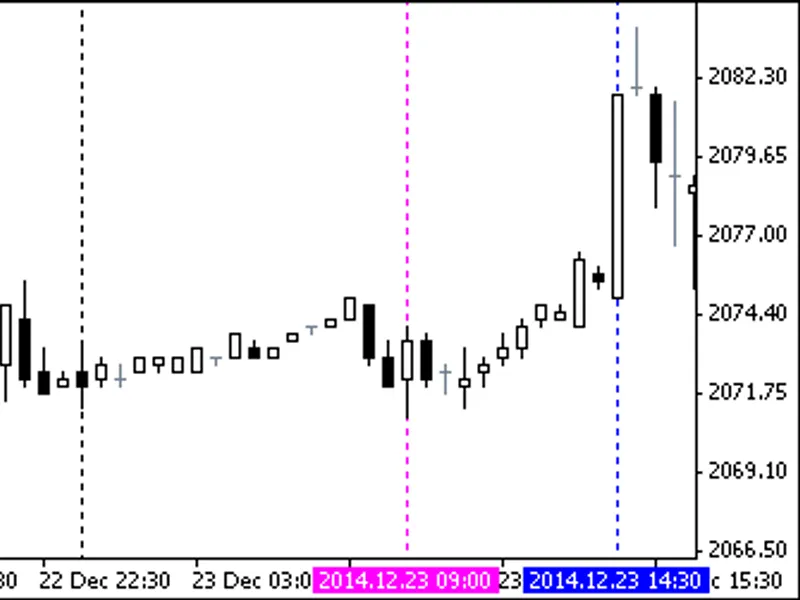
The decision of a deal is taken strictly in fixed moments of time. There are two of them: the moment of position opening and position closing.
These moments are defined by two pairs of the Expert Advisor input parameters:
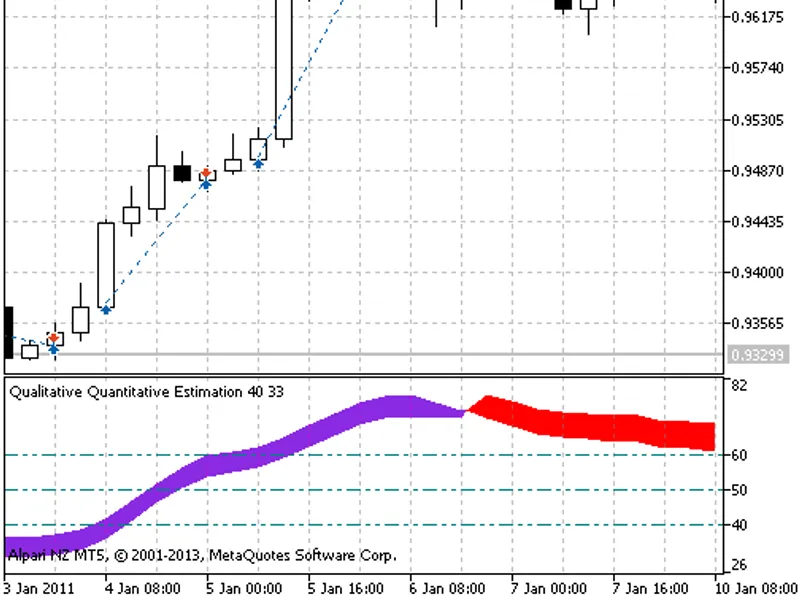
To the moment of position opening the direction for the deal is defined by the color of the Exp_QQECloud indicator. If the color is red, short will be opened, if purple, long will be opened. Place Exp_QQECloud.ex5 compiled file to the terminal_data_folder\MQL5\Indicators.
It should be considered that the TradeAlgorithms.mqh library file is designed to use Expert Advisors by brokers who offer
nonzero spread
and ability to set Stop Loss and Take Profit
simultaneously opening
a position. Other variants of this library can be downloaded from .
Default Expert Advisor's input parameters have been used during the tests shown below. Stop Loss and Take Profit have not been used during the tests.
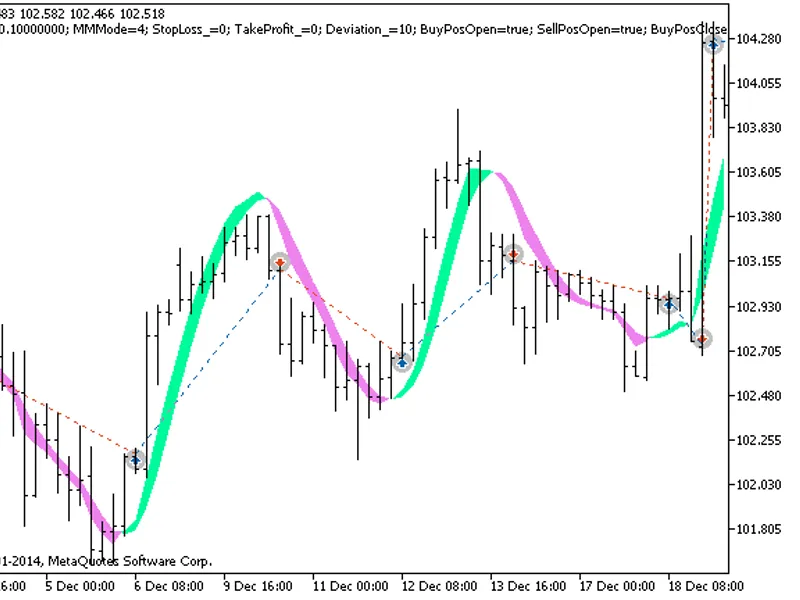
Fig. 1. The instances of history of deals in the chart
Testing results for 2011 at USDCHF H4:
Fig. 2. Chart of testing results






![QQ E [v02] and QQ E multi-timeframe [v02]](/images/198.webp)