



Event Tracer: Understanding MetaTrader 5 Event Handling
Info
The Event Tracer: Understanding MetaTrader 5 Event Handling is a Expert Advisor for MetaTrader 5 that what it doeseventtracer monitors all available expert advisor event handlers in metatrader 5: oninit, ondeinit, ontick, ontimer, ontrade, ontradetransaction, onbookevent, onchartevent, ontester, ontesterinit, ontesterpass, and ontesterdeinit. Each event call is assigned a sequential number and logged to the Experts journal.
Usage
This tool is typically used for automated trading on major forex pairs and gold.
Platform
This Expert Advisor works exclusively on MetaTrader 5 (both build 600+ and newer versions).
Setup
Place the downloaded file in MQL5/Experts folder via File ? Open Data Folder in MetaTrader 5.
How to Install and Use Event Tracer: Understanding MetaTrader 5 Event Handling
1. Installation: Open the "File" menu, select "Open Data Folder," navigate to MQL/Experts, paste your file, and restart the terminal.
2. Activation: Drag the EA from the Navigator onto a chart, ensure "Allow live trading" is checked in the Common tab, and verify the AutoTrading button is green.
3. Optimization: Right-click your chart, choose "Expert List," click "Properties" to adjust inputs, and save your preferred setup as a set file for future use.
4. Maintenance: Regularly check the "Experts" tab in the terminal window to monitor trade logs and potential execution errors.
Frequently Asked Questions
Q: Why is my EA not opening trades? A: Check the "AutoTrading" button, ensure "Allow live trading" is enabled, and verify your broker allows automated trading on your account type.
Q: Can I run multiple EAs on one chart? A: No, each chart can only host one active EA; however, you can open multiple charts for different currency pairs to run several EAs.
Q: What does the "smiley face" icon mean? A: A smiley face in the top-right corner of the chart indicates the EA is successfully running; a frowny face means it is disabled.
What this tool does
What it doesEventTracer monitors all available Expert Advisor event handlers in MetaTrader 5: OnInit, OnDeinit, OnTick, OnTimer, OnTrade, OnTradeTransaction, OnBookEvent, OnChartEvent, OnTester, OnTesterInit, OnTesterPass, and OnTesterDeinit.
Typical Use Case
This Expert Advisor excels in automated trading and technical analysis on MetaTrader 5.
Compatible Platform & Setup
This Expert Advisor works on MetaTrader 5. Place the file in the MQL5/Experts folder and restart the terminal.
Description & Settings
Related: MT5 New-Bar and Connection Event Logger - another powerful expert for MetaTrader 5 traders.
What it doesEventTracer monitors all available Expert Advisor event handlers in MetaTrader 5: OnInit, OnDeinit, OnTick, OnTimer, OnTrade, OnTradeTransaction, OnBookEvent, OnChartEvent, OnTester, OnTesterInit, OnTesterPass, and OnTesterDeinit. Each event call is assigned a sequential number and logged to the Experts journal. By running EventTracer on a chart, in single tests, visual tests, and optimizations, users can observe the execution order, frequency, and context of each handler.
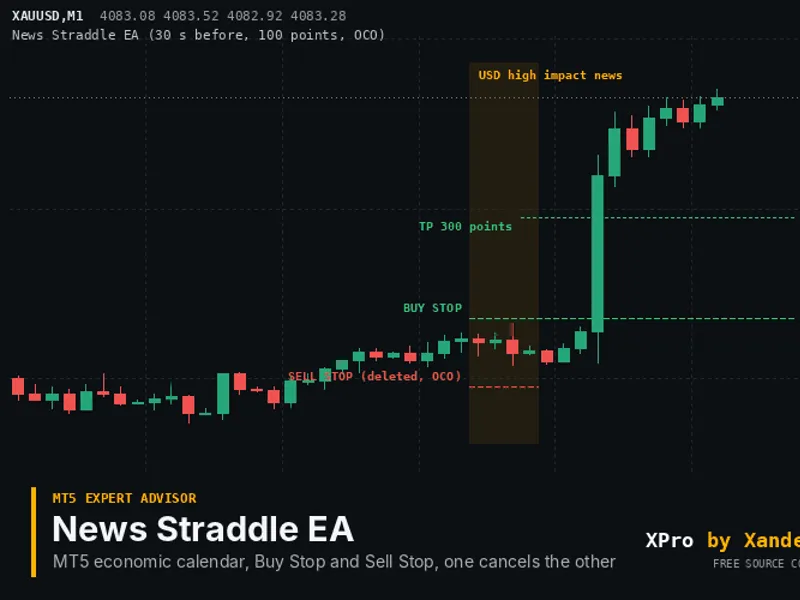
Also recommended: News Straddle EA for Economic Calendar Events - similar expert with strong performance on MetaTrader 5.
This tool is invaluable for learning the MQL5 event model and diagnosing issues related to event handling. It can help identify problems such as Expert Advisors trading multiple times after a timeframe change, exhibiting different behavior in the Strategy Tester compared to live charts, or losing state after restarts. EventTracer itself does not perform any trading actions; it does not send orders, modify positions, or generate signals. It operates on any symbol, timeframe, and account type (netting or hedging).
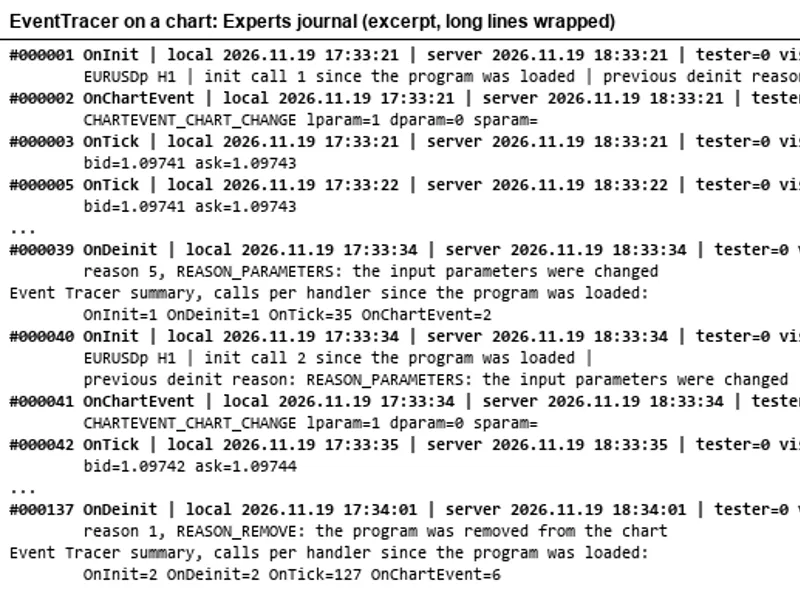
Example Expert journal entry from a chart run after changing an input parameter and removing the Expert Advisor:
#000008 OnInit | local 2026.11.19 11:22:19 | server 2026.11.19 12:22:19 | tester=0 visual=0 optimization=0 frame=0 | EURUSD M15 | init call 2 since the program was loaded | previous deinit reason: REASON_CHARTCHANGE: symbol or timeframe of the chart was changed
Log Entry Breakdown
Part
Content
#000008
The sequential running number for the handler call. This number increments with every call, including those not explicitly printed, allowing identification of skipped calls through gaps in the numbering.
OnInit
Indicates the specific handler that was executed.
local, server
Displays the local time (TimeCurrent) and server time (TimeTradeServer). In the Strategy Tester, both reflect the simulated time, not the actual computer clock time.
tester, visual, optimization, frame
Shows the status of MQL_TESTER, MQL_VISUAL_MODE, MQL_OPTIMIZATION, and MQL_FRAME_MODE, represented as 0 (false) or 1 (true).
details
This field provides specific information that varies depending on the handler. Refer to the detailed table below for handler-specific data.
Handler Specific Details
OnInit
Includes the symbol, timeframe, the count of OnInit calls since the program's initialization, and the reason for the preceding deinitialization.
OnDeinit
Logs the deinitialization reason code and its textual description, covering all ten possible reasons from REASON_PROGRAM to REASON_CLOSE. On a chart, an additional summary line details handler call counts since program load.
OnTick
Displays the current Bid and Ask prices.
OnTimer
Shows the timer period that triggered the event.
OnTrade
Provides no additional details.
OnTradeTransaction
Details the transaction type, symbol, and associated order, deal, and position ticket numbers. For trade requests, it also includes the return code.
OnBookEvent
Indicates the symbol whose Market Depth data has changed.
OnChartEvent
Logs the event name (e.g., CHARTEVENT_CHART_CHANGE, CHARTEVENT_CUSTOM+7) along with lparam, dparam, and sparam values.
OnTester
Reports the number of calls per handler within the current test run.
OnTesterInit, OnTesterPass, OnTesterDeinit
For each optimization pass, this section shows the pass number, total events, and handler call counts as reported by the test agent.
Inputs
Input Parameter
Default Value
Meaning
Timer period in seconds
60
Sets the period for OnTimer events in seconds, ranging from 0 to 86400. A value of 0 disables the timer. This input can be optimized for fine-tuning.
Print every tick and book event
false
When set to false, OnTick and OnBookEvent events are printed only once per second. Setting it to true logs every single event.
Subscribe to the Depth of Market of the chart symbol
false
Setting this to true enables MarketBookAdd for the chart's symbol, triggering OnBookEvent. The subscription is automatically released in OnDeinit.
Strategy Tester: printed lines per handler
20
Limits the number of lines printed for OnTick, OnTimer, OnTrade, OnTradeTransaction, OnBookEvent, and OnChartEvent events in the Strategy Tester to this value. Optimization frames are similarly limited. A value of 0 removes the limit.
What You Can Observe
On a live chart, change the timeframe or symbol. The journal will log OnDeinit with REASON_CHARTCHANGE followed by OnInit. Observe that the running number continues sequentially, and the OnInit log indicates it's the second call ('init call 2'). This demonstrates that the program was not reloaded, and its global variables retained their values. The same behavior occurs when changing input parameters (REASON_PARAMETERS).
This is crucial for Expert Advisors that maintain state in global variables. An EA that declares and initializes a global variable only at its declaration point will start its second execution cycle with the old values. Such an EA must reset its state in OnInit or risk acting on outdated information from a previous symbol or timeframe. EventTracer preserves its own throttling state, intentionally leaving counters unmodified so their persistence can be observed.
In a single Strategy Tester run, the event sequence is typically OnInit, followed by OnTick and OnTimer in simulated time, then OnTester, and finally OnDeinit with REASON_REMOVE. OnTesterInit, OnTesterPass, and OnTesterDeinit do not execute in a single test scenario.
During an optimization, the terminal launches a secondary instance of the program on a chart in frame mode (frame=1). Only this instance executes OnTesterInit, OnTesterPass, and OnTesterDeinit, logging events using the computer's real time. OnInit and OnDeinit do not run in this frame instance; however, chart events are processed.
Instances running on test agents do not produce output during optimization. Instead, they transmit their call counts to the terminal using FrameAdd within OnTester. The terminal instance then retrieves these counts using FrameNext and logs a summary line per pass. This mechanism provides a basic example of frame communication, transferring data from the agent to the terminal without files. The summary logged by OnTesterDeinit aggregates the counts from all optimization passes.
OnTrade and OnTradeTransaction events are logged only when a trade action occurs on the account, such as manually placing and closing an order on a demo account while EventTracer is active on a chart. EventTracer passively monitors these events.
How to Use EventTracer
Attach EventTracer to any chart and navigate to the Experts tab in the Toolbox window.
To observe event handling: change the chart's timeframe, switch to a different symbol, modify an input parameter, and then remove the Expert Advisor. Review the OnDeinit and OnInit log entries.
To analyze Strategy Tester behavior: open the Strategy Tester, select EventTracer, and run a single test spanning several days. The execution logs will appear in the Journal tab of the tester.
For optimization analysis: check the 'Timer period in seconds' input in the tester settings (e.g., start 60, step 60, stop 180) and run an optimization using the Slow Complete algorithm. The logs from the terminal's copy of EventTracer will be visible in the Experts tab of the Toolbox. The 'OnTester' value in the optimization results represents the handler call count per pass, indicating the volume of events rather than trading performance.
Limitations
This tool is compatible only with MetaTrader 5.
In the Strategy Tester, the simulated local time mirrors the server time. Consequently, test logs do not reflect the actual duration of each testing phase.
CHARTEVENT_MOUSE_MOVE, CHARTEVENT_MOUSE_WHEEL, and events related to created or deleted chart objects are only captured when their corresponding chart properties are enabled. EventTracer does not modify chart properties, so these events may not be logged by default.
OnBookEvent requires a symbol with available Market Depth data. During a test on EURUSD with the subscription enabled, no book events were received within the Strategy Tester environment.
When 'Print every tick and book event' is enabled on a high-liquidity symbol, the journal can grow very rapidly. The Strategy Tester's line limit helps manage journal size during tests; disable this limit (set to 0) only for brief monitoring periods.
You may also like: News Day Blocker: Prevent Trading on High-Impact US Economic Events - excellent alternative for expert users on MetaTrader 5.
Source Code
#property version     "1.00"
#property description "This code is educational. Feel free to use, modify and upgrade as you wish. Visit ROBOTFX.ORG for professional trading tools"
enum ENUM_TRACED_EVENT
  {
   EVENT_INIT = 0,
   EVENT_DEINIT,
   EVENT_TICK,
   EVENT_TIMER,
   EVENT_TRADE,
   EVENT_TRADE_TRANSACTION,
.......
⚠ Limitations & Risk Warning
- This tool is provided for educational and testing purposes only.
- Past performance does not guarantee future results.
- Trading involves substantial risk of loss. Use on a demo account first.
- Results may vary depending on market conditions, broker, and settings.
- We recommend thorough backtesting and forward testing before using with real funds.