Object Create And Set
This is a powerful addition to your MetaTrader 5 toolkit designed to optimize market analysis and performance. This library provides a collection of modular, reusable code. It is utilized by developers to organize common functions, allowing for the integration of complex logic across multiple Expert Advisors, indicators, or scripts without the need for code duplication.
How to Setup and Use Object Create And Set
1. Storage: Place library files in the MQL/Libraries directory to ensure they are accessible to your projects.
2. Implementation: Include the library in your code using the #import directive, ensuring you match the exact function names and parameters.
3. Compilation: Ensure the library is present in the directory before you compile your main EA or script, as the compiler links them during this phase.
4. Management: Keep libraries organized in sub-folders if you manage many custom functions to maintain a clean project structure.
Frequently Asked Questions
Q: What is a library file used for? A: Libraries store reusable code modules, allowing you to centralize common logic used by multiple EAs or indicators.
Q: Is a library executable? A: No, libraries are non-executable files containing functions; they must be imported into an EA, indicator, or script to function.
Q: Can I update a library while the platform is running? A: You should compile your EA or script after updating a library to ensure the latest code changes are integrated.
Description & Settings
The attached
*.mqh
file contains functions for creating objects and changing object properties. It is particularly useful for me when I need to quickly write some test code which creates objects on a chart and/or changes the properties of existing objects.
The other file is a script with a usage example (creates a text label, gradually rotates it by 90 degrees changing the text and its color along the way).
I. Functions for creating objects
:
The functions are based on standard functions described in . Major differences from the corresponding standard functions:
added lines for setting tooltips and setting the visibility of objects on different timeframes;
removed lines for creating functions without setting coordinates, prices, anchor points (except for VLineCreate(...) and EventCreate(...));
based on functions for setting (changing) object properties implemented in this library, additional conditions have been added to check the success of setting the properties.
List of functions for creating objects:
II. Functions for setting object properties:
Using , and without specifying a modifier:
Using , and with specifying a modifier:
Additional functions:
III. Usage:
You can use it as an include file or you can just copy certain functions from it to your source code.
If you choose the second way, I think it's better to first use it as an include file. Once you implement all necessary function calls you can remove the include directive (#include...).
Then, the compiler will point out which functions you need to copy from the include file.
Use as an include file:
Save the attached file
ObjectCreateAndSet.mqh
to "
Include
" folder. To do so, you can use the
Navigator
window in
MetaEditor
. In the
Navigator
window, right-click the "
Include
" folder and choose "
Open Folder
".
To use the library in your code, copy the
#include...
line from the beginning of the file and paste it to your source code: The attached script provides an example of including the library.
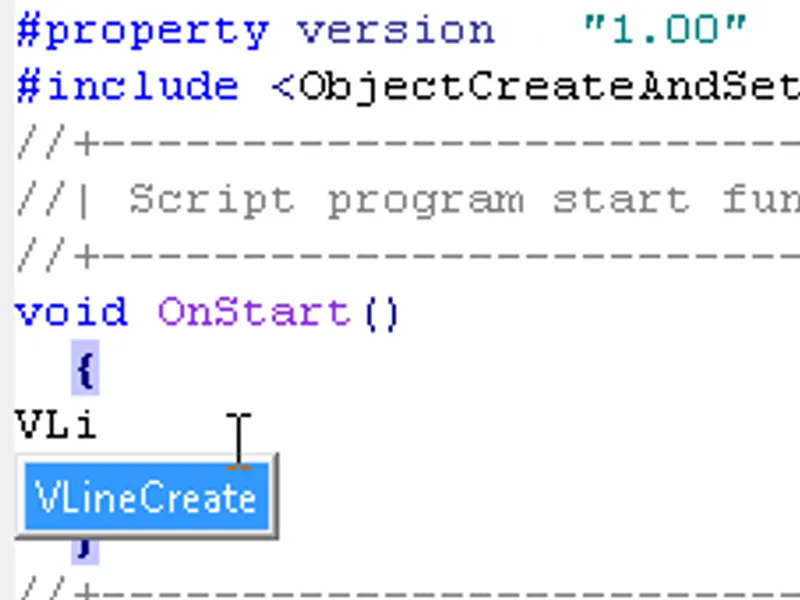
After that, compile your code. It will allow to see the tooltips for included functions when you start entering their names:
Fig.1. Full name of a function in a tooltip after entering its first few letters
Fig.2. Parameters of a function in a tooltip
By the way, you can you use the
functions list
button on the
MetaEditor
toolbar to quickly view the list of functions used in the current file:
Fig.3. Button for showing the list of functions used in a file
When you press the button, a drop-down list appears. To go to a particular function, click its name in the list.
Fig.4. Pressing the button opens the list of functions in a file (useful to quickly move to a certain function)
Updates:
2015.09.14
: In the
ObDelete()
function, added output of object's name to the Experts tab if there is an error when deleting the object. It facilitates finding errors in the code.