e In Trade Panel
This is a powerful addition to your MetaTrader 5 toolkit designed to optimize market analysis and performance. This Expert Advisor serves as automated trading software. It is utilized to monitor financial markets and execute trades based on predefined algorithmic rules, enabling precise position management without the need for constant manual oversight.
How to Setup and Use e In Trade Panel
1. Installation: Open the "File" menu, select "Open Data Folder," navigate to MQL/Experts, paste your file, and restart the terminal.
2. Activation: Drag the EA from the Navigator onto a chart, ensure "Allow live trading" is checked in the Common tab, and verify the AutoTrading button is green.
3. Optimization: Right-click your chart, choose "Expert List," click "Properties" to adjust inputs, and save your preferred setup as a set file for future use.
4. Maintenance: Regularly check the "Experts" tab in the terminal window to monitor trade logs and potential execution errors.
Frequently Asked Questions
Q: Why is my EA not opening trades? A: Check the "AutoTrading" button, ensure "Allow live trading" is enabled, and verify your broker allows automated trading on your account type.
Q: Can I run multiple EAs on one chart? A: No, each chart can only host one active EA; however, you can open multiple charts for different currency pairs to run several EAs.
Q: What does the "smiley face" icon mean? A: A smiley face in the top-right corner of the chart indicates the EA is successfully running; a frowny face means it is disabled.
Description & Settings
The InTradePanel trade panel for manual trading.
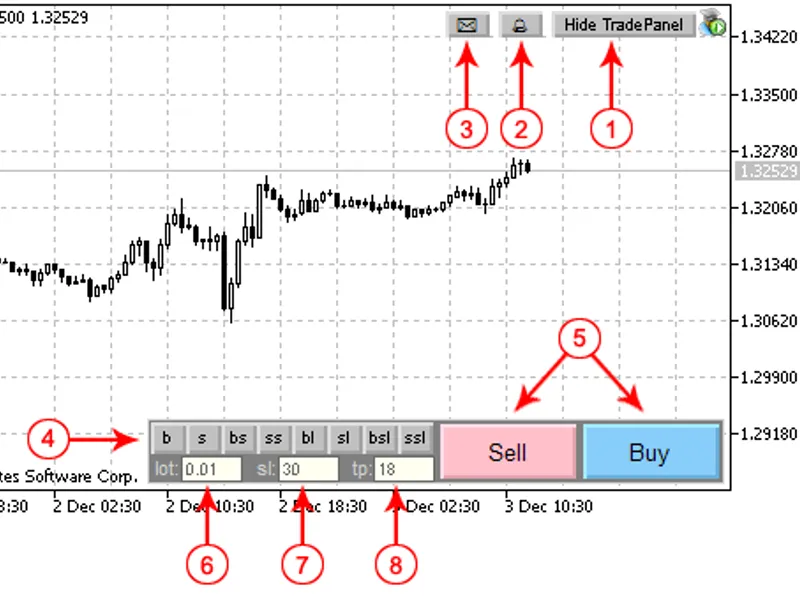
Figure 1. Control Panel items (Mode 1).
Control Panel items
1. Show/Hide panel button.2. Enable/Disable sound when Take Profit or pending order has triggered.3. Send e-mail when Take Profit or pending order has triggered. 4. Order types:
"b" - market buy,
"s" - market sell
"bs" - buystop pending order
"ss" - sellstop pending order
"bl" - buylimit pending order
"sl" - selllimit pending order
"bsl" - buystoplimit pending order
"ssl" - sellstoplimit pending order.
5. Order placing buttons (Sell/Buy).6. Trade volume. 7. Stop Loss (in points).8. Take Profit (in points).Two modes are supported:
Mode 1 (Fig. 1) - Open position with specified Stop Loss and Take Profit levels (in points). Mode 2 (Fig. 2) - Placement of order with Stop Loss and Take Profit levels, dependent on position of the horizontal lines.
The mode 1 is used for market orders.
The mode 2 is used for pending orders. In this mode, the order placement button is shown instead of "Sell" and "Buy" buttons. The specified Price, Take Profit and Stop Loss levels are shown on the chart. By moving the lines, you can change the order parameters:
Figure 2. Mode 2 (buystoplimit order is selected)
Lines
Orange line
- Stop Loss level (the same color for all order types).
Green line
- Take Profit level (the same color for all order types).
Light Blue
- Price of Buy Stop and Buy Limit orders.
Pink line
- Price of Sell Stop and Sell Limit orders.
Blue line
- Price level where Buy Stop Limit becomes Buy Limit.
Red line
- Price level where Buy Stop Limit becomes Buy Limit.
Vertical line
- Order expiration time. If the line located on the left side, the order expiration time is not used.
Trade volume
The minimal value of trade volume (Pos. 6 at Fig. 1) is set when you press the "lot" label. If position is opened, it will set the position volume to simplify its closing.
Stop Loss and Take Profit
The Stop Loss and Take Profit levels defined in points. If you don't want to use SL/TP, set them to 0. Click on the "sl"/"tp" buttons to set minimal allowed sl and tp.
Figure 3. Invalid values of Stop Loss and Take Profit
In pending orders mode (Mode 2) the values of Stop Loss and Take Profit depends on the Stop Loss and Take Profit lines.
The Expert Advisor saves the last used values of order volume, Stop Loss and Take Profit levels (for each symbol) and loads them after the new start of the client terminal.
Panel movement
The position of trade panel can be changed.
To move the panel you need to double click on the panel (grey) and move panel to any place on the chart. All the items (buttons, edits, labels) will be hidden (Fig. 4) and restored after the double click.
Figure 4. Panel movement
The position of panel is saved for each chart and restored after restart of the client terminal.
Other functions
The Stop Loss and Take Proft also can be specified in spreads. If you enter the "s" after the value, it means that Stop Loss/Take Profit is specified in spreads. If you type "s", you will see the spread.
The same behavior is for "m". In this case the SL/TP are specified in minimal stop levels. If you type "t", the program will show the time, passed from the beginning of the current H4 bar. The other commands "t2", "t3", "t4", "t6", "t8", "t12" corresponds to H2, H3, H4, H6, H8, H12 timeframes. If you type "d", you will see the current date and day of the week.
Installation
Unpack the archive to the folder of the client terminal. The file CIntegerTradePanel.mqh will appear in the MQL5/Include folder, the eInTradePanel.mq5 will appear in MQL5/Experts folder. After the compilation of eInTradePanel.mq5 you can launch the Expert Advisor.
Recommendations
Allow DLL use.
The other operations with position/orders (modify, delete) can be done using the client terminal. The position can be closed by opposite trade operation (the volume of the opened position is set after the click of the "lot" button).