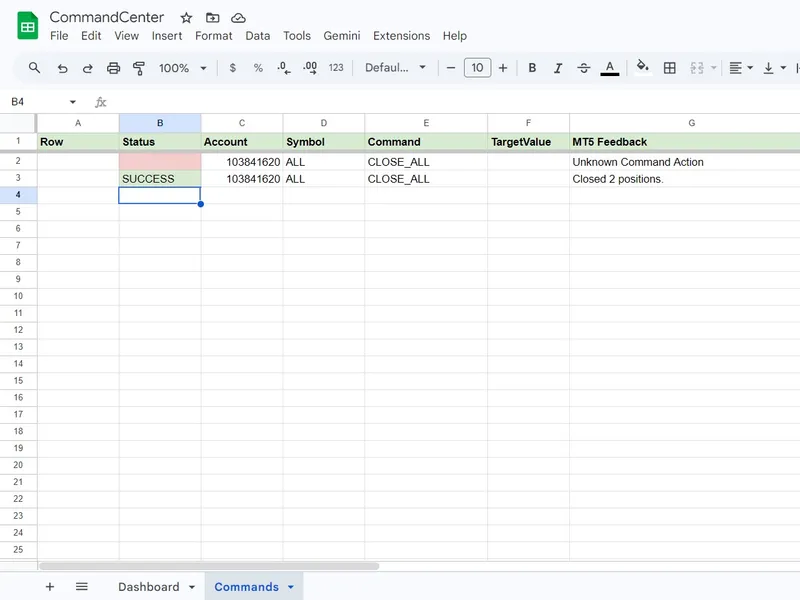
KS Q Command Center Remote Google Sheets Trade Manager
This software component for MetaTrader 5 is built to enhance the capabilities of your trading environment. This Expert Advisor serves as automated trading software. It is utilized to monitor financial markets and execute trades based on predefined algorithmic rules, enabling precise position management without the need for constant manual oversight.
How to Setup and Use KS Q Command Center Remote Google Sheets Trade Manager
1. Installation: Open the "File" menu, select "Open Data Folder," navigate to MQL/Experts, paste your file, and restart the terminal.
2. Activation: Drag the EA from the Navigator onto a chart, ensure "Allow live trading" is checked in the Common tab, and verify the AutoTrading button is green.
3. Optimization: Right-click your chart, choose "Expert List," click "Properties" to adjust inputs, and save your preferred setup as a set file for future use.
4. Maintenance: Regularly check the "Experts" tab in the terminal window to monitor trade logs and potential execution errors.
Frequently Asked Questions
Q: Why is my EA not opening trades? A: Check the "AutoTrading" button, ensure "Allow live trading" is enabled, and verify your broker allows automated trading on your account type.
Q: Can I run multiple EAs on one chart? A: No, each chart can only host one active EA; however, you can open multiple charts for different currency pairs to run several EAs.
Q: What does the "smiley face" icon mean? A: A smiley face in the top-right corner of the chart indicates the EA is successfully running; a frowny face means it is disabled.
Description & Settings
What ideas is the code based on?
The KSQ Command Center was developed to solve a specific problem for quantitative fund managers: the need to monitor and manage remote funded accounts (such as prop firms or Darwinex allocations, PAM, MAM) from a mobile browser, without the latency or hassle of logging into a VPS.
It acts as a two-way asynchronous bridge between MetaTrader 5 and Google Sheets.
The Push (Reporting):
It packages live account data (Balance, Equity, Margin) and open position metrics into a JSON payload and securely pushes it to a Google Apps Script Web App via HTTP POST.
The Pull (Commanding):
It polls a specific "Commands" tab in the Google Sheet. If a user queues a command, the EA parses the JSON instruction, executes the trade modifications (e.g., closing positions, moving stop losses), and reports the success/failure status back to the sheet.
Suitable Symbol and Timeframe
Because this is a global trade management utility and not a chart-based indicator, it is
Symbol and Timeframe independent
.
Symbol:
Any (Can be attached to a single major pair like EURUSD, and it will manage the entire account).
Timeframe:
Any (H1 or higher is recommended simply to minimize chart rendering resources on your VPS).
External Variables Description
GoogleSheetWebAppURL:
The deployment URL of your Google Apps Script.
SheetPassword:
A custom security string to prevent unauthorized POST requests to your sheet. This must match the password in your JavaScript backend.
DataPushInterval (Seconds):
How frequently the EA sends your live balance and open position data to update the Google Sheet Dashboard.
CommandPullInterval (Seconds):
How frequently the EA checks the Google Sheet for new pending commands.
SlippagePoints:
Maximum allowed slippage for remote execution.
EnableLogging:
Set to true to see detailed two-way communication logs in the MT5 Experts tab.
⚠️ CRITICAL SETUP INSTRUCTIONS FOR USERS
This EA communicates securely with Google servers. MT5 will block it by default unless you explicitly allow the connection.
Step 1: Whitelist the WebRequest URLs
In MT5, press Ctrl + O (Tools -> Options).
Go to the
Expert Advisors
tab.
Check the box for
"Allow WebRequest for listed URL"
.
Add these two exact URLs:
Step 2: Install the Google Sheets Backend (Auto-Setup)
This EA requires a Google Apps Script to function as the "brain."
Create a blank Google Sheet.
Click
Extensions > Apps Script
.
Paste the JavaScript code provided at the bottom of this description.
Click
Deploy > New Deployment
(Select Web App, Execute as "Me", Access: "Anyone").
Copy the Web App URL and paste it into the EA's GoogleSheetWebAppURL input parameter in MT5.
Magic Setup:
Within 60 seconds of attaching the EA, the script will automatically format your blank Google Sheet, build the Dashboard, and set up the Commands tab.
Google Apps Script Backend Code // ========================================================================= // KSQuants Command Center Backend (Auto-Building Version) // ========================================================================= const PASSWORD = "Secret"; // MUST match the SheetPassword in your MT5 EA function doPost(e) { try { var payload = JSON.parse(e.postData.contents); var ss = SpreadsheetApp.getActiveSpreadsheet(); // 0. Auto-Setup: Build tabs and headers if they don't exist ensureSetup(ss); // 1. Authenticate if (payload.password !== PASSWORD) { return createJsonResponse({ error: "Authentication Failed: Incorrect Password" }); } // 2. Route the Request if (payload.action === 'status_update') { return handleStatusUpdate(payload, ss); } else if (payload.action === 'get_commands') { return handleGetCommands(payload, ss); } else if (payload.action === 'mark_command_done') { return handleMarkCommandDone(payload, ss); } return createJsonResponse({ error: "Unknown action requested" }); } catch (error) { return createJsonResponse({ error: "Server Error: " + error.message }); } } // ------------------------------------------------------------------------- // THE MAGIC: Auto-Build Function // ------------------------------------------------------------------------- function ensureSetup(ss) { // 1. Setup Dashboard Tab var dashSheet = ss.getSheetByName("Dashboard"); if (!dashSheet) { // Try to rename the default 'Sheet1' instead of making a new one var sheet1 = ss.getSheetByName("Sheet1"); if(sheet1) { sheet1.setName("Dashboard"); dashSheet = sheet1; } else { dashSheet = ss.insertSheet("Dashboard"); } // Clear it just in case dashSheet.clear(); } // 2. Setup Commands Tab var cmdSheet = ss.getSheetByName("Commands"); if (!cmdSheet) { cmdSheet = ss.insertSheet("Commands"); // Insert the required headers automatically var headers = [["Row", "Status", "Account", "Symbol", "Command", "TargetValue", "MT5 Feedback", "Time Completed"]]; var headerRange = cmdSheet.getRange("A1:H1"); headerRange.setValues(headers); headerRange.setFontWeight("bold"); headerRange.setBackground("#d9ead3"); // Light green background // Freeze the top row so scrolling is easier cmdSheet.setFrozenRows(1); // Resize columns for better readability cmdSheet.setColumnWidth(2, 100); // Status cmdSheet.setColumnWidth(5, 150); // Command cmdSheet.setColumnWidth(7, 300); // MT5 Feedback } } // ------------------------------------------------------------------------- // ROUTE 1: Handle Status Updates (Push from MT5) // ------------------------------------------------------------------------- function handleStatusUpdate(data, ss) { var dashSheet = ss.getSheetByName("Dashboard"); // Update Account Metrics (Top Left) var accountData = [ ["KSQuants Command Center", "Live Data"], ["Last Sync", new Date().toLocaleString()], ["Account Login", data.account.login], ["Balance", "$" + data.account.balance], ["Equity", "$" + data.account.equity], ["Margin Level", data.account.margin_level + "%"] ]; dashSheet.getRange("A1:B6").setValues(accountData); dashSheet.getRange("A1:B1").setFontWeight("bold").setBackground("#d9ead3"); // Update Open Positions (Right Side) dashSheet.getRange("D1:H500").clearContent(); var headers = ["Ticket", "Symbol", "Type", "Volume", "Profit"]; dashSheet.getRange("D1:H1").setValues([headers]).setFontWeight("bold").setBackground("#cfe2f3"); if (data.positions && data.positions.length > 0) { var posData = data.positions.map(function(p) { return [p.ticket, p.symbol, p.type, p.volume, p.profit]; }); dashSheet.getRange(2, 4, posData.length, 5).setValues(posData); } else { dashSheet.getRange("D2").setValue("No Open Positions"); } return createJsonResponse({ status: "success", message: "Dashboard updated" }); } // ------------------------------------------------------------------------- // ROUTE 2: Send Pending Commands (Pull from MT5) // ------------------------------------------------------------------------- function handleGetCommands(data, ss) { var cmdSheet = ss.getSheetByName("Commands"); if (cmdSheet.getLastRow() < 2) return createJsonResponse([]); var reqAccount = String(data.account); var values = cmdSheet.getRange(2, 1, cmdSheet.getLastRow() - 1, 6).getValues(); var pendingCommands = []; for (var i = 0; i < values.length; i++) { var status = String(values[i][1]).toUpperCase(); var acc = String(values[i][2]); if (status === "PENDING" && acc === reqAccount) { pendingCommands.push({ row: i + 2, account: acc, symbol: String(values[i][3]), command: String(values[i][4]).toUpperCase(), targetValue: Number(values[i][5]) || 0 }); } } return createJsonResponse(pendingCommands); } // ------------------------------------------------------------------------- // ROUTE 3: Mark Commands as Done (Acknowledge from MT5) // ------------------------------------------------------------------------- function handleMarkCommandDone(data, ss) { var cmdSheet = ss.getSheetByName("Commands"); var row = data.row; var status = data.status; var details = data.details; cmdSheet.getRange(row, 2).setValue(status); cmdSheet.getRange(row, 7).setValue(details); cmdSheet.getRange(row, 8).setValue(new Date().toLocaleString()); if(status === "SUCCESS") { cmdSheet.getRange(row, 2).setBackground("#d9ead3"); } else { cmdSheet.getRange(row, 2).setBackground("#f4cccc"); } return createJsonResponse({ status: "cleared" }); } // ------------------------------------------------------------------------- // Utility Function // ------------------------------------------------------------------------- function createJsonResponse(jsonObject) { return ContentService.createTextOutput(JSON.stringify(jsonObject)) .setMimeType(ContentService.MimeType.JSON); }