Alerts on New Bar
This is a powerful addition to your MetaTrader 4 toolkit designed to optimize market analysis and performance. This technical indicator acts as a specialized analysis tool designed to visualize market data. It helps traders identify emerging trends, momentum shifts, and key support or resistance levels by plotting statistical calculations directly onto price charts.
How to Setup and Use Alerts on New Bar
1. Installation: Place your file in the MQL/Indicators folder via "Open Data Folder" and restart your terminal.
2. Loading: Find the indicator in the Navigator, drag it onto your chart, and configure the input parameters in the popup window.
3. Customization: Press Ctrl+I to open the indicator list, select your tool, and click "Properties" to change colors, levels, or visual styles.
4. Updating: Replace the old file in the Indicators folder with the new version and restart the platform to apply changes.
Frequently Asked Questions
Q: Why is my indicator not showing? A: Verify the file is in the MQL/Indicators folder, or try right-clicking the "Indicators" tree in the Navigator and clicking "Refresh."
Q: Do custom indicators slow down the platform? A: Too many complex indicators can impact performance; remove unused ones via the "Indicator List" (Ctrl+I).
Q: Can I use MT4 indicators on MT5? A: No, MQL4 and MQL5 are distinct languages; ensure the indicator is compiled specifically for your platform version.
Description & Settings
Indicator: Alerts on New Bar
Alert Options:
Popup Alert
Sound
Push Notification
If the Popup Alert and Sound Alert are both set to true only the Popup Alert will function. For the Sound Alert to work the Popup Alert must be set to false. This is a MT4 function.
Any Alert set to true will fire it the chart Period (Timeframe) is changed. The same applied if MT4 is loaded and Alerts are set to true. I have not solved these problems (see here -) and nor have I seen them solved for New Bar Alerts.
All Alerts will state Broker Time and Date.
New Bar Alerts can also work with most Renko and Constant Range (Synthetic) candles.
Sound (applicable only if extra sound alerts wanted)
The Indicator default sound alert is "alert.wav" and corresponds to options 1 of the Indicator Sound_Bite parameter. "alert.wav is a MT4 default sound file. The sound file associated with option 1 cannot be changed unless recoded.
The Sound_Bite parameter has additional sound options 2, 3, 4, 5, 6, 7, 8 but no associated sound bite files.The user must add these files to the MT4/Sounds folder.
This is optional not a must do.
An example sound bite is provided in SB2.zip (see Download). Place this unzipped sound bite - SB2.wav - in the MT4/Sounds folder and it will correspond to option 2 of the Indicator Sound_Bite parameter.
Fee additional sound bites can be got - Hint - search for "chimes", "bells" etc.
Additional sound bite files must be in .wav format and renamed SB2.wav, SB3.wav,SB4.wav, SB5.wav, SB6.wav, SB7.wav or SB8.wav; placed in the MT4/ Sounds folder; they will correspond to to options 2, 3, 4, 5, 6, 7, 8 of the Indicator Sound_Bite parameter. Options not required do not need associated sound files.
Sound files not in .wav format must be converted to .wav format with an audio converter and named in accordance with the above directives.
Other than Alert sounds, Event sounds can be changed from Tools → Options → Event.
Push Notification: (iOS and Android)
Push Notifications are fast, fail safe and easy to set up.
Speed will depend on capability of Internet Connection and Computer and Mobile Devices.
First install MT4 on Mobile Device.
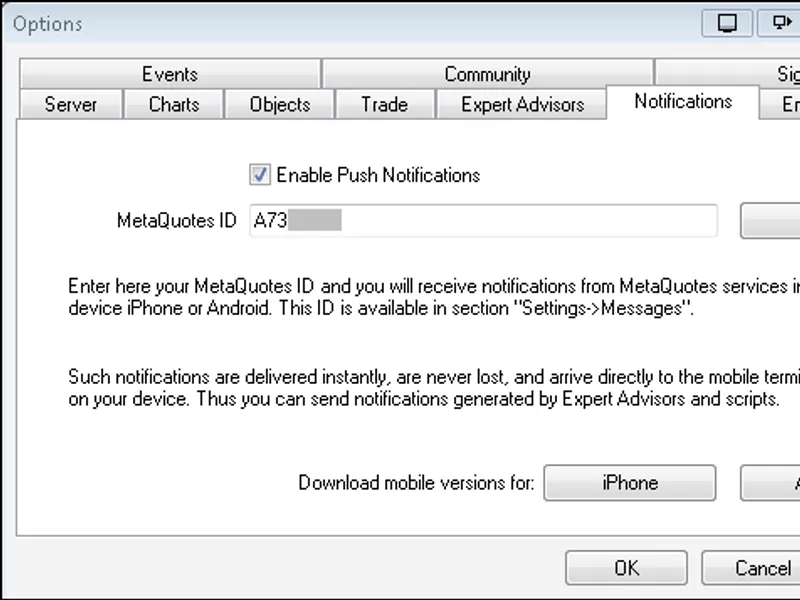
Locate MetaQuotes ID. See - Messages or Messages in Settings
Enter MetaQuotes ID in Client Terminal of MT4 on computer (Tools → Options → Notifications).
Note: The same MetaQuotes ID can be used with multiple Client Terminals (different Brokers).
Click the Test Button.
Open up MT4 Terminal (Ctrl + T) and select the Journal Tab and check under Messages if the the Test was successful.
One a successful Test is obtained Push Notification Alerts can be set in the Alerts New Bar Indicator.
Important: Ensure that your mobile device has sound turned on for notifications.
If further clarification is required, google and youtube "MT4 push notification."
Below: Two Push Notifications as received on Android Mobile Device. Each from different Brokers using the same MetaQuotes ID.
The image below shows time displayed as hh:mm. The user code will display time as hh:mm:ss.
The Broker time is one hour ahead of local time.
Below: Push Notifications receive on iOS Mobile Device.
The image below shows time displayed as hh:mm. The user code will display time as hh:mm:ss.
The Broker time is one hour ahead of local time. PN delivery is, depending on equipment capability, instantaneous or within a few seconds. The two minute (on hour) time difference is delay in taking screen shot.
Here is how to do it with stunnel.
Go to his for further clarification.
First download the stunnel install file. If the following link is out of date or broken search the internet for a new stunnel download link.
Install stunnel. Note: During the the installation a black cmd screen opened requesting location information. I did not type in any information and merely pressed the Enter Key at every request untill the cmd screen closed.
After installation a stunnel icon should be on the desktop. Click on the trunnel icon and open the stunnel configuration file. It should open in NotePad. Edit the stunnel.conf file in accordance with the above referenced Forum instructions. A copy of my edited file (stunnel.conf), current at Dec 2013, can be found in Stunnel Config.zip. See - Download.
Click the Test Button.
Open up MT4 Terminal (Ctrl + T) and select the Journal Tab and check under Messages if the the Test was successful.
Note:
I filled in SMTP sever as 127.0.01:25 as suggested by Sangmane in the above referenced forum because smtp.gmail.com:25 did not work for me.
The image below shows time displayed as hh:mm. The user code will display time as hh:mm:ss.
New Bar Alert Label
The New Bar Alert Label font is at default Bold. Bold can be turned off. See Parameters: Font_Bold - true/false.
The New Bar Alert Label can be hidden. See Parameters: Show Font - true/false.
Alert Truth Table
The indicator has 4 different Alerts, each Alert has two states - true or false. The total possible combinations of Alerts are 16. (2 to exponent 4 or 2 x 2 x 2 x 2)
When Popup Alert and Sound Alert are simultaneously true only Popup Alert is functional. This result in a loss 4 unique combinations leaving 12 combinations out of 16.
This can be seen under columns Logical Output-2 and Modified Output where S is effectively cancelled in rows 1, 2, 3 and 4 due to the coexistence of A (Popup Alert) and S(SoundAlert) both in state of T(true). See explanation under heading Sound.
The above results in column Modified Output rows 1, 2, 3 and 4 being duplications of rows 5, 6, 7 and 8 respectively.
Key:
T: True
F: False
A: Popup Alert
S: Sound Alert
P: Push Notification
12 Alert combinations: AMP, AM, AP, A, SMP, SM, SP, S, MP, M, P & no Alerts.
Parameters
Popup_Alert - false;
Sound_Alert - false;
Push_Notification - false;
Sound_Bite - 1;
New_Bar_Label - "NB Alert";
Font_Color - DodgerBlue;
Font_Size - 11;
Font_Bold - true;
Show_Font - true;
Left_Right - 25;
Up_Down - 100;
Corner - 1;