Download ALL MT4 experts (893)

Similar MetaTrader Tools
Training Expert Advisor
Info
The Training Expert Advisor is a Expert Advisor for MetaTrader 4 that to gain trading experience, we are often advised to open a demo account and spend days sitting in front of a screen, waiting for the price to reach the desired take-profit. However, there are numerous manual strategies available online, but testing and learning to trade with them would take a minimum of 1000 years.
Usage
This tool is typically used for automated trading on major forex pairs and gold.
Platform
This Expert Advisor works exclusively on MetaTrader 4 (both build 600+ and newer versions).
Setup
Place the downloaded file in MQL4/Experts folder via File ? Open Data Folder in MetaTrader 4.
How to Install and Use Training Expert Advisor
1. Installation: Open the "File" menu, select "Open Data Folder," navigate to MQL/Experts, paste your file, and restart the terminal.
2. Activation: Drag the EA from the Navigator onto a chart, ensure "Allow live trading" is checked in the Common tab, and verify the AutoTrading button is green.
3. Optimization: Right-click your chart, choose "Expert List," click "Properties" to adjust inputs, and save your preferred setup as a set file for future use.
4. Maintenance: Regularly check the "Experts" tab in the terminal window to monitor trade logs and potential execution errors.
Frequently Asked Questions
Q: Why is my EA not opening trades? A: Check the "AutoTrading" button, ensure "Allow live trading" is enabled, and verify your broker allows automated trading on your account type.
Q: Can I run multiple EAs on one chart? A: No, each chart can only host one active EA; however, you can open multiple charts for different currency pairs to run several EAs.
Q: What does the "smiley face" icon mean? A: A smiley face in the top-right corner of the chart indicates the EA is successfully running; a frowny face means it is disabled.
What this tool does
To gain trading experience, we are often advised to open a demo account and spend days sitting in front of a screen, waiting for the price to reach the desired take-profit.
Typical Use Case
This Expert Advisor excels in automated trading and technical analysis on MetaTrader 4.
Compatible Platform & Setup
This Expert Advisor works on MetaTrader 4. Place the file in the MQL4/Experts folder and restart the terminal.
Description & Settings
Related: e-trailing2: enhanced trailing stop expert advisor - another powerful expert for MetaTrader 4 traders.
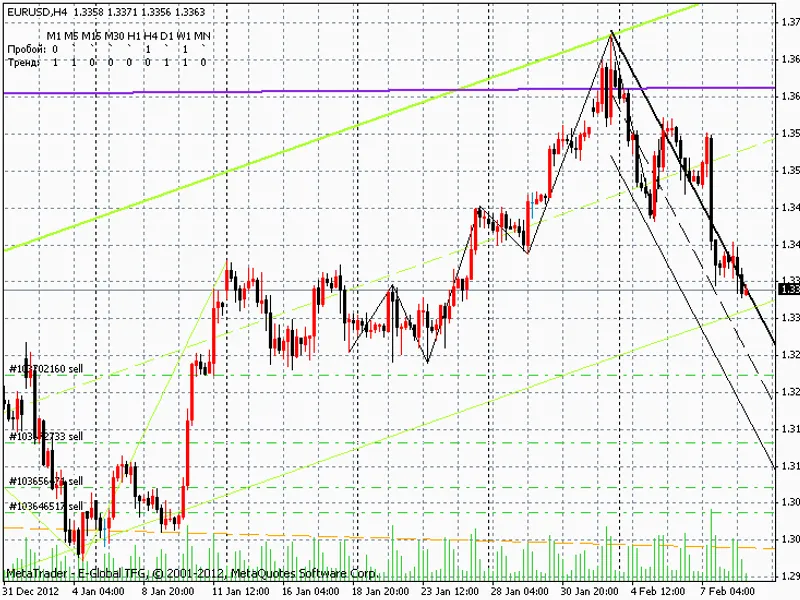
To gain trading experience, we are often advised to open a demo account and spend days sitting in front of a screen, waiting for the price to reach the desired take-profit. However, there are numerous manual strategies available online, but testing and learning to trade with them would take a minimum of 1000 years. Fortunately, we have a tester that allows us to change the tick speed, load any currency, and select any day. We can utilize this feature to our advantage. This expert advisor generates all the functions of "one-click trading" using objects from the MetaTrader menu and its own menu, enabling trading in the tester and even in real-time.Also recommended: e-signal of trade expert advisor - similar expert with strong performance on MetaTrader 4.
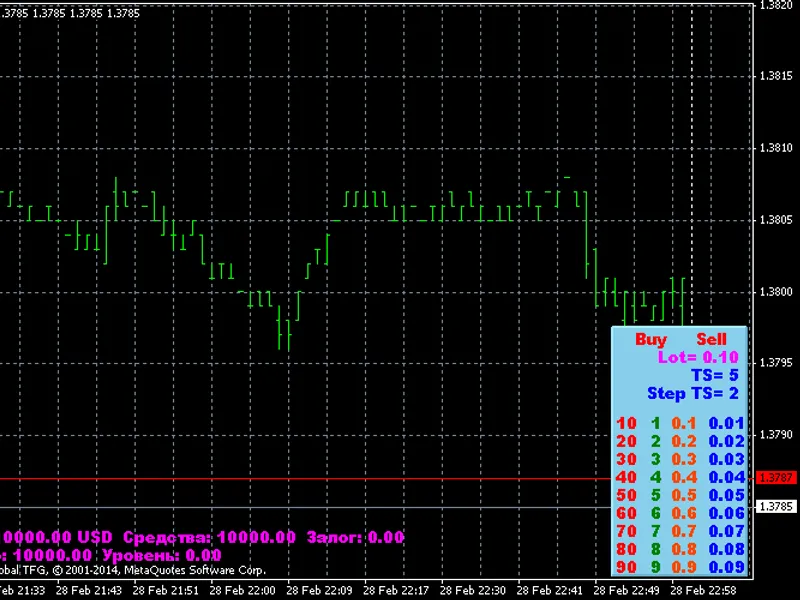
Description of the expert advisor functions: The table has four columns of numbers that can be used to enter any number by shifting the corresponding digits. For example, the number 22.5 is entered by shifting the digits. If the "lot line" is shifted, the resulting value will be assigned to the current lot.
------------------------- TRAILING STOP SETUP ------------------------- If the "ts" line is shifted, the sum of the shifted digits will be assigned to the trailing stop. However, decimal values will be truncated since the trailing stop is a whole number of points. If the "ts" line is shifted without any digits, the trailing stop will be disabled. The "step ts" value can also be changed, which represents the trailing stop step.
------------------------- ORDER SETUP buy OR sell ------------------------- To set a buy order, an upward arrow or a "thumbs up" symbol can be placed anywhere on the screen. Similarly, to set a sell order, a downward arrow or a "thumbs down" symbol can be used. Multiple orders can be set. To make it easier to find arrows and other objects, enable "Graphic tools" in MetaTrader. We will also need trend lines, horizontal lines, and rectangles later.
------------------------- TAKE PROFIT AND STOP LOSS SETUP ------------------------- To set the take profit or stop loss for an order, a trend line must be used. Start by drawing a trend line from the order line, and then move the second point of the trend line to set the desired take profit or stop loss. If the trend line points are selected and moved, the stop loss or take profit can be changed, or the trend line can be attached to a different order. Only one trend line can be on the screen at a time. If a second trend line is set, the first one will be automatically removed.
------------------------- ORDER CLOSURE, TAKE PROFIT AND STOP LOSS REMOVAL, PENDING ORDER REMOVAL ------------------------- To remove the take profit or stop loss, select a rectangle from the objects and draw it on the screen, covering the take profit or stop loss to be removed. The rectangle can also be used to close a market order or remove a pending order by covering its price. Multiple orders can be closed at the same time.
------------------------- PENDING ORDER SETUP ------------------------- To set a pending order, a horizontal line must be used. Draw a horizontal line at the desired location and shift the word "buy" or "sell". If the horizontal line is above the current price and the word "buy" is shifted, a buy stop order will be set. If the word "sell" is shifted, a sell limit order will be set. If the horizontal line is below the current price and the word "buy" is shifted, a buy limit order will be set. If the word "sell" is shifted, a sell stop order will be set.
------------------------- PENDING ORDER SHIFT ------------------------- To shift a pending order, a price label left or right can be used. The label will automatically attach to the nearest pending order. Select the label and move it along with the pending order. The take profit and stop loss will also move with the order. If a second label is set, the first one will be removed.
Now you can load the necessary indicators, analyze the chart using channels and other MetaTrader tools, and start trading. Note: Unfortunately, trend lines cannot be used for chart analysis since they are used by the expert advisor. However, a "Channel" can be used instead of a trend line. Do not forget that horizontal lines are also used by the expert advisor.
From the expert advisor external variables, it is worth mentioning the mult_ts variable, which is used to multiply the trailing stop. This can be useful when working with 5-digit quotes, in which case it is better to set mult_ts to 10.
You may also like: e-news-lucky$ - automated news trading expert advisor - excellent alternative for expert users on MetaTrader 4.
Source Code
#property copyright "robotfx"
#property link "https://robotfx.org"
#property version   "1.00"
#property strict
extern double  lot         = 0.1;
extern int     trail_stop  = 5;
extern int     step_ts     = 2;
extern int     mult_ts     = 1;
extern string  s1________  = "--------------------------------------";
extern int     font        = 10;
.......
⚠ Limitations & Risk Warning
- This tool is provided for educational and testing purposes only.
- Past performance does not guarantee future results.
- Trading involves substantial risk of loss. Use on a demo account first.
- Results may vary depending on market conditions, broker, and settings.
- We recommend thorough backtesting and forward testing before using with real funds.