
Download ALL MT4 experts (893)

Similar MetaTrader Tools





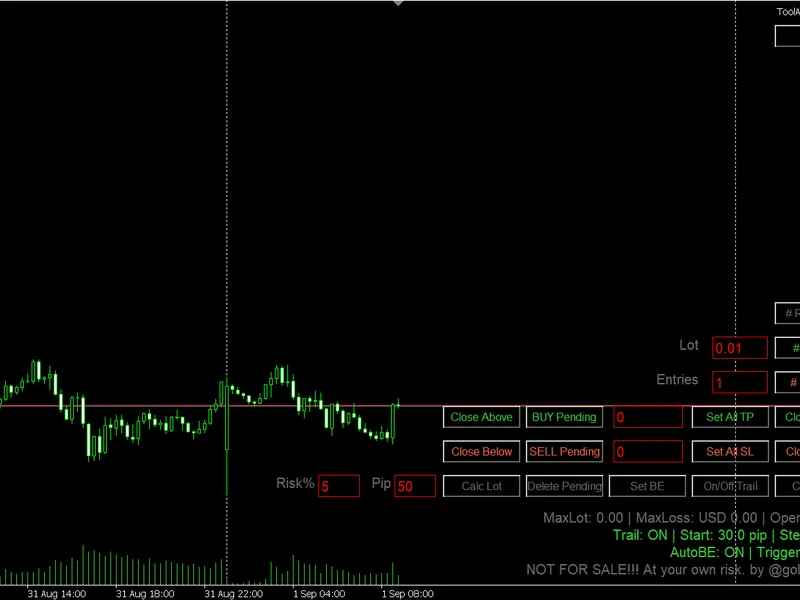





Personal Assistant EA: Enhanced Trading Automation
Info
The Personal Assistant EA: Enhanced Trading Automation is a Expert Advisor for MetaTrader 4 that this expert advisor (ea) introduces a range of new functionalities and improvements for metatrader 4/5 users, offering a more comprehensive and interactive trading experience. New Features:- Pending Orders: Users can set pending orders (buy stop, sell stop, buy limit, sell limit) through an intuitive process, ensuring more control over entry points.
Usage
This tool is typically used for automated trading on major forex pairs and gold.
Platform
This Expert Advisor works exclusively on MetaTrader 4 (both build 600+ and newer versions).
Setup
Place the downloaded file in MQL4/Experts folder via File ? Open Data Folder in MetaTrader 4.
How to Install and Use Personal Assistant EA: Enhanced Trading Automation
1. Installation: Open the "File" menu, select "Open Data Folder," navigate to MQL/Experts, paste your file, and restart the terminal.
2. Activation: Drag the EA from the Navigator onto a chart, ensure "Allow live trading" is checked in the Common tab, and verify the AutoTrading button is green.
3. Optimization: Right-click your chart, choose "Expert List," click "Properties" to adjust inputs, and save your preferred setup as a set file for future use.
4. Maintenance: Regularly check the "Experts" tab in the terminal window to monitor trade logs and potential execution errors.
Frequently Asked Questions
Q: Why is my EA not opening trades? A: Check the "AutoTrading" button, ensure "Allow live trading" is enabled, and verify your broker allows automated trading on your account type.
Q: Can I run multiple EAs on one chart? A: No, each chart can only host one active EA; however, you can open multiple charts for different currency pairs to run several EAs.
Q: What does the "smiley face" icon mean? A: A smiley face in the top-right corner of the chart indicates the EA is successfully running; a frowny face means it is disabled.
What this tool does
This expert advisor (EA) introduces a range of new functionalities and improvements for MetaTrader 4/5 users, offering a more comprehensive and interactive trading experience.
Typical Use Case
This Expert Advisor excels in automated trading and technical analysis on MetaTrader 4.
Compatible Platform & Setup
This Expert Advisor works on MetaTrader 4. Place the file in the MQL4/Experts folder and restart the terminal.
Description & Settings
Related: Order Management Assistant - another powerful expert for MetaTrader 4 traders.
This expert advisor (EA) introduces a range of new functionalities and improvements for MetaTrader 4/5 users, offering a more comprehensive and interactive trading experience.Also recommended: Personal Assistant EA for MetaTrader 4 - similar expert with strong performance on MetaTrader 4.
New Features:
- Pending Orders: Users can set pending orders (buy stop, sell stop, buy limit, sell limit) through an intuitive process, ensuring more control over entry points.
- Stop Loss and Take Profit Preset: Before executing instant orders, users can preset stop loss and take profit levels, enhancing risk management. This feature is mandatory for pending orders to ensure safety.
- Capital and Gain Visualization: The EA displays the percentage of capital at risk for the set stop loss and the potential gain for the set take profit, aiding in decision-making.
- Commission and Swap Inclusion: Profit/loss calculations now include commissions and swaps, providing a more accurate representation of trading results.
- Unique Instance: Each instance of the EA is now unique, allowing multiple instances to run simultaneously without interference.
- Order Process Abort: Users can abort the order-setting process at any time before the final confirmation.
Improvements:
- Stop Loss and Take Profit Calculation: Fixes an issue with inaccurate stop loss and take profit calculations. Users who experienced this problem are advised to download the updated version.
Setting Orders:
To set a buy stop order, follow these steps:
1. Attach the EA to the desired chart and ensure the chart is in focus.
2. Press the '6' key on your keyboard.
3. Click the left mouse button on the chart to select the entry price, stop loss, and take profit levels.
4. If the price levels are set correctly, the order will be placed. Otherwise, an alert will appear.
This process applies to all pending orders and instant orders, with the ability to abort by pressing '0' at any time before the final price level selection.
The EA provides on-chart instructions to guide users through the process, ensuring a user-friendly experience.
EA Functions:
- Display EA Name and ID: Helps identify multiple EAs on a chart.
- Symbol and Timeframe Display: Shows the current symbol and timeframe.
- Leverage Display: Indicates the account leverage.
- Lot Volume Value: Displays the current lot volume and allows adjustment with keys '4' and '5'.
- Tick Value: Shows the tick value in the deposit currency.
- Margin Required: Calculates the margin needed for a new order based on the selected lot size.
- Current Spread: Provides real-time spread information.
- Profit/Loss Sum: Displays the total profit or loss for all orders opened by the EA, including commissions and swaps.
- Active Orders Count: Shows the number of currently active orders.
- Take Profit and Stop Loss Sums: Calculates the average take profit and stop loss for active orders, considering whether TP/SL is set for all or some orders.
- Open Buy/Sell Positions: Allows opening buy and sell positions with preset stop loss and take profit (optional) using keys '1' and '2'.
- Close Positions: Closes orders opened by the EA with key '3'.
User Input Variables:
- ID (Magic Number): A unique identifier for the EA and its orders.
- Pending Orders Placement: Enables or disables the ability to place pending orders.
- Stop Loss and Take Profit Input: Requires users to input stop loss and take profit for instant orders.
- Display Legend: Shows a legend for buttons/commands on the chart.
- Lot Size: Initial volume value.
- Slippage: Slippage allowance for order execution.
- Text Size and Color: Customization for on-chart text.
- Edge Shifts: Position adjustments for text on the chart.
Caution: Users should exercise caution when using the EA, ensuring the correct chart is selected. It is recommended to test the EA on a demo account first to familiarize yourself with its functionality.
You may also like: Grid Assistant Expert Advisor - excellent alternative for expert users on MetaTrader 4.
Source Code
#property copyright "robotfx"
#property link "https://robotfx.org"
#property version   "1.00"
#property strict
#property description "this code is educational. feel free to use, modify and upgrade as you wish. visit robotfx.org for professional trading tools"
input int id=3900;
input bool allow_pen_orders=true; // allows placement of pending orders
input bool set_sl = false; // allows input of stoploss for active orders before execution
input bool set_tp = false; // allows input of takeprofit for active orders before execution
input bool display_legend=false; // allows display of action commands
.......
⚠ Limitations & Risk Warning
- This tool is provided for educational and testing purposes only.
- Past performance does not guarantee future results.
- Trading involves substantial risk of loss. Use on a demo account first.
- Results may vary depending on market conditions, broker, and settings.
- We recommend thorough backtesting and forward testing before using with real funds.