My Line Order
This professional-grade solution for MetaTrader 4 helps traders achieve greater efficiency in their daily workflow. This Expert Advisor serves as automated trading software. It is utilized to monitor financial markets and execute trades based on predefined algorithmic rules, enabling precise position management without the need for constant manual oversight.
How to Setup and Use My Line Order
1. Installation: Open the "File" menu, select "Open Data Folder," navigate to MQL/Experts, paste your file, and restart the terminal.
2. Activation: Drag the EA from the Navigator onto a chart, ensure "Allow live trading" is checked in the Common tab, and verify the AutoTrading button is green.
3. Optimization: Right-click your chart, choose "Expert List," click "Properties" to adjust inputs, and save your preferred setup as a set file for future use.
4. Maintenance: Regularly check the "Experts" tab in the terminal window to monitor trade logs and potential execution errors.
Frequently Asked Questions
Q: Why is my EA not opening trades? A: Check the "AutoTrading" button, ensure "Allow live trading" is enabled, and verify your broker allows automated trading on your account type.
Q: Can I run multiple EAs on one chart? A: No, each chart can only host one active EA; however, you can open multiple charts for different currency pairs to run several EAs.
Q: What does the "smiley face" icon mean? A: A smiley face in the top-right corner of the chart indicates the EA is successfully running; a frowny face means it is disabled.
Description & Settings
This EA uses horizontal lines to have quick and easy order management. It uses the description to store variables such as Stop Losses and lot sizes.
External variables:
LO_PREFIX = The starter string which EA to look out for. Default = "#"
LO_ORDER_CLR = Colour of the open price of the trade
LO_ORDER_STYLE = The number for the style of the line ( 0 = Solid, 1 = Dash, 2 = Dash Dot)
LO_STOPLOSS_CLR, LO_TAKEPROFIT_CLR = The colour of the Stop loss line and Take profit line respectively
LO_STOPLOSS_STYLE, LO_TAKEPROFIT_STYLE = The style of the Stop loss line and Take profit line respectively
LO_LOTS = The default size of trade, if no value entered in line's description then this is used
LO_STOPLOSS, LO_PIPPROFIT = The default pip values for stop loss and take profit. 5th point brokers can have a decimal here eg. 20.5
LO_PIPTRAIL = The default trailing stop. If set to 0 no trailing stop
LO_ALARM = When a trade isn't open then an alert will be activated. (Not sure if it works need to test it first)
MAGIC_NUMBER = The magic number sent along with the order
LO_ECN = If trading with an ECN set to 1. Will send the order without Stop Loss or Take Profit then modify it straight away.
Line variables:
Use the following in the object name box(i'm using the current default LO_PREFIX of "#"):
#buy = creates a market buy order using defined stop loss and take profit levels
#sell = creates a market sell order using defined stop loss and take profit levels
#buypend = creates a buy pending order at your line's current value. Pending order type is sorted by EA
#sellpend = creates a sell pending order at your line's current value. Pending order type is sorted by EA
Use the following in the object description box(without quotes):
"sl=" = stop loss in pips
"sq=" = stop loss as quote
"tp=" = take profit in pips
"tq=" = take profit as quote
"lo=" = lots in order. (Todo: When changing after order open close correct amount of lots)
"ts=" = trailing stop as pips
"alarm=" = set alarm
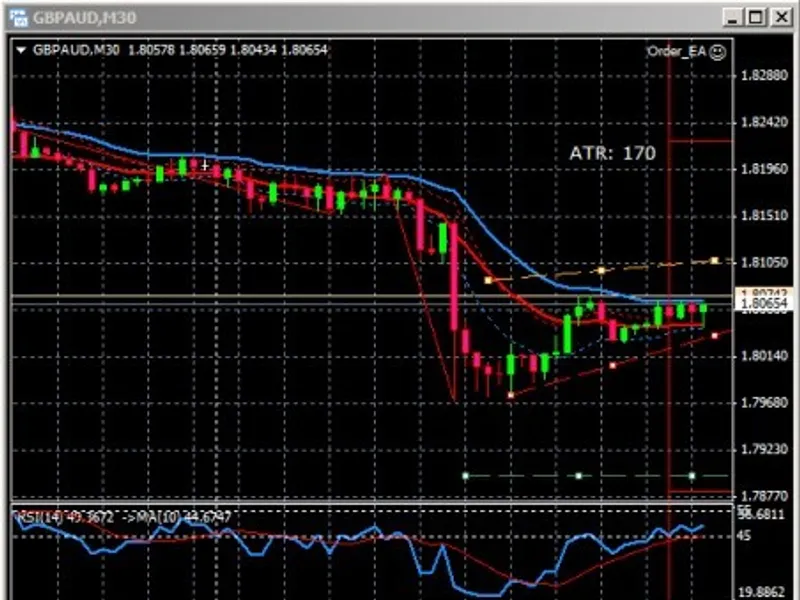
After the order is open 3 horizontal lines will created. One for the open price, one for the stop loss level and one for the take profit level. When you move these around it will modify the stop loss, take profit and (for pending orders) the open price. After you have modified your order the EA will update the description of the main line which will have the name of "#"+TicketNumber to the new values of stop loss and take profit. You can also modify the values straight from the description and it will update at the next tick.
To do list:
Test out alarms
Add OCO orders
Multiple lines for Take Profit and Stop Loss
Set exit orders at indicator values e.g. SMA's
Thanks I wrote this EA loosely based on a similar one on this forum called Line Order by Erich Pribitzer mainly because I've wanted to do for a while couldn't think on how to do it.
I hope this helps you in your trading, please post if any problems occur or you can think of any features which might be good.