Multi Levels Trend Expert Advisor
This tool for MetaTrader 4 is specifically engineered to streamline your trading operations. This Expert Advisor serves as automated trading software. It is utilized to monitor financial markets and execute trades based on predefined algorithmic rules, enabling precise position management without the need for constant manual oversight.
How to Setup and Use Multi Levels Trend Expert Advisor
1. Installation: Open the "File" menu, select "Open Data Folder," navigate to MQL/Experts, paste your file, and restart the terminal.
2. Activation: Drag the EA from the Navigator onto a chart, ensure "Allow live trading" is checked in the Common tab, and verify the AutoTrading button is green.
3. Optimization: Right-click your chart, choose "Expert List," click "Properties" to adjust inputs, and save your preferred setup as a set file for future use.
4. Maintenance: Regularly check the "Experts" tab in the terminal window to monitor trade logs and potential execution errors.
Frequently Asked Questions
Q: Why is my EA not opening trades? A: Check the "AutoTrading" button, ensure "Allow live trading" is enabled, and verify your broker allows automated trading on your account type.
Q: Can I run multiple EAs on one chart? A: No, each chart can only host one active EA; however, you can open multiple charts for different currency pairs to run several EAs.
Q: What does the "smiley face" icon mean? A: A smiley face in the top-right corner of the chart indicates the EA is successfully running; a frowny face means it is disabled.
Description & Settings
This expert advisor is based on the concept that market does not move always in one direction. Even when the market is trending in one direction at some points it pullback. Usually the pullback is due to strong support or resistance levels or the dominant traders decided to take some profit, which usually force the market to move in the opposite direction for some time. The EA makes use of this reverse move. As expected, the EA performs better when it is trading in trend direction.
The EA works as follows:
If the MA(34) on the Day chart is turning up the indicators opens a Buy trade and vice versa. If it moves in the trend direction, the EA closes the position as specified by the take profit (TP) parameter. The default is 60 for 4 digits brokers and 600 for 5 digits brokers.
In case the market moved opposite to opened trade direction, the EA will open another position in the same direction of the previous trade at -600 (-60pips) with the same lot size. If the market moves in the trade direction, both trades will be closed at TP target of the last trade. This will be repeated for the next level, but with a lot size of 2, 4, and 8. If the intial lot size is 0.1 for example, the lot of the next levels will be:
The EA uses many paramters. The most importants are:
TP: Take profit. If your broker is using 4 digits the default should be changed to 60 instead of 600.
DP: This represents the timeframe. The default is the day timeframe which is 1440. You can add the EA to any chart. However, it will use DP to specify the timeframe for its MA.
MAP: Moving Average Period. The default is 34.
MaxTrade: The maximum number of trades the EA will open in the same direction.
TradeType: if 0 the EA will follow the MA direction, 1 to force the EA to open buy trade, and 2 to force sell trades
Recommendations:
The best use of this EA when combined with other indicator such as moving average, Bollinger Bands, Support and Resistant levels. You can shift from TradeType 0, 1, or 2 according to the indicators.
Use the appropriate lot size that meets your money management.
The attached updated MLTrendE V2 allows trades to set few more parameters that are:
maReversal = true/false. If true, the system will be trading using EMA(500). If price crossed below EMA(500) going up, the system will close any sell position and set TradeType to 1. If the price crossed the EMA(500) going down, the system will close any opened buy position and set TradeType to 2. It is recommended to use this parameter with H1 timeframe and can be back tested using open price.
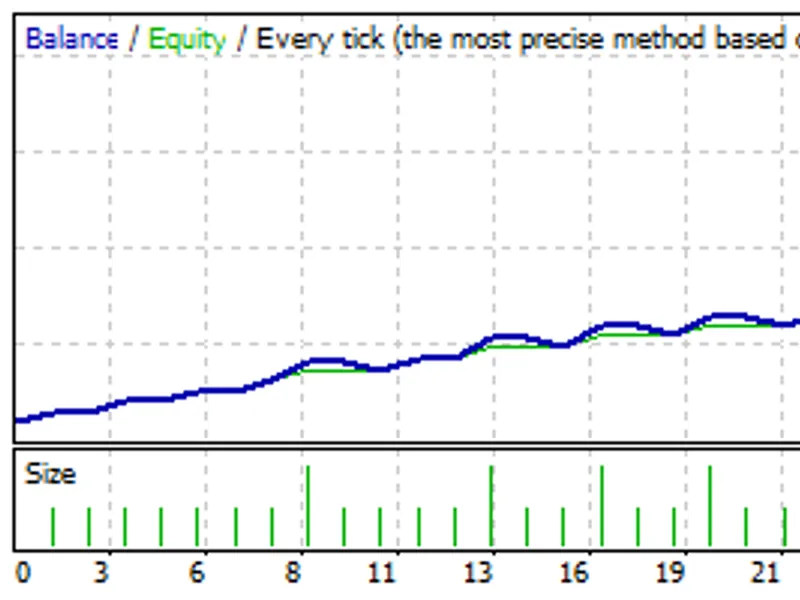
allowSL = true/false. You need to set maReversal to false in order to use allowSL. When allowSL is set to true, the system will use the original multiple levels system and implement a stop/loss on the last opened position. When the last opened position reaches SL, the system will close all positions at all levels and reverse the trend by setting TradeType. With allowSL, you need to set two more parameters that are SL and MaxTrade. When allowSL is true, you can back test the system only using every tick.