
YURAZ Create CSV History File From MT5 For MT4
Info
The YURAZ Create CSV History File From MT5 For MT4 is a Script for MetaTrader 5 that when i used the history quotes data from metatrader4 client terminal, i have found that some brokers doesn't have the full history. The quality of the historical bar data is better, so I have decided to export the historical quotes from MetaTrader 5 and import them in MetaTrader 4.
Usage
This tool is typically used for enhancing chart analysis and decision making.
Platform
This Script works exclusively on MetaTrader 5 (both build 600+ and newer versions).
Setup
Place the downloaded file in MQL5/Scripts folder via File ? Open Data Folder in MetaTrader 5.
How to Install and Use YURAZ Create CSV History File From MT5 For MT4
1. Installation: Move your script file into the MQL/Scripts directory and restart the platform.
2. Execution: Drag the script onto a chart; it will perform a one-time action, such as closing all open orders or clearing chart objects.
3. Editing: Use MetaEditor (F4) to modify code, click "Compile," and verify no errors appear in the terminal before running.
4. Removing: Scripts stop automatically, but you can remove them manually by right-clicking the chart and choosing "Remove Script."
Frequently Asked Questions
Q: How are scripts different from EAs? A: Scripts execute a single action and then stop; EAs monitor the market and trade continuously.
Q: Can I assign a hotkey to a script? A: Yes, right-click the script in the Navigator, select "Set Hotkey," and define your preferred keyboard shortcut.
Q: Why did my script stop? A: Scripts are designed to stop immediately after finishing their programmed command; this is normal behavior.
What this tool does
When I used the history quotes data from MetaTrader4 client terminal, I have found that some brokers doesn't have the full history.
Typical Use Case
This Script excels in automated trading and technical analysis on MetaTrader 5.
Compatible Platform & Setup
This Script works on MetaTrader 5. Place the file in the MQL5/Scripts folder and restart the terminal.
Description & Settings
Related: Demo Create OB J BIT M A P Script - another powerful script for MetaTrader 5 traders.
When I used the history quotes data from MetaTrader4 client terminal, I have found that some brokers doesn't have the full history.
Also recommended: Buy using amount instead of lots - similar script with strong performance on MetaTrader 5.
The quality of the historical bar data is better, so I have decided to export the historical quotes from MetaTrader 5 and import them in MetaTrader 4.
This script will help you to get the full history for MetaTrader 4.
The script creates .CSV file with historical bar data.
The steps:
1 - Install MetaTrader 5 client terminal
2 - Enter the Main Menu->Tools->Options->Max bars in chart, and set MaxBars in chart depending on the historical bars needed:
3 - Load this script and place it to MQL5\Scripts folder
in WINDOWS7/VISTA copy it to the Roaming folder instead of Program Files folder:
for example c:\Users\<administrator\AppData\Roaming\MetaQuotes\Terminal\D0E8209F77C8CF37AD8BF550E51FF075\MQL5\Scripts\
</administrator
4 - Compile the script and attach it to the charts for each MetaTrader 4 timeframes: M1 M5 M15 M30 H1 H4 D1 W1
5 - Close MetaTrader 5;
6 - Open MetaTrader 4;
7 - Press F2;
8 - Choose currency pair;
9 - Select timeframe;
Let's consider how to dow it for M15 timeframe.
10 - Select the file, created for M15 timeframe;
11 - Press the "Import" button:
12 - Repeat the step №10 for each pair. Repeat Step №11 for each timeframe of the pair:
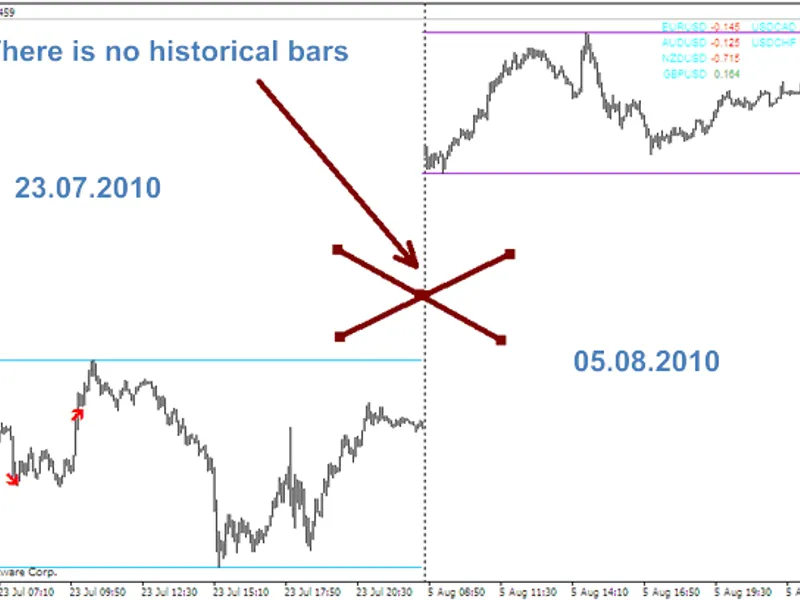
LET'S CHECK IT!
Before:
After:
YURAZ
yzh@mail.ru
You may also like: Separators - excellent alternative for script users on MetaTrader 5.
⚠ Limitations & Risk Warning
- This tool is provided for educational and testing purposes only.
- Past performance does not guarantee future results.
- Trading involves substantial risk of loss. Use on a demo account first.
- Results may vary depending on market conditions, broker, and settings.
- We recommend thorough backtesting and forward testing before using with real funds.