
notify icon
Info
The notify icon is a Library for MetaTrader 5 that this library provides every mql program with a separate icon in the notification area of the windows taskbar. the library enables you to display text messages by sending them from your programs, or to use the icon to indicate a specific program status.
Usage
This tool is typically used for enhancing chart analysis and decision making.
Platform
This Library works exclusively on MetaTrader 5 (both build 600+ and newer versions).
Setup
Place the downloaded file in MQL5/Libraries folder via File ? Open Data Folder in MetaTrader 5.
How to Install and Use notify icon
1. Storage: Place library files in the MQL/Libraries directory to ensure they are accessible to your projects.
2. Implementation: Include the library in your code using the #import directive, ensuring you match the exact function names and parameters.
3. Compilation: Ensure the library is present in the directory before you compile your main EA or script, as the compiler links them during this phase.
4. Management: Keep libraries organized in sub-folders if you manage many custom functions to maintain a clean project structure.
Frequently Asked Questions
Q: What is a library file used for? A: Libraries store reusable code modules, allowing you to centralize common logic used by multiple EAs or indicators.
Q: Is a library executable? A: No, libraries are non-executable files containing functions; they must be imported into an EA, indicator, or script to function.
Q: Can I update a library while the platform is running? A: You should compile your EA or script after updating a library to ensure the latest code changes are integrated.
What this tool does
this library provides every mql program with a separate icon in the notification area of the windows taskbar.
Typical Use Case
This Library excels in automated trading and technical analysis on MetaTrader 5.
Compatible Platform & Setup
This Library works on MetaTrader 5. Place the file in the MQL5/Libraries folder and restart the terminal.
Description & Settings
Related: MACD on Array - another powerful library for MetaTrader 5 traders.
this library provides every mql program with a separate icon in the notification area of the windows taskbar. the library enables you to display text messages by sending them from your programs, or to use the icon to indicate a specific program status. the library operation is based on the icon. for convenience, the cnotifyicon class has been created allowing to hide the details of operations with windows api functions and providing a set of methods for working with three functional elements, including the icon, the notification balloon and the tooltip.
Also recommended: stdlib. mq5 - similar library with strong performance on MetaTrader 5.
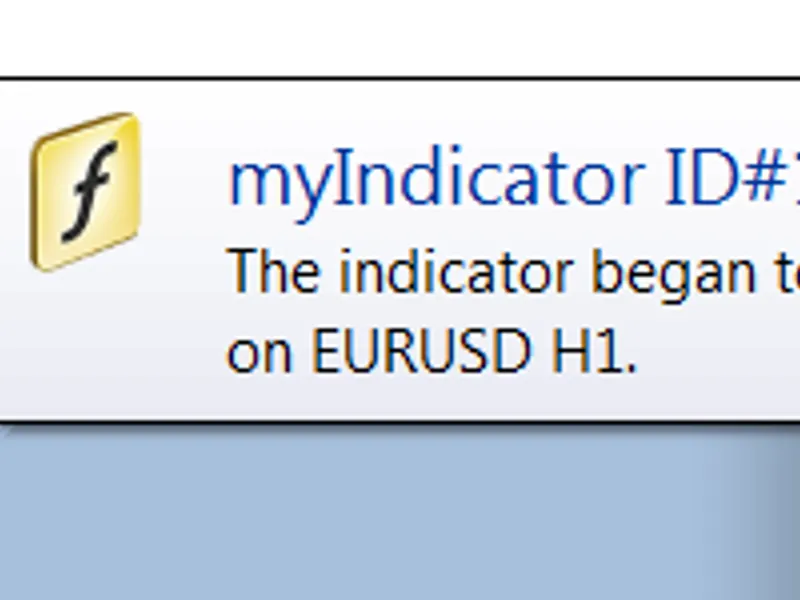
the icon and the notification balloon are shown in figure 1.fig. 1. example of an icon and a notification balloon
a tooltip appears when you hover the mouse over the icon. an example of the tooltip is shown in figure 2.</t1>
fig. 2. an example of a tooltip
the library works stably on systems starting with windows 7/windows server 2008 r2.
icon
the icon size depends on dpi set in the screen settings in your operating system. 96 dpi is used by default, which corresponds to the 16x16 icon size. you need to know this in order to upload images of the appropriate size. in this case, your images will not be additionally converted by the system and, therefore, will not be distorted. it is not possible to upload an image of a smaller size.
you can find out the required image size by calling the getsystemsize() function.
in order to not to create images for every dpi value, you can prepare one size, say 24x24 (maximum dpi is 144) or 32x32 (maximum dpi is 240). thus you can ensure compatibility with most users, but in this case the image will be automatically converted (size will be reduced) and can therefore be distorted. the examples show images in bmp with a size of 32x32 and a 32-bit color depth (with transparency).
there are five ways to upload an image for the icon:
the first and most obvious way is to upload from a file. in this case, the file can be located outside the file sandbox of the terminal.
the second way is to upload from a resource.
the third way is to upload a one-dimensional array. within this method, an image is preliminary converted into a one-dimensional array of structures.
the fourth way is to upload from a string in base64 encoding. bmp images can be converted to string using any . the part of the string without the header (shown in red) is passed to the function:
the fifth and final method assumes that you have dll, in which images are saved as a resource. images are uploaded based on the resource number. as an example, we used the system shell32.dll, in which a lot of windows icons are stored.
initially, an invisible icon is created. you need to call the show() method in order to display it.
to hide an icon, call the hide() method.
a notification balloon
the icon for the balloon can be in two sizes: small and large. upload methods are those that were used for icons. if you choose to work with a small icon (small), then the image size must strictly correspond to the system set size, otherwise it will not be displayed. that's why i recommend using a large icon size for the balloon or using any of the built-in icon types (niif_info, niif_warning, niif_error).
the size of the uploaded image must not be less than the value returned by getsystemsize().
to display the balloon, call the show() method.
call hide() to hide it.
low values of time intervals in the show() method are not processed by the system (the minimum delay is about 10 seconds). in order to overcome this restriction, we need to start the timer and call the hide() method. the algorithm is implemented inside the dotimer() function.
a tooltip
a tooltip is shown when you hover the mouse over the icon. the tooltip text can have several lines separated by "\n".
below i provide an example of how to use the library with an indicator. the color of the icon indicates the values of . blue means an upward movement, red means a downward direction. balloons are shown when direction changes.
the library works in the strategy tester. its code is compatible with mql4. the library can further be improved by adding functionality for the icon animation. i hope that mql community will make its contribution to the library development.
You may also like: function to get next open time and closing time for the market - excellent alternative for library users on MetaTrader 5.
Source Code
/.......
⚠ Limitations & Risk Warning
- This tool is provided for educational and testing purposes only.
- Past performance does not guarantee future results.
- Trading involves substantial risk of loss. Use on a demo account first.
- Results may vary depending on market conditions, broker, and settings.
- We recommend thorough backtesting and forward testing before using with real funds.