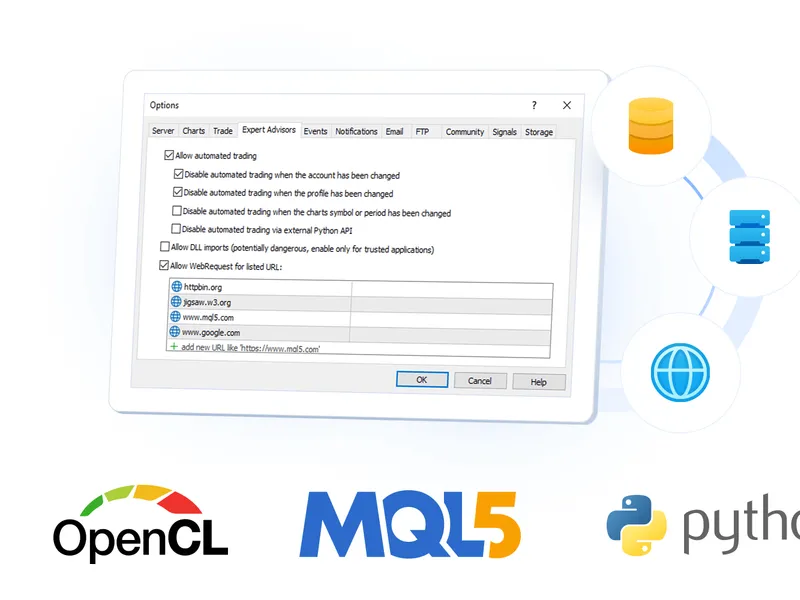
MQ L5 Programming for Traders – Source Codes from the Book. Part 7
This professional-grade solution for MetaTrader 5 helps traders achieve greater efficiency in their daily workflow. This Expert Advisor serves as automated trading software. It is utilized to monitor financial markets and execute trades based on predefined algorithmic rules, enabling precise position management without the need for constant manual oversight.
How to Setup and Use MQ L5 Programming for Traders – Source Codes from the Book. Part 7
1. Installation: Open the "File" menu, select "Open Data Folder," navigate to MQL/Experts, paste your file, and restart the terminal.
2. Activation: Drag the EA from the Navigator onto a chart, ensure "Allow live trading" is checked in the Common tab, and verify the AutoTrading button is green.
3. Optimization: Right-click your chart, choose "Expert List," click "Properties" to adjust inputs, and save your preferred setup as a set file for future use.
4. Maintenance: Regularly check the "Experts" tab in the terminal window to monitor trade logs and potential execution errors.
Frequently Asked Questions
Q: Why is my EA not opening trades? A: Check the "AutoTrading" button, ensure "Allow live trading" is enabled, and verify your broker allows automated trading on your account type.
Q: Can I run multiple EAs on one chart? A: No, each chart can only host one active EA; however, you can open multiple charts for different currency pairs to run several EAs.
Q: What does the "smiley face" icon mean? A: A smiley face in the top-right corner of the chart indicates the EA is successfully running; a frowny face means it is disabled.
Description & Settings
of the "MQL5 Programming for Traders" book discusses the advanced capabilities of the MQL5 API, which will be useful when developing programs for MetaTrader 5. These include custom financial symbols, built-in economic calendar events, and general-purpose technologies such as networking, databases, and cryptography.
This part covers libraries – a special program type that provides ready-made APIs for connecting to other MQL programs. It also discusses the possibility of developing software packages and combining logically interconnected programs into projects.
Finally, this part presents integrations with other software environments, including Python.
We will start by studying resources which are files of any type that can be embedded in the program code. Resources may contain:
Multimedia elements
"Hard" settings from external programs
Other MQL5 programs in compiled form
The MQL5 development environment allows the inclusion of application data arrays, images, sounds, and fonts in the source file, making the program a self-sufficient and convenient product for the end user.
Special attention will be given to graphic resources with raster images in BMP format: You will learn how to create, edit, and display them dynamically on the chart.
We will conclude the final part of the book by studying the OpenCL integration in MQL5. OpenCL is an open standard for parallel programming in multiprocessor systems, including graphics processors (GPUs) and central processing units (CPUs). It enables the acceleration of computationally intensive tasks provided that the algorithms can be parallelized. These may include training neural networks, Fourier transform, and solving systems of equations.