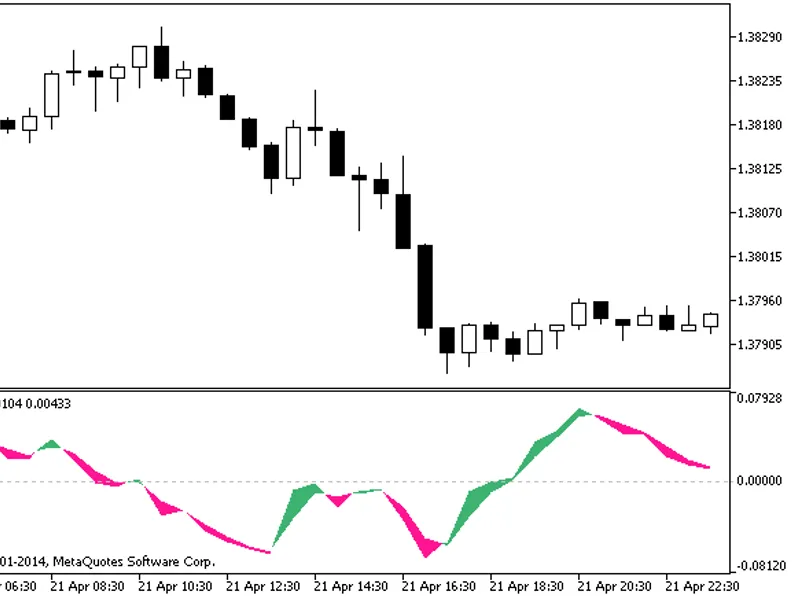
Universal digital filter
This software component for MetaTrader 5 is built to enhance the capabilities of your trading environment. This technical indicator acts as a specialized analysis tool designed to visualize market data. It helps traders identify emerging trends, momentum shifts, and key support or resistance levels by plotting statistical calculations directly onto price charts.
How to Setup and Use Universal digital filter
1. Installation: Place your file in the MQL/Indicators folder via "Open Data Folder" and restart your terminal.
2. Loading: Find the indicator in the Navigator, drag it onto your chart, and configure the input parameters in the popup window.
3. Customization: Press Ctrl+I to open the indicator list, select your tool, and click "Properties" to change colors, levels, or visual styles.
4. Updating: Replace the old file in the Indicators folder with the new version and restart the platform to apply changes.
Frequently Asked Questions
Q: Why is my indicator not showing? A: Verify the file is in the MQL/Indicators folder, or try right-clicking the "Indicators" tree in the Navigator and clicking "Refresh."
Q: Do custom indicators slow down the platform? A: Too many complex indicators can impact performance; remove unused ones via the "Indicator List" (Ctrl+I).
Q: Can I use MT4 indicators on MT5? A: No, MQL4 and MQL5 are distinct languages; ensure the indicator is compiled specifically for your platform version.
Description & Settings
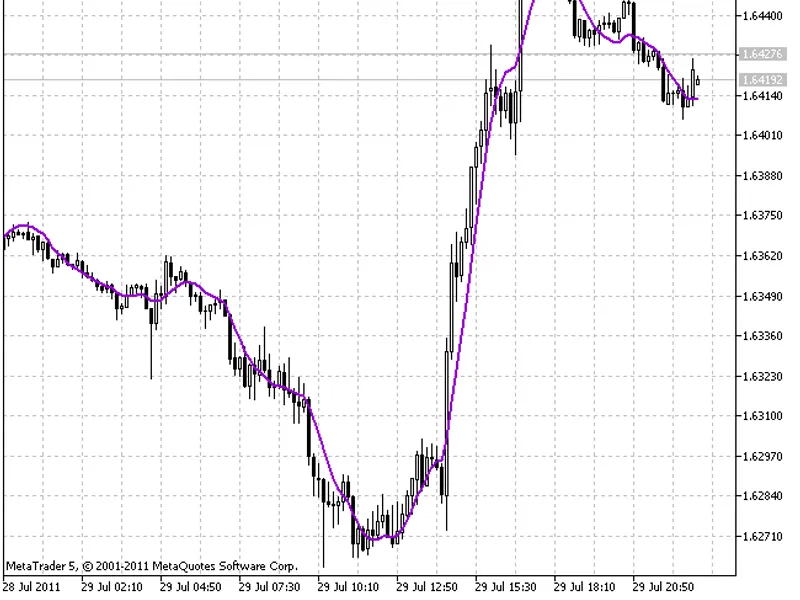
DFilter universal digital filter provides a common solution of the issue of the digital filters creation in the client terminal.
With this MQL5 filter you don't need to create any other digital filters using the tools of the client terminal. That fact gives new possibilities for the use of these indicators.
This indicator was thoroughly described in the article .
Place the
DF.dll
file to "\MetaTrader5\MQL5\Libraries\".
Attention! Three additional dll files are required for DF.dll operation:
bdsp.dll
,
lapack.dll
and
mkl_support.dll
. These files contain mathematical treatment block and must be placed in "C:\Windows\System32\" for 32-bit Windows OS or "C:\Windows\SysWOW64\" for 64-bit Windows OS.
Check the following things before use:
1. "Allow DLL imports" checkbox is marked in Tools->Options->Expert Advisors; 2. Bdsp.dll, lapack.dll and mkl_support.dll files (additional mathematical libraries) are placed in "C:\Windows\System32\" or "C:\Windows\SysWOW64\" folder.
Input parameters description:
Ftype - filter type: 0 - LPF (FATL/SATL/KGLP); 1 - HPF (KGHP); 2 - band-pass (RBCI/KGBP); 3 - rejection (KGBS).
P1 - P1 cut-off period, bars;
D1 - D1 transient process cut-off period, bars;
A1 - A1 attenuation in a rejection band, dB;
P2 - P2 cut-off period, bars;
D2 - D2 transient process cut-off period, bars;
A2 - A2 attenuation in a rejection band, dB;
Ripple - Pulsations in a pass band, dB;
Delay - Delay, bars.
P2, D2 and A2 parameters' values must not be considered for LPF and HPF.
Working conditions:
LPF: P1>D1
HPF: P1<D1
Band-pass and rejector: D2>P2>P1>D1