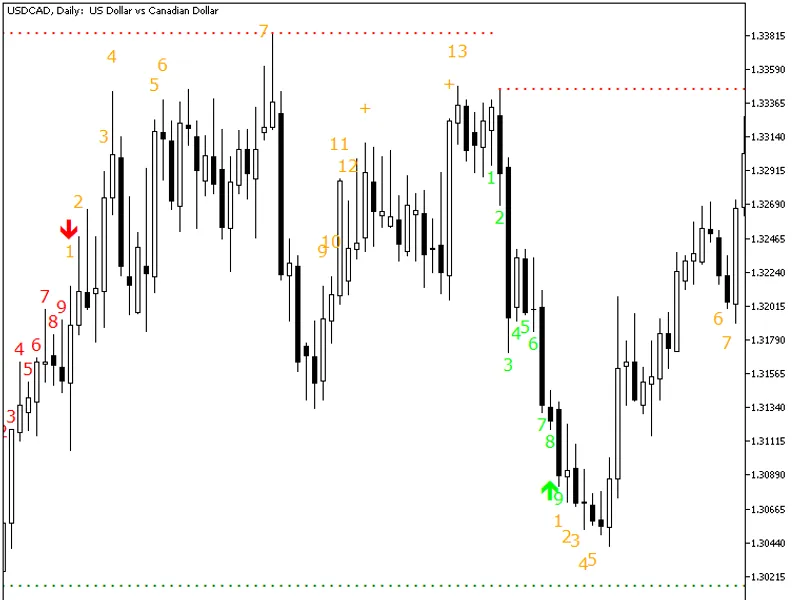
TD Sequential Ultimate MT4
This tool for MetaTrader 4 is specifically engineered to streamline your trading operations. This technical indicator acts as a specialized analysis tool designed to visualize market data. It helps traders identify emerging trends, momentum shifts, and key support or resistance levels by plotting statistical calculations directly onto price charts.
How to Setup and Use TD Sequential Ultimate MT4
1. Installation: Place your file in the MQL/Indicators folder via "Open Data Folder" and restart your terminal.
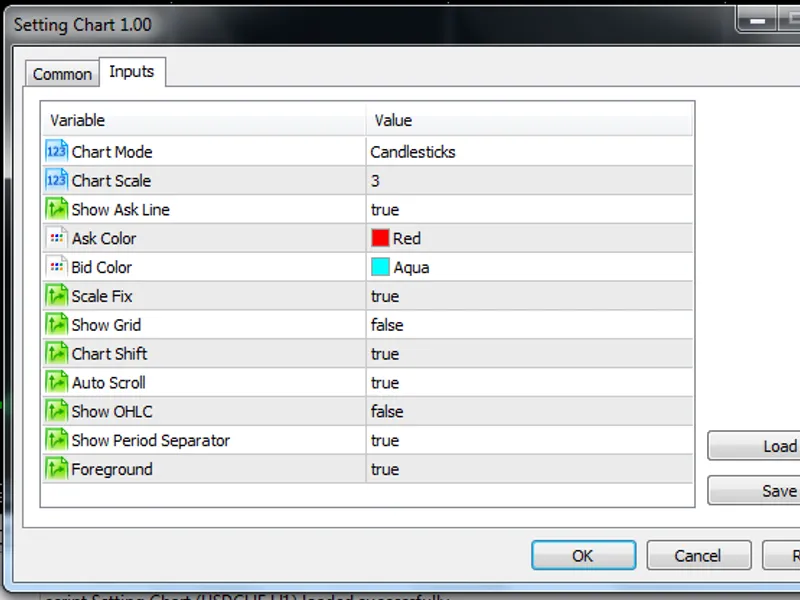
2. Loading: Find the indicator in the Navigator, drag it onto your chart, and configure the input parameters in the popup window.
3. Customization: Press Ctrl+I to open the indicator list, select your tool, and click "Properties" to change colors, levels, or visual styles.
4. Updating: Replace the old file in the Indicators folder with the new version and restart the platform to apply changes.
Frequently Asked Questions
Q: Why is my indicator not showing? A: Verify the file is in the MQL/Indicators folder, or try right-clicking the "Indicators" tree in the Navigator and clicking "Refresh."
Q: Do custom indicators slow down the platform? A: Too many complex indicators can impact performance; remove unused ones via the "Indicator List" (Ctrl+I).
Q: Can I use MT4 indicators on MT5? A: No, MQL4 and MQL5 are distinct languages; ensure the indicator is compiled specifically for your platform version.
Description & Settings
TD Sequential Ultimate MetaTrader indicator
shows all parts of the TD Sequential method developed by the legendary technical analyst, Tom DeMark. TD Sequential Ultimate displays Buy and Sell Setups, including the Setup Perfection arrows, Buy and Sell Countdowns, including the failed count 13 attempts, and TDST Support and Resistance levels. Unlike many other implementations of the TD Sequential method, this indicator offers multiple improvements: Input parameters Calculation
MaxBars
(default = 1000) — how many bars to calculate TD Sequential for. Zero value means that the indicator will calculate its counts for all available bars. The higher the number the slower the indicator will work. Display
BuySetupColor
(default = clrLime) — color of the Buy Setup counts and Perfection arrows.
SellSetupColor
(default = clrRed) — color of the Sell Setup counts and Perfection arrows.
CountdownColor
(default = clrOrange) — color of the Countdown values.
FontFace
(default = "Verdana") — font face to use for counts.
FontSize
(default = 12) — font size to use for counts.
ArrowWidth
(default = 2) — arrow size for Setup Perfection.
PixelDistance
(default = 3) — vertical distance between count objects in pixels.
Prefix
(default = "TDS_") — text prefix for naming chart objects. Alerts
AlertOnSetup
(default = false) — trigger alert when Buy/Sell Setup is finished (count #9 is printed).
AlertOnPerfecting
(default = false) — trigger alert when Buy/Sell Setup is perfected (an arrow appears).
AlertOnCount13
(default = false) — trigger alert when Countdown candle #13 appears.
AlertOnSupportResistance
(default = false) — trigger alert when a candle closes above resistance or below support.
AlertNative
(default = false) — if true, then a native popup alert will be issued each time an alert event occurs.
AlertNotification
(default = false) — if true, alerts will be sent via push-notifications to your mobile device. You need to set up MetaQuotes ID in MetaTrader via Tools->Options->Notifications for this to work properly.