








ID Digits Object Indicator
Info
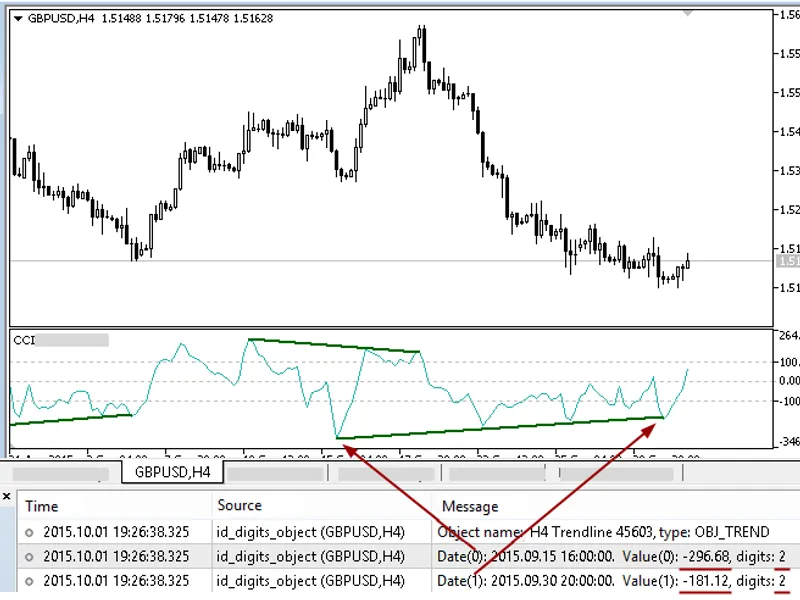
The ID Digits Object Indicator is a Indicator for MetaTrader 5 that clicking on any graphical object triggers this indicator to display specific information in the experts tab of the terminal:- name and type of the clicked object. - Date and values of its anchor points.
Usage
This tool is typically used for enhancing chart analysis and decision making.
Platform
This Indicator works exclusively on MetaTrader 5 (both build 600+ and newer versions).
Setup
Place the downloaded file in MQL5/Indicators folder via File ? Open Data Folder in MetaTrader 5.
How to Install and Use ID Digits Object Indicator
1. Installation: Place your file in the MQL/Indicators folder via "Open Data Folder" and restart your terminal.
2. Loading: Find the indicator in the Navigator, drag it onto your chart, and configure the input parameters in the popup window.
3. Customization: Press Ctrl+I to open the indicator list, select your tool, and click "Properties" to change colors, levels, or visual styles.
4. Updating: Replace the old file in the Indicators folder with the new version and restart the platform to apply changes.
Frequently Asked Questions
Q: Why is my indicator not showing? A: Verify the file is in the MQL/Indicators folder, or try right-clicking the "Indicators" tree in the Navigator and clicking "Refresh."
Q: Do custom indicators slow down the platform? A: Too many complex indicators can impact performance; remove unused ones via the "Indicator List" (Ctrl+I).
Q: Can I use MT4 indicators on MT5? A: No, MQL4 and MQL5 are distinct languages; ensure the indicator is compiled specifically for your platform version.
What this tool does
Clicking on any graphical object triggers this indicator to display specific information in the Experts tab of the terminal:- Name and type of the clicked object.
Typical Use Case
This Indicator excels in automated trading and technical analysis on MetaTrader 5.
Compatible Platform & Setup
This Indicator works on MetaTrader 5. Place the file in the MQL5/Indicators folder and restart the terminal.
Description & Settings
Related: Analysis of Operations: Displaying Graphical Objects and Simplifying Visual Analysis - another powerful indicator for MetaTrader 5 traders.
Clicking on any graphical object triggers this indicator to display specific information in the Experts tab of the terminal:Also recommended: Objective HTF Repeater Indicator with Timeframe Selection - similar indicator with strong performance on MetaTrader 5.
- Name and type of the clicked object.
- Date and values of its anchor points.
- The number of decimal places in these anchor point values.
This indicator is designed to work with graphical objects in the main window and its subwindows, aiding in identifying non-normalized anchor point values by revealing the number of decimal places.
The calculation function for decimal places can be utilized independently in other programs for various purposes.
This indicator is compatible with the following graphical objects:
Indicators in subwindows often display values with a different number of decimal places compared to the main window. This auxiliary program enables the verification of decimal places in anchor point values of graphical objects within indicator subwindows, regardless of the main window's settings.
Fig. 1: Indicator's subwindow with two-digit values on a chart with five-digit quotes.
Fig. 2: Indicator subwindow with six-digit values on a chart with five-digit quotes.
Fig. 3: Elliott Motive Wave anchor point values in a chart's main window.
The ID Digits Object indicator may reveal seemingly unusual differences. For instance, in Fig. 4, a line with five digits is visible on a five-digit quotes chart, but the indicator displays eight digits.
Fig. 4: ID Digits Object has identified a non-normalized value at a horizontal line.
If this occurs when clicking on a programmatically set graphical object, verify the value normalization in the code of the program that created the object. If the object was set manually, its values can be edited as follows:
- In the 'Settings' tab of the object's properties dialog, click on an anchor point value (the top one will suffice).
- Close the properties dialog by clicking 'OK'.
- Click on the object again to confirm normalization using ID Digits Object. Figs. 5 and 6 illustrate these steps.
Fig. 5: Normalizing a manually set object through its properties dialog.
Fig. 6: The same horizontal line with normalized values.
Alternatively, programmatic methods can be employed to normalize anchor point values of manually set objects. For instance, there is an indicator for trend lines, horizontal lines, and Fibonacci levels that not only normalizes values but also rounds them to the desired decimal place if needed.
You may also like: Managing Graphical Objects and Bar Synchronization - excellent alternative for indicator users on MetaTrader 5.
Source Code
/.......
⚠ Limitations & Risk Warning
- This tool is provided for educational and testing purposes only.
- Past performance does not guarantee future results.
- Trading involves substantial risk of loss. Use on a demo account first.
- Results may vary depending on market conditions, broker, and settings.
- We recommend thorough backtesting and forward testing before using with real funds.