A 3 line script that tells you how many bars are on your chart
This professional-grade solution for MetaTrader 5 helps traders achieve greater efficiency in their daily workflow. This script functions as a utility program designed for specific, one-time execution tasks. It is utilized to perform targeted actions, such as closing all open orders, managing chart objects, or executing custom administrative commands on demand.
How to Setup and Use A 3 line script that tells you how many bars are on your chart
1. Installation: Move your script file into the MQL/Scripts directory and restart the platform.
2. Execution: Drag the script onto a chart; it will perform a one-time action, such as closing all open orders or clearing chart objects.
3. Editing: Use MetaEditor (F4) to modify code, click "Compile," and verify no errors appear in the terminal before running.
4. Removing: Scripts stop automatically, but you can remove them manually by right-clicking the chart and choosing "Remove Script."
Frequently Asked Questions
Q: How are scripts different from EAs? A: Scripts execute a single action and then stop; EAs monitor the market and trade continuously.
Q: Can I assign a hotkey to a script? A: Yes, right-click the script in the Navigator, select "Set Hotkey," and define your preferred keyboard shortcut.
Q: Why did my script stop? A: Scripts are designed to stop immediately after finishing their programmed command; this is normal behavior.
Description & Settings
The following code is deceptively simple and straightforward.
And yet it is also quite useful, especially if you would like to know how many bars are on your chart.
This is always going to be equal to or less than any constraint you have specified through Tools/Options/Charts and Max Bars in Chart, of course, and dependent on the data either downloaded from your broker, or uploaded by you, using a custom symbol, for instance.
I use the built-in function in this instance. All you do is drag the script onto the chart, and look in the experts tab of the .
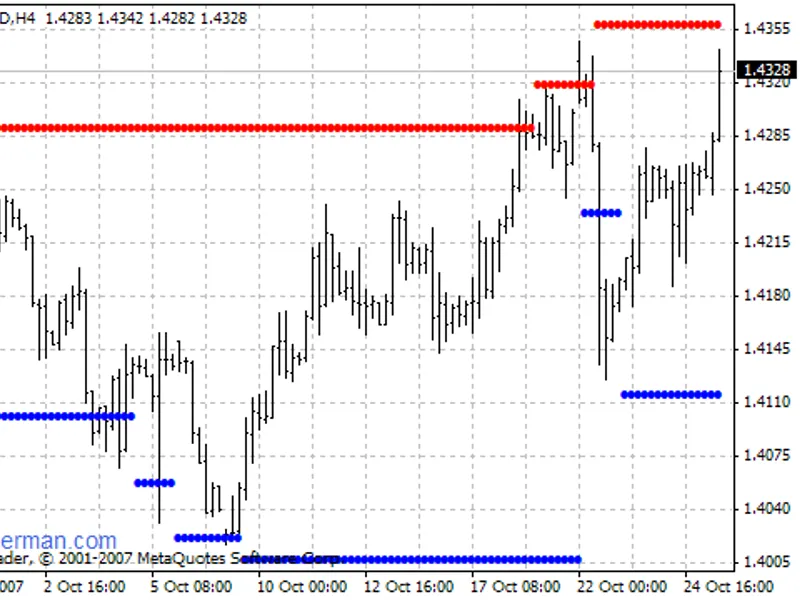
You can also look at the top left corner of the chart window because I added a line