Abiroid Switch Templates Script
This software component for MetaTrader 4 is built to enhance the capabilities of your trading environment. This script functions as a utility program designed for specific, one-time execution tasks. It is utilized to perform targeted actions, such as closing all open orders, managing chart objects, or executing custom administrative commands on demand.
How to Setup and Use Abiroid Switch Templates Script
1. Installation: Move your script file into the MQL/Scripts directory and restart the platform.
2. Execution: Drag the script onto a chart; it will perform a one-time action, such as closing all open orders or clearing chart objects.
3. Editing: Use MetaEditor (F4) to modify code, click "Compile," and verify no errors appear in the terminal before running.
4. Removing: Scripts stop automatically, but you can remove them manually by right-clicking the chart and choosing "Remove Script."
Frequently Asked Questions
Q: How are scripts different from EAs? A: Scripts execute a single action and then stop; EAs monitor the market and trade continuously.
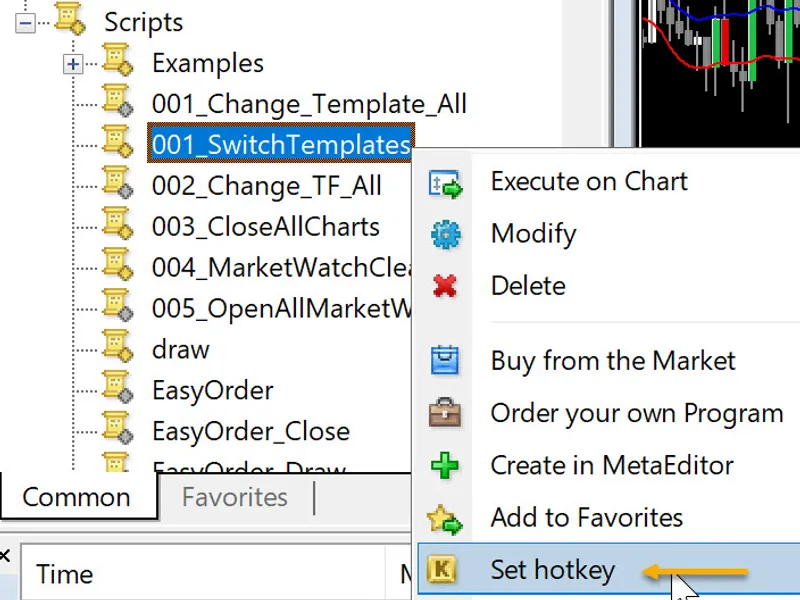
Q: Can I assign a hotkey to a script? A: Yes, right-click the script in the Navigator, select "Set Hotkey," and define your preferred keyboard shortcut.
Q: Why did my script stop? A: Scripts are designed to stop immediately after finishing their programmed command; this is normal behavior.
Description & Settings
Switch sequentially between multiple Templates (as many as you want)
Switch template in current chart OR for all charts Video Tutorial: How to Use:
Open mq4 file in Metaeditor.
Change the template names with any you like. Template names should be comma separated.
extern string Templates = "1.tpl, 2.tpl, 3.tpl"; extern bool ApplyAllCharts = true; // Apply New Template to All Charts
Change 1.tpl and 2.tpl and 3.tpl to your template names. There can be spaces between comma and names for easier reading. Template names can also contain spaces. There should be at least 2 templates for switching to happen.
Just make sure these template files exist in your Data Folder/templates folder. Follow above Script installation for more help.
If you need to apply template to your current chart only change ApplyAllCharts to false. If you need to apply to all charts leave it to true.
Right click the script in your navigator and Set Hotkey. Choose any keys you need. Now you can use this shortcut to keep switching templates.
How It Works:
It uses Global Variables to remember which Template was specific to which Chart ID.
If you want to reset everything, just go to Global Variables and delete all vars starting with "AbiroidTemplate":
Select all and Delete:
Error Codes: Error Code 0: Means no error was returned but something is wrong with MT4. You need to go to Scripts in navigator and right click and press refresh. Or restart MT4. Error Code 5020: Means template tpl file is not found in your "Data Folder/templates" folder