Flexible Momentum for MT5
This tool for MetaTrader 5 is specifically engineered to streamline your trading operations. This technical indicator acts as a specialized analysis tool designed to visualize market data. It helps traders identify emerging trends, momentum shifts, and key support or resistance levels by plotting statistical calculations directly onto price charts.
How to Setup and Use Flexible Momentum for MT5
1. Installation: Place your file in the MQL/Indicators folder via "Open Data Folder" and restart your terminal.
2. Loading: Find the indicator in the Navigator, drag it onto your chart, and configure the input parameters in the popup window.
3. Customization: Press Ctrl+I to open the indicator list, select your tool, and click "Properties" to change colors, levels, or visual styles.
4. Updating: Replace the old file in the Indicators folder with the new version and restart the platform to apply changes.
Frequently Asked Questions
Q: Why is my indicator not showing? A: Verify the file is in the MQL/Indicators folder, or try right-clicking the "Indicators" tree in the Navigator and clicking "Refresh."
Q: Do custom indicators slow down the platform? A: Too many complex indicators can impact performance; remove unused ones via the "Indicator List" (Ctrl+I).
Q: Can I use MT4 indicators on MT5? A: No, MQL4 and MQL5 are distinct languages; ensure the indicator is compiled specifically for your platform version.
Description & Settings
Flexible Momentum (MetaTrader indicator)
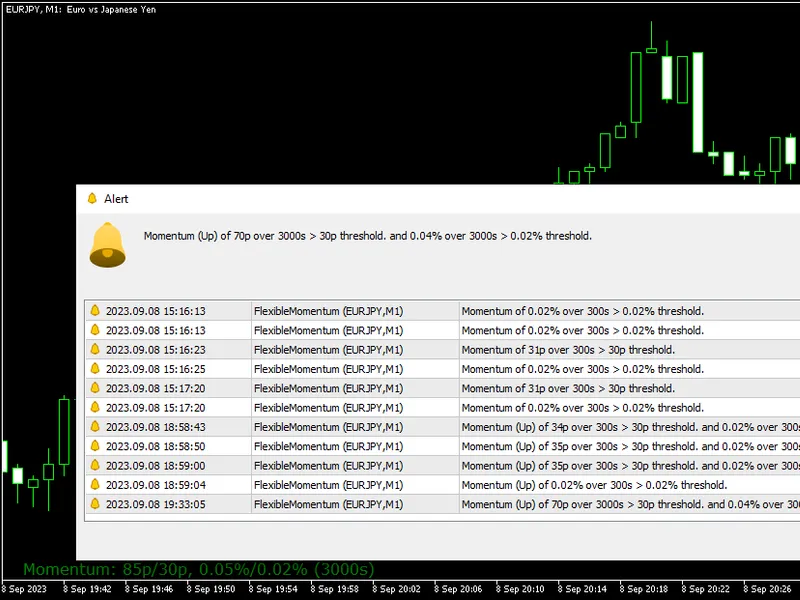
— calculates the change of a currency rate during a given period (in seconds) and displays the result as a number of points and percentage in the main chart window of the platform. It offers highly customizable alerts based on thresholds for maximum momentum in points and percentage. Because this indicator uses ticks history to calculate momentum, it works only in MT5.
The main purpose of this MT5 indicator is to inform you when there is a large price movement in a short period of time. This can be useful both when entering new trades and when you need to decide whether to exit an existing trade.
Input parameters Main
Seconds
(default = 10) — how many seconds to calculate the price change over.
ThresholdPoints
(default = 30) — a threshold in points for alerts to get triggered (if configured).
ThresholdPercentage
(default = 0.02) — a threshold in percentage for alerts to get triggered (if configured).
DiscardIfOlder
(default = 1) — discard calculations if ticks used for calculations are older than the given number of seconds.
PriceToUse
(default = Bid) — the kind of price to use in calculations. Can be Ask, Bid, or Midprice. Alerts
AlertBehaviror
(default = No alerts) — what to do on a threshold breach?
No alerts — nothing.
Single alert until next breach — a single alert will be issued until the momentum declines below the threshold. Works separately for points and percentage thresholds.
Continuous alerts whenever condition is met — if the momentum is above a threshold, issue alerts every tick.
Alert on condition but with time limit on next alert — if the momentum is above a threshold, issue alerts with intervals defined by the next input parameter.
AlertTimeLimitForRestricted
(default = 5) — a pause in seconds until the next alert. Works only if
AlertBehaviror
is set to Alert on condition but with time limit on next alert.
EnableNativeAlerts
(default = false) — if true, a native MetaTrader popup alert will be used when an alert condition is fulfilled. Display
Font Size
(default = 8) — font size for displayed text.
Up Color
(default = clrGreen) — the color of the text when price change is positive.
Down Color
(default = clrRed) — the color of the text when price change is negative.
No Change Color
(default = clrBlue) — the color of the text when there is no change in price or there are not enough ticks.
X Distance for Text
(default = 21) — horizontal distance in pixels from the chosen screen corner to the text.
Y Distance for Text
(default = 20) — vertical distance in pixels from the chosen screen corner to the text.
Text Corner
(default = CORNER_LEFT_LOWER) — chart corner to display the text.
Text Object Name
(default = "FM_Text") — object name for the text with the momentum value.