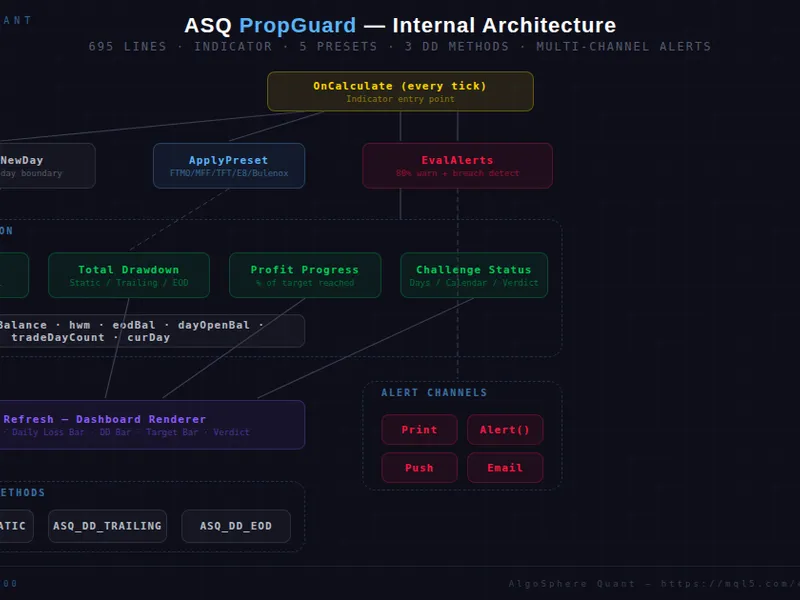
AS Q Prop Guard
This tool for MetaTrader 5 is specifically engineered to streamline your trading operations. This technical indicator acts as a specialized analysis tool designed to visualize market data. It helps traders identify emerging trends, momentum shifts, and key support or resistance levels by plotting statistical calculations directly onto price charts.
How to Setup and Use AS Q Prop Guard
1. Installation: Place your file in the MQL/Indicators folder via "Open Data Folder" and restart your terminal.
2. Loading: Find the indicator in the Navigator, drag it onto your chart, and configure the input parameters in the popup window.
3. Customization: Press Ctrl+I to open the indicator list, select your tool, and click "Properties" to change colors, levels, or visual styles.
4. Updating: Replace the old file in the Indicators folder with the new version and restart the platform to apply changes.
Frequently Asked Questions
Q: Why is my indicator not showing? A: Verify the file is in the MQL/Indicators folder, or try right-clicking the "Indicators" tree in the Navigator and clicking "Refresh."
Q: Do custom indicators slow down the platform? A: Too many complex indicators can impact performance; remove unused ones via the "Indicator List" (Ctrl+I).
Q: Can I use MT4 indicators on MT5? A: No, MQL4 and MQL5 are distinct languages; ensure the indicator is compiled specifically for your platform version.
Description & Settings
Attach the indicator to any chart. Select your prop firm preset or configure custom rules. PropGuard calculates every metric on every tick and alerts you before you breach a limit.
═══ FEATURES ═══ ▸ Firm Presets One-click presets for FTMO, MyFundedFX, The Funded Trader, E8 Funding, and Bulenox. Each preset loads the correct daily loss cap, max drawdown, profit target, minimum trading days, time limit, and drawdown calculation method. Custom mode lets you define everything manually. ▸ Daily Loss Tracking Monitors your session P&L against the daily loss cap. Progress bar fills green → yellow → red as you approach the limit. Remaining dollar amount and percentage displayed in real time. ▸ Max Drawdown Monitoring Three calculation methods: static (from initial balance), trailing (from equity high-water mark), and end-of-day (from previous day's closing balance). The method is selected automatically by preset or manually in custom mode. ▸ Profit Target Progress Shows your total P&L as a percentage of the target, with a progress bar that turns green at 70% and bright green when the target is hit. Remaining amount displayed until "TARGET REACHED!" appears. ▸ Challenge Status & Verdict Tracks trading days (with minimum requirement check), calendar days (with countdown for timed challenges), and renders a live verdict: ON TRACK, AT RISK, TARGET HIT — Need more days, PASSED!, FAILED — LIMIT BREACHED, or FAILED — TIME EXPIRED. ▸ Multi-Channel Alerts ▸ Configurable Day Boundary Set the exact hour and minute for the daily reset in server time. Handles broker servers that roll over at non-midnight times. ▸ Live Dashboard
Dark-themed overlay panel with Consolas font, color-coded progress bars for daily loss, max drawdown, and profit target. All values update on every tick.
═══ IMPORTANT ═══ ⚠ This is an indicator, not an EA. It monitors and displays — it does not place or modify trades. ⚠ The starting balance should be set to your prop firm account's initial balance (e.g., 100000 for a $100K challenge). This is used as the reference for all percentage calculations. ═══ USAGE ═══ 1. Place ASQ_PropGuard_v2.00.mq5 in MQL5/Indicators 2. Compile in MetaEditor 3. Attach to any chart 4. Select your prop firm preset or configure custom rules 5. Set your account starting size 6. Monitor the dashboard and respond to alerts ═══ FILES ═══ ASQ_PropGuard_v2.00.mq5 — Main indicator source (695 lines) ═══ COMPATIBILITY ═══ MetaTrader 5 Build 4000+ Any symbol, any timeframe Works alongside any EA or manual trading —————————————————— AlgoSphere Quant — Precision-engineered trading tools.