
Download ALL MT5 experts (1593)

Similar MetaTrader Tools

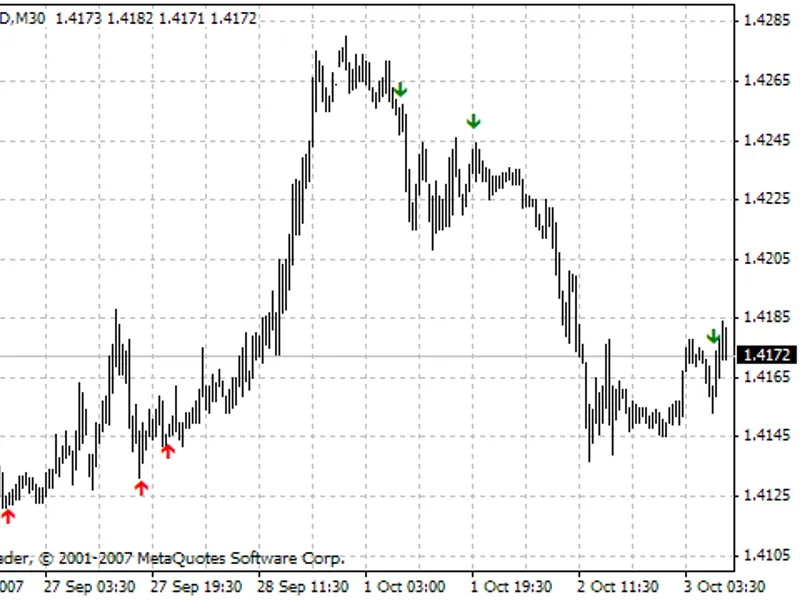








serial ma ea
Info
The serial ma ea is a Expert Advisor for MetaTrader 5 that the expert advisor is based on the indicator. the calculation period of the indicator is constantly increased starting from the intersection of its line with the price until the next intersection.
Usage
This tool is typically used for automated trading on major forex pairs and gold.
Platform
This Expert Advisor works exclusively on MetaTrader 5 (both build 600+ and newer versions).
Setup
Place the downloaded file in MQL5/Experts folder via File ? Open Data Folder in MetaTrader 5.
How to Install and Use serial ma ea
1. Installation: Open the "File" menu, select "Open Data Folder," navigate to MQL/Experts, paste your file, and restart the terminal.
2. Activation: Drag the EA from the Navigator onto a chart, ensure "Allow live trading" is checked in the Common tab, and verify the AutoTrading button is green.
3. Optimization: Right-click your chart, choose "Expert List," click "Properties" to adjust inputs, and save your preferred setup as a set file for future use.
4. Maintenance: Regularly check the "Experts" tab in the terminal window to monitor trade logs and potential execution errors.
Frequently Asked Questions
Q: Why is my EA not opening trades? A: Check the "AutoTrading" button, ensure "Allow live trading" is enabled, and verify your broker allows automated trading on your account type.
Q: Can I run multiple EAs on one chart? A: No, each chart can only host one active EA; however, you can open multiple charts for different currency pairs to run several EAs.
Q: What does the "smiley face" icon mean? A: A smiley face in the top-right corner of the chart indicates the EA is successfully running; a frowny face means it is disabled.
What this tool does
the expert advisor is based on the indicator.
Typical Use Case
This Expert Advisor excels in automated trading and technical analysis on MetaTrader 5.
Compatible Platform & Setup
This Expert Advisor works on MetaTrader 5. Place the file in the MQL5/Experts folder and restart the terminal.
Description & Settings
Related: Fast Trading Panel - another powerful expert for MetaTrader 5 traders.
the expert advisor is based on the indicator.
the calculation period of the indicator is constantly increased starting from the intersection of its line with the price until the next intersection. the indicator calculation starts anew with the minimum value after each intersection.
Also recommended: lotsizer - similar expert with strong performance on MetaTrader 5.
the expert advisor uses this indicator property:if the candlestick closing price on the signal bar is above the indicator line on the signal bar, and the indicator point on the previous bar was located on the indicator line, this is a signal to open a long position.
if the candlestick closing price on the signal bar is below the indicator line on the signal bar, and the indicator point on the previous bar was located on the indicator line, this is a signal to open a short position.
two position opening modes can be selected:
one appropriate position is opened at each signal. the opposite position is closed.
only one position can be opened in one direction. such a position is opened at the first signal. if there is an opposite position, it should be closed upon this signal. all further signals in the same direction will be ignored until an opposite signal emerges - in this case the position will be reversed (swing). the expert advisor is designed for working on hedging accounts. if you launch the ea on a netting account, a warning message will pop up and the ea will be unloaded.
for a correct operation of the expert advisor, save the compiled indicator file
serialma.ex5
to the standard indicators folder in your terminal directory (your terminal directory\mql5\indicators).
the expert advisor allows enabling/disabling long/short positions, as well as reversing indicator signals to open sell instead of buy and vice versa. you can also set stop loss and take profit in points. if invalid stop loss and take profit values are specified, the ea will adjust the values to the minimum
stoplevel
allowed for the symbol.
the expert advisor will also adjust the lot in case an incorrect value is specified. if the lot is too large, the ea will adjust it in order to be able to open a position. if there is no money for opening even the minimum lot, the signal will be skipped.
please note that the expert advisor is designed for training purposes.
the ea has 12 input parameters:
experts magic number
- the unique identifier of the ea's positions;
mode of opening positions
- position opening mode (at each signal or only allow having one position);
long positions is enabled
- enable opening of long positions;
short positions is enabled
- enable opening of short positions;
reverse trade
- choosing the reverse mode (yes, no): if yes, a short position will open upon a long signal and vice versa;
lots
- the volume of positions to open;
stop loss in points
- the stop loss of a position in points;
take profit in points
- the take profit of a position in points;
slippage of price
- maximum allowable slippage when opening a position;
multiplier spread for stops
- spread multiplier applied in the calculation of a proper distance for stop orders (*).
waiting for environment update (in seconds)
- time in seconds to wait for the update of the trading environment (**);
number of attempts to get the state of the environment
- the number of attempts to obtain an accurate trading environment (***). * for stop loss and take profit orders (as well as pending orders), there is a minimum allowed distance for placing such orders -
stoplevel
. i.e. stop loss and take profit (as well as pending orders) cannot be placed closer than this distance to the price. if
stoplevel
is zero, it does not mean its absence, it only means that
stoplevel
is floating. in this case, the minimum distance is usually equal to spread*, but sometimes even the double spread is not enough. so, this parameter allows specifying a custom multiplier for the spread used to calculate the minimum distance for placing stop orders. ** when a trading order is sent to a server, an occasional delay in execution may lead to an incorrect counting of the number of market positions. if such an "undefined" state is detected, the expert advisor waits for the specified number of seconds and then reads the environment again. *** the number of waiting periods within one tick is set in the ea parameters. after taking all allowed attempts to get the accurate environment, the expert advisor exits the processing and waits for the next tick. the ea will repeat these attempts on this new tick if the trading environment fails to update by this time.
the strategy was tested with default settings using data in the interval from 2017.01.04 to 2018.02.09. unfortunately, the ea did not show good results with default settings. therefore, it was tested in the reverse mode. results in the reverse mode were better. the expert advisor receives signals from a dynamically calculated moving average, so there are no parameters for optimization. but you can reflect on what to add to the ea. for example, trailing stops can be applied to open positions.
fig.1,2 testing results.
You may also like: steve cartwright trader camel cc i ma c d - excellent alternative for expert users on MetaTrader 5.
Source Code
/.......
⚠ Limitations & Risk Warning
- This tool is provided for educational and testing purposes only.
- Past performance does not guarantee future results.
- Trading involves substantial risk of loss. Use on a demo account first.
- Results may vary depending on market conditions, broker, and settings.
- We recommend thorough backtesting and forward testing before using with real funds.