
nevalyashka breakdown level
Info
The nevalyashka breakdown level is a Expert Advisor for MetaTrader 5 that trading strategy: the breakout of a high/low in the selected time interval. to recover losing positions, the ea uses the "nevalyashka" strategy and a martingale technique to increase the lot.
Usage
This tool is typically used for automated trading on major forex pairs and gold.
Platform
This Expert Advisor works exclusively on MetaTrader 5 (both build 600+ and newer versions).
Setup
Place the downloaded file in MQL5/Experts folder via File ? Open Data Folder in MetaTrader 5.
How to Install and Use nevalyashka breakdown level
1. Installation: Open the "File" menu, select "Open Data Folder," navigate to MQL/Experts, paste your file, and restart the terminal.
2. Activation: Drag the EA from the Navigator onto a chart, ensure "Allow live trading" is checked in the Common tab, and verify the AutoTrading button is green.
3. Optimization: Right-click your chart, choose "Expert List," click "Properties" to adjust inputs, and save your preferred setup as a set file for future use.
4. Maintenance: Regularly check the "Experts" tab in the terminal window to monitor trade logs and potential execution errors.
Frequently Asked Questions
Q: Why is my EA not opening trades? A: Check the "AutoTrading" button, ensure "Allow live trading" is enabled, and verify your broker allows automated trading on your account type.
Q: Can I run multiple EAs on one chart? A: No, each chart can only host one active EA; however, you can open multiple charts for different currency pairs to run several EAs.
Q: What does the "smiley face" icon mean? A: A smiley face in the top-right corner of the chart indicates the EA is successfully running; a frowny face means it is disabled.
What this tool does
trading strategy: the breakout of a high/low in the selected time interval.
Typical Use Case
This Expert Advisor excels in automated trading and technical analysis on MetaTrader 5.
Compatible Platform & Setup
This Expert Advisor works on MetaTrader 5. Place the file in the MQL5/Experts folder and restart the terminal.
Description & Settings
Related: breakout trading strategy: vr breakdown level - another powerful expert for MetaTrader 5 traders.
trading strategy: the breakout of a high/low in the selected time interval. to recover losing positions, the ea uses the "nevalyashka" strategy and a martingale technique to increase the lot.
Also recommended: breakdown level day - similar expert with strong performance on MetaTrader 5.
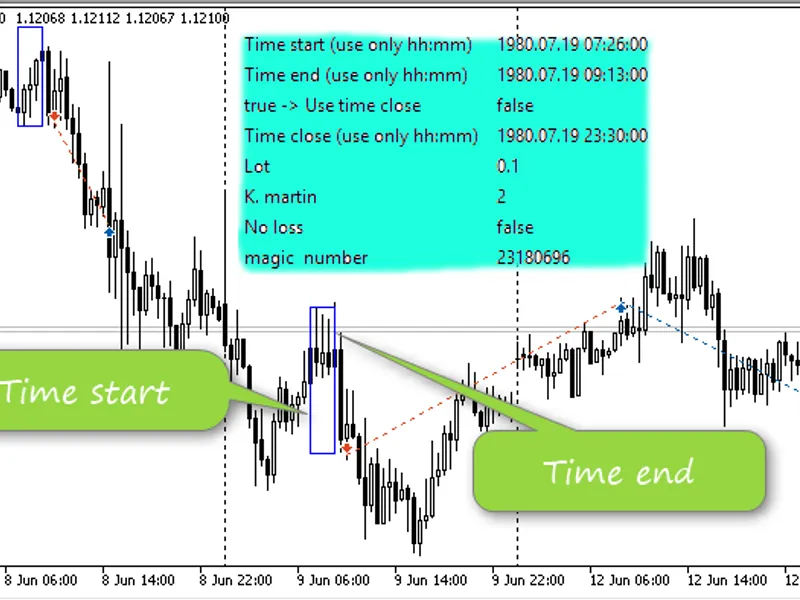
the ea calculates the high and low price in the specified time interval from"time start"
to
"time end"
:
if the price exceeds the high of this period, a buy position is opened. if the price is below the low, a sell position is opened. stoploss is set at an opposite border of the period, i.e. at a low price for buy positions and at a high price for sell positions. takeprofit is set based on the height of the control period.
if "
use time close
" is set to true, the "
time close
" parameter (time to close all positions) will be active.
only hours and minutes are taken into account for parameters
"time start"
,
"time end"
and "
time close
".
closure by stoploss is monitored in ontradetransaction
.
when "deal_entry_out" (en: "entry out") is found, check the comment field of this deal. if the comment contains "sl", it means the deal was closed by stoploss:
open a position opposite to the closed one (if the deal type is "deal_type_sell", then a buy position was closed; "deal_type_buy" means that a sell position was closed), with an increased lot multiplied by
k. martin
. if a position was closed with a positive profit, the expert advisor waits for the start time of the next period
"time end",
and repeats the above procedure.
"no loss"
parameter means the breakeven; when half of position profit is reached, stoploss is moved to the position open price.
example if testing on eurusd,m30:
You may also like: nevalyashka3 1 - excellent alternative for expert users on MetaTrader 5.
Source Code
/.......
⚠ Limitations & Risk Warning
- This tool is provided for educational and testing purposes only.
- Past performance does not guarantee future results.
- Trading involves substantial risk of loss. Use on a demo account first.
- Results may vary depending on market conditions, broker, and settings.
- We recommend thorough backtesting and forward testing before using with real funds.