"MC M Control Panel" for Multicurrency Expert Advisors and Indicators
This is a powerful addition to your MetaTrader 5 toolkit designed to optimize market analysis and performance. This Expert Advisor serves as automated trading software. It is utilized to monitor financial markets and execute trades based on predefined algorithmic rules, enabling precise position management without the need for constant manual oversight.
How to Setup and Use "MC M Control Panel" for Multicurrency Expert Advisors and Indicators
1. Installation: Open the "File" menu, select "Open Data Folder," navigate to MQL/Experts, paste your file, and restart the terminal.
2. Activation: Drag the EA from the Navigator onto a chart, ensure "Allow live trading" is checked in the Common tab, and verify the AutoTrading button is green.
3. Optimization: Right-click your chart, choose "Expert List," click "Properties" to adjust inputs, and save your preferred setup as a set file for future use.
4. Maintenance: Regularly check the "Experts" tab in the terminal window to monitor trade logs and potential execution errors.
Frequently Asked Questions
Q: Why is my EA not opening trades? A: Check the "AutoTrading" button, ensure "Allow live trading" is enabled, and verify your broker allows automated trading on your account type.
Q: Can I run multiple EAs on one chart? A: No, each chart can only host one active EA; however, you can open multiple charts for different currency pairs to run several EAs.
Q: What does the "smiley face" icon mean? A: A smiley face in the top-right corner of the chart indicates the EA is successfully running; a frowny face means it is disabled.
Description & Settings
The one of the benefits of MQL5 language is the possibility to use the multicurrency indicators and Expert Advisors. See in MQL5 .
The use of the concept, proposed in script isn't convenient. For example, in the case of many events, there may be overflow of the events queue.
Here is the note from :
In addition, sometimes it's necessary to perform the recalculation of the indicator's values only when the new bar had appeared. The other case if you need to disable trading "on the fly" on some symbol in multicurrency Expert Advisor, to change the timeframe of some symbol or something else.
The "something else" might be external data. The MCM (MultiCurrency Mode) Control Panel is based on this idea.
By the way, it also can be used in a single currency trading.
It has a minimum number of functions, needed to use the multicurrency mode in Expert Advisors and Indicators:
Add/Remove symbols for trading and analysis.
It allows to track the "new tick" and "new bar" events for any symbol and period.
All the settings can be changed "on the fly" without restart of Expert Advisor or Indicator.
The Panel can be used with our Expert Advisors and Indicators.
Also it can be included in your code, it will be loaded with them.
It's transparent. You don't need to add the code of MCM Control Panel to your Expert Advisors or Indicators.
Using the "MCM Control Panel" you can add your own features. See below for details.
Starting MCM Control Panel
The launch of the "MCM Control panel" can be done in several ways:
Attach the "iControl panel MCM" to the chart.
Launch the "scControl panel MCM" script. The script loads the "iControl panel MCM" indicator.
Load Panel from your Expert Advisor or Indicator. See "exControl panel MCM" for details.
In the 3rd case the Panel will be loaded with our Expert Advisor or Indicator and attached to the chart.
Your Expert Advisor should have OnChartEvent() event handler to proceed the MCM Control Panel events.
Interface
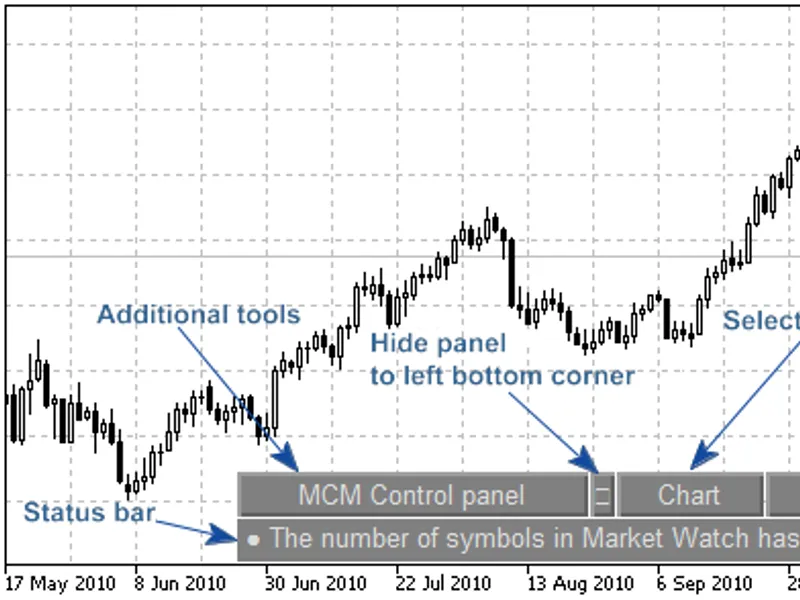
The user interface is simple, it's implemented as a menu. The size and colors of the menu can be configured by input parameters.
It looks as follows:
Design
The Panel is used to configure the events for the muticurrency Expert Advisors and Indicators.
The size and position of Panel is dependent on chart size and font size (defined in input parameters). To free workspace, the Panel can be minimized.
The size of the Panel can be changed by changing the Font size in input parameters (Font size=10 by default):
You can set any colors you want.
For example, the Pink scheme:
The EMO scheme:
Easy to use
The menu is intuitive, it's easy to use.
Using the "Chart" button you can easy to change current symbol and timeframe, just choose it:
The "Events" allows you to enable/disable events "on the fly" (without restart of Expert Advisor or Indicator) for some symbol and specify the event needed. These events can be processed inside the OnChartEvent() function of Expert Advisor or Indicator. The symbols menu contains only symbols, selected from "Market Watch". You can combine any events, all of them will be processed.
For example, it isn't necessary to worry about the appear of the new tick/bar for symbols on timeframes, the Panel engine will send the events:
Here is the "Help":
Know How and its Implementation
My solution is published in , but this Panel has some additional features:
"MCM Control panel MCM" provides the interface, not implemented in client terminal directly. It allows you to use the multicurrency mode via the OnChartEvent() event handler. The other feature is the possibility to change the settings "on the fly".
To generate the events for the OnChartEvent() event handler the MCM Control Panel uses its own "agents" (indicators, launched by MCM Control Panel on some symbol), providing the event for multicurrency trading.
The Panel can be inlcuded in Expert Advisors or Indicators.
The MCM Control panel provides new possibilities for MQL5 developers.
IMHO, the Panel is an example of a new structure of Expert Advisors and Indicators. I will provide few examples later.
Information about events and alerts
The Panel has a status bar to show events.
Installation of MCM Control Panel
Unpack the archive file mcm_control_panel.zip in the folder of client terminal. After that the following files will appear:
/mql5/experts/exControl panel MCM.mq5 - example of Expert Adivor;
/mql5/scripts/scControl panel MCM.mq5 - example of Script;
/mql5/indicators/iControl panel MCM.mq5 - indicator, the main "MCM Control panel" engine;
/mql5/indicators/Spy Control panel MCM.mq5 - indicator, "MCM Control panel" agent
/mql5/include/Control panel MCM.mqh - a set of "MCM Control panel" classes and functions.
The next, compile the Indicators, Script and Expert Advisor.
Launching MCM Control Panel
The launch of MCM Control Panel attach the iControl panel MCM.mq5 indicator to any chart.
The Panel can be launched from Expert Advisor, just attach the "exControl panel MCM" Expert Advisor to the chart:
As example of multicurrency, I wrote the MultiTrend Expert Advisor. The indicator plots the USD trend, based on analysis of 4 currency pairs:
Here is the code:
The OnChartEvent() parameters.
The Control Panel generates custom events. These events can be processed in Expert Advisor or Indicator using the OnChartEvent() event handler.
The input parameters:
id - event id: if id-CHARTEVENT_CUSTOM !=0 - it equal to symbol index in "Market Watch" windiow;
lparam - event flag. See the ENUM_CHART_EVENT_SYMBOL enumeration in Control panel MCM.mqh.
dparam - tick price or opening price of the new bar on some timeframe.
sparam - symbol name
List of events, supported in MCM Control panel
"Initialization" event (Initialization);
"New tick" event (tick);
"New bar" event on M1 chart (M1);
"New bar" event on M2 chart (M2);
"New bar" event on M3 chart (M3);
"New bar" event on M4 chart (M4);
"New bar" event on M5 chart (M5);
"New bar" event on M6 chart (M6);
"New bar" event on M10 chart (M10);
"New bar" event on M12 chart (M12);
"New bar" event on M15 chart (M15);
"New bar" event on M20 chart (M20);
"New bar" event on M30 chart (M30);
"New bar" event on H1 chart (H1);
"New bar" event on H2 chart (H2);
"New bar" event on H3 chart (H3);
"New bar" event on H4 chart (H4);
"New bar" event on H6 chart (H6);
"New bar" event on H8 chart (H8);
"New bar" event on H12 chart (H12);
"New bar" event on daily chart D1);
"New bar" event on weekly chart (W1);
"New bar" event on monthly chart (MN1);
The event description, returned by EventDescription() is presented in brackets (Initialization, tick, Mxx etc). The EventDescription function can be found in Control panel MCM.mqh (following the ENUM_CHART_EVENT_SYMBOL enumeration).
The "Initialization" event generated when prev_calculated=0, it can be used to prepare the data, for example, you can recalculate the indicator values.
Setting Events
To set the events needed, click on the "Events" button, select the symbol and event type. The selected events are shown in yellow (or Selected color in input parameters of the indicator) color. You can choose one or more events, all them will be can be processed by our multicurrency Expert Advisor. To apply changes, click on the "Enable/Disable events" button.
The same process can be done for all necessary symbols.
Here is a log from "Experts" tab: