FA T PA N E L
This is a powerful addition to your MetaTrader 5 toolkit designed to optimize market analysis and performance. This Expert Advisor serves as automated trading software. It is utilized to monitor financial markets and execute trades based on predefined algorithmic rules, enabling precise position management without the need for constant manual oversight.
How to Setup and Use FA T PA N E L
1. Installation: Open the "File" menu, select "Open Data Folder," navigate to MQL/Experts, paste your file, and restart the terminal.
2. Activation: Drag the EA from the Navigator onto a chart, ensure "Allow live trading" is checked in the Common tab, and verify the AutoTrading button is green.
3. Optimization: Right-click your chart, choose "Expert List," click "Properties" to adjust inputs, and save your preferred setup as a set file for future use.
4. Maintenance: Regularly check the "Experts" tab in the terminal window to monitor trade logs and potential execution errors.
Frequently Asked Questions
Q: Why is my EA not opening trades? A: Check the "AutoTrading" button, ensure "Allow live trading" is enabled, and verify your broker allows automated trading on your account type.
Q: Can I run multiple EAs on one chart? A: No, each chart can only host one active EA; however, you can open multiple charts for different currency pairs to run several EAs.
Q: What does the "smiley face" icon mean? A: A smiley face in the top-right corner of the chart indicates the EA is successfully running; a frowny face means it is disabled.
Description & Settings
This graphic panel allows to automate manual trading. It has many functions, including the visual construction of trading strategies.
The automated trading is popular among the traders. But not all traders are programmers, the creation of the Expert Advisor with some trading strategy requires the knowledge of basic programming skills in MQL5. The visual panels allows to simplify trade operations, however, the implementation of the simple trading algorithm requires the writing of code or to find to the programmer who will implement the algorithm.
The First Algorithmic Trading (FAT) Panel 0.2
allows you to create the automated trading strategies without writing the code.
The FAT Panel 0.2 has convenient user interface: the tabs with visual tools, the properties window, checkboxes, radiobuttons, scroll and zoom.
"Algorthm" tab
Workspace for the visual creation of the Expert Advisor algorithm
Ready logical blocks, combined by purpose.
Values of indicators can be used as input parameters, also it has some additional signal blocks (bid, constants)
4 logical blocks of the signal operation processing
4 state blocks (time range, week days, the presence of opened positions)
3 logical operations (AND, OR, NOT)
2 order blocks (buy, sell)
Intuitive operation of addition, the selection, handling, connections, move and delete groups of blocks
Checking of inputs and outputs for compatibility
Parameters of each block can be configured
Creation of muticurrency trading strategies
Zoom and scrolling of the workspace
Save/load trade algorithm and settings
The scheme will work even if the logical blocks added or excluded
History backtesting with saved scheme
Input parameters of the blocks can be used for optimization in Strategy Tester
Visual control
Future plans:
Extension of the indicators list
Extension of the behaviour blocks (sound notification, graphic objects on the chart, etc)
Workspace optimization
New scheme storage format
Integrated logical blocks with built-in algorithms and settings
Installation:
Extract the contents of the archive to the client terminal folder. Open MetaEditor (press F4 in terminal) and compile the indicator, located in MQL5/indicators/fatpanel and Expert Advisor, located in MQL5/Experts/fatpanel. Attach the Expert Advisor to the chart (Allow the use of DLLs).
Creating Trading algorithm:
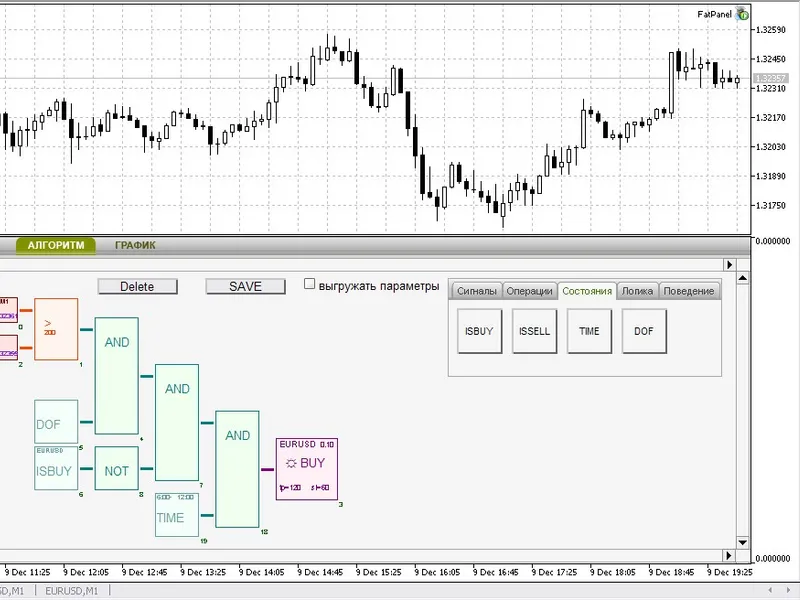
The simpliest trading scheme can be created using 4 logical blocks. To add some logical block to workspace, you need to click at block and next click at the specified place on the workspace. Let's add the "Buy" block from the "Behaviour" tab, "MA" and "Bid" blocks from the "Signals" tab and ">" block from the "Operations" tab.
It will look like this one:
Now it's time to connect the blocks.
If you click the block, you will see the blue rectange, it means that block is selected. Now you can move it at any place on the workspace. If you drag the block on the other block, it will try to connect them automatically. Let's connect the signal blocks with ">" operation block, and operation block with order block.
All logical blocks has inputs and outputs, the incorrect connection of blocks is impossible. To delete block, you need to select it and click on the "Delete" button. To configure block properties, click it when selected (or double click the unselected logical block).
Let's set the ">" block parameters.
Let's set tp=120 and sl=60 for "Buy" block. After that let's enable the work of the scheme. If you enable the "AutoTrading", the Expert Advisor will start trading.
Attention! It isn't recommended to test the work of the Expert Advisor on real accounts!
In our case, the Expert Advisor will place orders if the distance between moving average and Bid price is higher, than 200 points.
History backtesting
:
To test the strategy on historical data, you need to save the scheme by click the "SAVE" button.
Next, select "Fatpanel/FatPanel.ex5" in Strategy Tester of the client terminal. The symbol and period aren't important, the Expert Advisor will trade on the strategy symbols, specified in order blocks or a timer.
Now it's time to look at the strategy results. If we specify 300 instead on 200 in our operations block of the scheme, the result looks as follows (2010):
2. "Chart" tab
The Chart tab provides the information on symbols and opened positions and allows the manual trading.
the symbols located in tabs
easy position management
close position (if position exceeds the maximal trade volume, the position will be closed using several trade requests)
the color of the symbol tab is dependent on current profit of the opened position.
it checks the parameters and show warnings messages.
easy placement of pendng orders