
Download ALL MT4 indicators (1640)

Similar MetaTrader Tools








tap4 fibs
Info
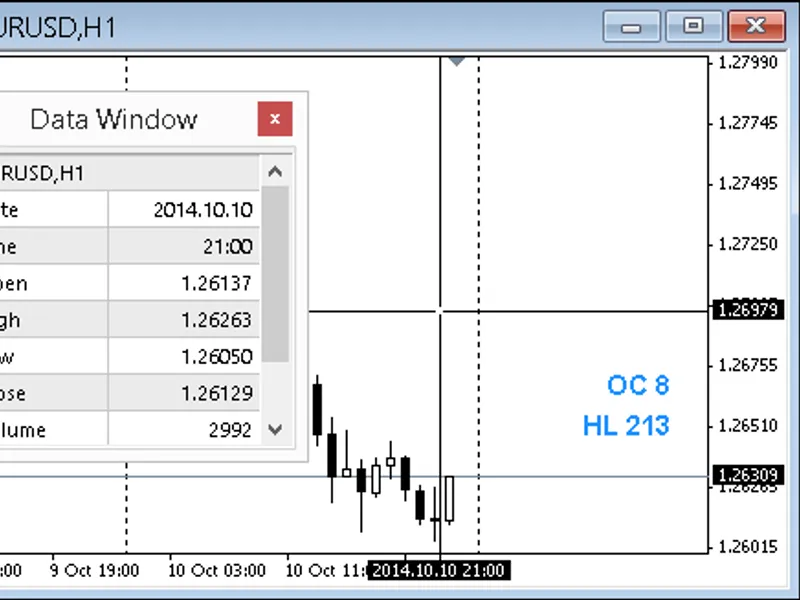
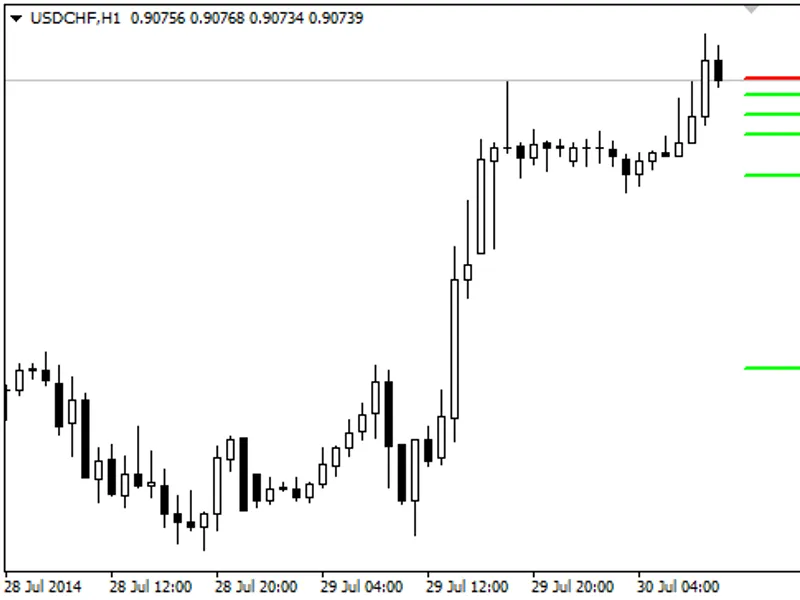
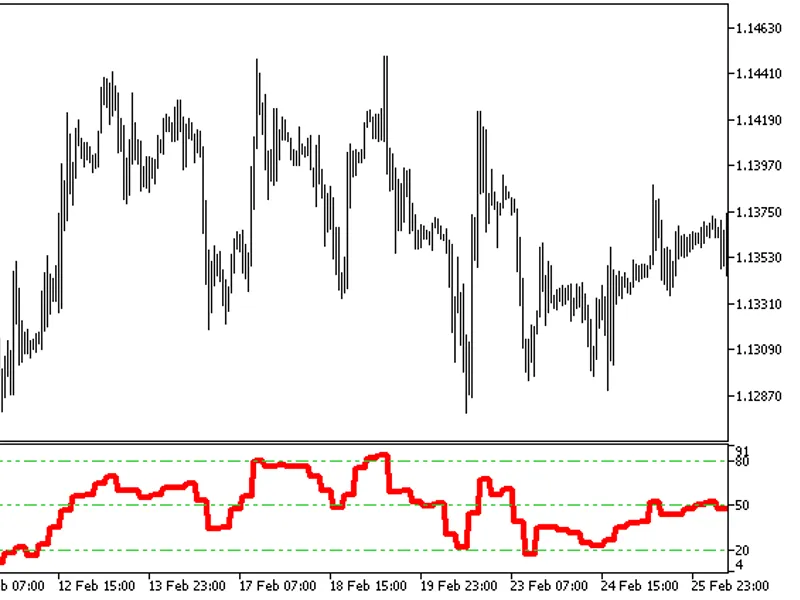
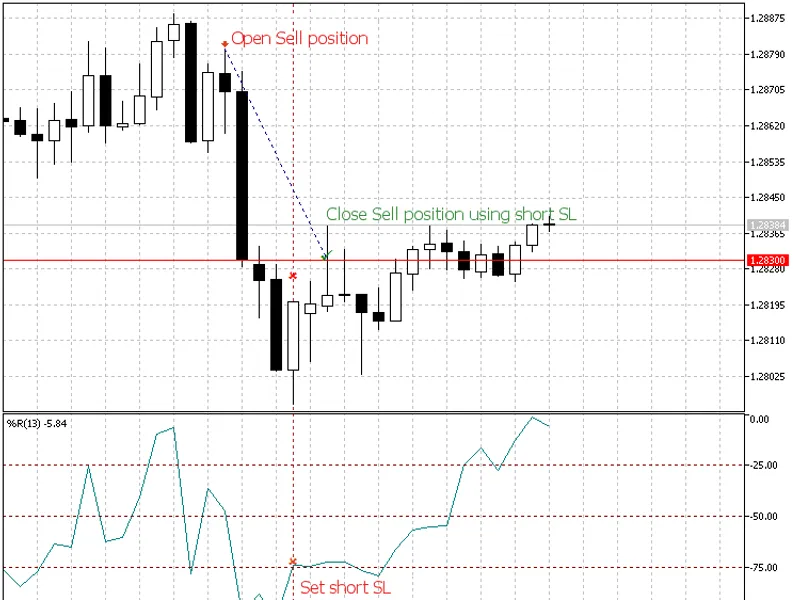
The tap4 fibs is a Indicator for MetaTrader 4 that creates fibonacci levels based on the zigzag indicator. tap the "x" or "z" key to scroll through each swing in the zigzag, to the right or to the left.
Usage
This tool is typically used for enhancing chart analysis and decision making.
Platform
This Indicator works exclusively on MetaTrader 4 (both build 600+ and newer versions).
Setup
Place the downloaded file in MQL4/Indicators folder via File ? Open Data Folder in MetaTrader 4.
How to Install and Use tap4 fibs
1. Installation: Place your file in the MQL/Indicators folder via "Open Data Folder" and restart your terminal.
2. Loading: Find the indicator in the Navigator, drag it onto your chart, and configure the input parameters in the popup window.
3. Customization: Press Ctrl+I to open the indicator list, select your tool, and click "Properties" to change colors, levels, or visual styles.
4. Updating: Replace the old file in the Indicators folder with the new version and restart the platform to apply changes.
Frequently Asked Questions
Q: Why is my indicator not showing? A: Verify the file is in the MQL/Indicators folder, or try right-clicking the "Indicators" tree in the Navigator and clicking "Refresh."
Q: Do custom indicators slow down the platform? A: Too many complex indicators can impact performance; remove unused ones via the "Indicator List" (Ctrl+I).
Q: Can I use MT4 indicators on MT5? A: No, MQL4 and MQL5 are distinct languages; ensure the indicator is compiled specifically for your platform version.
What this tool does
creates fibonacci levels based on the zigzag indicator.
Typical Use Case
This Indicator excels in automated trading and technical analysis on MetaTrader 4.
Compatible Platform & Setup
This Indicator works on MetaTrader 4. Place the file in the MQL4/Indicators folder and restart the terminal.
Description & Settings
Related: camarilla alert with fibs - another powerful indicator for MetaTrader 4 traders.
creates fibonacci levels based on the zigzag indicator. tap the "x" or "z" key to scroll through each swing in the zigzag, to the right or to the left. it can measure multiple fibs very quickly.
Also recommended: ima fibs indicator - similar indicator with strong performance on MetaTrader 4.
scroll with "x" to the right until the fib is off-screen to hide it from the chart. tap "z" to bring it back.once on the chart, the fib can be selected and dragged, or extended to anywhere on the chart. it will remain until a scroll key is pressed or a new candle is added to the chart. users can also open the fibo properties panel to add or delete levels on the fly.
multiple instances can be used by changing the input; "fibo name" for each instance.
the indicator will print key numbers when pressed, that can be found in the terminal >> "experts" tab. enter the new key numbers into the settings; "back key" and "forward key" to choose your own keys for scroll right and left, for each instance of the indicator.
there is a helpful atr value in the upper left of the chart that can be turned on or off.
fibo name - string value to name the fibo object on the chart. each instance requires a unique name.
zigzag depth - set the depth of the zigzag seach from the current candle.
zigzag deviation - set the deviation for extreme highs and lows.
zigzag backstep - set the # of candles in the back step.
zigzag swing - set how many swings it will scroll through before returning to zero.
shift swing offset - set how many swings to the left is the first swing to jump to. for use when you want 2 fibs to scroll together.
line color - set the color of the fibo trend line.
levels color - set the color of the fibo levels.
ray - choose true to extend fibo levels to the right edge of the chart.
level 1 thru 10 - set the fibo levels as percentages of the swing. positive are retracements, negative are extensions.
show atr value - choose true to show the atr value as a comment at the top left of the chart.
atr period - set the timeframe period for the atr calculation, in minutes. 1, 5, 15, 30, 60, 240, 1440, etc...
atr shift - set the # of candles shifted from the current candle, for the atr calculation.
inputs
first swing
second swing
third swing
, etc...
You may also like: auto day fibs - excellent alternative for indicator users on MetaTrader 4.
Source Code
#property copyright "robotfx"
#property link "https://robotfx.org"
#property version   "1.00"
#property strict
#property indicator_chart_window
input string   inpname           = "fib_01";       // fibo name
input int      inpdepth          = 4;              // zigzag depth
input int      inpdeviation      = 5;              // zigzag deviation
input int      inpbackstep       = 2;              // zigzag backstep
input int      inplegsback       = 6;              // zigzag swing - tap back key or forward key
.......
⚠ Limitations & Risk Warning
- This tool is provided for educational and testing purposes only.
- Past performance does not guarantee future results.
- Trading involves substantial risk of loss. Use on a demo account first.
- Results may vary depending on market conditions, broker, and settings.
- We recommend thorough backtesting and forward testing before using with real funds.