Making Screen Shot
This is a powerful addition to your MetaTrader 4 toolkit designed to optimize market analysis and performance. This script functions as a utility program designed for specific, one-time execution tasks. It is utilized to perform targeted actions, such as closing all open orders, managing chart objects, or executing custom administrative commands on demand.
How to Setup and Use Making Screen Shot
1. Installation: Move your script file into the MQL/Scripts directory and restart the platform.
2. Execution: Drag the script onto a chart; it will perform a one-time action, such as closing all open orders or clearing chart objects.
3. Editing: Use MetaEditor (F4) to modify code, click "Compile," and verify no errors appear in the terminal before running.
4. Removing: Scripts stop automatically, but you can remove them manually by right-clicking the chart and choosing "Remove Script."
Frequently Asked Questions
Q: How are scripts different from EAs? A: Scripts execute a single action and then stop; EAs monitor the market and trade continuously.
Q: Can I assign a hotkey to a script? A: Yes, right-click the script in the Navigator, select "Set Hotkey," and define your preferred keyboard shortcut.
Q: Why did my script stop? A: Scripts are designed to stop immediately after finishing their programmed command; this is normal behavior.
Description & Settings
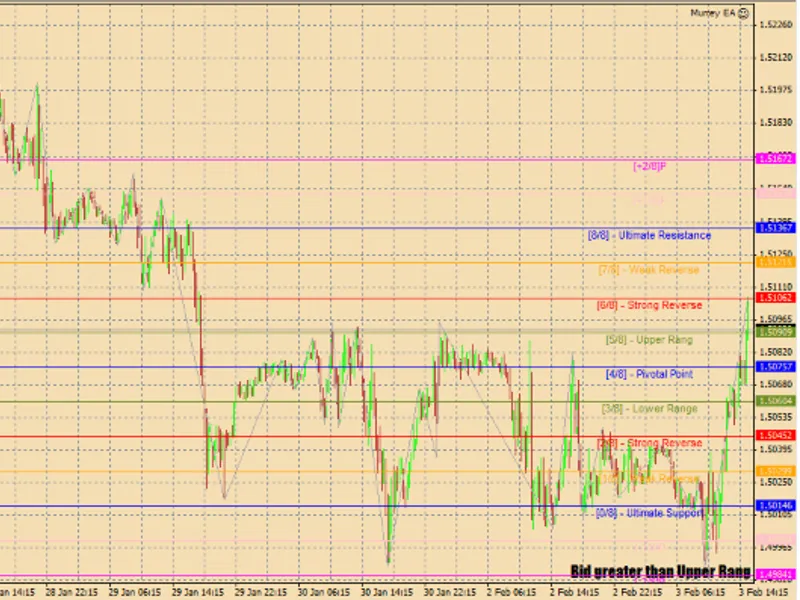
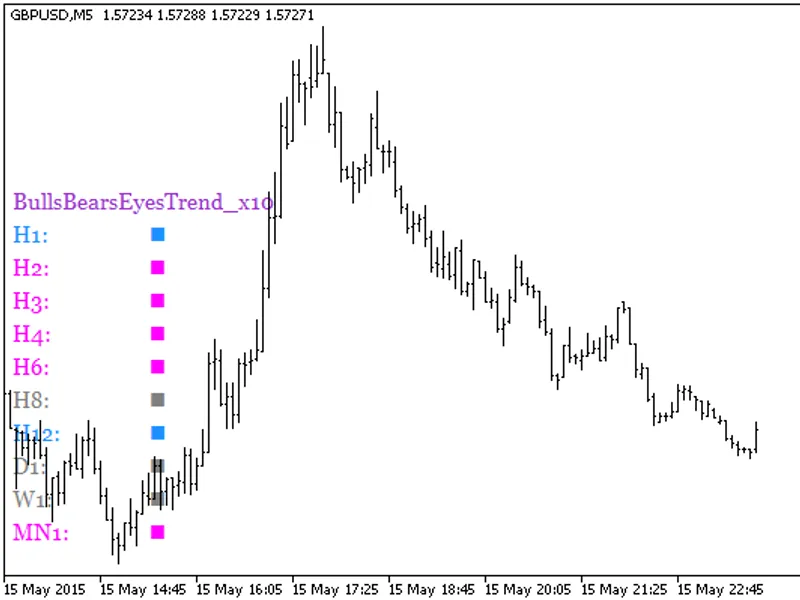
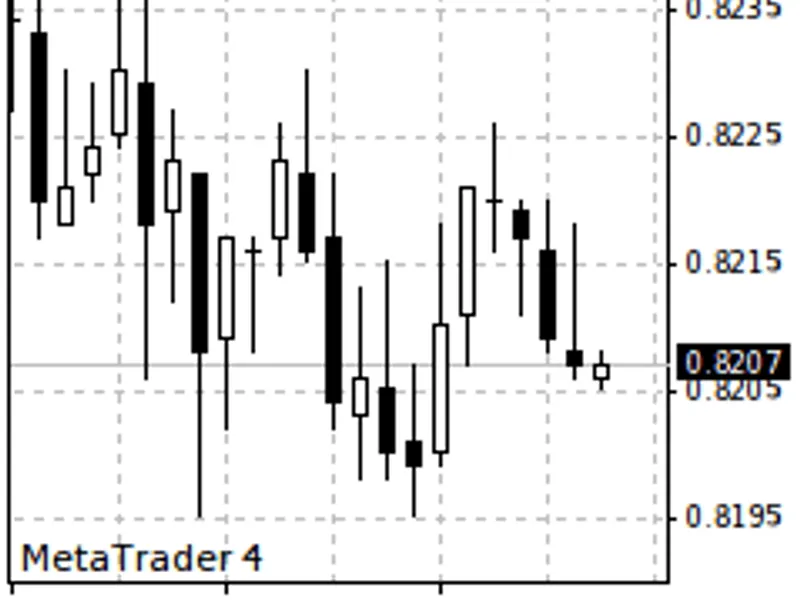
The script will create a gif image section of the chart in the root directory of the program (MQL4/Files/ScreenShots).
If successful, the file creation works beep. Create a screen name, you can simply drag the script from the browser to the chart.
Continue the whole area between the extreme lower right corner of the graph and the mouse cursor. Windows indicators are also included.
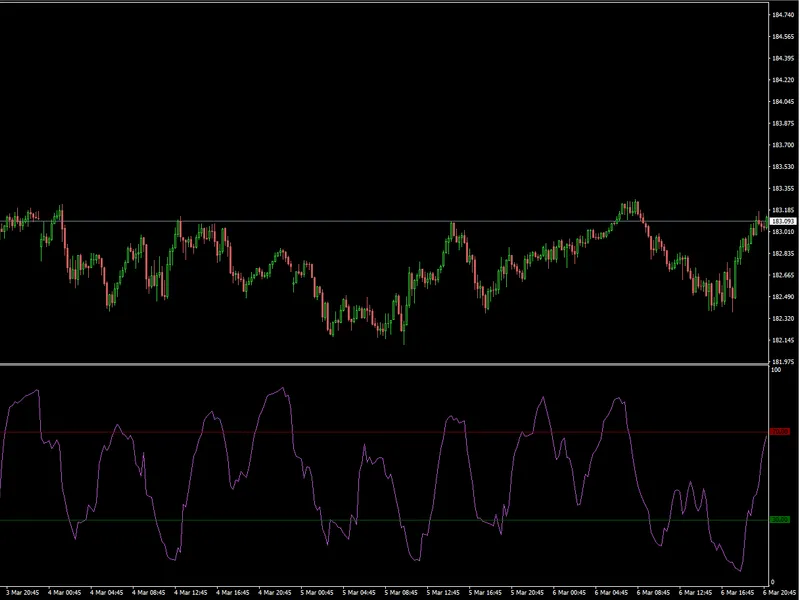
Images:
Image sizes can be very different:
Indicators are also displayed correctly:
Tips:
If you interfere with the audio signal, it can simply be removed by changing the source code:To do this, open the editor MetaEditor, open the script there and find these lines:
//#property show_inputs - if you want every time to change these settings, then remove the first two forward slashes
input string dir="//ScreenShots/"; - You can specify a folder, but necessarily in the program directory
input bool play_sound=true; - if you do not need a sound, change the true to false
This script can not take pictures with the middle of the chart. You can take pictures only at its end. Since the right boundary of the picture - the current date and time.